The StockAI API
Connect your ERP, your point of sale or your own system to StockAI with an API key: the same work you do in the app, without anyone opening it.
On this page
The API lets another system do what you would do by hand: upload the sales export, ask for a recalculation, read the stock signal and log the purchase order. This page explains how it works without code; the full reference, endpoint by endpoint with examples, is in the developer documentation.
API keys
You create a key under Automation, on the "API Keys" tab, with "Generate key". Give it a name you will recognise (for example "ERP integration") and choose what it can do:
- Read only
- Acts as a read-only user: it reads the stock signal, the forecasts, your data sources and a training run's status, and changes nothing.
- Read and write
- Acts as an analyst: it can also upload files, queue trainings and log purchase orders.
The full key starts with sk_live_ and is shown only once, when you create it. StockAI keeps it nowhere it can be read back: if you lose it, create another and revoke the old one. Revoking is immediate; whatever was using that key stops working on its next call.
Making a call
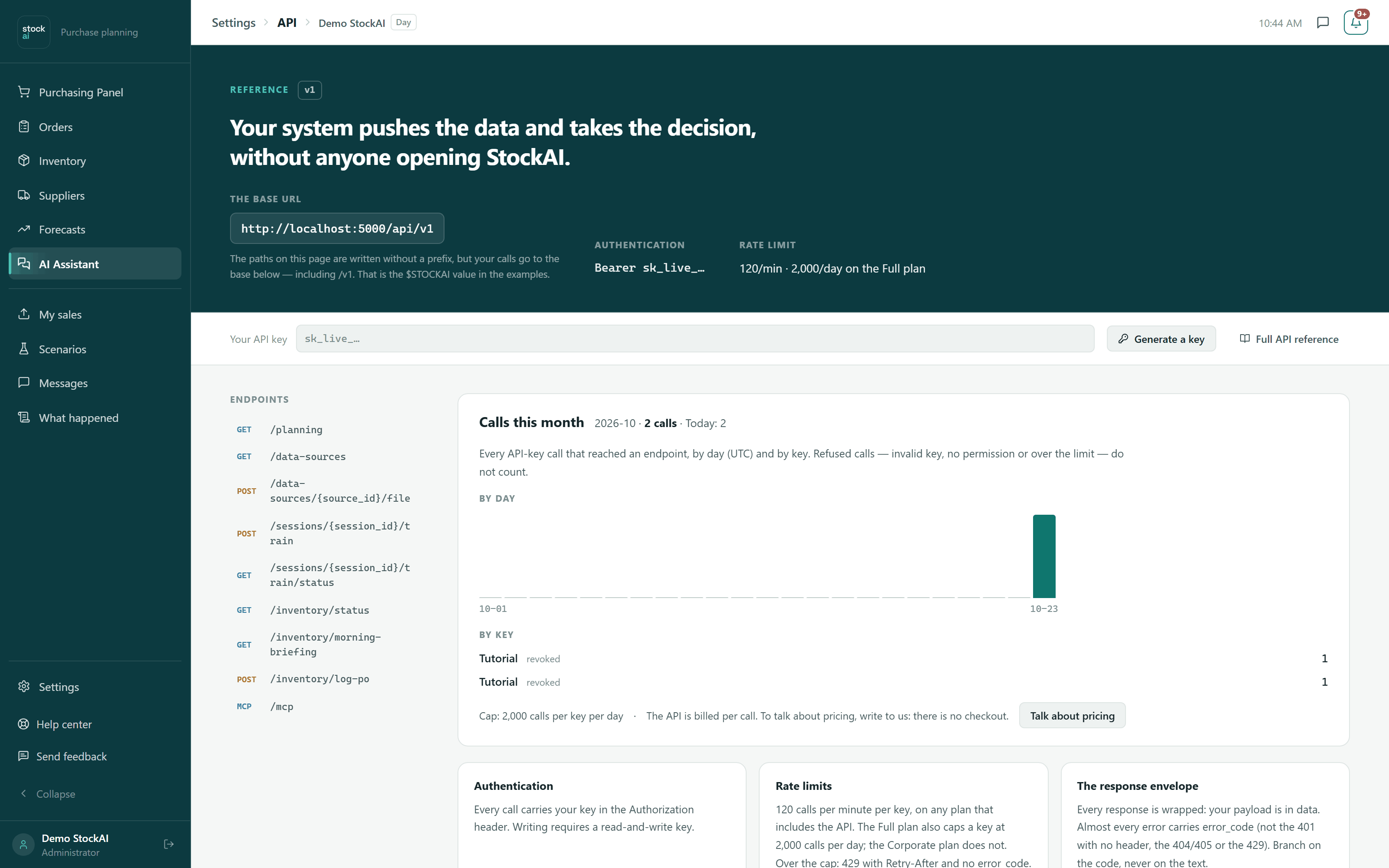
Every route hangs off /api/v1 on your installation's domain, and the key goes in the Authorization header:
curl https://<your-domain>/api/v1/planning \
  -H "Authorization: Bearer sk_live_..."
That call returns active_session_id, the run the stock signal is computed from today. Ask for it every time rather than storing it: it changes whenever a new run trains.
Successful responses carry your content inside data. Errors carry a stable error_code and an English sentence in detail. If your system has to decide what to do about an error, let it decide on error_code: the wording can change, the code does not.
Limits and usage
- 120 calls per minute per key, on every plan that includes the API.
- Past a limit you get a
429with aRetry-Afterheader saying how many seconds to wait before retrying. - Every call that passes all checks adds one to that key's daily usage. Refused calls do not count. An administrator sees usage by key and by day on the API screen.
What a key can and cannot do
A key can do almost everything you do in the app: inventory, suppliers, forecasts, data sources, trainings, scenarios, purchase orders and receptions. Some things are never reachable with a key, on purpose, because they belong to a person and not to a system:
- Signing in, users and roles, and the API keys themselves.
- Personal preferences, team messages and conversations with the assistant.
- Exporting or deleting the account, and the installation's configuration.
- The stock signal rules, marking an order as paid, and cancelling or reopening an order.
Try one and the answer is api_key_route_not_exposed: "This cannot be done with an API key (users, keys, configuration or account deletion). Do it in the app." A read-only key that tries to write gets api_key_scope_insufficient.
Trying it without writing code
The app's API screen is both a guide and a console: it shows your installation's "The base URL", has a "Your API key" field where you paste the key (it lives only in that tab) and, on each call, a "Run" button that really runs it against your account and shows the response, plus an "Example" with the same call written as curl.
An integration's typical loop
- Create a "Read and write" key.
- Call
GET /planningto learn which run is active. - Upload the latest sales export onto the source you already use.
- Queue the recalculation (or let a schedule do it) and poll its status until it reads
COMPLETED. - Read the stock signal and build the order from the signal and the recommended quantity.
- When the order really goes out, log it in StockAI. Without that record the order does not exist for StockAI, and your suppliers' real lead time is never learned.
If what you want is not a system running on its own but asking an AI assistant what to buy, see MCP.