Purchasing panel, step by step
The screen where you decide what to buy today: review each recommendation, approve or reject it, adjust quantity and supplier, and save the purchase order in one click.
On this page
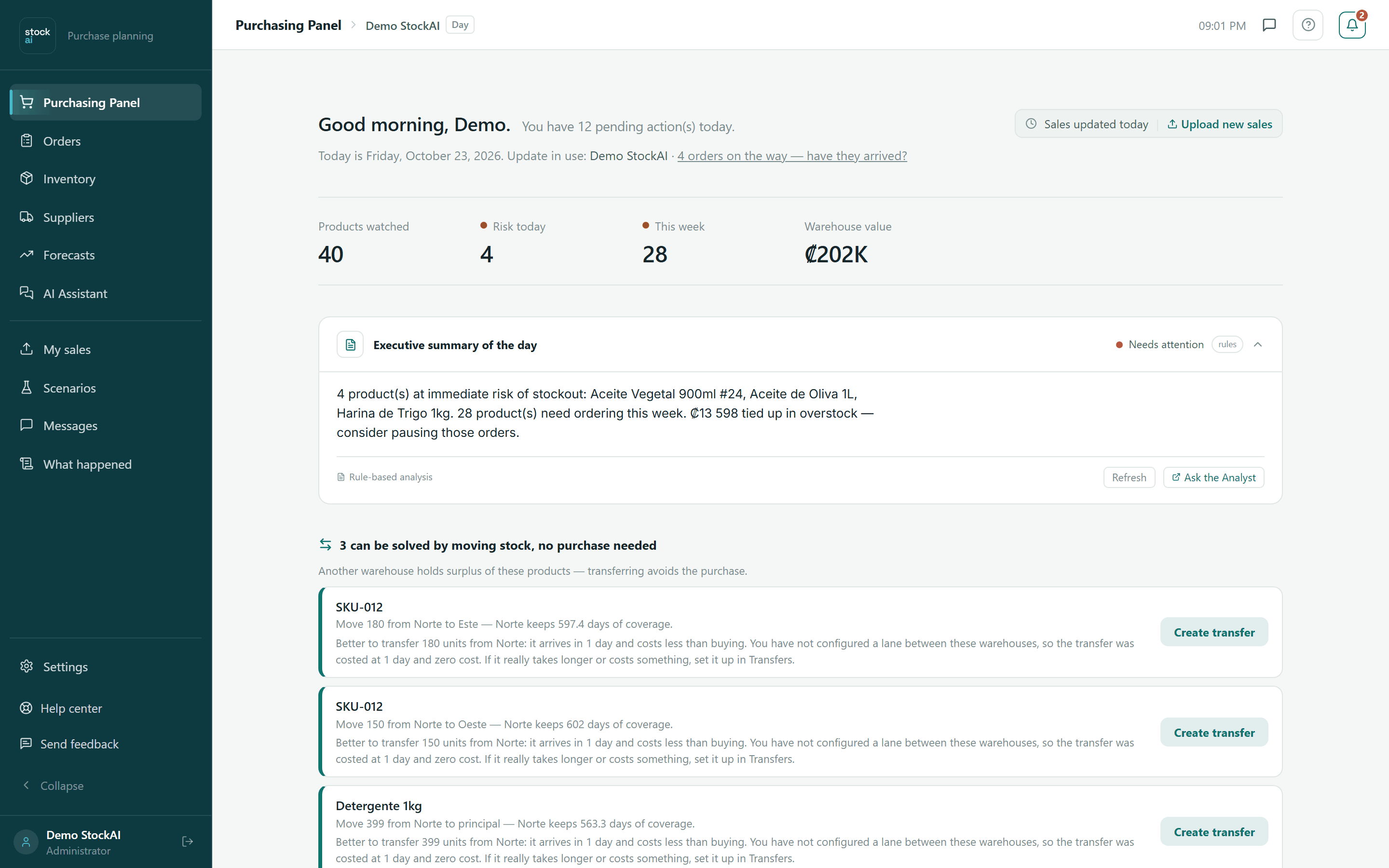
The Purchasing Panel is the first item in the sidebar and the screen the app opens on. It combines the demand forecast of the update in use with the stock you have on file and leaves you a short list of decisions: what to order today, what can wait until this week, how much and from whom.

Before you have data
If your company has no trained update yet, the panel shows no figures: it shows "You don’t have data yet" with two ways forward.
- Upload my sales history
- Takes you to My sales to load your sales file.
- Try it with demo data
- Loads sample sales for 5 products without touching your data.
- No stock loaded yet
- Shown when there is a forecast but no product has stock. "Go to Inventory" takes you to record it: no stock, no traffic light.
The header
- Good morning, {name}.
- The greeting. Next to it, "You have N pending action(s) today." counts the lines you have not decided yet.
- Today is … · Update in use
- The date and the name of the sales upload the whole screen was computed from.
- N deliveries to confirm · Confirm
- Shown when orders are past their expected arrival date. "Confirm" opens the arrival form of the first one (the same one as in Orders).
- N orders on the way — have they arrived?
- When none is late but some are open, this link takes you to Orders.
- Data freshness
- On the right, the label saying when your stock and sales were last updated.
If your stock or sales have gone too long without an update, the line "The signal is out of date" appears with the days and the "Update my stock" and "Upload this month's sales" links. The X hides it in this browser tab only; under the indicators the note "These figures are computed on out-of-date data" stays.
The four indicators
- Products watched
- How many products the update in use covers.
- Risk today
- Products in Order now (with a red dot when there is any).
- This week
- Products in Order soon.
- Warehouse value
- Stock times unit cost. Shows "—" when no product has a cost: the value is unknown, not zero.
If some products have no stock on file, a line below says how many are left out ("{n} of {total} are not counted") with the "Record the stock for these products →" link. If none is counted, Risk today and This week show "—" instead of 0.
Executive summary of the day
A paragraph that tells the situation in words. Your company’s AI assistant writes it; if it does not answer in time (11 seconds) or no assistant is configured, you see a rule-based version built from the same figures. The refresh button in the box asks again and the link opens the AI assistant.
Transfers before purchases
If you have two or more warehouses and another warehouse holds surplus of a product, "N can be solved by moving stock, no purchase needed" appears before the purchases. Each line says how much to move, from where to where, and how much coverage the source warehouse keeps. Three are shown and "Show N more" opens the rest.
- Read the line: "Move 40 from North Warehouse to Central Warehouse — North Warehouse keeps 12 days of coverage".
- Click "Create transfer".
- The line changes to "In transit": the stock has left the source warehouse and counts as on the way for the destination.
- When it arrives, log it in Orders, "Transfers" tab.
Purchase budget
The "Purchase budget" box caps what gets ordered in a period and tells you what to order first when the recommendations cost more than what is left. With no budget in force it says "No budget is in force…" (a viewer does not see the box in that case). It is a guide only: it creates no orders and changes no recommended quantity.
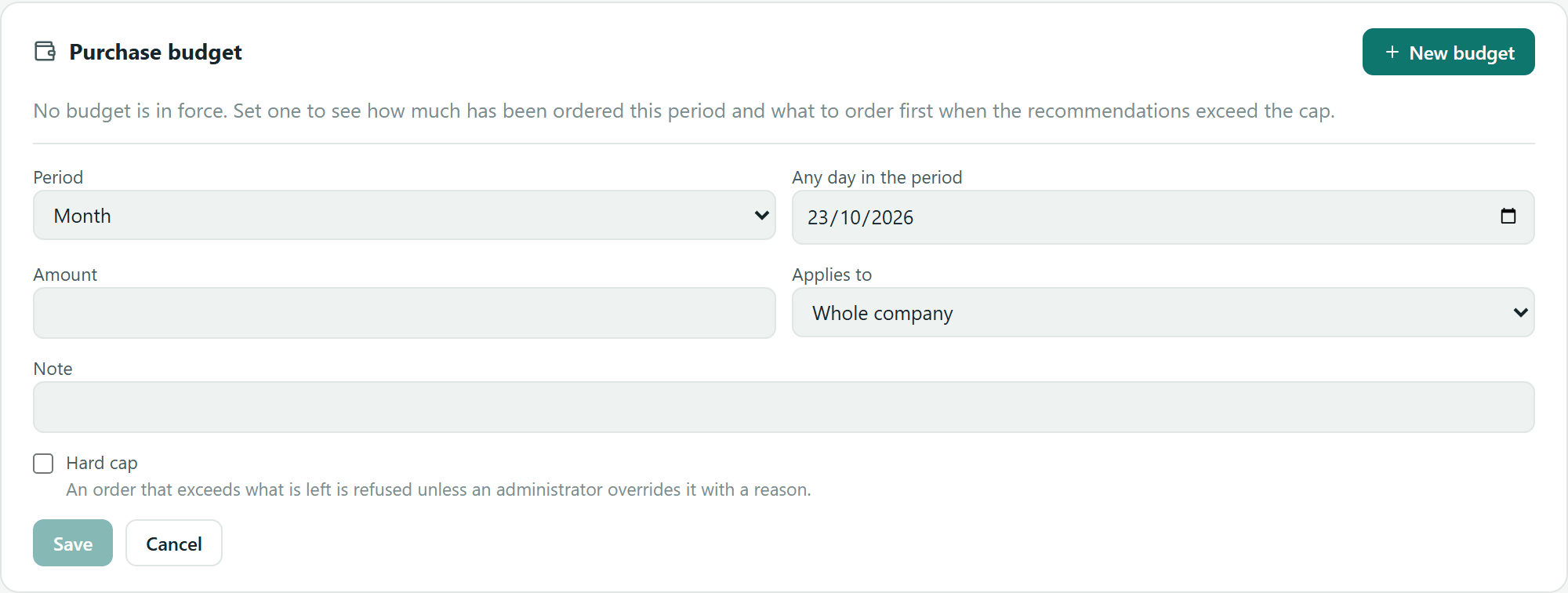
- New budget / Edit
- Open the form. Edit creates a new revision of the same budget.
- Budget
- Picker to choose which one to look at when there are several.
- Period
- Month, Quarter or Custom range. With month or quarter, "Any day in the period" is enough; with a custom range you pick From and To.
- Amount
- The cap, in your company’s currency.
- Applies to
- Whole company, a Warehouse, a Supplier, a Category (text) or a Cost center (including the ones below it). A user limited to some warehouses can only create warehouse budgets.
- Inside another budget
- Shown when another budget already exists. Nests this one under it: the one above can limit it ("The budget above it limits this one to …").
- Note
- Free text.
- Hard cap
- An order that exceeds what is left is refused unless an administrator overrides it with a reason. Unticked, the order goes through and is recorded.
- Budget active
- Only when editing: untick it to pause the budget without deleting it.
With a budget in force you see "X left of Y", the days left in the period, a usage bar, Received and On its way, the projected close and the plan sentence: "Everything recommended fits…" or "What is left funds N lines in full and M in part…; K are deferred". "Show N lines" lists every product with its status. Each card carries the same mark: Funded within budget, Partly funded: budget, Deferred: budget or Cost unknown.
The cards: "Urgent — act today" and "This week"
"Urgent — act today" lists the products in Order now and "This week" those in Order soon; the number next to the title counts the ones you did not reject. Each card is one decision.
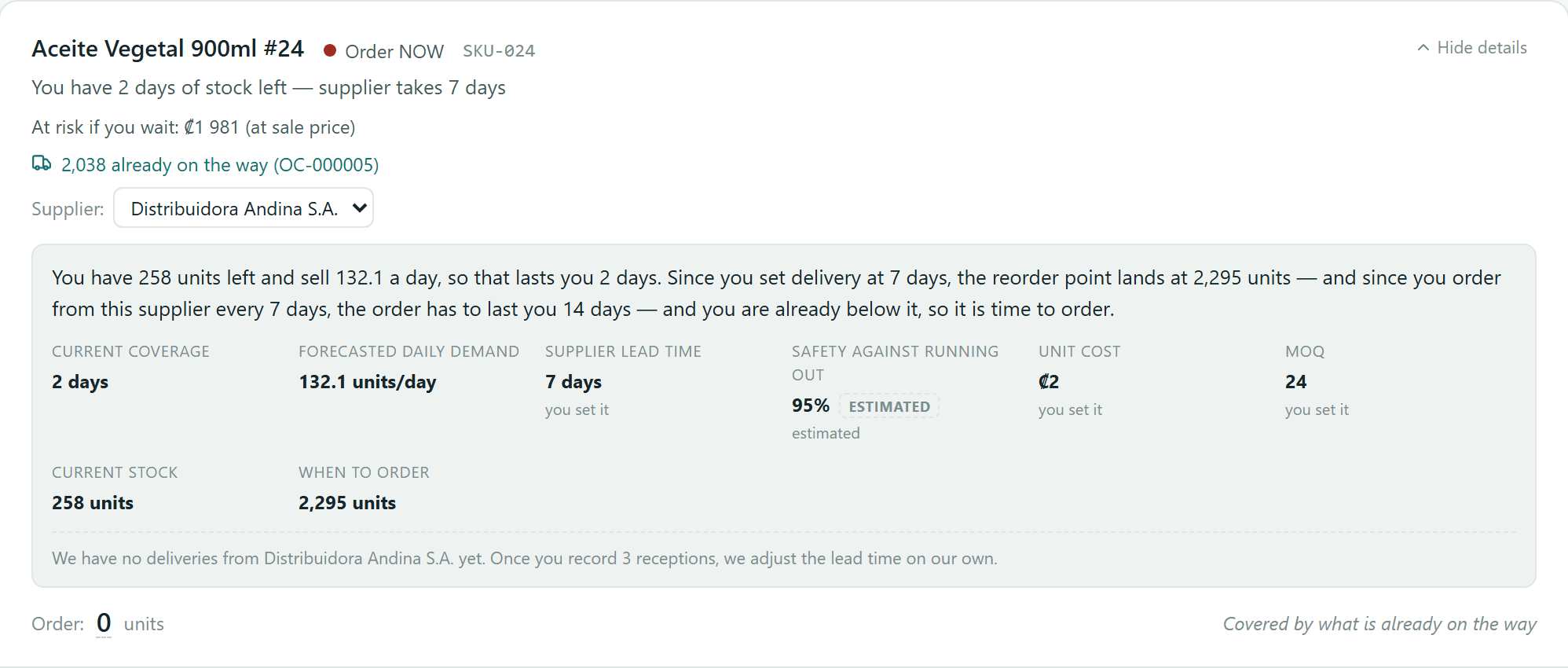
- Name, coloured dot and code
- The product and its traffic-light signal.
- Reason
- "You have 3 days of stock left — supplier takes 10 days", or the coverage and "order this week".
- Order first / At risk if you wait
- The line with the most money at risk carries "Order first"; the amount is at sale price or, when there is none, at cost. With neither it says "Value unknown".
- What is already on the way
- If the product has open orders or transfers, the card subtracts them and says so.
- Supplier:
- Drop-down to send the line to another supplier (or "No supplier"). Changing it marks the line as modified.
- Email or WhatsApp missing · Complete
- The supplier has no way to receive the order. "Complete" opens its record in Suppliers.
- Taking X d (usually Y)
- The supplier has been delivering slower than its own history.
- Why? / Hide details
- Opens the breakdown: the sentence that explains the recommendation, Current coverage, Forecasted daily demand, Supplier lead time, Safety against running out, Unit cost, MOQ (minimum order), Current stock and When to order (reorder point). Values nobody configured carry the "estimated" tag, and below you read how far the lead-time learning for that supplier has got.
- Order: N units ≈ amount
- The suggested quantity. Click the underlined number, type another and press Enter: the line becomes modified and goes into the cart.
- Approve
- Puts the line in the cart; the card shows "Approved" and "Undo" (which takes it out of the cart without counting as a rejection).
- Reject
- Takes it off the list (it fades) and, when you save the order, records that you did not follow the recommendation. "Restore" brings it back.
- Covered by what is already on the way / Enough stock for now
- Shown instead of the buttons when the suggested quantity is 0.
- Ordered on OC-000123
- The line is already on an order: it cannot be ordered again from here and counts as on the way until you log the arrival.
If some product uses values we estimated, under the cards you read "N products use values we estimated" with the "What to configure first" link. If you reject everything, or there is nothing to order, you see "No pending actions" (or, with old data or nothing counted, a sentence saying we cannot confirm it).
The cart and the purchase order
Once you approve the first line, a fixed bar appears at the bottom: the cart.
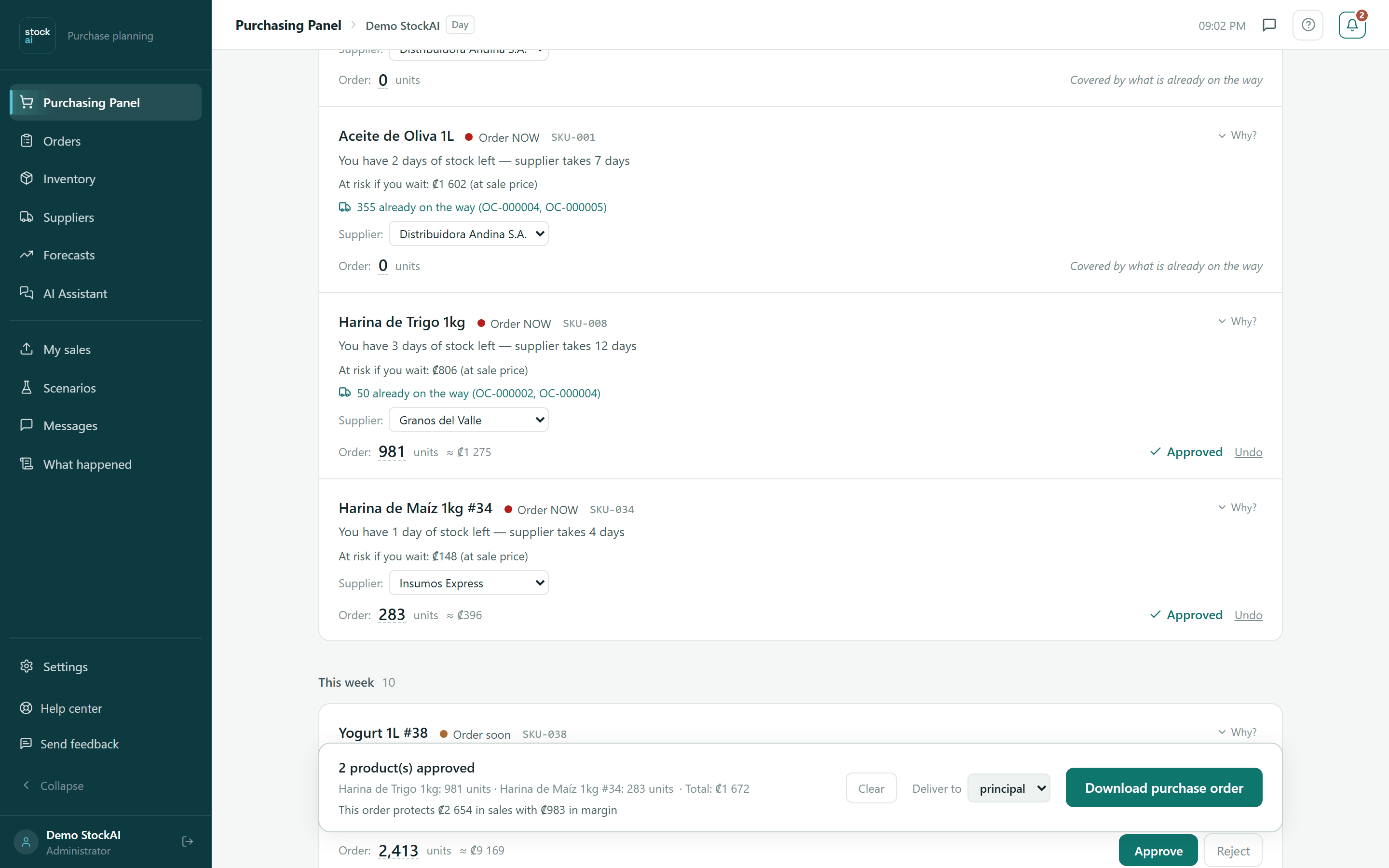
- N product(s) approved
- With each product and its quantity below, and the Total. Lines with no cost are left out of the total and counted separately ("N with no cost on file, left out of the total").
- This order protects … in sales with … in margin
- Only from the lines with a sale price and a cost; it says so when prices are missing.
- Clear
- Turns every approved line back into pending.
- Deliver to
- Only with two or more warehouses: the warehouse that receives the order.
- Cost center
- Only if your company has active cost centers: which one the spend is charged to.
- Download purchase order
- Saves the order and downloads the CSV file (SKU, Product, Quantity, Supplier, Estimated Value).
The panels above the cart
- Budget warning
- When the order goes over what is left of a budget. With a normal budget you can still order and type a Reason (optional). With a hard cap only an administrator can pass it, and the Reason for going over the cap (required) is recorded; everyone else reads "Only an administrator can approve this order".
- Worth increasing the quantity
- When a supplier has price breaks and ordering more pays for the cost of holding the extra: it shows the net saving, the holding cost, the extra cash out and the extra days of coverage. "Increase quantity" changes the line’s quantity and unit price. When a break is not worth it, a note says why (it would leave you overstocked, the saving is too small…).
- Cash — accounts payable
- What falls due this week, what is overdue and what is due over the next 30 days, from your suppliers’ payment terms. Type your Cash available: and press Enter: you see "The recommended purchase fits" or "does NOT fit", with what is already committed, this purchase and how much you would be short. StockAI does not store your balance: you type it each time.
Save and send the order
- Review the cards; adjust quantity or supplier where needed.
- Click "Approve" on what you will order and "Reject" on what you will not.
- If they appear, choose "Deliver to" and "Cost center".
- Click "Download purchase order". The button reads "Saving the order…" and ignores a second click.
- You see the notice "Order OC-000123 saved" with the "View orders" link. The ordered lines show "Ordered on OC-000123".
- Below, the "Purchase order generated" box shows which products go to each supplier.
- Keep "Ask the supplier to confirm" ticked if you want each supplier to get a link to confirm quantities and dates (the box remembers your choice).
- Click "Send to suppliers now", or "Go to Orders" to do it later. When it finishes it lists who it went to (email, WhatsApp) and who it did not, and why.
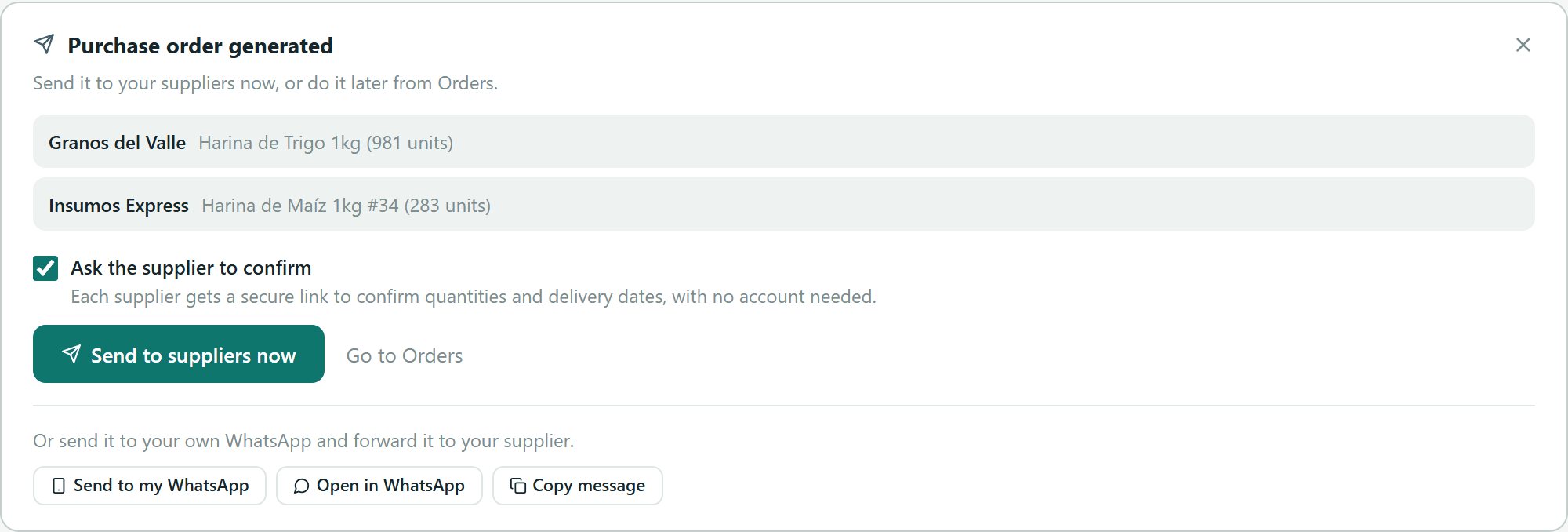
In the same box, "Send to my WhatsApp", "Open in WhatsApp" and "Copy message" give you the order text to forward to the supplier yourself. If the order needs approval, instead of sending you see "This order needs approval before it is sent to the supplier" and the "Request approval" button.
More analysis
Below the cart, the folded "More analysis" box says how many sections it holds and which. Click it to open it (it stays open in this tab).
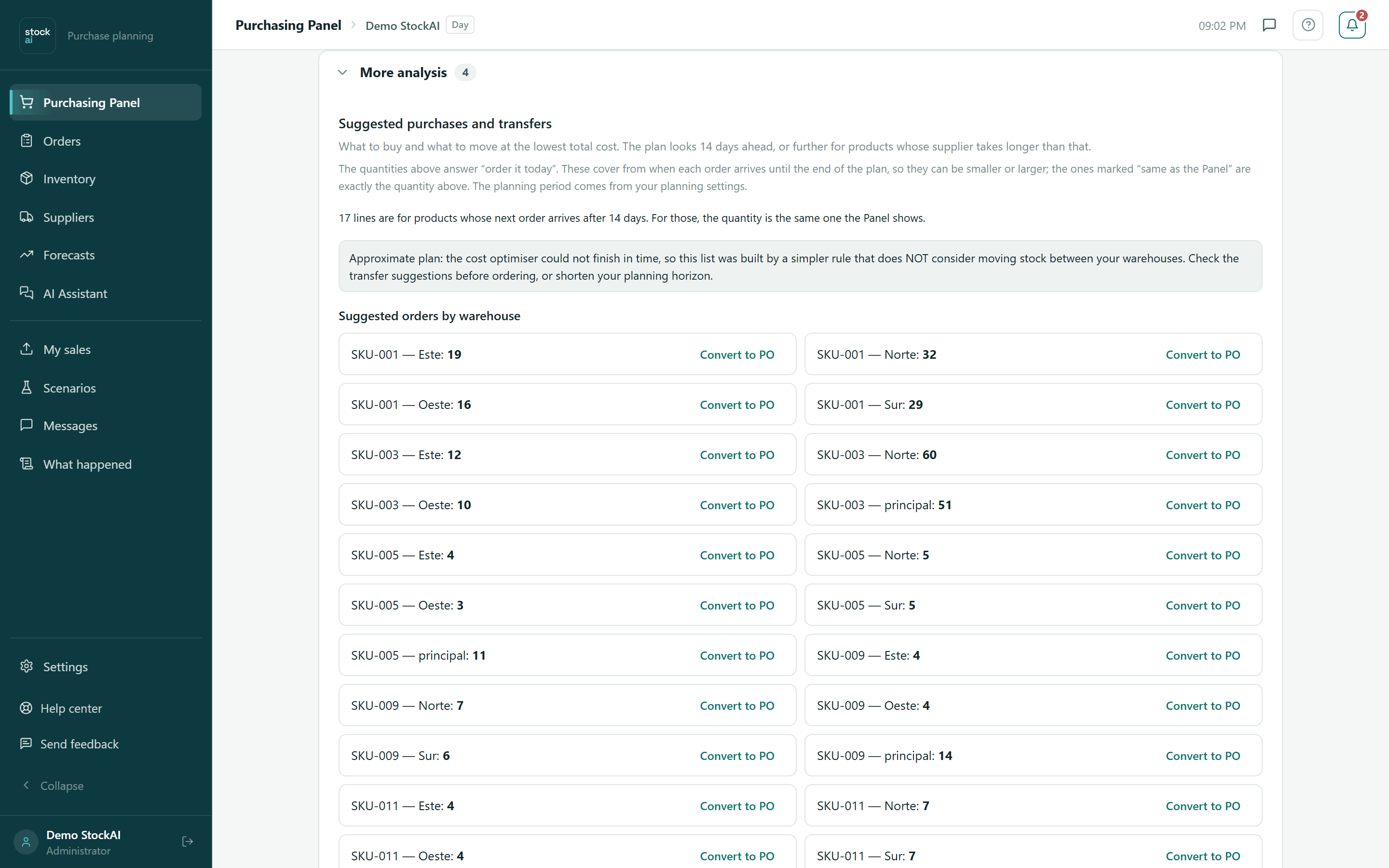
- Suggested purchases and transfers
- The optimizer’s plan: what to buy and what to move at the lowest total cost over your planning horizon. Its quantities can differ from the cards (the cards answer "order it today"; the plan covers from when each order arrives until the end). Lines marked "same as the Panel" use the same quantity. "Convert to PO" saves that line as a purchase order at once. If the optimizer did not finish, a notice says the plan is approximate and ignores transfers.
- Get ahead — upcoming demand peaks
- Peaks the forecast sees before the signal turns red, with the date and "Order before …".
- Demand changes
- Products whose actual sales run above or below the forecast, as a percentage.
- System recommendations
- Up to 8 sentences with a Suggested action (pause the next order, review the safety buffer…), without repeating the cards.
- Capital opportunities
- How much you hold in products with excessive coverage, and the top three.
If the optimizer left products out because they have no stock on file, "N product(s) still need counting" appears with the list. At the bottom, "Last updated" says how long ago the screen was loaded and "Refresh data" recomputes it.
On a phone
On narrow screens the panel becomes a list of cards with the same decisions, the same cart (in a bottom sheet) and the same panels; the data and what you save are identical.
Go on to Orders to send, receive and pay the orders. The colour rule is in The traffic light.