Set up inventory
Where you fill in what the stock signal needs (stock, cost and lead time), starting with the products that move your money, and where you decide the signal rules and the service level per class.
On this page
Set up inventory opens from the … menu in Inventory. At the top it explains why it exists: to tell you what to order, StockAI needs how much you hold today, what it costs you and how many days it takes to arrive. Without stock or cost, the product does not appear in the stock signal. Without the lead time it does appear, but planned on an assumed 15 days.
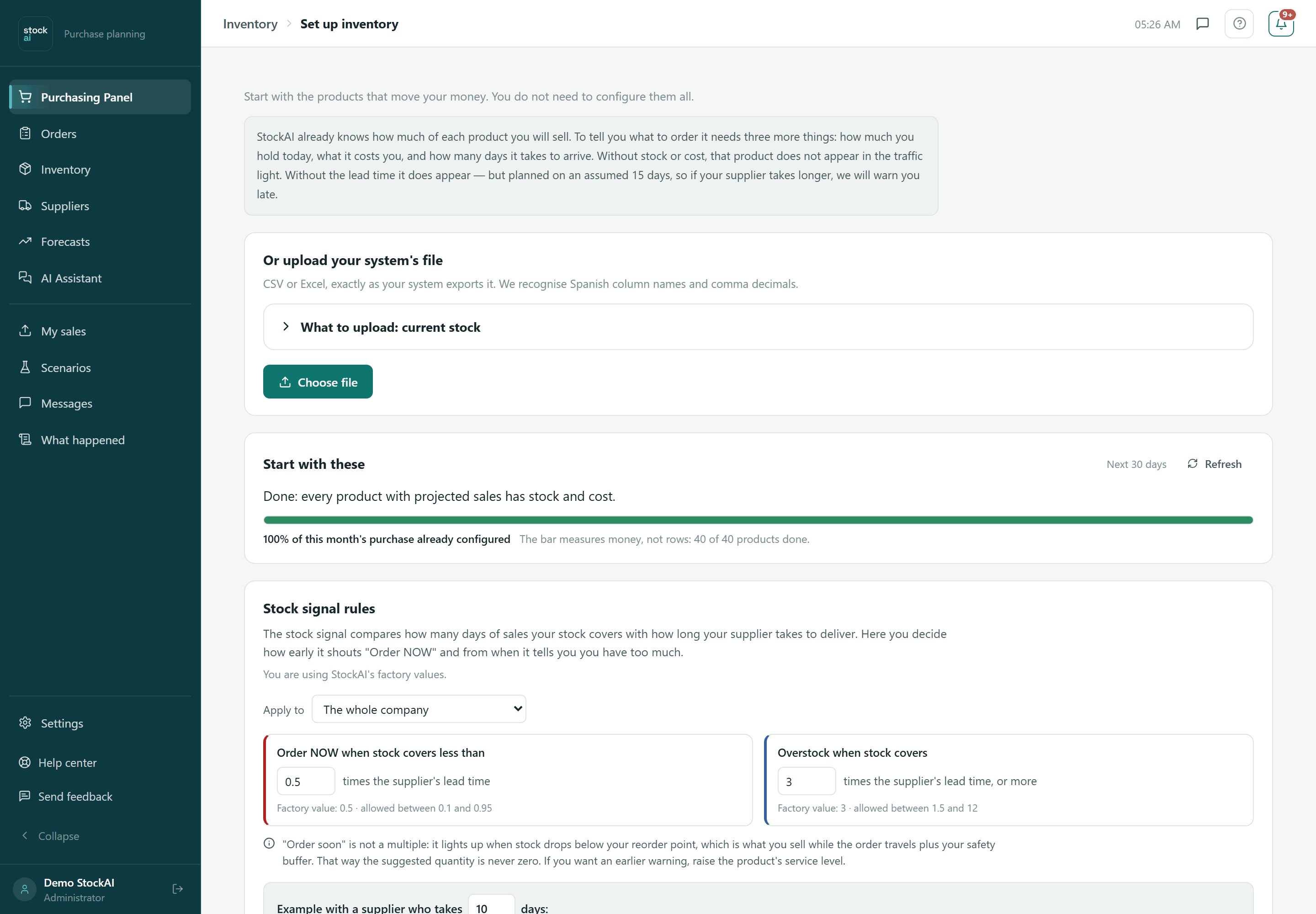
Or upload your system's file
Upload a CSV or Excel file (.csv, .txt, .xlsx, .xlsm, .xls) exactly as your system exports it: we recognise Spanish column names and comma decimals. “What to upload: current stock” unfolds with the columns: only sku is required; the optional ones are warehouse, display_name, category, brand, unit_of_measure, barcode, current_stock, min_stock, lead_time_days, unit_cost, sale_price, moq, supplier and notes. It includes an example, a checklist, “Download CSV template” and “Download Excel template (.xlsx)”.
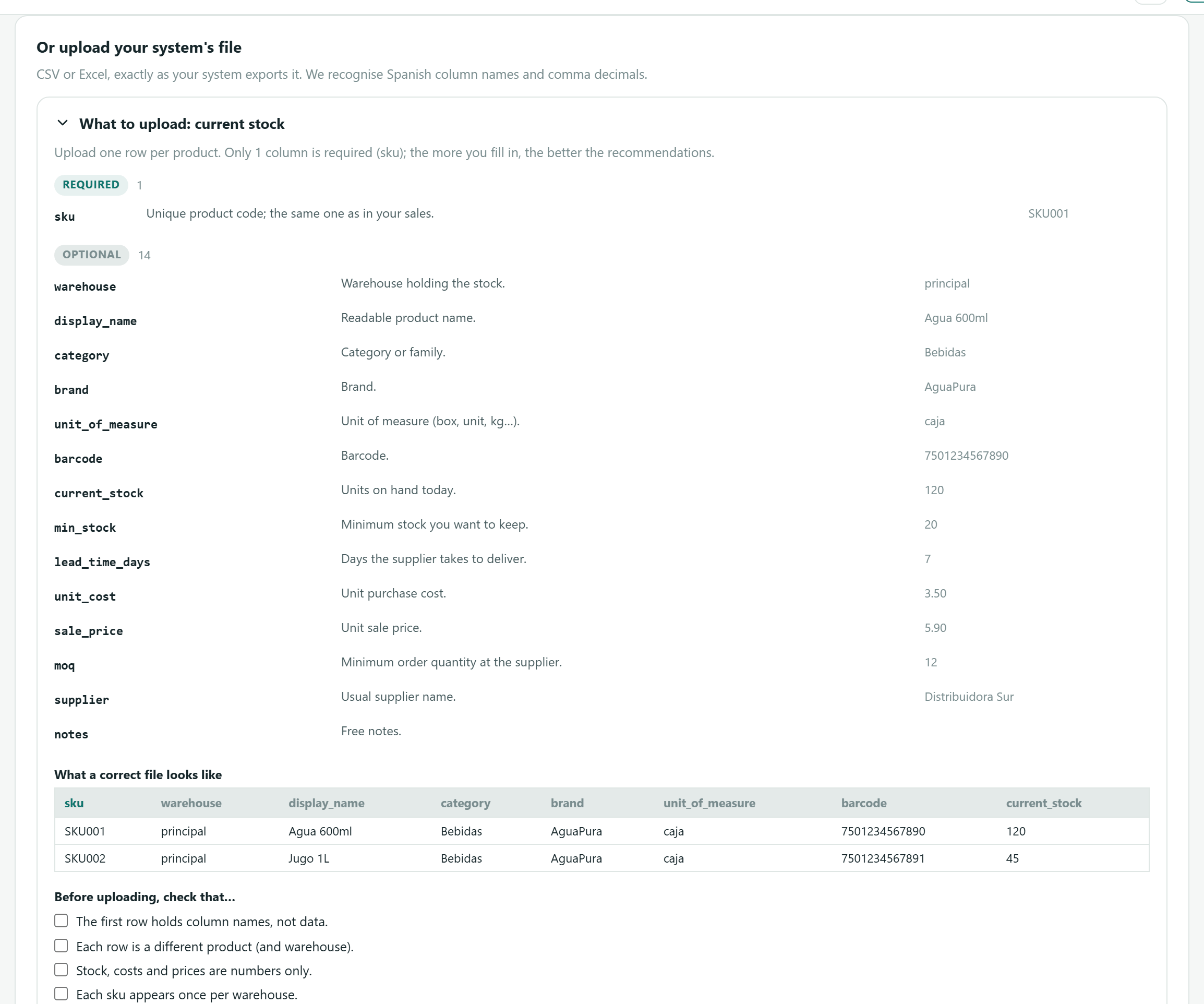
- Press “Choose file” and pick the file. You see “name — rows read: N”.
- A CSV is checked in your browser first: rows with a different column count, no code, repeated products (the last row wins), text in numbers and negative values, with the row and column of each case.
- Under “This is how we read your columns” check which column of your file holds each field (Product code, Name, Current stock, Minimum stock, Lead time (days), Cost, Sale price, Minimum order, Supplier, Category, Brand, Unit, Barcode, Warehouse, Notes). Change any that is wrong or choose “Do not import”. The product code is required.
- Read the summary: Rows ready to import, Rows with problems left out and Rows with no product code, skipped, and the Preview with the first five rows as they would be saved.
- If your file writes numbers like 1.250, answer “Your file writes numbers like 1.250. How much is that?” by picking one of the two readings. Until you answer, the import is refused.
- Tick “Do not overwrite what I corrected by hand” if only empty values, or values from an earlier import, should be filled.
- Press “Import (N)”. You see “Products imported: N.” and, if some rows could not be saved, which ones.

Start with these
The list of products missing something, ranked by money: what replacing their sales over the next 30 days will cost you. The sentence on top says how many products to complete to reach what share of this month's purchase, and the bar measures money, not rows: “X% of this month's purchase already configured”. With no costs or prices yet, it ranks by units and says so.

- Product
- Code and name.
- Projected sales
- How many units we expect you to sell in the period, from your history.
- Worth
- What replacing those sales will cost you. It is the figure the list is ranked by; next to it, whether it used your cost, your sale price or an estimated cost.
- % of month
- How much this product weighs in your whole purchase for the period.
- Cumulative
- Counting this product and everything above it, how much of your purchase you have covered.
- Missing
- stock, cost, lead time, price or supplier.
- Fill in
- Three boxes: Stock (what you physically hold today, not counting anything in transit), Cost (what you pay per unit, not your sale price) and Lead time (days), plus the Save button.
- Start with the first row. Type what is missing in Stock, Cost or Lead time.
- Press Save on that row. You see “Saved” and the bar goes up.
- Work down until Cumulative is near 80%: the rest barely move money.
- Refresh reloads the list.
The list shows up to 50 products; below, how many are left and what share of your purchase they add up to. With no forecast you see “There is no forecast to prioritise with yet”.
Stock signal rules
The stock signal compares how many days of sales your stock covers with how long your supplier takes. Here you decide how early it says Order NOW and from when it tells you you have too much. The grey line says whether you use the factory values or your company's (with the date they were saved).
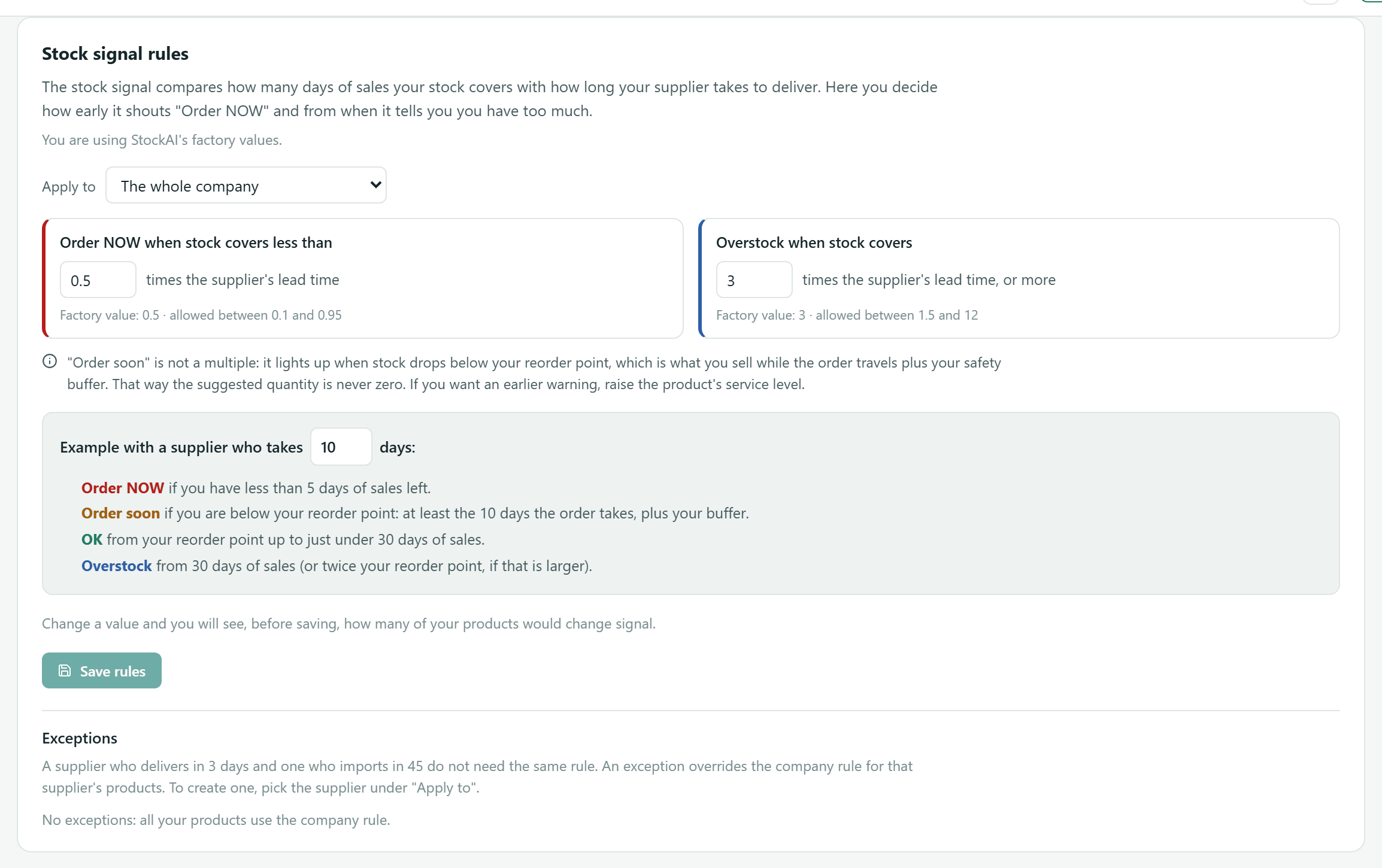
- Apply to
- The whole company or a Supplier (or a category that already has an exception). A supplier with an exception carries “has an exception”.
- Order NOW when stock covers less than
- A multiple of the supplier's lead time. Factory value 0.5; allowed between 0.1 and 0.95.
- Overstock when stock covers
- Factory value 3; allowed between 1.5 and 12.
- “Order soon”
- It is not a multiple: it lights up below your reorder point (what you sell while the order travels plus your buffer). For an earlier warning, raise the product's service level.
- Example with a supplier who takes N days
- Change N and read the rule with numbers: when it would be Order NOW, Order soon, OK and Overstock.
- Under Apply to, choose whether you change the company rule or a supplier's.
- Type the new multipliers. A value out of range shows the limit in amber.
- Wait for the preview: “With these values N of your M products change signal”, with how many move from one colour to another, and examples. The server computes it with the real stock signal; nothing is saved yet.
- Press “Save rules” (or “Save exception” for a supplier). The stock signal, the 8:00 alerts and the purchase suggestions use the new values from then on.
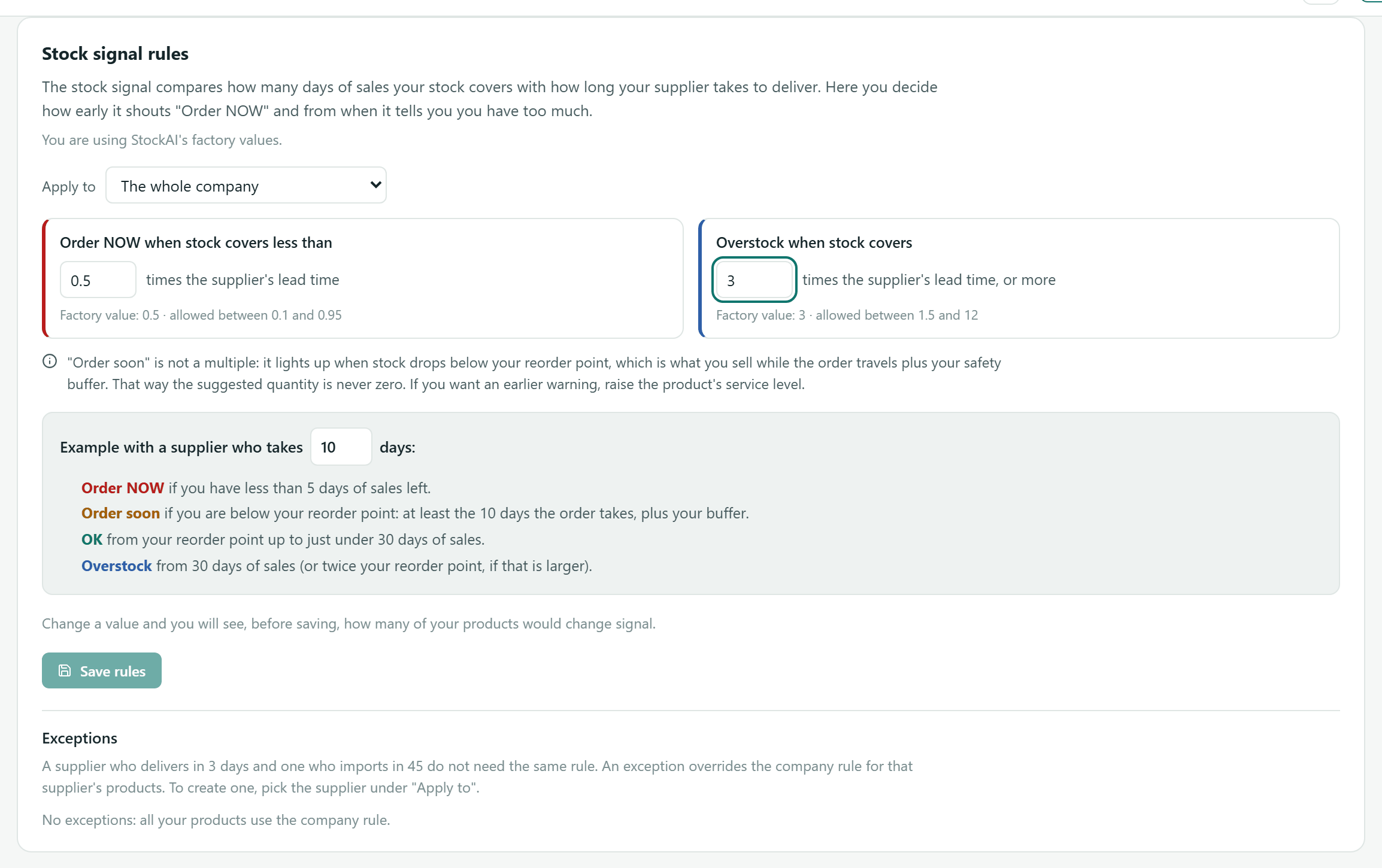
Below, Exceptions lists the suppliers' or categories' own rules, with “Remove exception”. “Back to factory values” (only when you changed the company rule) says first how many products would change. Both ask for confirmation.
Service level by ABC class
Class A is the products that make up 80% of your demand value, B goes up to 95% and C is the rest. It pays to protect A products more. The table shows per class: Products, Demand value, Current level (average), Suggested and Would change (with how many have their own level).
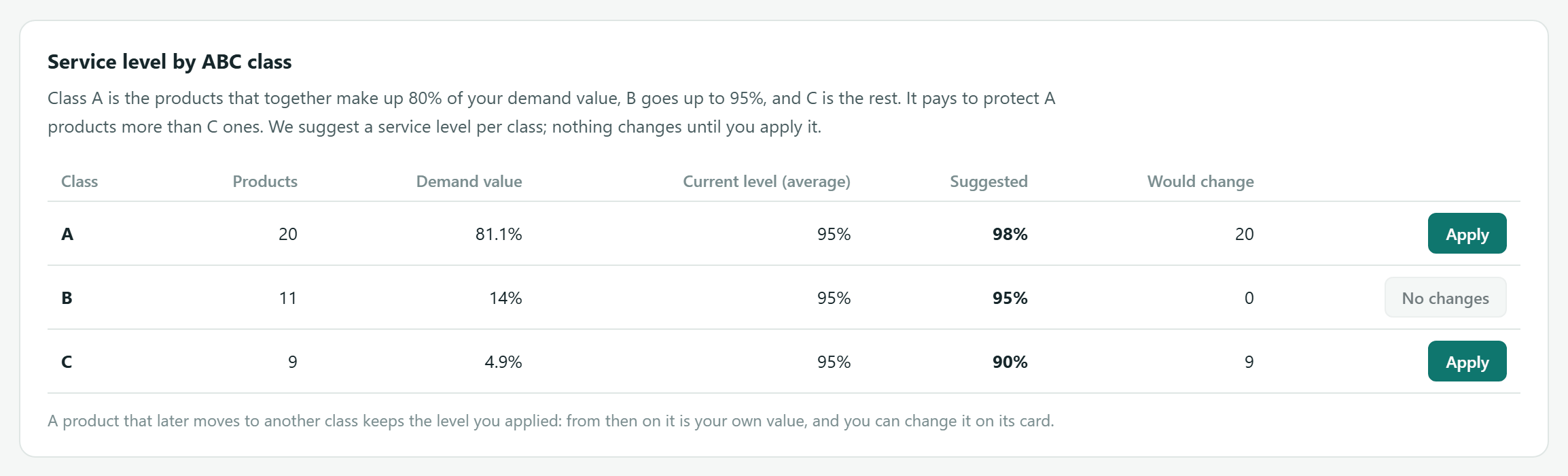
- Check each class's Suggested level.
- Press Apply on the class you want (“No changes” when there is nothing to change).
- Confirm “Apply X% to class A”. Only products on the factory value change; the ones with a level set by you, a file or a rule are left alone. It is recorded in the audit trail.
A product that later moves to another class keeps the level you applied: from then on it is your own value. With no finished forecast the panel says it cannot classify yet. See also Safety stock.