Suppliers, step by step
Register who you buy from: contact details to send them orders, lead time, payment terms and price breaks. StockAI learns their real lead time from your receptions.
On this page
Suppliers, in the sidebar, is the list of who sells to you. Registering a supplier turns a stock alert into an order that can be sent, and is what lets you measure them in the Scorecard.
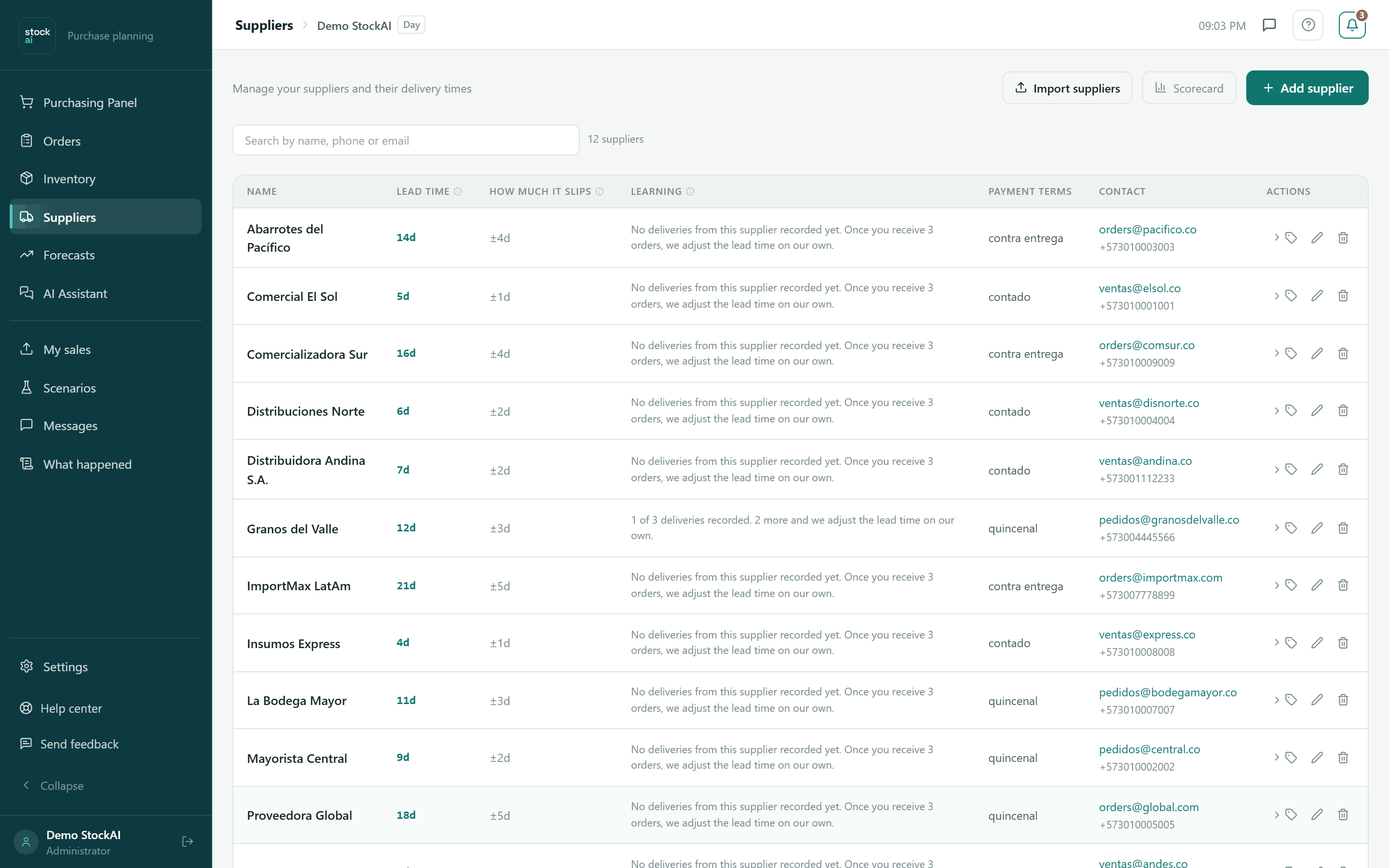
The top of the screen
- Import suppliers
- Loads your list from CSV or Excel. See Import suppliers.
- Scorecard
- Opens the Supplier scorecard.
- Add supplier
- Opens the empty form.
- Search by name, phone or email
- Filters the list as you type; the X clears the search. On the right, how many suppliers match.
With no suppliers you see "You have no suppliers registered yet" and "Add first supplier". If the search finds nothing: "No supplier matches" and "Clear search". The list is paged 50 at a time.
The columns
- Name
- With marks when needed: "Email or WhatsApp missing" (click to complete the record) or "Takes N d (usually M)" when it has been delivering slower than its history.
- Lead time
- Days from the order to the arrival.
- How much it slips
- The variability, ±days.
- Learning
- How far StockAI has got: "No deliveries from this supplier recorded yet…", "N of M deliveries recorded…", "Learned from N deliveries: X days on average…" (with how many arrive within how many days), or that every delivery arrived the same day and says nothing.
- Payment terms
- Those on its record.
- Contact
- Email (a link to write), phone and WhatsApp.
- Actions
- The tag icon opens the Price breaks; the pencil edits; the bin deletes.
Create or edit a supplier
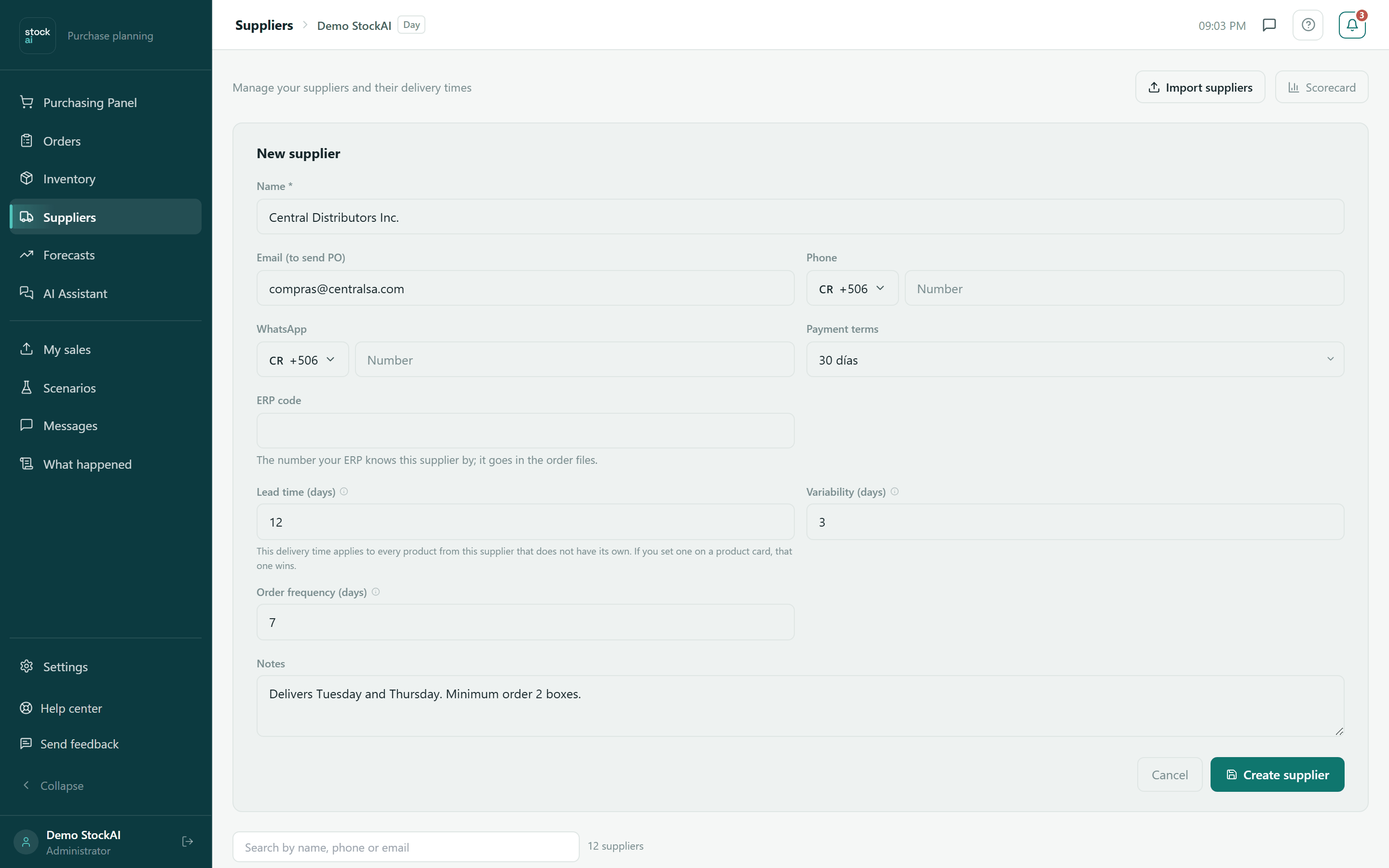
- Click "Add supplier" (or a row’s pencil to edit).
- Type the Name, the only required field. Write it as it appears on your products: it is compared ignoring case.
- Fill in the other fields you know (below, what each one does).
- Click "Create supplier" (or "Update"). "Cancel" closes without saving.
- Email (to send PO)
- Where purchase orders and the confirmation link go.
- Phone / WhatsApp
- With WhatsApp, orders can go out that way too. With neither email nor WhatsApp, sending skips this supplier.
- Payment terms
- Contado, 15 días, 30 días, 60 días, 90 días or Otro (cash, 15, 30, 60, 90 days or other). They feed the cash panel of the purchasing panel.
- ERP code
- The number your ERP knows the supplier by; it goes into the Export to ERP files.
- Lead time (days)
- Applies to every product of theirs that has no lead time of its own. Left empty we assume 15 days, but it is not recorded as "declared" by the supplier.
- Variability (days)
- How much it can vary: if it says 15 but sometimes arrives in 18, put 3. It starts at 3. More variability, more safety stock.
- Order frequency (days)
- How often you order from them. Weekly, put 7. It makes the suggested quantity last until your next order. Empty: no fixed cadence.
- Notes
- Special conditions, contact, remarks.
How payment terms are read
The cash calendar interprets the text: "contado", "contra entrega", "anticipo", "prepago" and "COD" mean 0 days; "N meses" means N × 30; "quincenal" means 15; and in text like "30 días" or "net 30" the first number is taken. What is not understood — instalments like "2x30" or "30/60/90", ranges like "30-45 días", "a convenir" — stays as an unknown term and is reported as such, rather than filled with an invented number.
Price breaks
From a certain quantity on, each unit costs less. With breaks on file, the purchasing panel tells you when it is worth increasing the quantity.
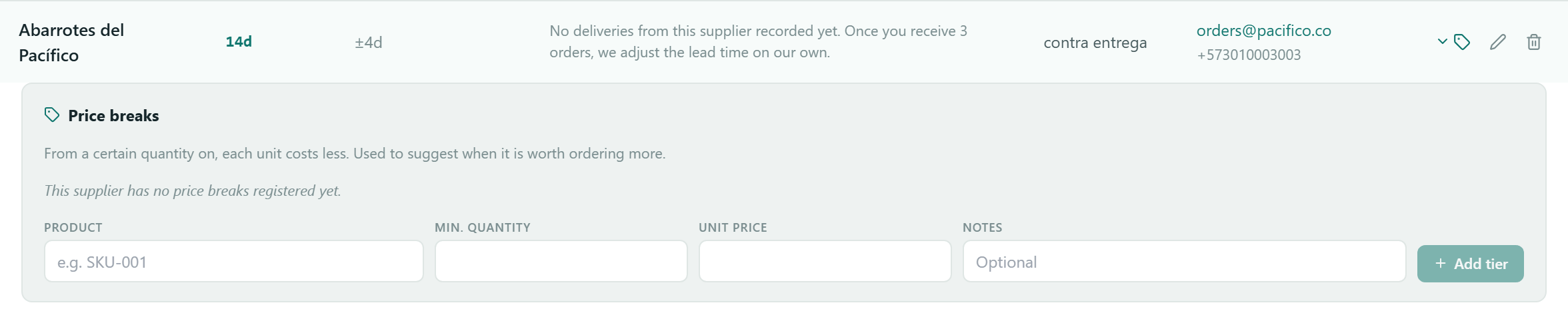
- Click the row’s tag icon.
- In the form type the Product (code), the Min. quantity and the Unit price from that quantity (both above 0), and an optional Note.
- Click "Add tier". Repeat for each step.
- To remove one, click its bin; the "Price break deleted" notice offers Undo for a few seconds.
Import suppliers
"Import suppliers" opens the same wizard as the order import: template, recognised columns (Name, Email, Phone, WhatsApp, Delivery days, Delivery variation, Days between orders, Payment terms, Credit days, Notes, Status), preview and confirmation. Only the name is required.
- Leave them as they are
- Suppliers that already exist (same name, ignoring case) are left untouched: only new ones are added. The safest choice.
- Update them with the data in the file
- Cells that carry a value are written; an empty cell never erases what you already have.
When it finishes: "Done: N suppliers created and M updated.". On a phone the list is made of cards; tapping one opens its record with contact, learning, price breaks, edit and delete.