What happened: activity and audit trail
Everything StockAI did for your account, and why; and, for administrators, the audit trail of who changed what.
Open What happened from the sidebar, from Settings → Activity or from "see all" in the bell. The bell only carries what needs a decision; here is the full history, informational notices included. Every role can read it.
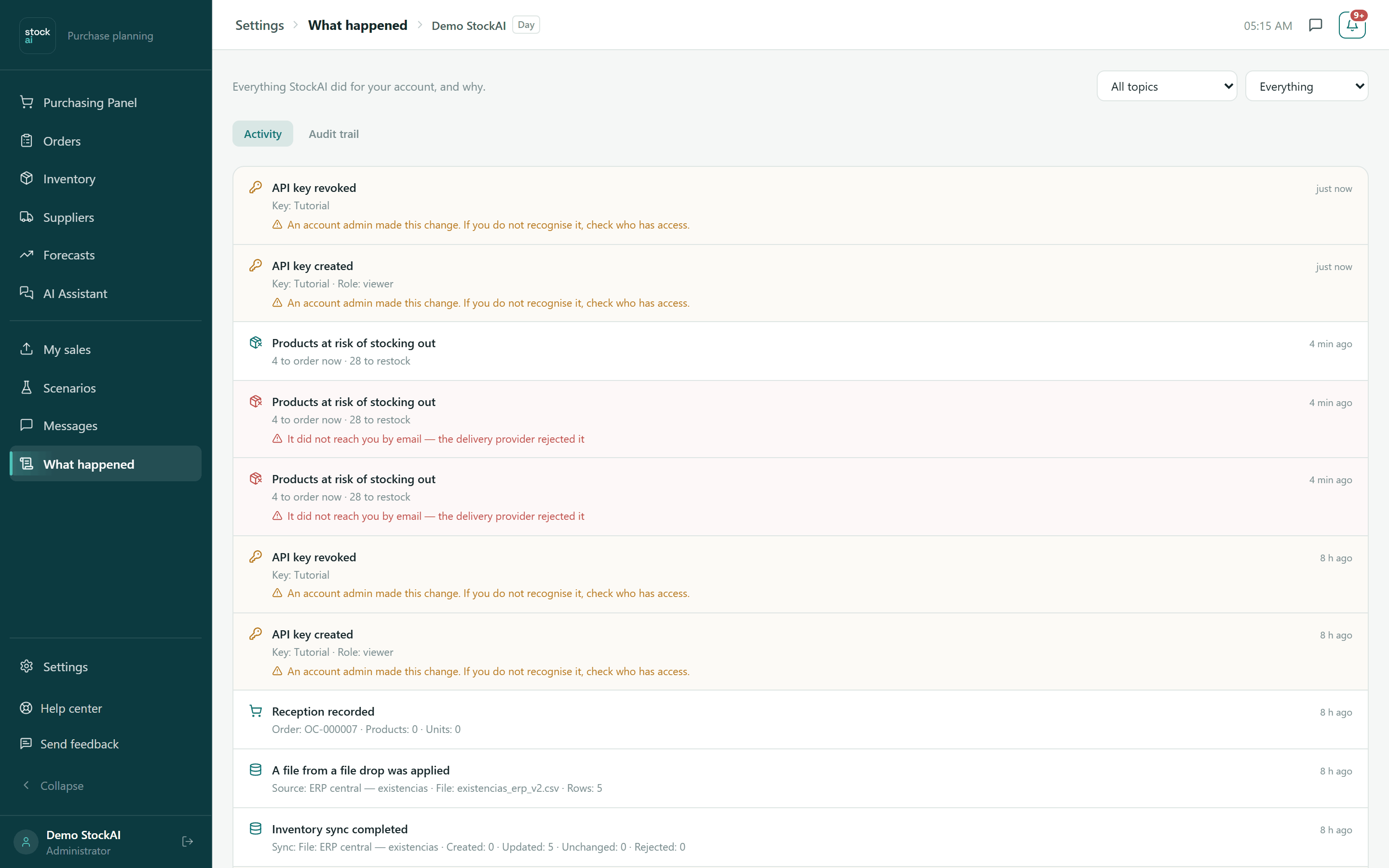
What gets recorded
Trainings finished and failed; purchase orders created, sent and not sent (with the reason, for example a supplier with no email or WhatsApp); stock imported; shrinkage; transfers; plan ceilings reached; users, roles and API keys; and the notices StockAI sent you.
The Activity tab
Each row is an event: what happened, how long ago, the key facts (source and file, order and value, key and role…) and, when it applies, what to do (for example "decide in Sync"). At the bottom, "N of M" and "Show more" bring the next 50.
- All topics
- Filters by topic: account and access, plan and payment, data, stale data, plan ceilings, monthly summary, purchasing, stockout alert, supplier lead time, forecasts.
- Everything
- Filters by importance: Critical, Needs attention or For the record.
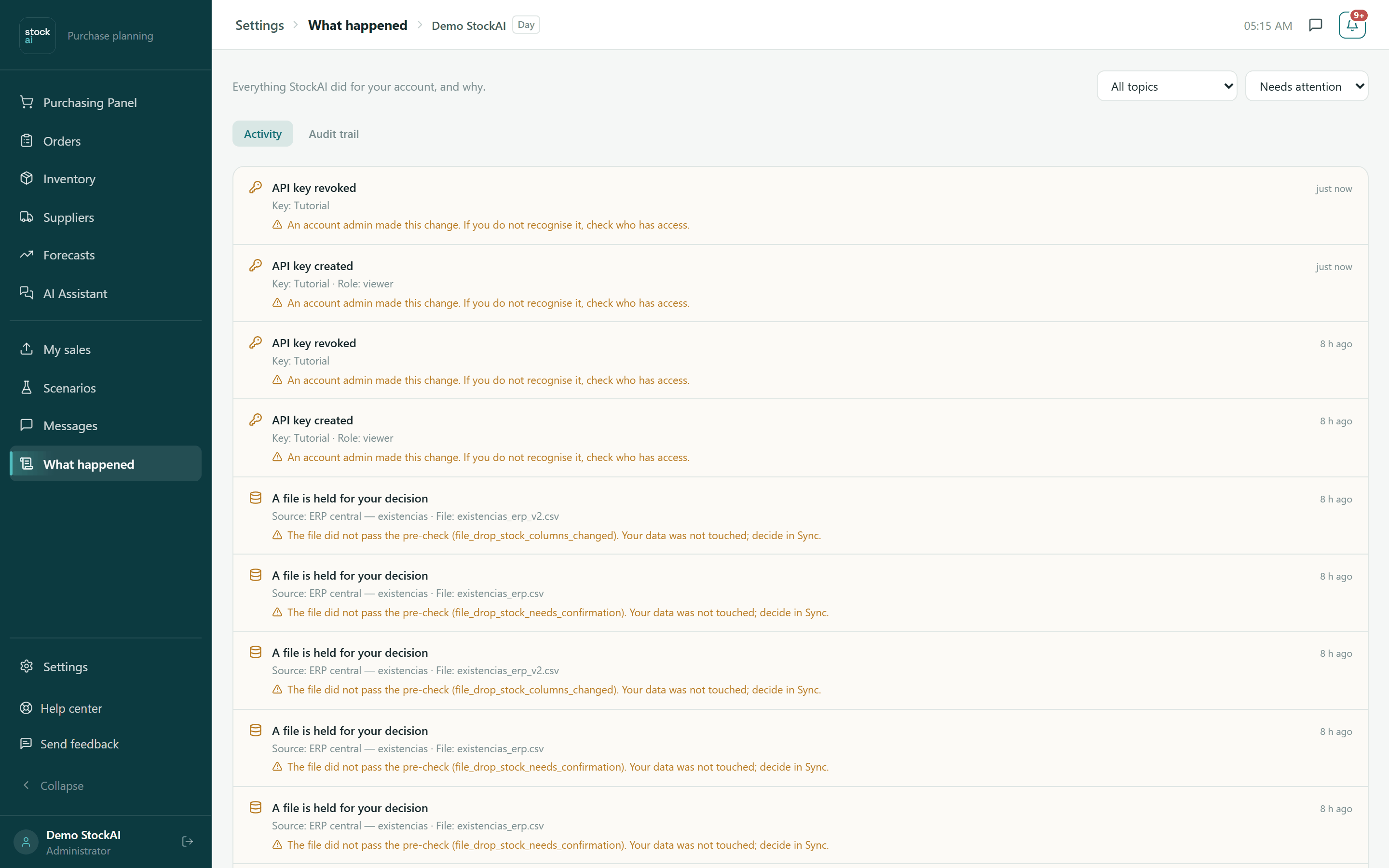
Changing a filter restarts the list. If nothing matches you will see "Nothing matches those filters"; if the account has recorded nothing yet, "Nothing recorded yet."
The Audit trail tab (administrators)
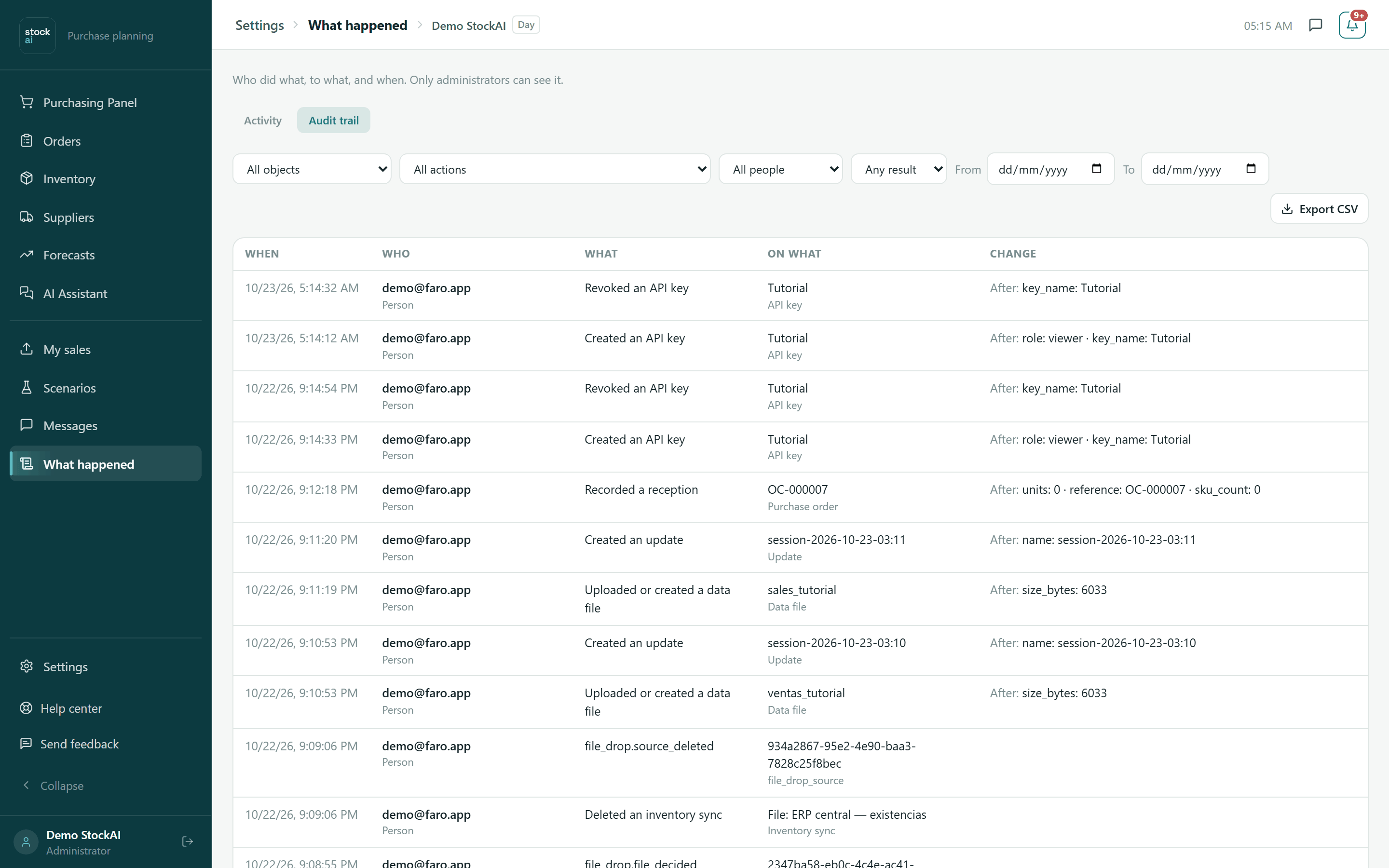
Only administrators see this tab, because it names people. It answers "who did what, to what, and when": people and integrations (API keys), with the previous and new value where the change has one.
- Filters
- Object type, Action, Person, Result, From and To.
- When / Who
- Date and time, and who did it (a person or a key).
- What / Object
- The action and the object (an API key, a purchase order, a data file…).
- Change
- "Before" and "After" of the fields that changed.
- Export CSV
- Downloads what is filtered. Filtering, paging and export happen on the server, so it works with very long histories.
To stream the audit trail to your security system continuously, use the Continuous audit export card in Settings.