Billing: your plan and how it is paid
Which plan your account is on, how it is paid and when it renews, and how to ask for more room or move to Pro or Max.
On this page
Open Billing from Settings → Team → Billing. The same information appears in My account → Usage and limits, under "Plan and payment". Any role can see it; only an administrator pays or manages the subscription.
The plans
- Free
- Free for good, with short ceilings and no API, MCP or WhatsApp bot. Those three show as locked, with the dialog to write to us.
- Full
- Wider ceilings and the first plan with the API, MCP and WhatsApp bot. The only plan that can be bought online.
- Corporate
- Everything included, with the ceilings agreed in a quote. Arranged by writing to us, never online.
Every other screen is on every plan. Your account's exact ceilings are in Usage and limits.
The plan sentence
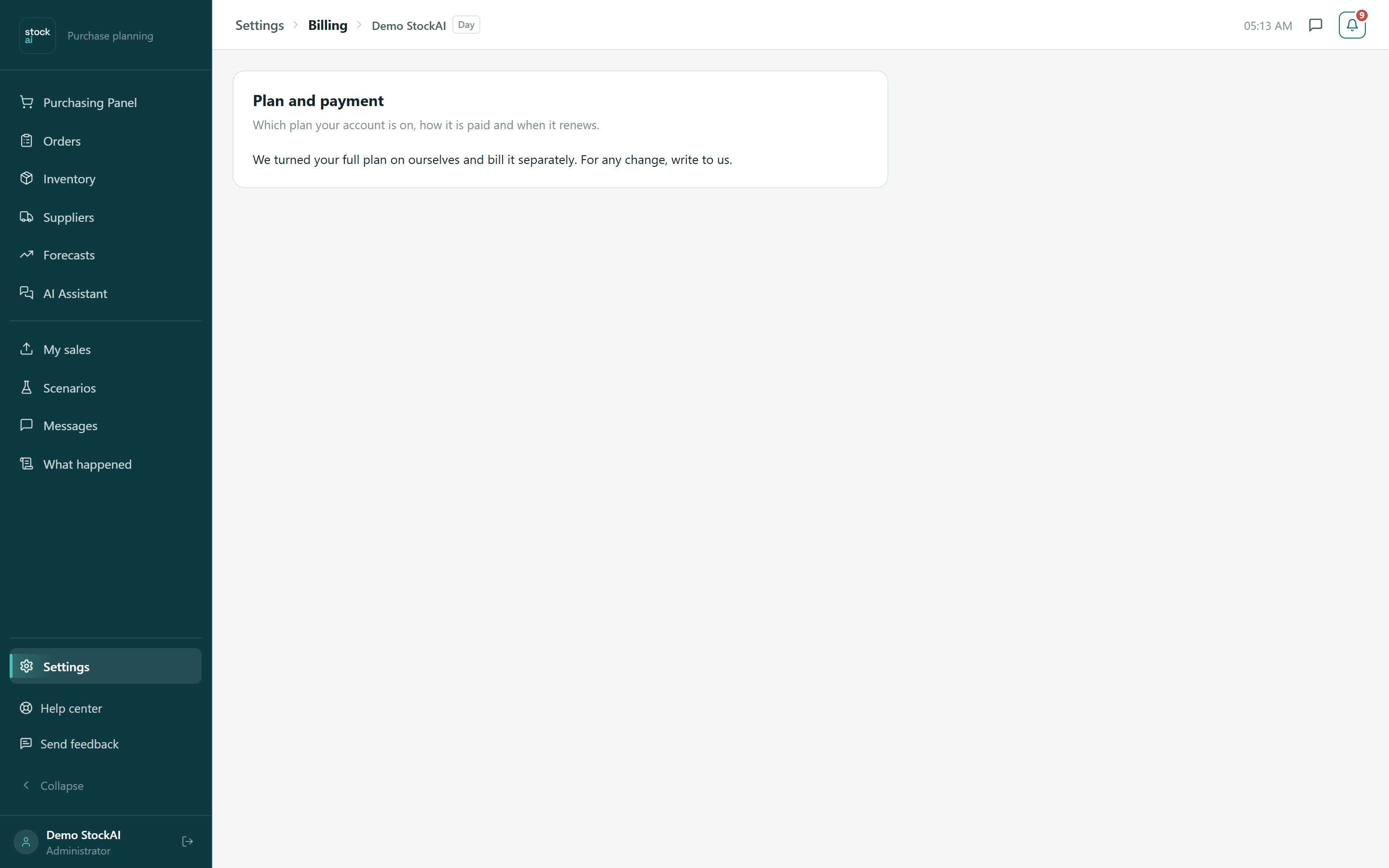
The Plan and payment card says in one sentence who decides how your plan is paid:
- "You are on the free plan."
- "Your {Pro or Max} plan renews on {date}, by {Stripe or PayPal}."
- "Your {Pro or Max} plan stays active until {date}." (you cancelled the renewal; on that day the account moves to the free plan with nothing deleted).
- "We turned your {Pro or Max} plan on ourselves and bill it separately." (a plan set by hand: there is nothing to pay here).
- "Your corporate plan is billed under your contract."
- "This is a trial account." (24-hour trial accounts cannot subscribe; create an account with your email).
Move to Pro or Max
On the free plan the "Move to Pro or Max" box appears. If the installation sells both plans you pick one first (Pro is preselected; each option shows its price and how many products, users and warehouses it holds), and below it there is one button per payment method: Card (Stripe), Link and PayPal. What each plan includes is in Plans and limits.
- If the installation has online payments configured, the box shows each plan's price ("{price} a month") and each button takes you to Stripe's or PayPal's own payment page. Your payment details never pass through StockAI. Only an administrator sees the buttons; others read "Paid plans start at {price} a month. Ask an administrator of your account to subscribe."
- If it does not, the three buttons are dimmed with a "Coming soon" tag and the note "Online payments are not active yet. Write to us to activate your plan." An administrator also sees which variables the installation is missing, to ask whoever runs it.
Coming back from the payment page
Coming back to StockAI is not the payment being confirmed: the plan only changes when Stripe or PayPal tells us. So you will see "Confirming your payment" (do not close the page or pay again) and, within seconds, "You are on the Pro plan" (or Max). If it takes more than a minute and a half the screen says "The payment notice is taking a while": do not pay again; if nothing shows within an hour, write to us. If you came back without paying you will see "The payment was not completed" and nothing was charged.
Manage the subscription
With a subscription paid online an administrator sees "Manage subscription", which opens the Stripe portal or your PayPal account (under Automatic payments) to change the card or cancel. If a charge fails, "We could not charge your plan" appears at the top with the deadline and an "Update payment method" button: after that date the account moves to the free plan. Nothing is ever deleted; you just cannot create past the ceilings.
Write to us for more
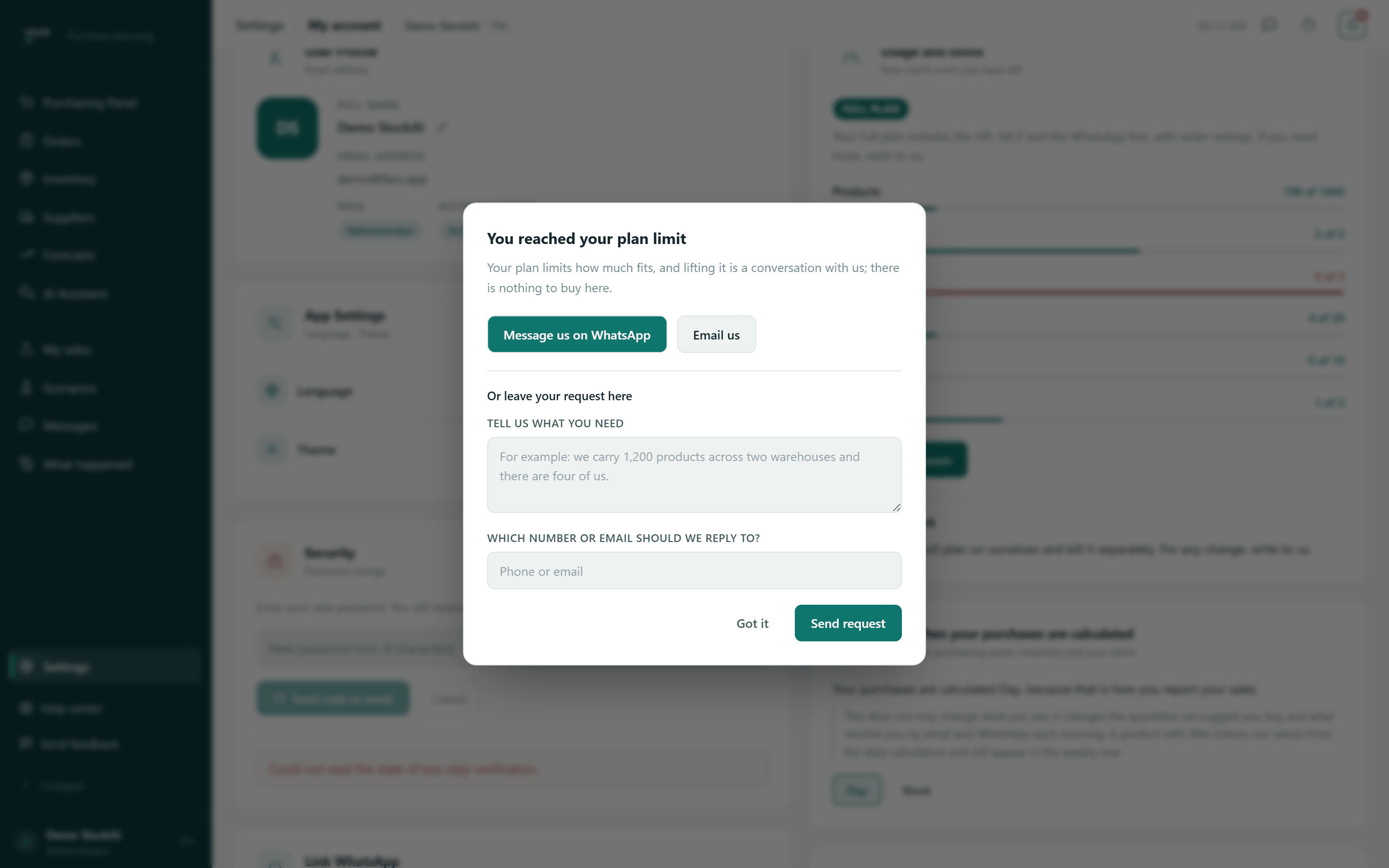
This dialog opens from "I need more room" in My account, and by itself when you try to create something past a ceiling or use a feature your plan does not include (then it says which ceiling you reached, for example "Products: 100 of 100").
- Choose "Message us on WhatsApp" or "Email us": the conversation opens with a message already written.
- Or, without leaving the page, fill in "Tell us what you need" and "Which number or email should we reply to?" and press "Send request". You will see "We got your request. We will be in touch shortly."
- "Got it" closes the dialog.