Sign in
Signing in to StockAI with your email and password, the second code step when your account or your company requires it, signing in with your company account and what each notice means.
On this page
Sign in is everybody's door: admins, analysts and read-only users all come in here. Signing in takes you to the Purchasing Panel. If you open this screen with a session still active, it takes you straight in without asking anything.
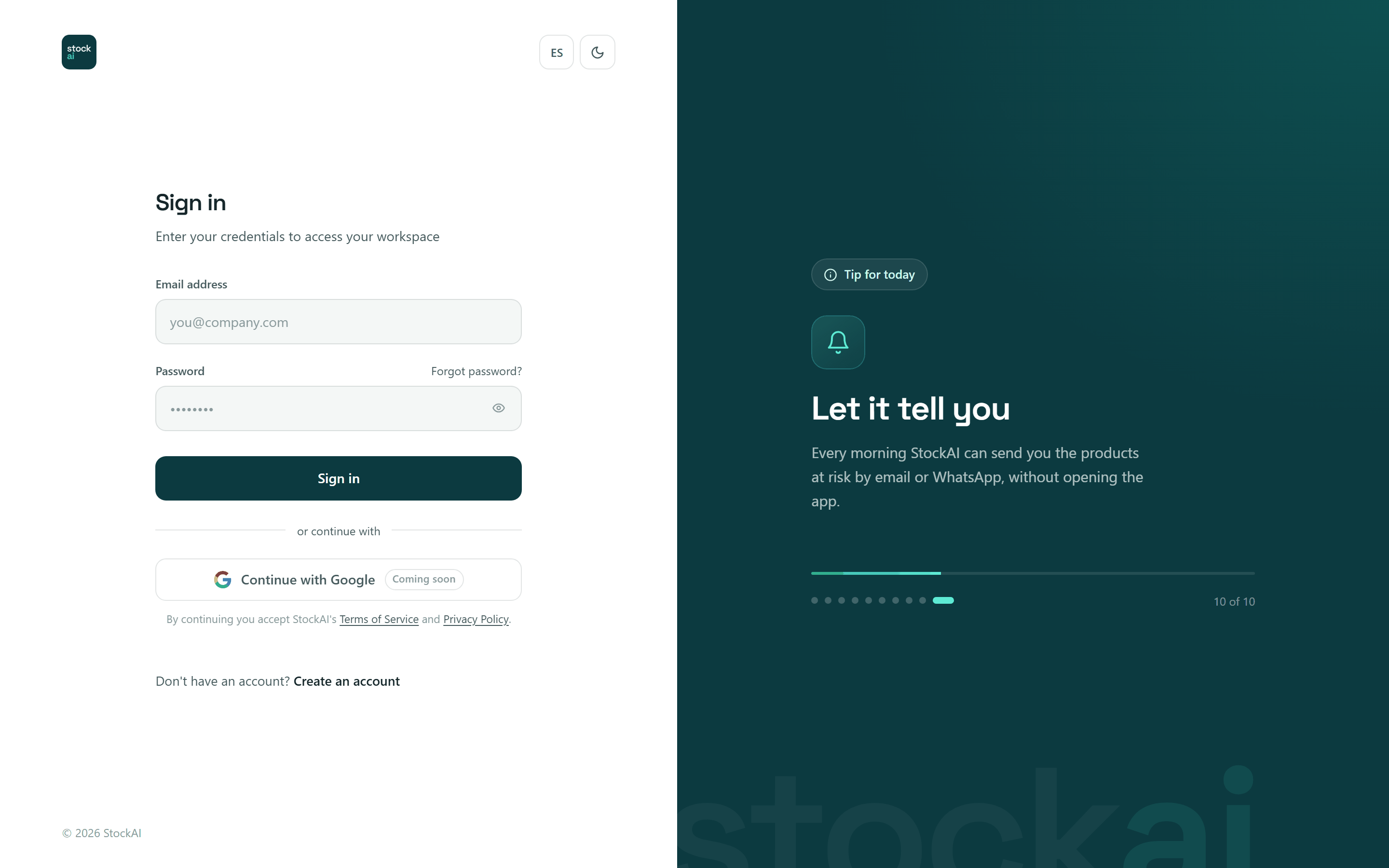
What is on the screen
- Email address
- The email you signed up or were invited with.
- Password
- Your password. The eye shows or hides it.
- Forgot password?
- Opens Recover your password.
- Sign in
- Signs you in. While it checks it shows «Signing in…».
- or continue with · Continue with Google
- A switched-off button tagged «Coming soon» until the installation enables Google sign-in. Social sign-in is off by default; when an installation enables it, the button goes to Google's page and comes back signed in. The first time you sign in that way your account is created, which is why the line below reads «By continuing you accept StockAI's Terms of Service and Privacy Policy».
- Sign in with your company
- Only shows if the installation enabled company sign-in (SSO). See below.
- Don't have an account? Create an account
- Opens Create your account.
Signing in step by step
- Open Sign in.
- Type your Email address and your Password.
- Press «Sign in».
- If your account has two-step verification, type the 6-digit code from your authenticator app and press «Verify».
- Done: you land on the Purchasing Panel. The session renews itself while you use the app; you do not have to sign in again every few minutes.
The notices and what to do
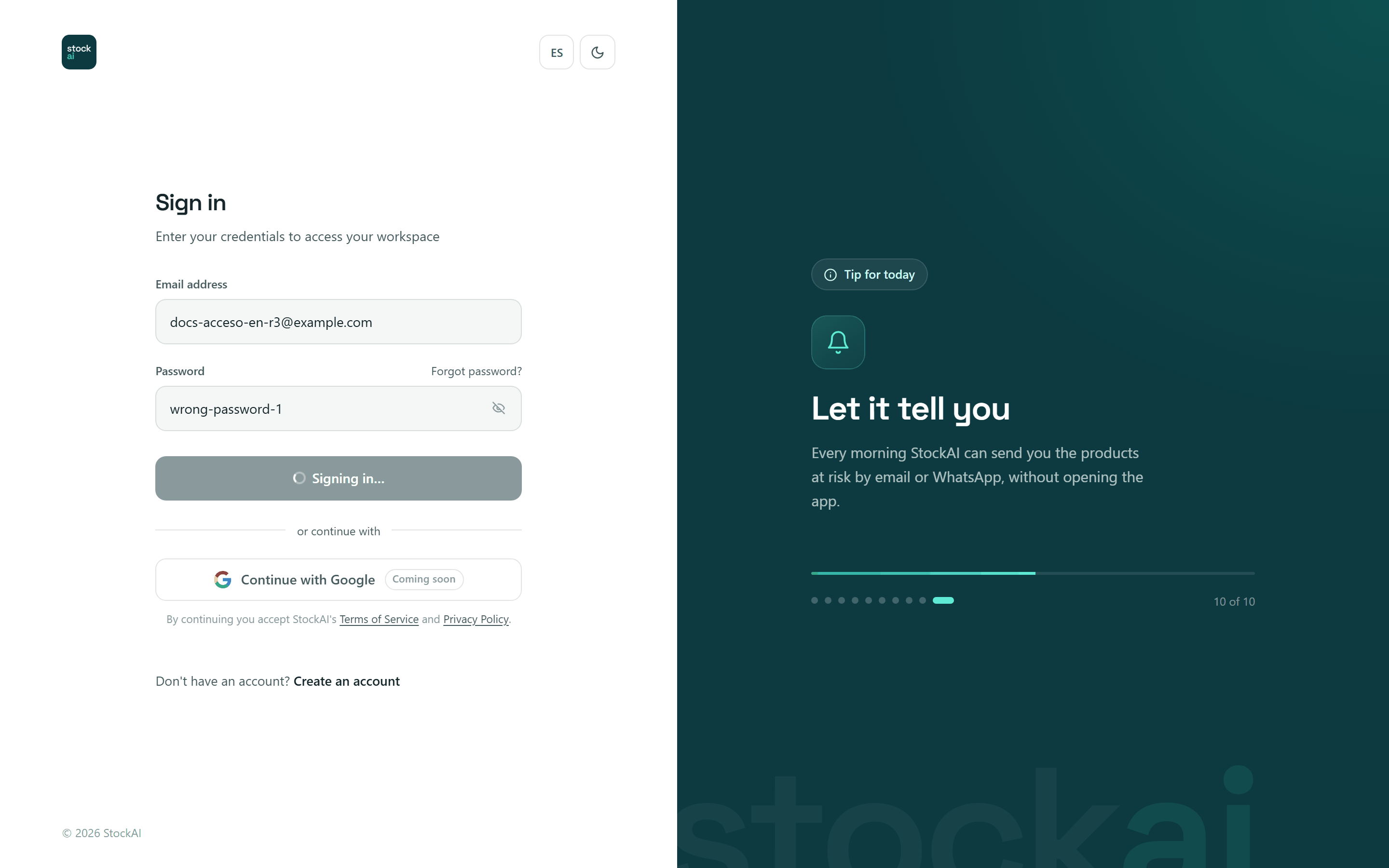
- «Wrong email or password.»
- The email does not exist or the password does not match. Both give the same notice on purpose, so nobody can find out which emails have an account.
- «Too many attempts. Wait a few minutes and try again.»
- More than 5 attempts with the same email in 5 minutes.
- «This account is locked after too many failed attempts…»
- Your company set a lockout after several failed attempts. Wait the minutes it says or ask an admin to unlock you.
- «Your account is pending verification…»
- The email is not verified yet. The notice carries a «Resend email» button to ask for a new link.
- «Your company requires signing in with its identity provider…»
- Your company made company sign-in mandatory for your email domain. The «Sign in with your company» option opens by itself with your email filled in.
- «This account only accepts connections from approved IP addresses…»
- Your company limits which networks can sign in and your current connection is not on the list. The notice shows your address so you can pass it to your admin.
- «Your password is older than your company allows…»
- Your company requires changing the password every so often. Change it with «Forgot password?».
- «This trial account has ended…»
- It was a trial account and its 24 hours are over.
- «Your account is not active (status: …)…»
- An admin deactivated your user. Ask them to reactivate it.
Two-step verification
If you turned on two-step verification in My account, after the password the screen switches to «Two-step verification». No session exists until you enter the code.
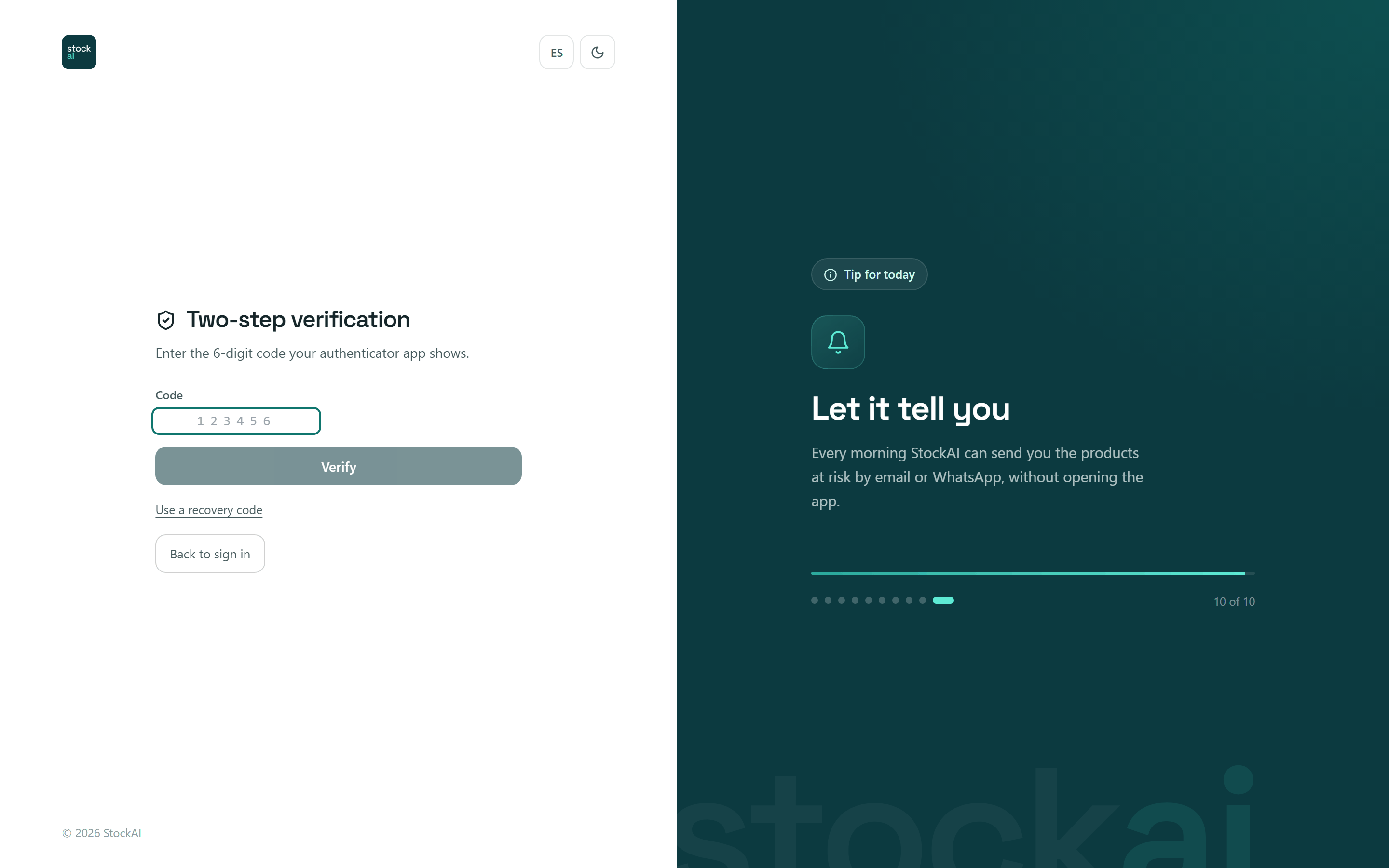
- Code
- The 6 digits your authenticator app shows right now. «Verify» turns on once all 6 are in.
- Verify
- Checks the code and opens the session.
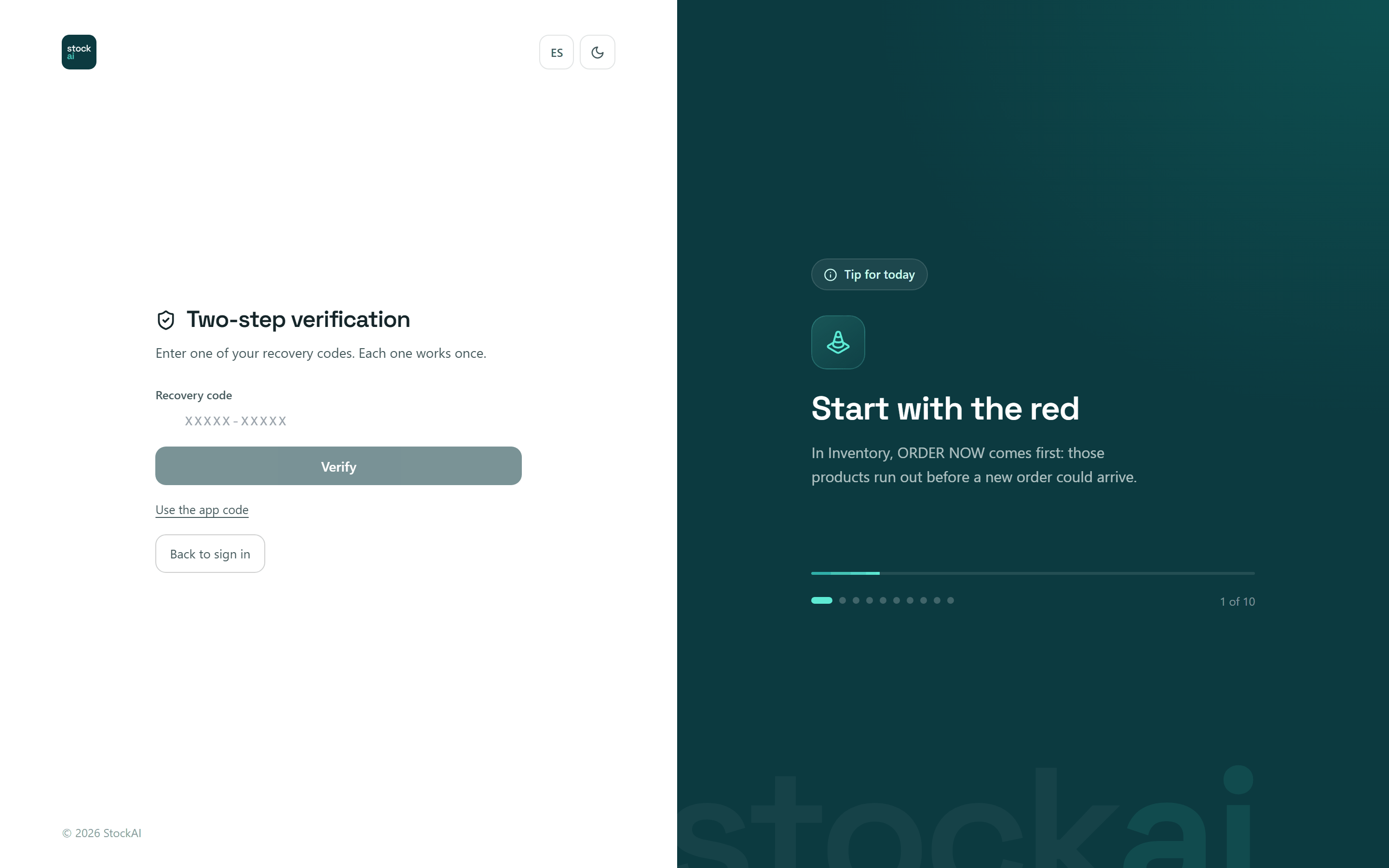
- Use a recovery code
- Switches the field to «Recovery code»: one of the codes you saved when you turned the verification on. Each one works once. «Use the app code» goes back to the normal code.
- Back to sign in
- Returns to the email and password form (the password is cleared).
If your company requires two-step verification and you have not set it up yet, instead of the code you see «Your organization requires two-step verification»: set it up right there: scan the QR code with your authenticator app (or type the key by hand), enter the code the app shows and press «Turn on», then save the recovery codes that appear («Save your recovery codes»). When you finish, press «Sign in again» to sign in with the code.
Sign in with your company (SSO)
If the installation enabled company sign-in, a «Sign in with your company» button appears. On an installation where it is not enabled the button is simply not there (as in the captures).
- Press «Sign in with your company».
- Type «Your work email».
- Press «Continue». StockAI looks up your domain's identity provider and sends you to its page («Opening your company sign-in…»).
- Sign in there with your company account; you come back to StockAI signed in.
If your email has no company sign-in, the screen says «That email has no company sign-in. Sign in with your email and password.» and the normal form stays where it was.
More sign-in problems: Account and access.