Data sources
All your files and database connections in one place: upload them, review their rows, analyse each product, edit columns and rows in a copy, replace a file, or query your database with read-only SQL.
On this page
Data sources is the library of your data. It shares a tab strip with Upload sales (My sales): there you train a forecast; here you keep, review and prepare the data. The list of sources is on the left; the open source on the right.
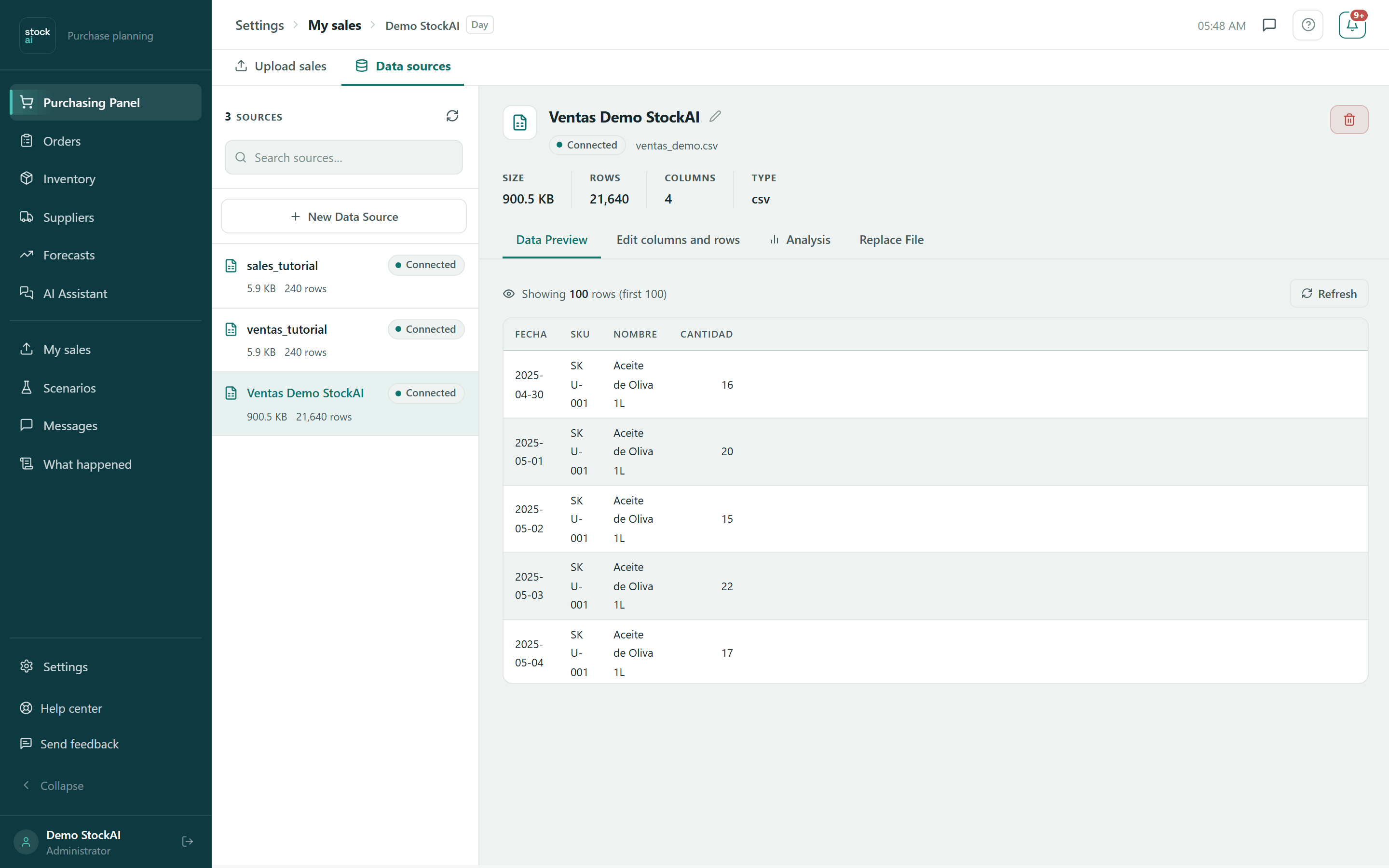
The list of sources
- N sources
- How many sources you have. The arrows button (Refresh) reloads the list.
- Search sources…
- Filters by name or description.
- New Data Source
- Opens the form to upload a file or connect a database.
- Each source
- Type icon (file or database), name, status (Connected, Pending or Error), the description, and the size or the engine and host, with the rows.
With no sources you see “No data sources yet”; with none selected, the right side says “No source selected”.
Upload a file
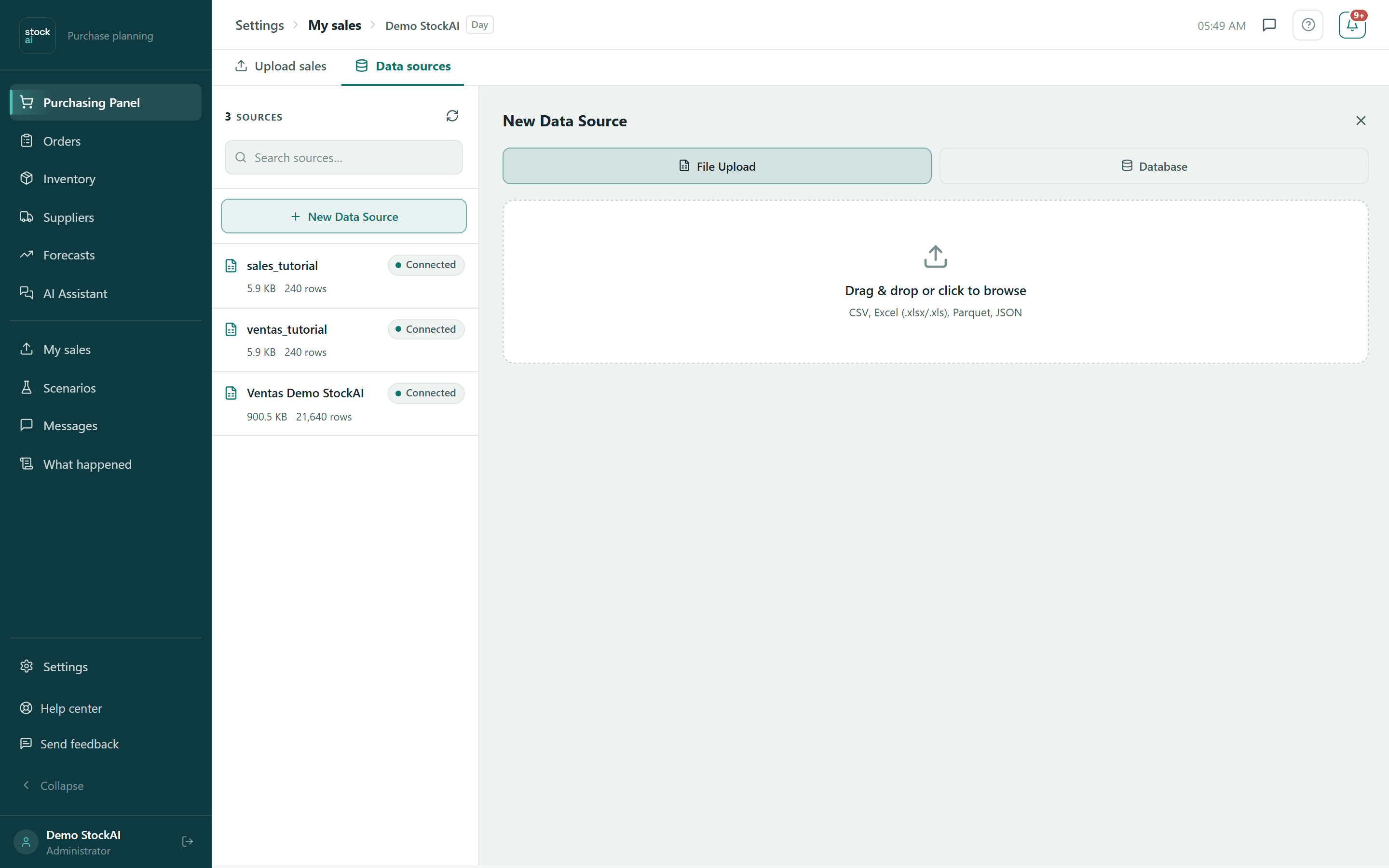
- Click “New Data Source” and keep “File Upload” selected.
- Drag the file onto the zone or click to browse. Formats: CSV, Excel (.xlsx/.xls), Parquet and JSON.
- Optionally type a Name (optional) (the file’s name by default) and a Description (optional). The X next to the file removes it.
- Click “Upload File”. The new source appears first in the list and opens.
Connect a database
With “Database” the form asks for Source Name, Description, Engine (PostgreSQL, MySQL / MariaDB, SQL Server, Oracle or MongoDB), Host, Port, Database, Username and Password. Click “Create Connection”: StockAI tests it right away, so the source opens saying whether it works and, if not, at which step it failed. The full guide is in SQL sources.
An open file
At the top: the name (the pencil renames it; Enter saves, Escape cancels), the status and the original file name, and the trash can to delete. Below, Size, Rows, Columns and Type. A file has four tabs:
- Data Preview
- The first 100 rows (“Showing N rows (first 100)”). In an Excel file with several sheets, one button per sheet. Refresh reads it again.
- Edit columns and rows
- An editable table (see below).
- Analysis
- A statistical analysis per product (see below).
- Replace File
- Upload a new file in place of the current one: “The name and ID stay the same.”
Edit columns and rows
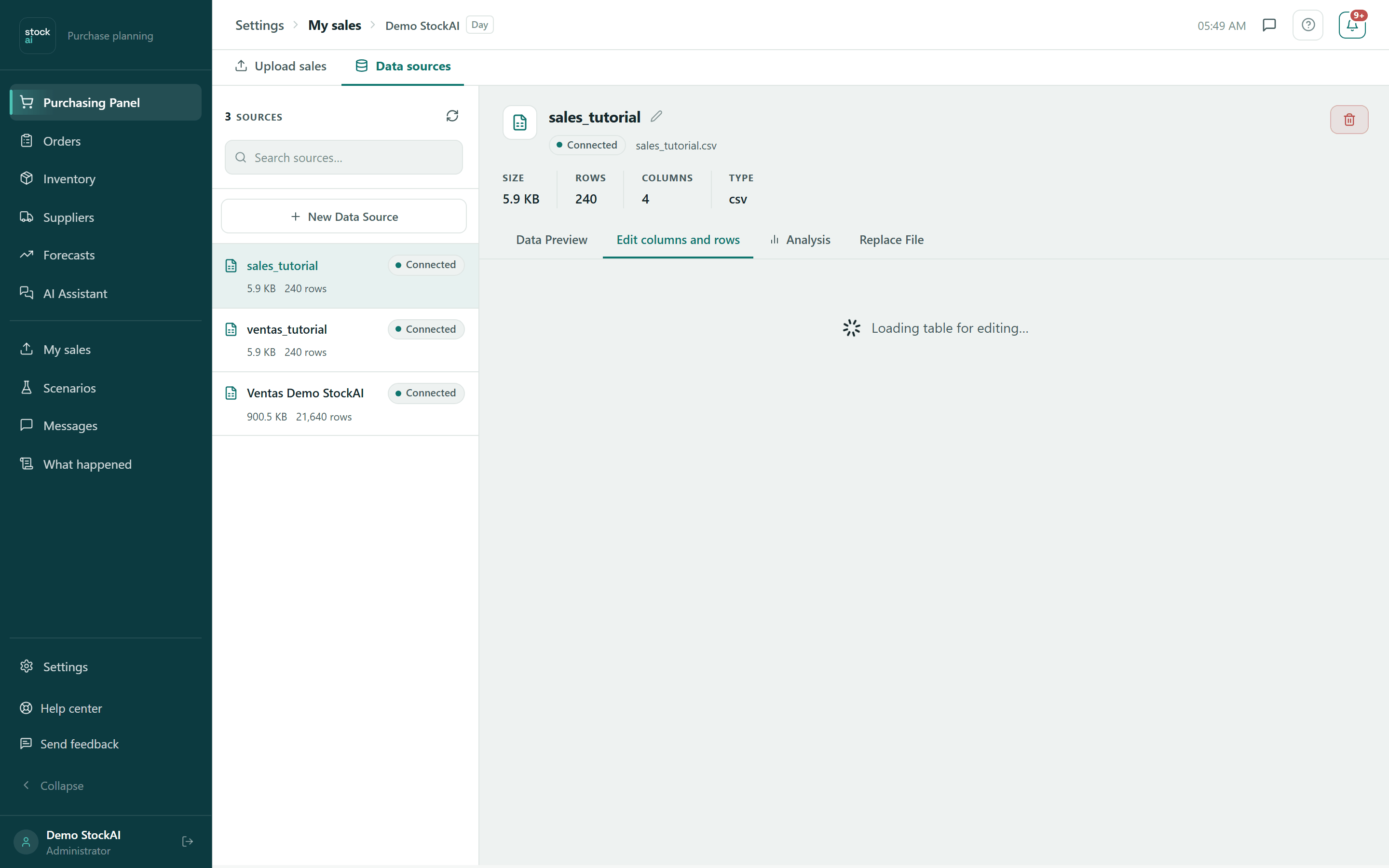
- Open “Edit columns and rows”. Type over any cell to change it.
- Use Add row, Delete row, Rename column, Drop column or New column as needed.
- Type the New file name (by default “{name} (edited)”).
- Click “Save as new”. You will see “Saved as a new file” and the copy opens in the list.
Analysis
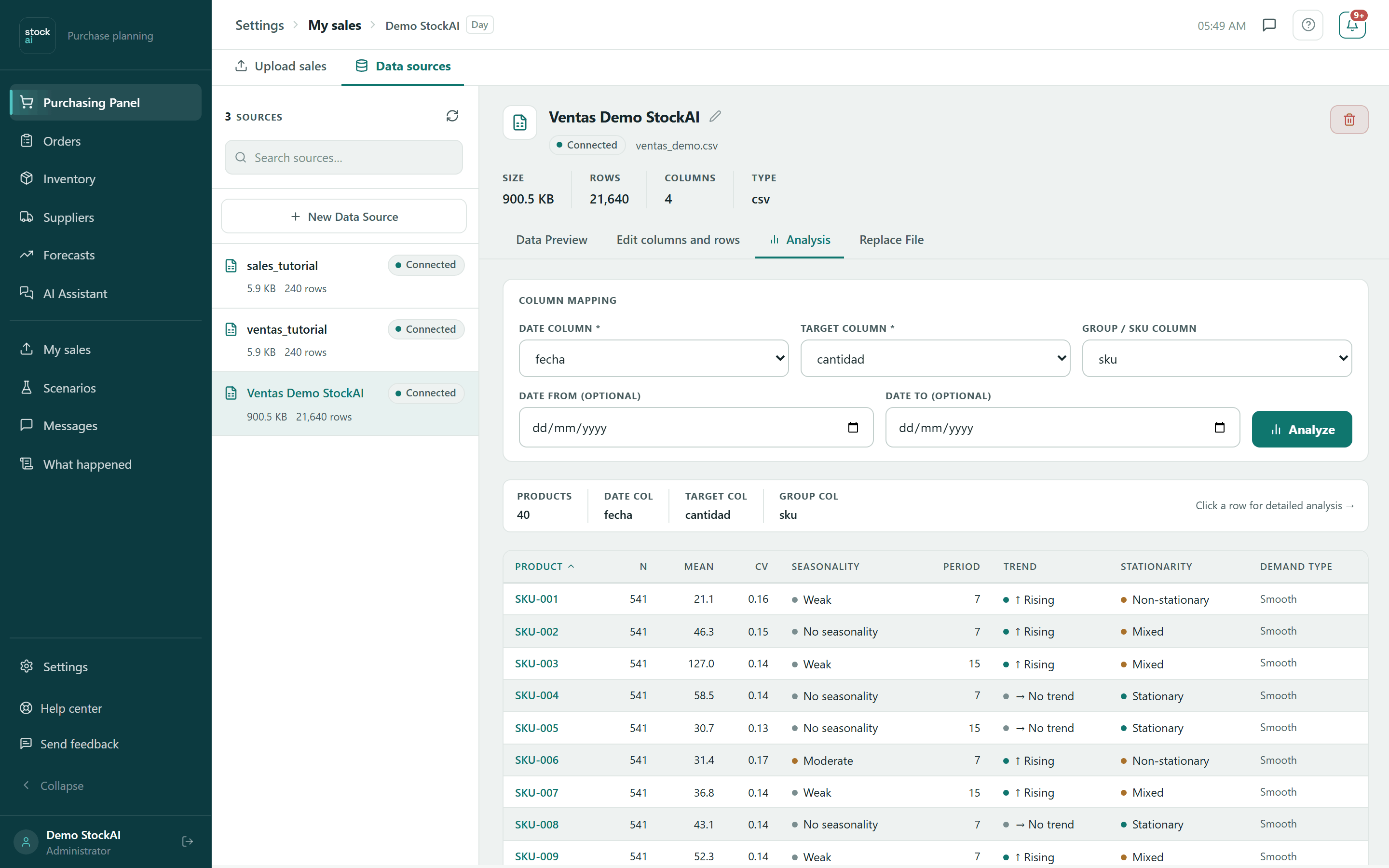
- In Column Mapping pick the Date Column, the Target Column (what sold) and the Group / SKU Column (“None (single series)” if the file is one product). StockAI suggests the ones it recognises.
- Optionally narrow the dates with Date From (optional) and Date To (optional).
- Click “Analyze”. Large files take a moment.
- Read the per-product table (observations, mean, variability, trend and direction, seasonality, stationarity and demand type) and click a row.
A product’s details include the Time Series with its outliers (show or hide them, with date, value, z-score and reason), the Distribution, Seasonality, Trend and Stationarity panels, the STL Decomposition (trend, seasonality and residual), the Autocorrelation and the Demand Classification (for example intermittent or erratic, with its ADI and CV²). Back returns to the table. It is a diagnosis: it changes nothing in the file.
Replace and delete
- To replace, open “Replace File” and drop the new file. While it uploads it says “Replacing file…”, then the preview reloads.
- To delete, click the trash can and confirm “Delete "…"? This cannot be undone.”
An open database
At the top is “Test Connection”: it shows the result stage by stage, so a failure always says where it happened, and it updates the source’s status. There are two tabs (a MongoDB source only has Connection: inventory sync reads it):
- Query Editor
- Write a
SELECTand click Run: you see the rows page by page, how long it took and whether there are more. Save Query keeps it as the source’s query. Download Excel and Export CSV download the full result. Use as dataset stores the full result as a file to train on, which appears in My sales. The schema button shows or hides tables and columns. Until the connection is established, the tab asks you to test it first. - Connection
- Change the connection details (leave the password blank to keep it) and click Save Changes: it is tested immediately. Inventory sync is also linked from here.
When the source is ready, train it from My sales. If a file is rejected, see File rejected.