Order approvals, step by step
Decide which purchase orders need approval before they go to the supplier, who can approve them and, when needed, multi-level chains by cost center.
On this page
The Approvals screen opens from Settings. Until it has rules or chains, no order needs approval and everything works as usual.
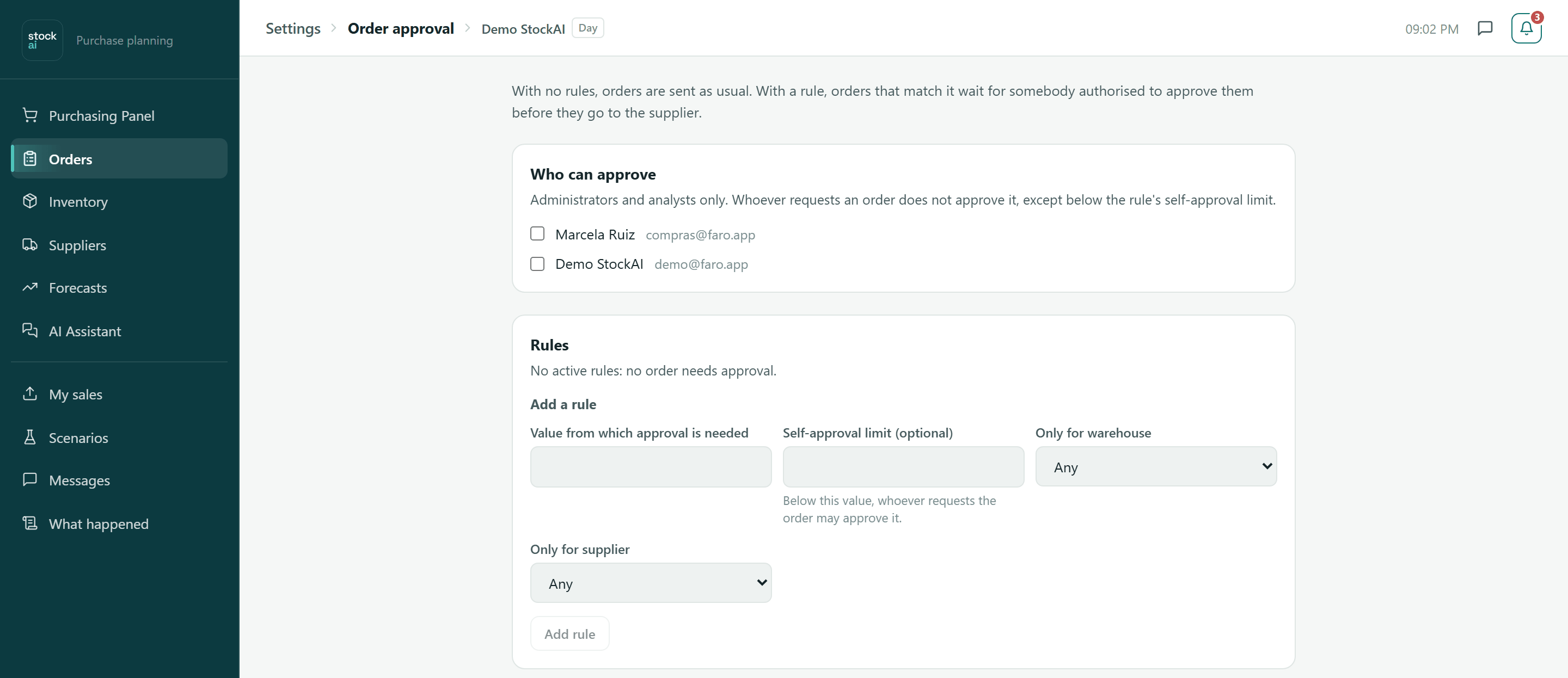
Who can approve
The list shows your company’s active admins and analysts. Tick each person who may approve; it saves at once. Whoever requests an order does not approve it, except below the rule’s self-approval limit.
Rules
A rule says: "orders of this value or more need approval". The line under the title says whether approvals are on or no order needs one.
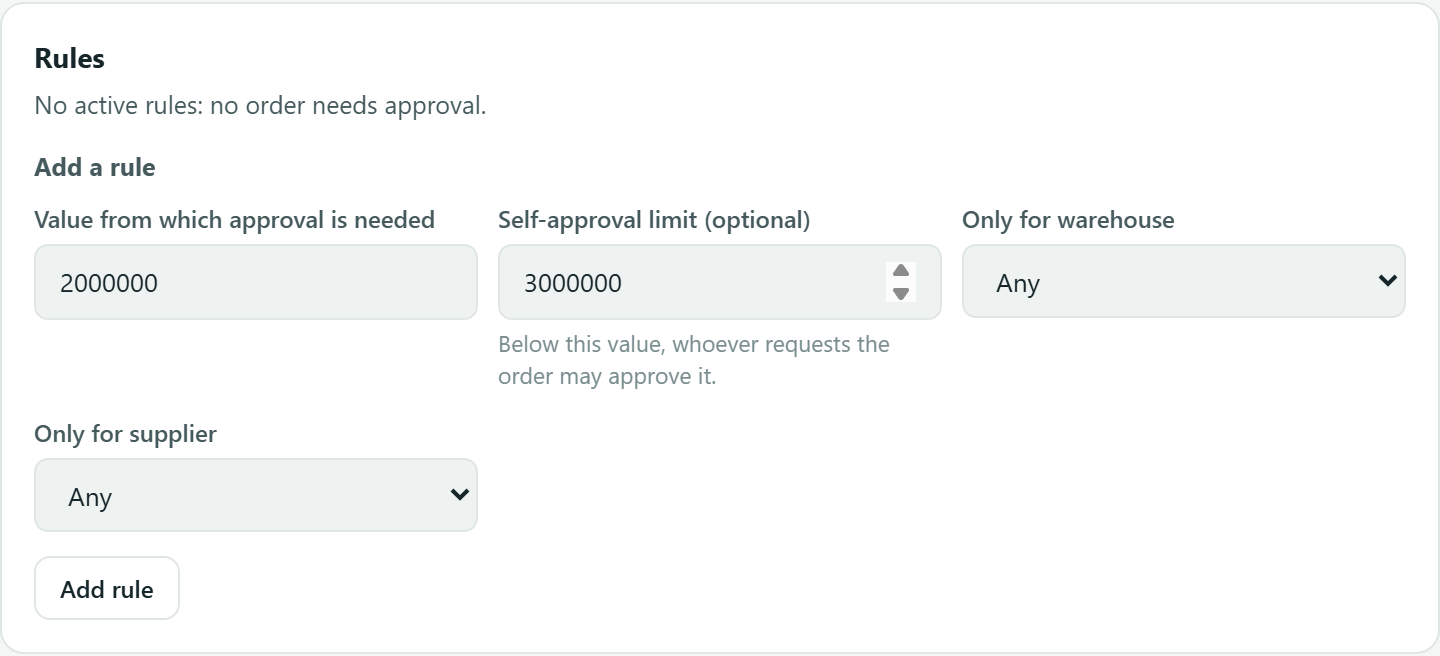
- In "Value from which approval is needed" type the amount (above 0).
- Optional: "Self-approval limit". Below that value, whoever requests the order may approve it themselves. It must be above the rule’s value; otherwise it says so in red.
- Optional: "Only for warehouse" (if you have more than one) and "Only for supplier". "Any" means no limit.
- Click "Add rule".
- Orders of X or more
- Each rule, with its scope (warehouse, supplier or "Any") and its self-approval limit.
- Pause / Resume
- Switches the rule off for a while without losing it. A paused rule is greyed out.
- Delete rule
- Asks for confirmation. Orders that depended on it stop needing approval.
Cost centers
The places money is spent from (a branch, a department). An order is charged to one when it is created (the panel’s cart shows "Cost center") and a budget can be set on one.
- Under "Add a cost center" type the Code and the Name.
- In "Inside" pick its parent center, or "None (top level)".
- Click "Add center". It appears in the tree, indented under its parent.
A center is never deleted: "Pause" takes it out of the pickers and "Resume" brings it back, because old orders keep pointing at it.
Approval chains
For companies that need more than one level: from an amount up, an order needs one or more levels of approval, in order. Whoever asked for the order never approves a level, and nobody approves two levels of the same order.
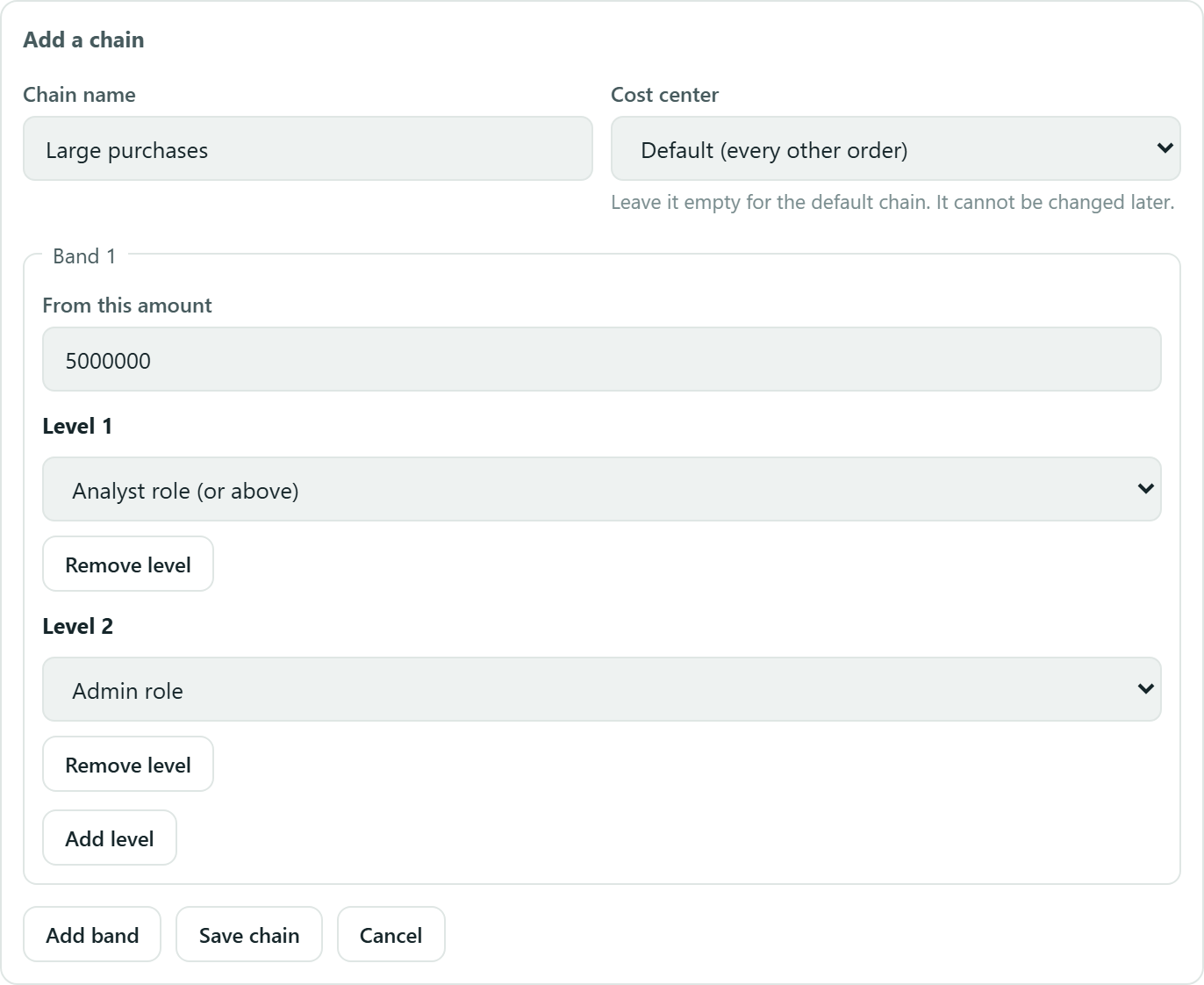
- Click "Add a chain" and type the Chain name.
- In "Cost center" pick the center it covers (and the ones below it), or leave "Default (every other order)". It cannot be changed later.
- In "Band 1", type "From this amount".
- On each Level, pick Who approves: "Analyst role (or above)", "Admin role" or "Named people" (tick the people).
- Use "Add level" / "Remove level" and "Add band" / "Remove band" for larger amounts with more levels.
- Click "Save chain".
Each saved chain shows its scope, its bands ("From X") and its levels; "Edit chain" changes it and "Pause" switches it off.
Approve and reject orders
Decisions are not made here but in Orders, in the "Orders to approve" box, which only an approver sees when something is pending. Notifications and emails take you straight to it.
- Read the order: number, amount, "Requested by …", suppliers, warehouse, number of products and, with chains, "Level N of M".
- Click "Approve". If it was the last level, the order can now be sent.
- Or click "Reject", type the Reason for rejecting (required) (at least 3 characters) and click "Reject the order".
If it is your own request above what you can approve yourself, you read that somebody else has to decide it. Whoever asked for the order sees it in Orders with the "Pending approval" mark, and the "Request approval" button becomes "Waiting for approval". Approvers can also decide from a link: see Approve by link.
Delegate my approvals
In Orders, under the inbox, "Delegate my approvals" lets someone else approve or reject what you could while you are away.
- Click "Delegate approvals".
- Pick "Who stands in for you", "From" and "Until (included)", and optionally a Note (optional).
- Click "Save delegation". You see "{person} covers for you from … to …" and it ends by itself on the last day.
- To end it sooner, click "Revoke" and confirm.
Your substitute decides only in your warehouses and within your limits; decisions are recorded in both names.