Recover your password
Changing a forgotten password in three steps: your email, the 6-digit code you receive and the new password. Also what the «Set a new password» link screen does.
On this page
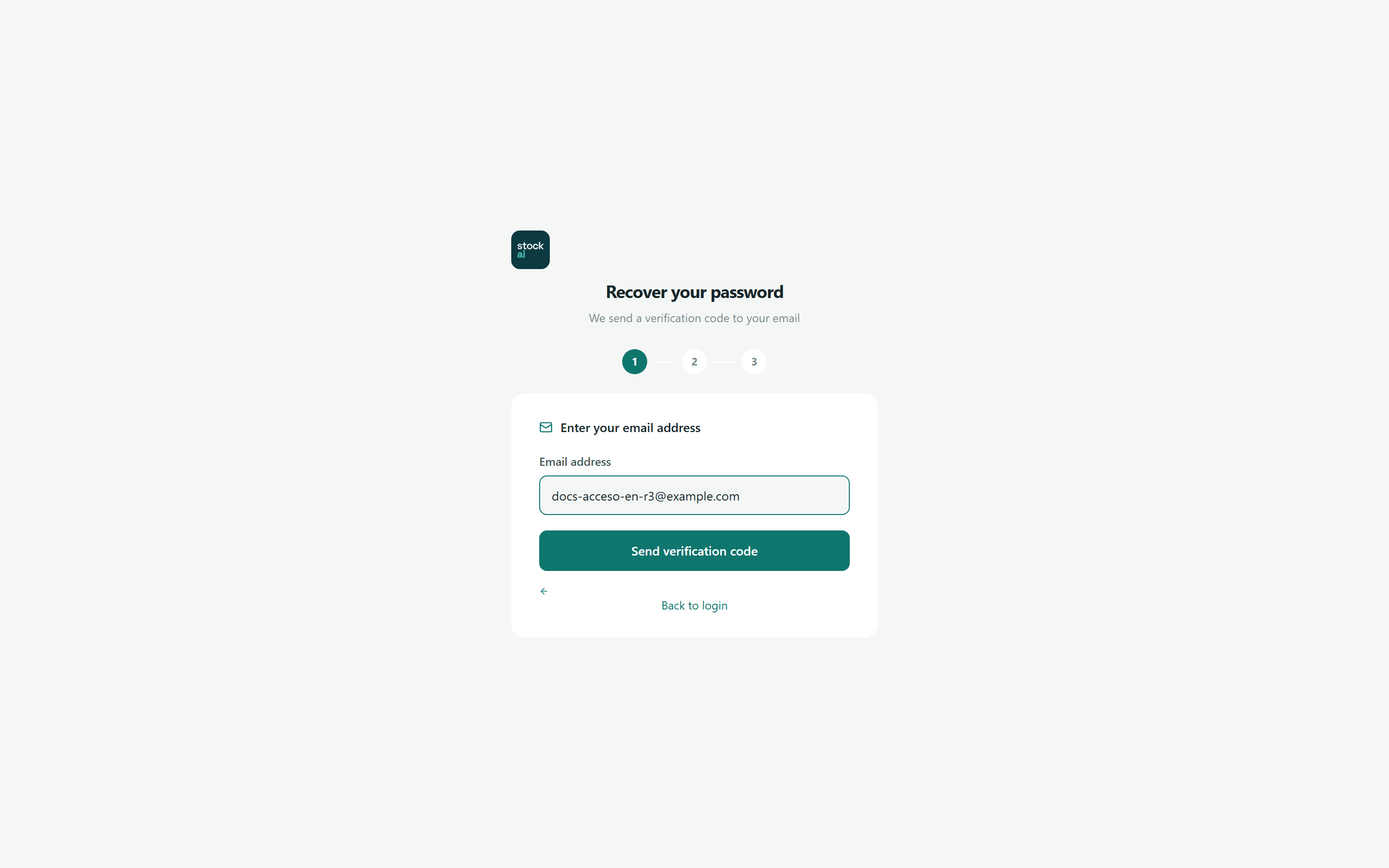
From Sign in, the «Forgot password?» link opens Recover your password. You do not need to be inside the app or ask an admin: a code arrives at your account's email.
At the top, three numbered circles show which step you are on; completed steps turn green with a tick.
The three steps
- Enter your email address and press «Send verification code».
- Check your email: a 6-digit code arrives that expires in 15 minutes. Type it in the six boxes (each digit moves the cursor to the next box; backspace goes back) and press «Verify code».
- Type the New password (at least 8 characters, with letters and digits), repeat it in Confirm password and press «Reset password».
- You see «Password updated!» and a few seconds later the screen takes you to sign in. Sign in with the new password.
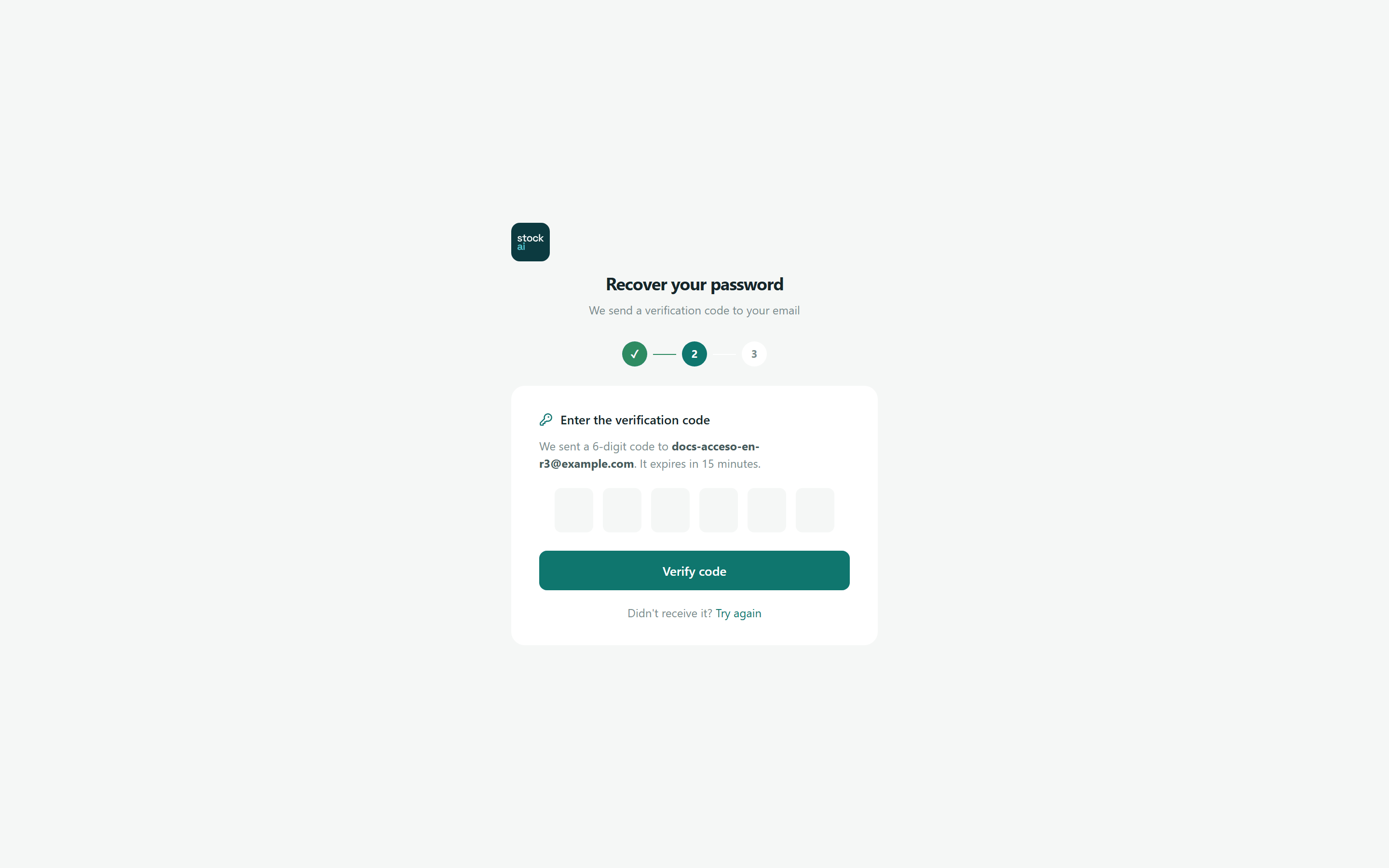
- Didn't receive it? Try again
- Goes back to step 1 to ask for another code. Asking for a new one voids the previous one.
- «Enter all 6 digits of the code»
- Some digits are missing.
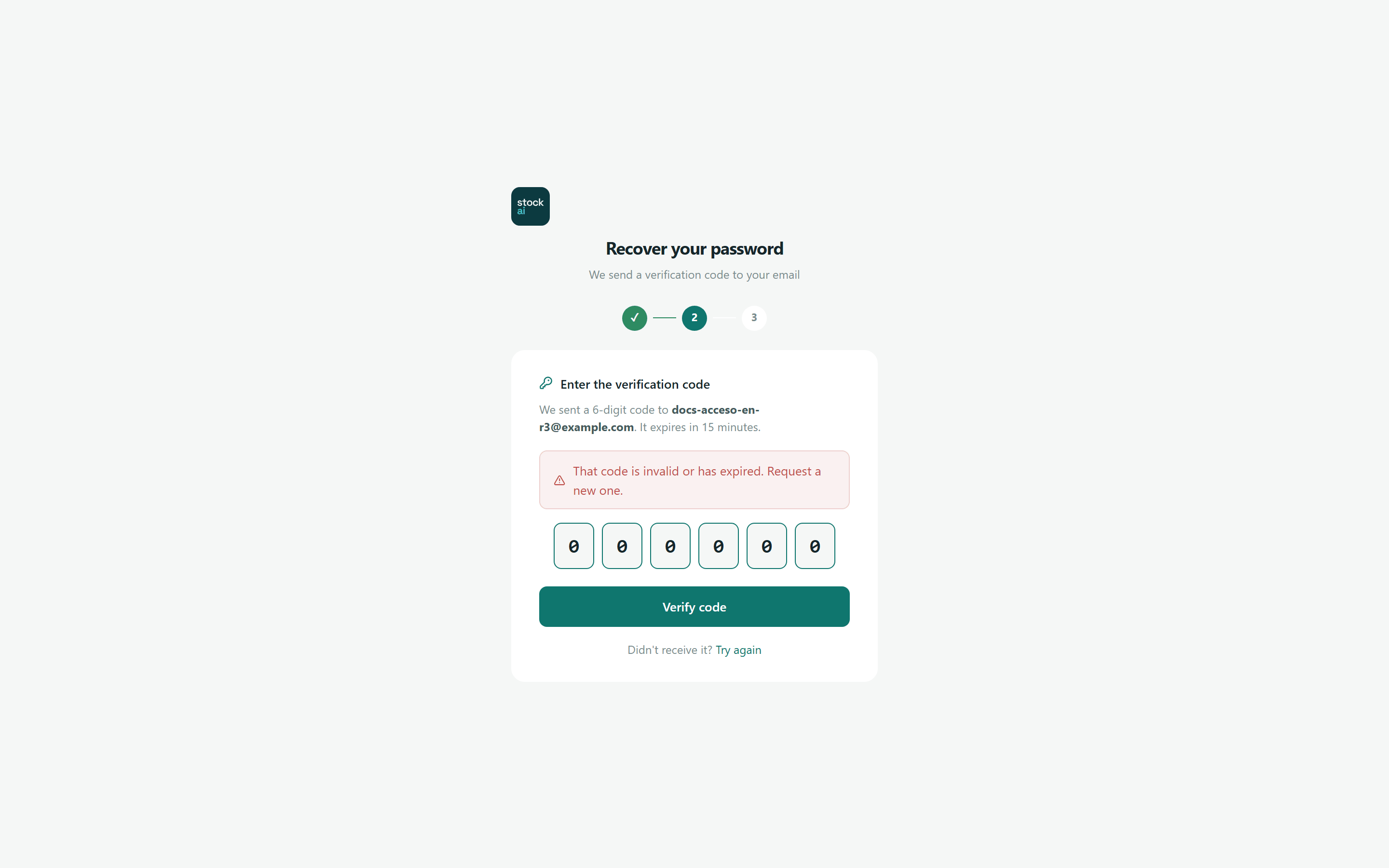
- «That code is invalid or has expired. Request a new one.»
- Wrong, expired or already used code. Each code allows 5 failed attempts; after that you must ask for another. On top of that, one email can attempt 10 verifications every 10 minutes.
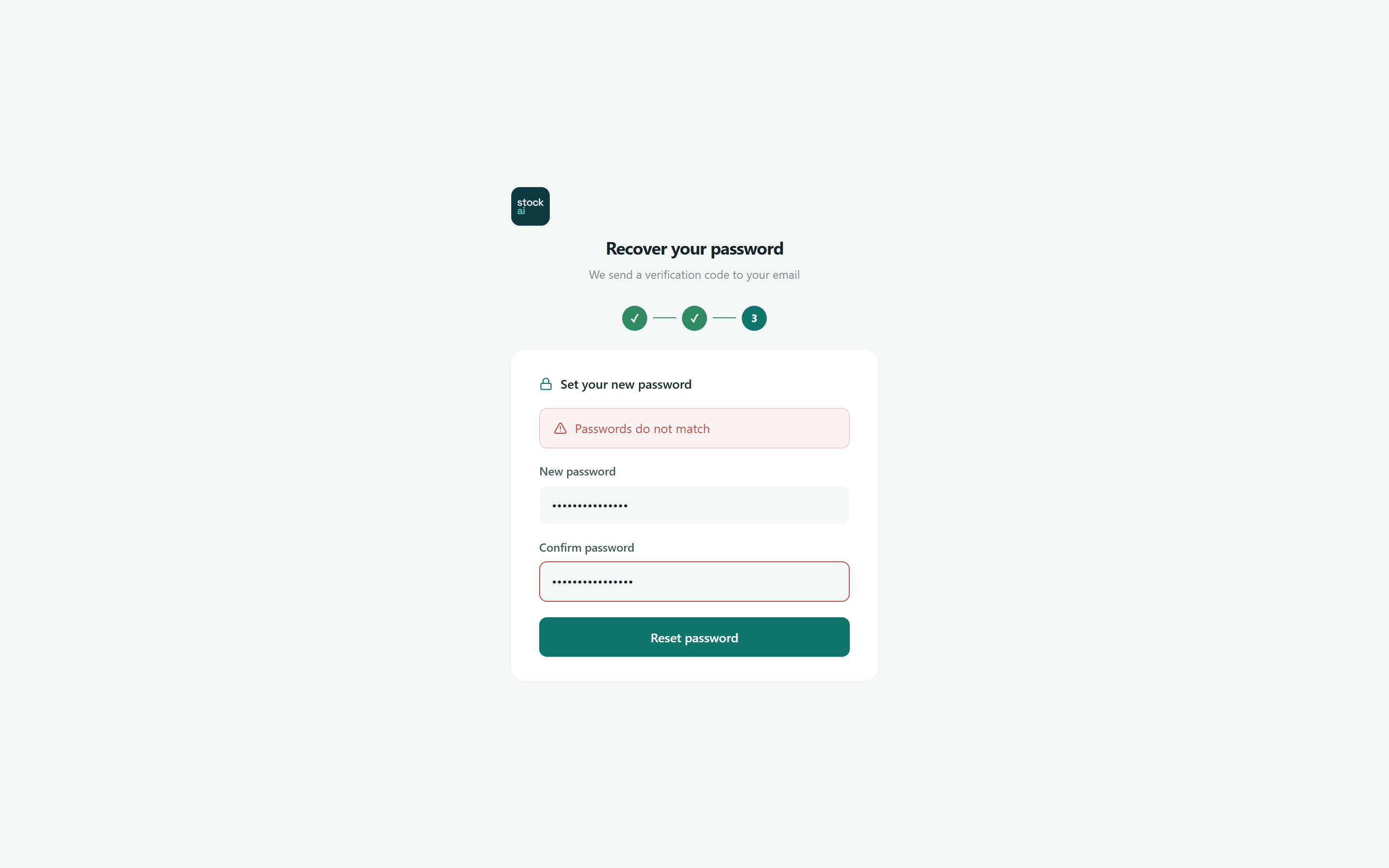
- «Passwords do not match»
- The two fields differ.
- «Password must be at least 8 characters»
- It is too short.
- «The password must be at least 8 characters long, with at least one letter and one digit.»
- It does not meet the server rule. Your company may require its own rules on top (minimum length, uppercase, symbols).
- «This password reset link is invalid or has expired…»
- More than 10 minutes passed since you verified the code, or that step was already used. Start again.
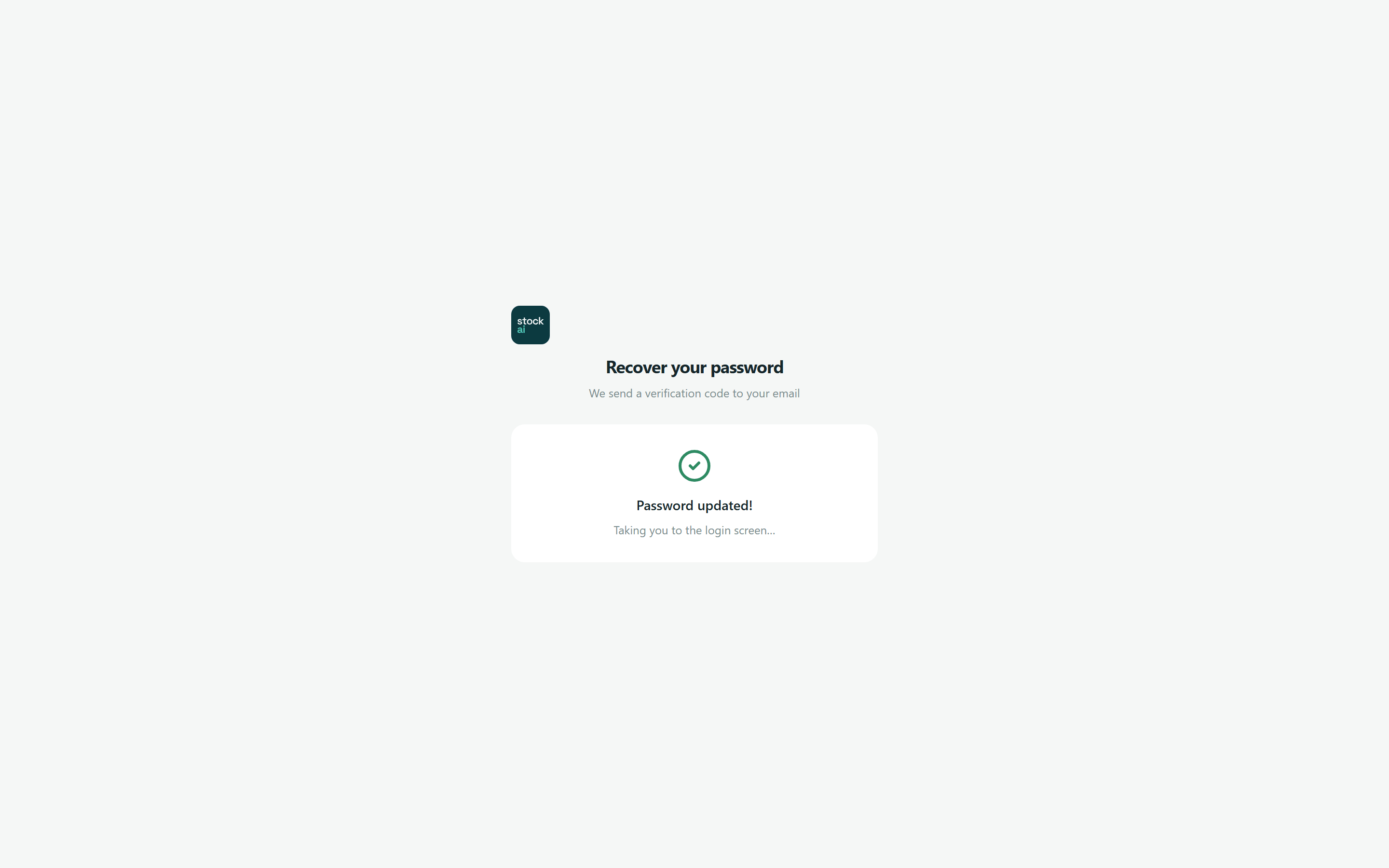
The «Set a new password» screen
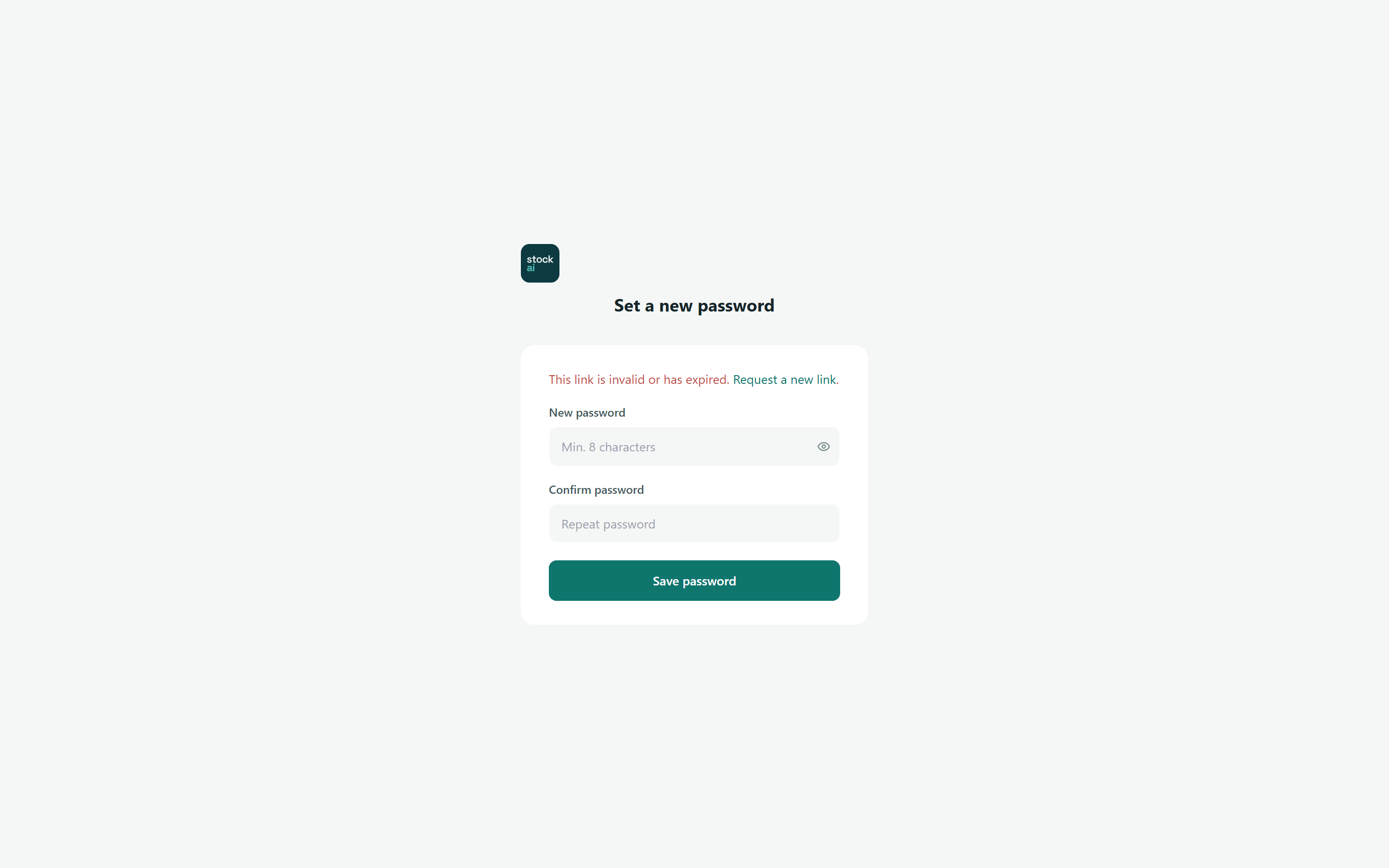
If you receive a password-change link (it carries ?token= in the address), it opens the «Set a new password» screen: type the New password and Confirm password (the eye shows or hides both) and press «Save password». When it finishes it says the password was updated and takes you to sign in. That link works once.
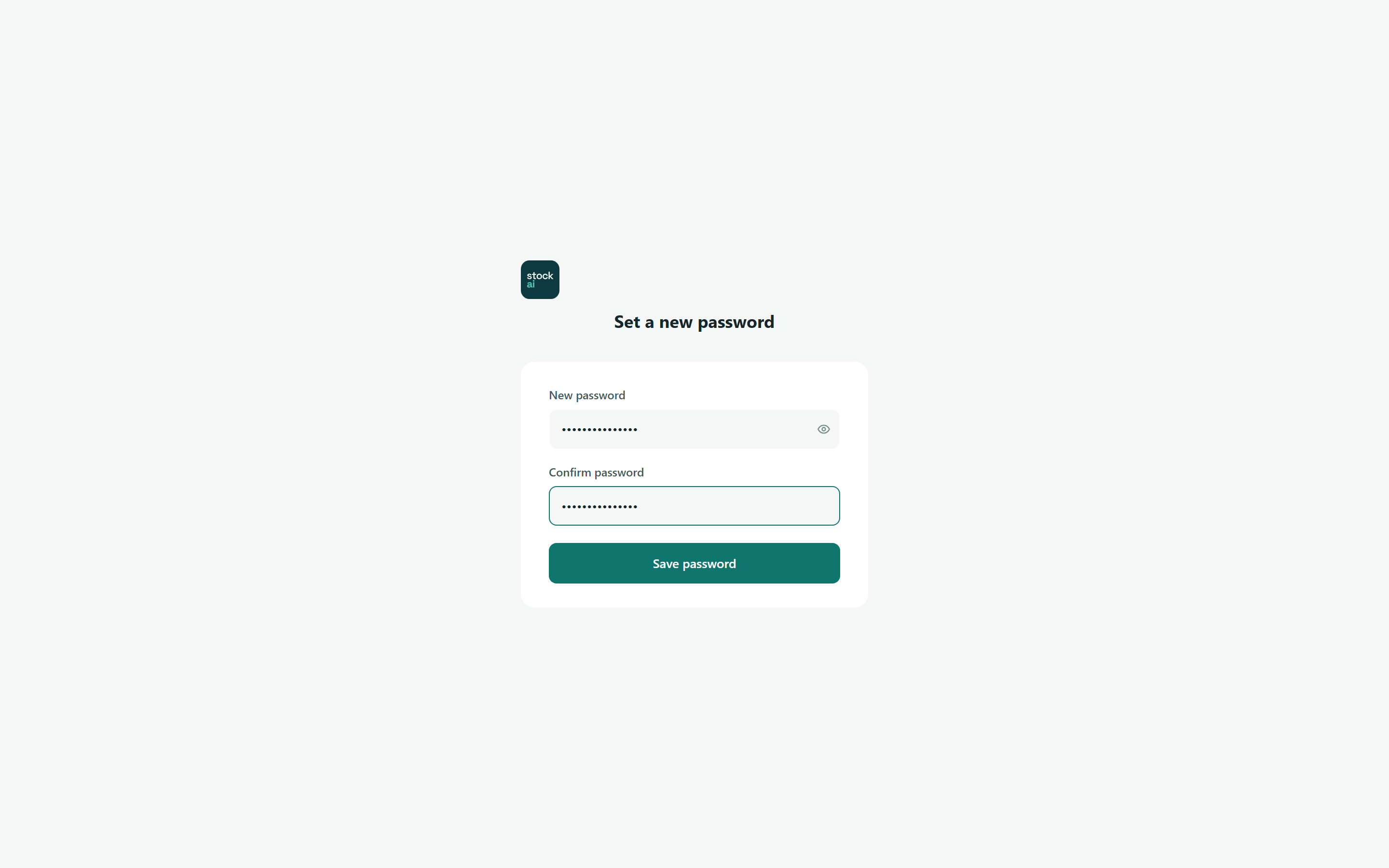
With no token, or an expired one, the screen warns «This link is invalid or has expired.» with a «Request a new link» link (which leads to the three steps above) and the button stays off.