Inventory sync
Keep stock up to date without uploading files by hand: StockAI reads your database (read-only), receives what your system sends, or picks up the file your ERP drops in an SFTP or S3 folder, always with a preview and a safety brake.
On this page
Inventory sync opens from the … menu in Inventory. There are three ways to feed the stock, and all three end in the same place:
- A database StockAI reads on a schedule (table, view, query or MongoDB collection).
- Your system sends the data (push) to an API address.
- A file drop (SFTP or an S3 or compatible bucket) where your ERP leaves a stock file.
Stock: the state at a glance
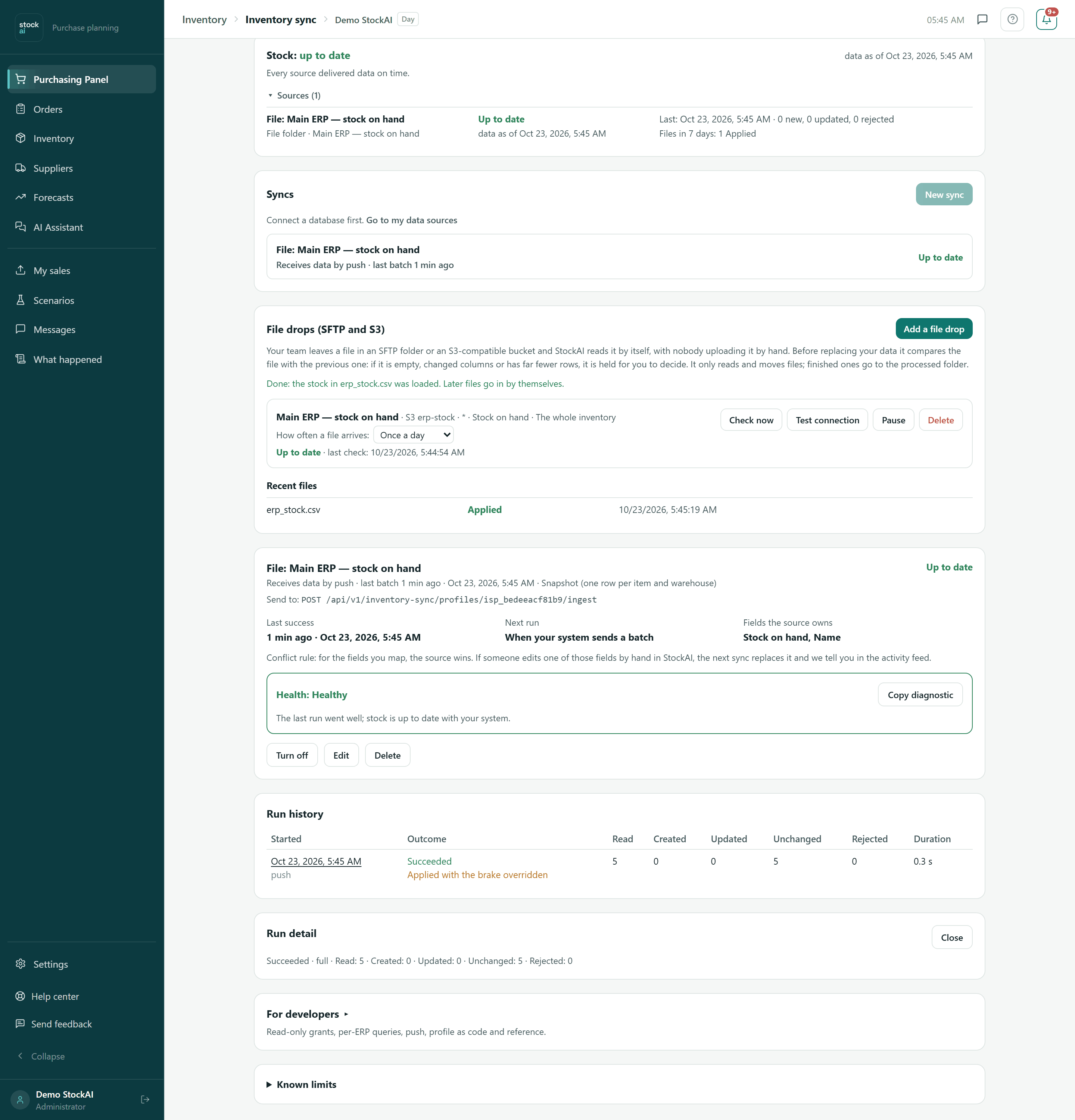
The panel on top appears as soon as you have at least one sync or one stock file drop. It answers two questions: is the stock current, and is anything waiting for a person? It refreshes by itself every minute.
- Stock: up to date
- Every source delivered data on time.
- Stock: waiting for data
- The sources are set up but nothing has arrived yet.
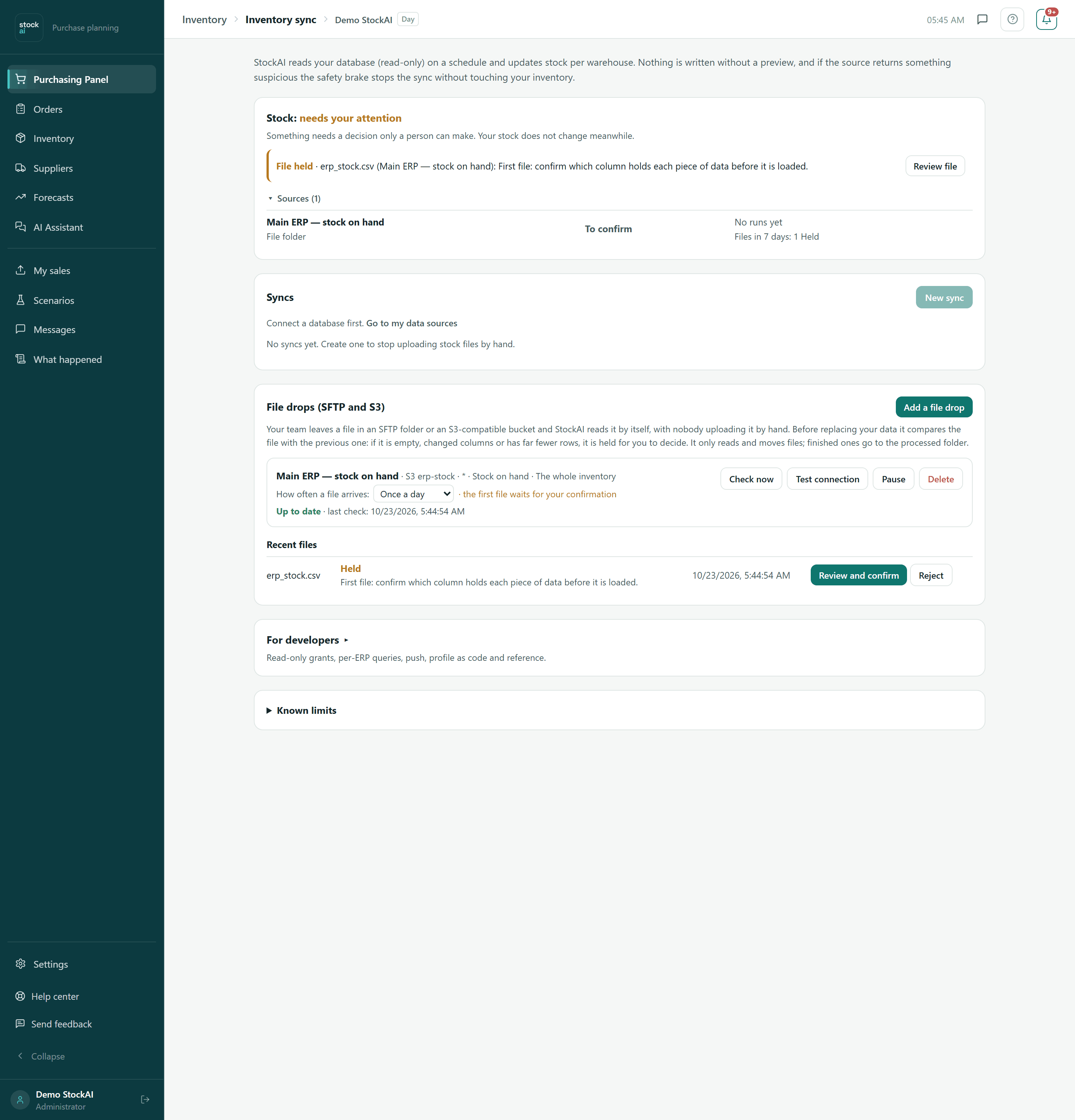
- Stock: needs your attention
- Something needs a decision. Your stock does not change meanwhile.
- Stock: stopped
- A sync is stopped and that source is not being updated.
- data as of …
- The date of the most recent data.
Below, one line per pending matter: File held (with “Review file”), Stopped, No access, Behind or Rows rejected (with “Open sync”). “Sources (N)” unfolds each source with its origin (Database, File folder or Pushed by your system), its state, its last run (new, updated, rejected) and the files of the last 7 days.
File drops (SFTP and S3)
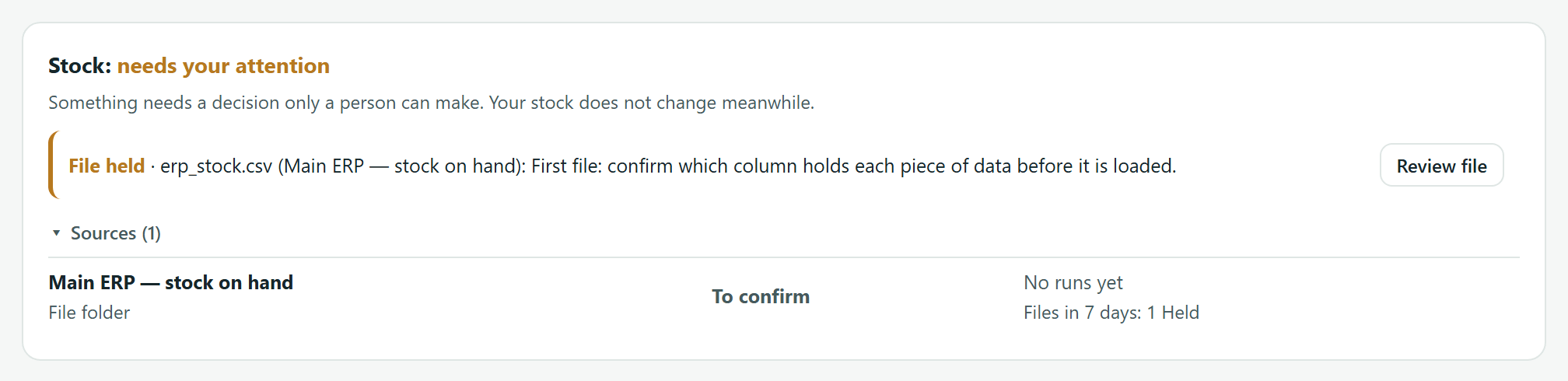
Your team or your ERP leaves a file in a folder and StockAI reads it by itself. Before replacing your data it compares the file with the previous one: if it is empty, changed columns or has far fewer rows, it is held for you to decide. It only reads and moves files: finished ones go to the processed folder (rejected ones to rejected, with a note of the reason). A file is read once it has finished uploading: two checks in a row must see the same size, and it must be at least a minute old. You can have up to 10 file drops.
Adding a stock file drop
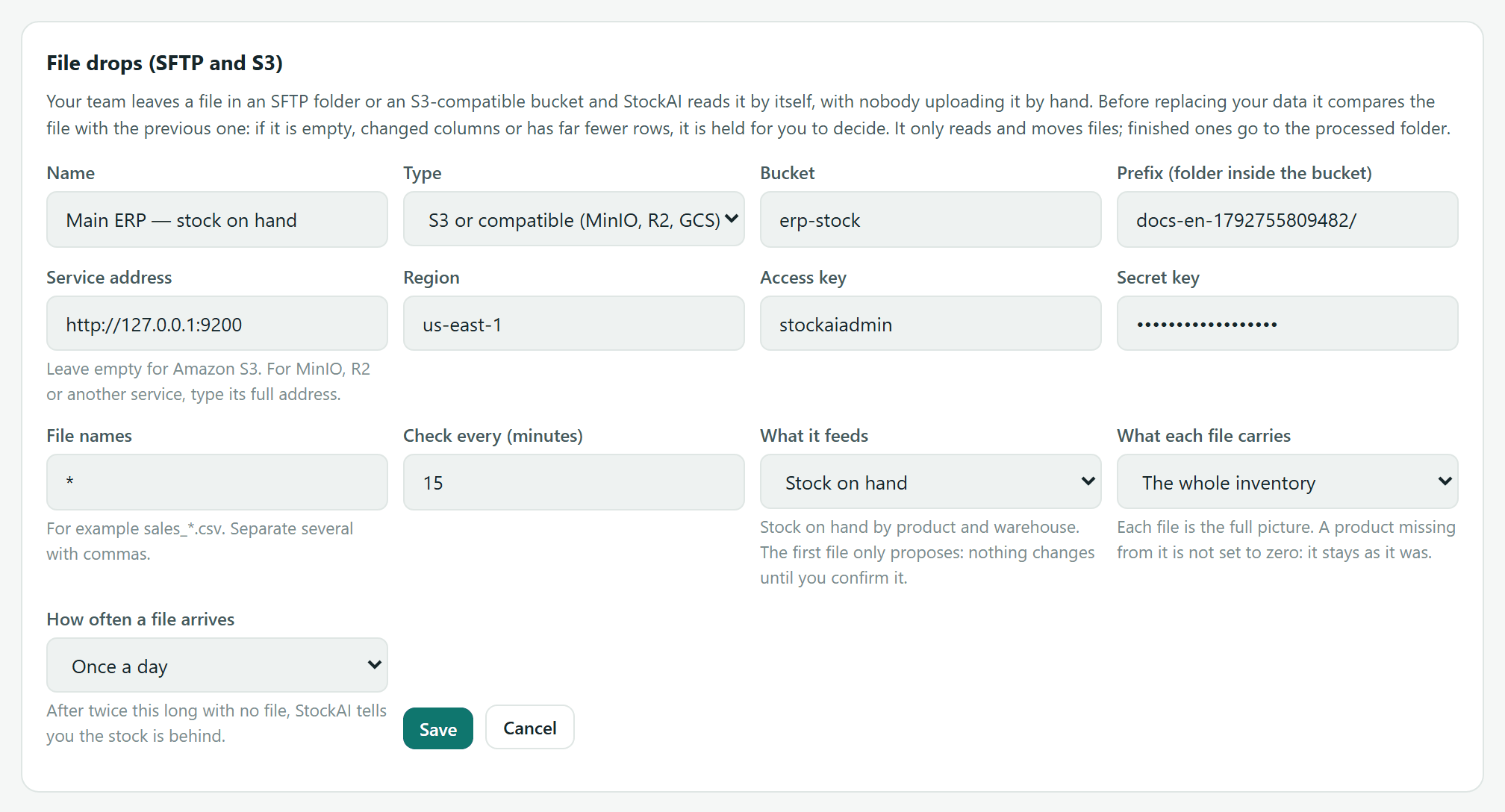
- Press “Add a file drop” (administrator only).
- Type a Name and choose the Type: SFTP or “S3 or compatible (MinIO, R2, GCS)”.
- For SFTP: Server, Port (22), User, Password or Private key (optional) (if you paste one, it is used instead of the password) and Folder. For S3: Bucket, Prefix (folder inside the bucket), Service address (empty for Amazon S3; for MinIO, R2 or another, its full address), Region, Access key and Secret key.
- Under “What it feeds” choose Stock on hand. (The other option, “Data (sales, catalogues)”, replaces a file already loaded in Files and keeps its mapping.)
- File names: with Stock on hand the pattern becomes
*(any stock file your ERP writes); you can narrow it, for examplestock_*.csv, and separate several with commas. - Check every (minutes): how often it looks at the folder (at least 5).
- “What each file carries”: The whole inventory (each file is the full picture; a product missing from it is not set to zero, it stays as it was) or Only what changed (each file carries some products; the rest are not touched).
- “How often a file arrives”: every hour, every 4 hours, every 12 hours, once a day or once a week. After twice that long with no file, StockAI tells you the stock is behind.
- Press Save. You see “File drop added. Test it…”.
The file drop in the list
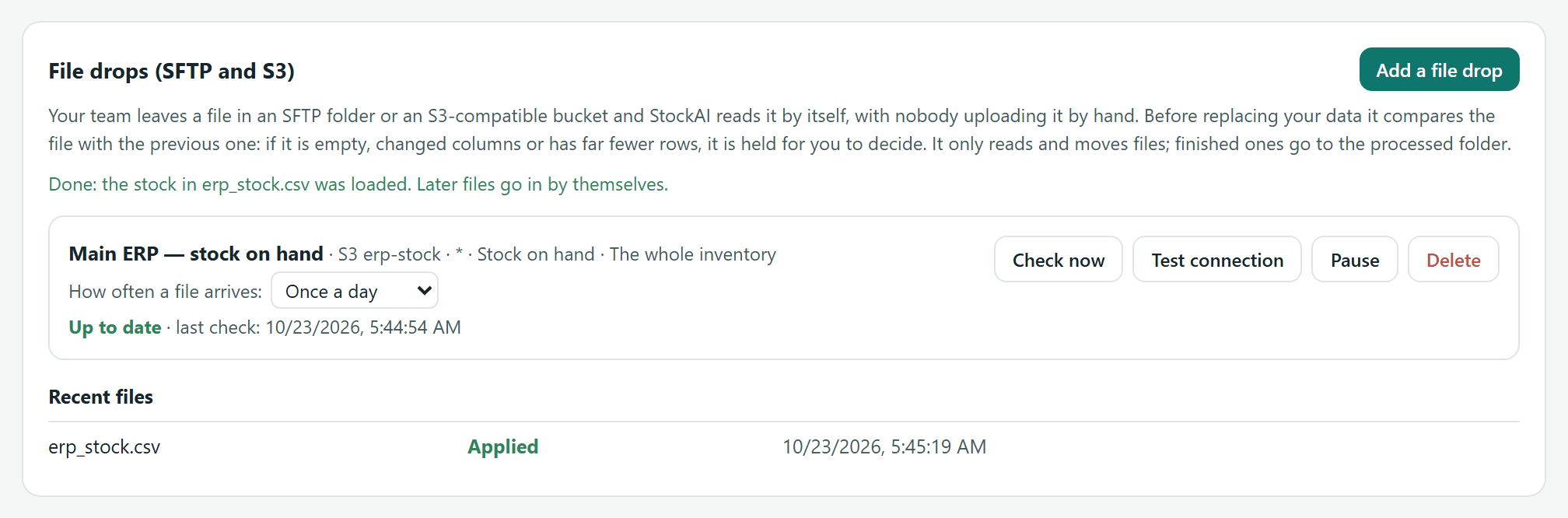
Each file drop shows its type and server or bucket, the pattern, what it feeds and the mode; for stock, “How often a file arrives” (the administrator changes it right there) and whether it waits for the first file or for your confirmation. Then the state: Not checked yet, Up to date, Failing or Stopped, whether it is paused, and the last check. With SFTP, the pinned server key.

- Check now
- Looks at the folder right away: “Check done: N applied, N held, N waiting to finish uploading”. A freshly dropped file usually waits on the first check and is read on the next one.
- Test connection
- “Connection works: N files in sight, M match the file name” and the permissions the account needs, nothing more. With SFTP it pins the server key the first time; if it changes later, the file drop stops and “Accept new key” appears (confirm with whoever runs the server first).
- Pause / Resume
- Stops checking the folder without deleting it.
- Delete
- StockAI stops checking it. Data already loaded and the files on your server are not touched.
The first file: confirming what it means
The first file of a stock file drop only proposes: it is held with what StockAI understood, and nothing changes until you confirm it. Recent files shows “Held — First file: confirm which column holds each piece of data before it is loaded” with the “Review and confirm” button.
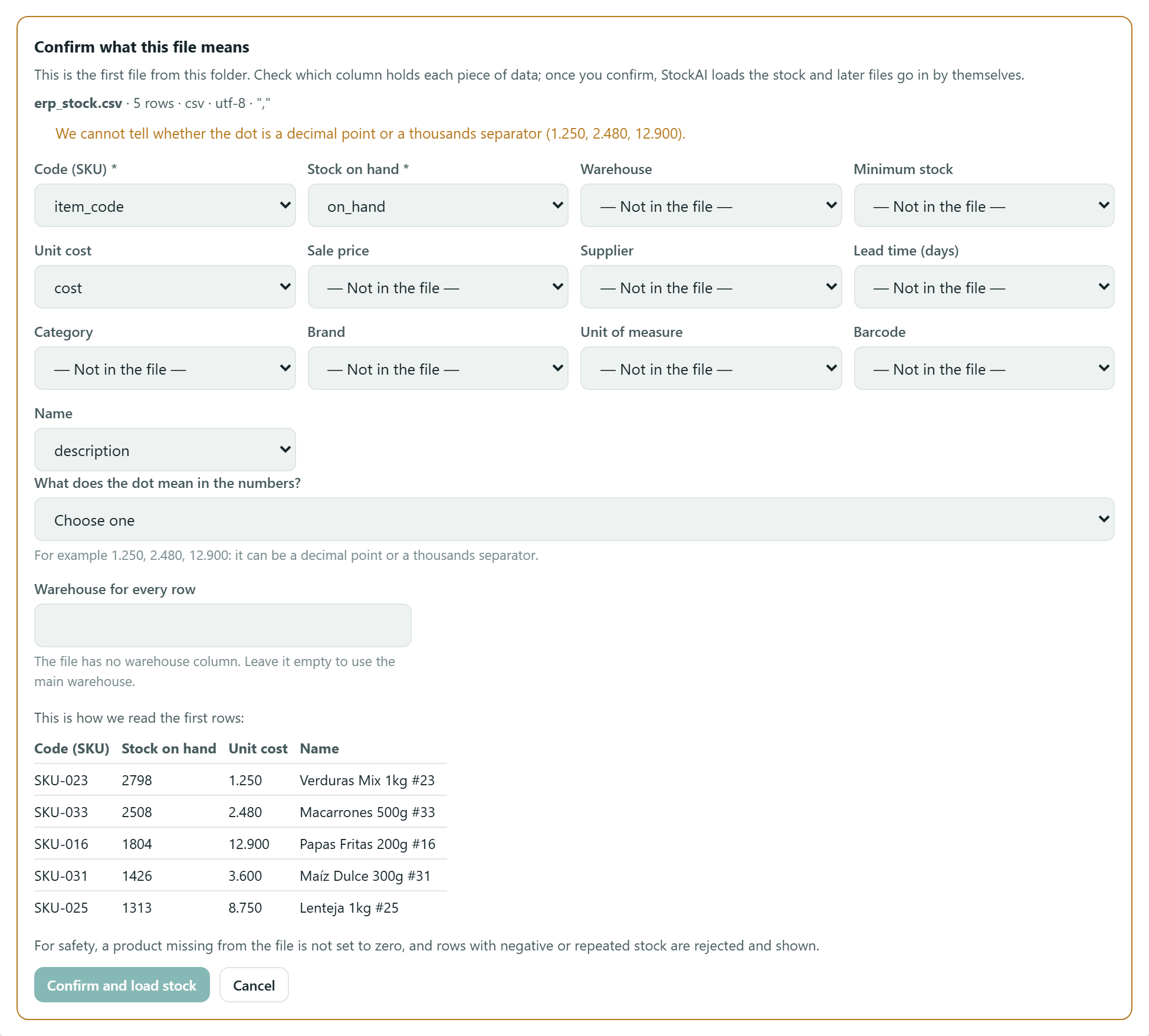
- Press “Review and confirm”. On top you see the file, how many rows, the format (CSV, encoding, separator or Excel sheet) and how many warehouses it carries.
- Read the notices: required columns missing, doubtful columns, an ambiguous dot, dashes in the stock, codes turned into scientific notation by Excel, repeated rows or negative stock (they will be rejected) and rows with no code (ignored).
- Check which column holds each field. Code (SKU) and Stock on hand are required; the rest (Warehouse, Minimum stock, Unit cost, Sale price, Supplier, Lead time, Category, Brand, Unit of measure, Barcode, Name) are optional: choose “— Not in the file —” when absent. “Guessed from the content: please confirm” marks a column guessed from its values. One column cannot mean two fields.
- If the numbers carry an ambiguous dot, answer “What does the dot mean in the numbers?”: “A decimal point (1.250 = one point two five)” or “A thousands separator (1.250 = one thousand two hundred fifty)”. Without an answer you cannot confirm.
- If some stock values are a dash, decide with “A dash in the stock column means zero”.
- If the file has no warehouse column, type the “Warehouse for every row” or leave it empty for the main one.
- Check “This is how we read the first rows” and press “Confirm and load stock”.
On confirming you see “Done: the stock in … was loaded. Later files go in by themselves.”. The confirmation creates a sync named after the file drop (it shows up under Syncs) with that mapping; from then on every new file goes through the safety brake without asking. Since a file drop feeds it, not a database, that sync shows as “Receives data by push” and has no preview, doctor or “Sync now”: to pick up a new file, use Check now on the file drop.
Held, braked or rejected files
Each file under Recent files has a status: Applying, Applied, Held, Rejected or Failed, with the reason. “Could not be moved to processed” warns that the account may not move files (the file is not applied again anyway). The most common reasons for a hold:
- Columns the sync uses are missing
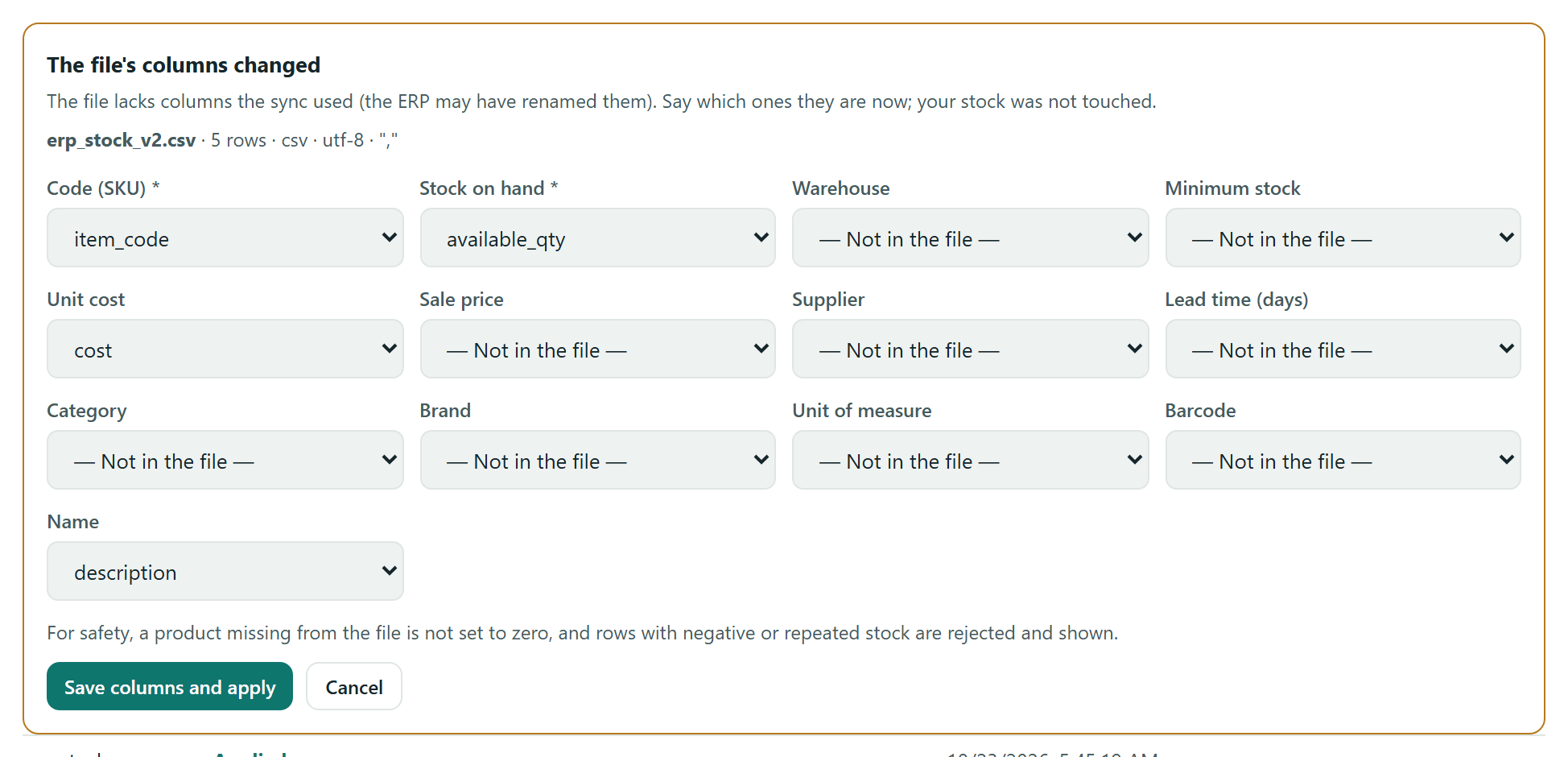
- Your ERP renamed columns. “Review and confirm” opens “The file's columns changed”: say which ones they are now and press “Save columns and apply”. The confirmed number format is kept. Your stock was not touched.
- The safety brake stopped it
- The file would change too much at once (many products vanish, far fewer rows, many rejected rows or huge quantity jumps).
- The numbers changed decimal format
- Earlier files used another convention.
- It is older than the last file applied
- Applying it would turn the stock back.
- The sync for this file is off / paused
- Turn it on under Syncs.
For a held file without an analysis the buttons are “Apply anyway” and Reject (a person rejects it and it is recorded). For one with an analysis, “Review and confirm” and Reject.
Syncs
The sync list shows each one with its name, what it reads (or “Receives data by push”), the last success and its state: Up to date, Syncing…, Stopped by the brake, No recent success, Last run failed, Off, Paused or Blocked. With no database connected you see “Connect a database first.” with the “Go to my data sources” link (SQL sources); file drops still work.
A sync's detail
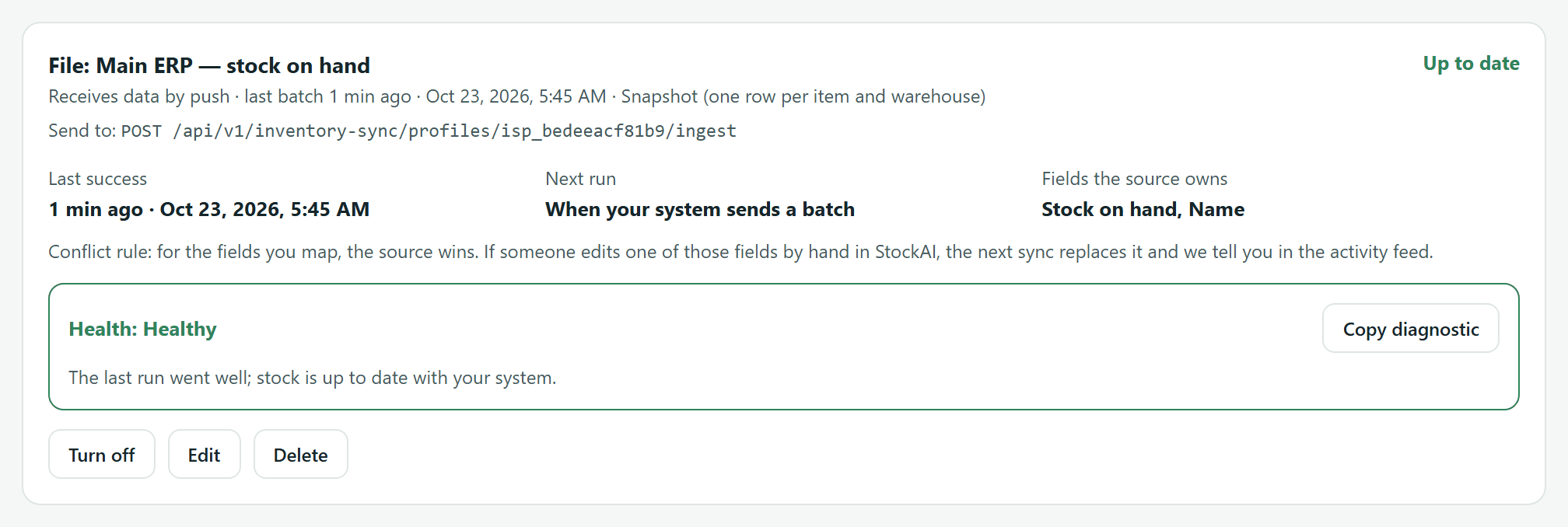
- Last success / Next run
- When it last finished well and when it runs again (“Not scheduled (off)” when off).
- Fields the source owns
- The fields this sync brings. Conflict rule: the source wins. If someone edits one of those fields by hand in StockAI, the next sync replaces it and the activity feed says so.
- Health
- Not run yet, Healthy, Degraded, Paused or Blocked, with the reason and “What to do:”. “Check connection” opens the doctor and “Copy diagnostic” copies a password-free summary for support.
- Preview (dry run)
- Reads the source and says what would be created, updated, left unchanged, rejected or filtered out, and whether the brake would stop it. It writes nothing.
- Turn on / Turn off
- A new or edited sync stays off until its preview has been reviewed.
- Sync now
- Runs once right away. The outcome shows up in the history.
- Edit / Delete
- Delete removes the sync and its history; your inventory stays exactly as it is.
If the safety brake stopped the last run you see “The safety brake stopped the last sync” with the reason: nothing changed. If the change is real (you closed a warehouse, cleaned up the catalogue), “Apply anyway, once” runs once without the brake and records who did it.
Run history and detail
Each run with Started (and what triggered it), Outcome (Succeeded, Failed, Braked, Running), Read, Created, Updated, Unchanged, Rejected and Duration; below, manual edits replaced and products no longer in the source. A click on the date opens the “Run detail”: a failure's reason with what to do and whether it retries on its own, warnings, the rejected rows with their reason and “Download rejected rows (CSV)”.
The connection doctor
“Check connection” tests step by step (network, access, permissions, reading, change capture) and says at which step it fails, with what to do. It ends in “Everything is in order (N ms)” or “It fails at: …”. “Copy diagnostic” and “Copy JSON” give you something to send to support: it contains no passwords and none of your product data.
A new sync from a database
You need a database connected under Files › data sources (see SQL sources). Press “New sync” and follow four steps:
- 1. Database
- Name and Database. If it is not connected, the screen says so.
- 2. What to read
- A table or view (the ones that look most like stock are highlighted), A query (read-only), A collection or An aggregation (MongoDB), or Your system sends the data (push). ERP recipes fill in a query tested for your system. With a query or collection, “Read columns”.
- 3. Columns
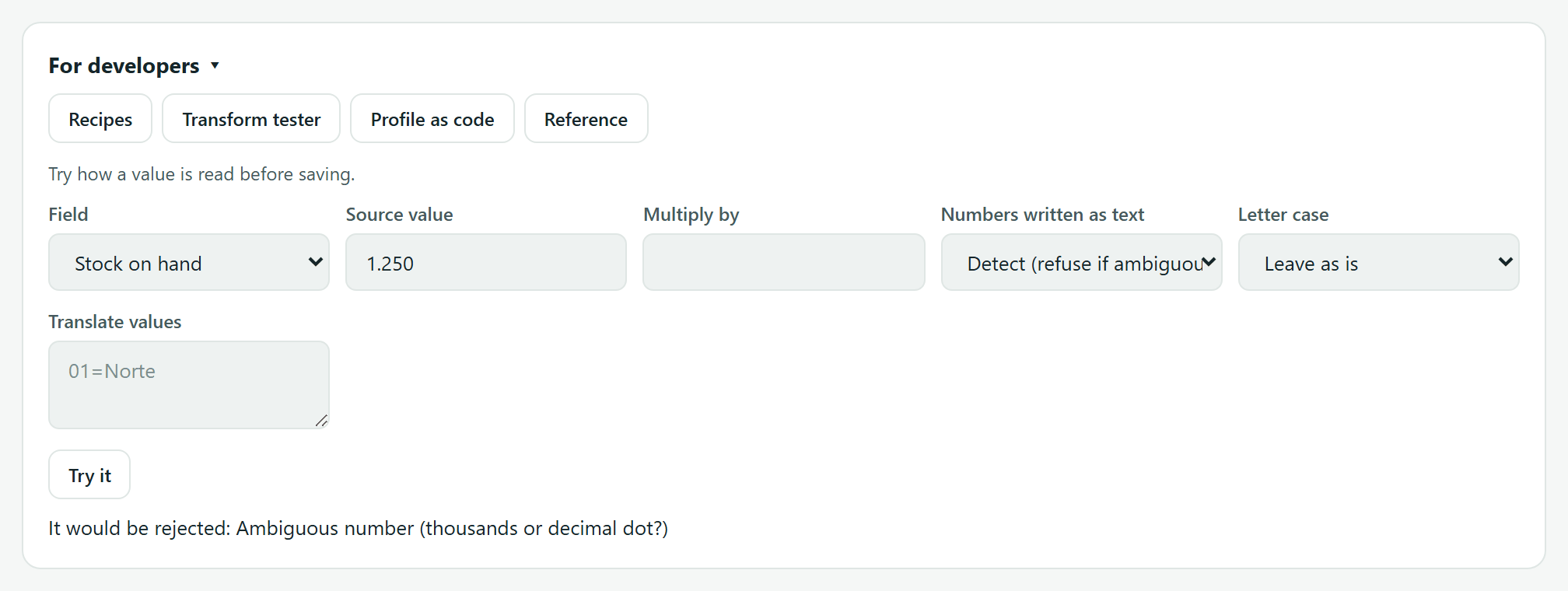
- We propose which column is each field with a confidence (high, medium, low) and sample values: you confirm. Each field has Transforms: Multiply by (boxes of 12 → 12), how to read numbers written as text, letter case, value when empty and translate values (01=North). Filters: only rows that pass them are synced.
- Warehouses and suppliers from your system
- What to do when a row names a warehouse StockAI does not have (create it, reject the row or book it to the default warehouse) and, optionally, a warehouse master table and a supplier master table. A warehouse is never deleted.
- 4. Schedule and rules
- How stock is computed (Snapshot, Sum of several rows or Movement ledger), How fresh (Scheduled, Continuous or On demand only), How to detect changes, Priority, API key name (slug), How to read (everything or incremental), Every how many minutes, what to do when a product disappears (do nothing, recommended; flag it as missing; or set it to 0), negative stock, duplicates, Warehouse when the row has none, Create new warehouses and the Safety brake (max % of products that may vanish, min rows vs. last time, max % of rejected rows, largest quantity jump).
- Fill in the four steps.
- Press “Preview (dry run)” to see what would happen.
- Press “Save and preview”. Saving syncs nothing: it stays off.
- Review the preview of what you saved and press Turn on.

For developers
A folding panel (analyst or administrator) with four tabs:
- Recipes
- Read-only grants ready to copy per engine, an example view, queries for known ERPs and push examples from other systems, with the IP addresses StockAI connects from.
- Transform tester
- Pick a field, type a value (for example 1.250) and try the multiplier, the decimal format, the letter case and value translation without touching anything.
- Profile as code
- The selected sync as JSON: Validate, test without applying, Apply, copy and open the schema.
- Reference
- Explains modes, freshness, models, the movement ledger, the brake, conflicts, idempotency, transforms, push and limits.
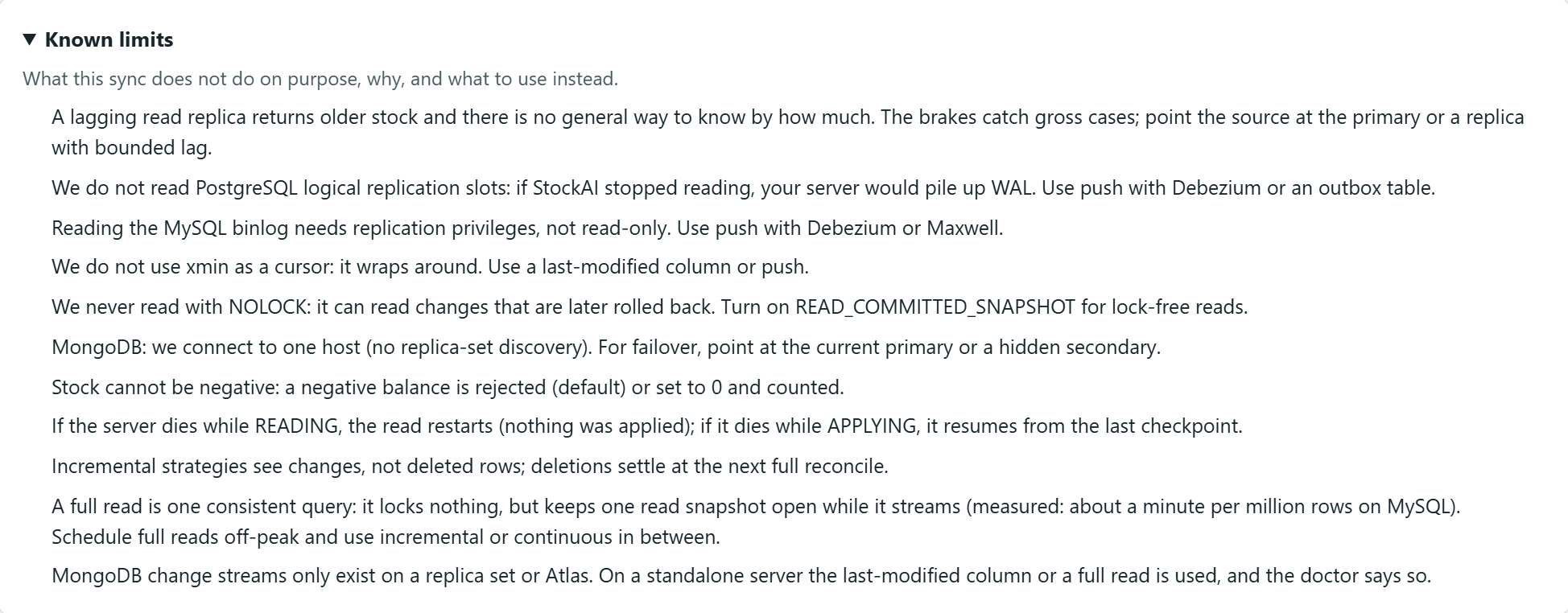
Known limits
At the bottom, “Known limits” lists what the sync does not do on purpose and what to use instead; for example: it does not read the PostgreSQL replication log or the MySQL binlog (use push with Debezium), it never reads with NOLOCK on SQL Server, a lagging replica returns old stock, incremental strategies do not see deleted rows until the next full reconcile, and stock is never left negative.