Approve by link
Approving or rejecting a purchase order from the email or WhatsApp without opening the app: what the page shows, how the decision is taken and why each link works only once.
When an order needs approval (see Approvals), the people who can approve it get a notice. If the installation has decision links turned on, that notice carries a button that opens a page where the order is approved or rejected without signing in.
Who receives the link
- Every approver in your company (an active admin or analyst allowed to approve orders), except whoever asked for the approval.
- By email always; by WhatsApp only if the person has a verified number, the WhatsApp channel is configured and the plan includes the WhatsApp bot.
- Each link is personal (one person, one order), works once and expires after 72 hours. When somebody decides the order (by link or in the app), the other links for that order stop working. Sending them again creates new links and voids the earlier ones.
What the page shows
Opening the page decides nothing: it only reads. That way an email program that opens links on its own cannot approve an order. The decision happens only when a button is pressed. The page opens in the browser's language and switches with Español / English.
- Order {number}: waiting for your decision
- The title.
- {Name} asked for this order to be approved at {company}…
- Who asked. The order does not go to the supplier until it is approved.
- Order value
- The total being decided. It shows no line costs, stock or margins.
- Supplier · Warehouse · Requested · Note
- The order's suppliers, the destination warehouse, when approval was requested and the requester's note.
- Products (N)
- Each product with its code and quantity, up to 50. If there are more: «And N more products. Open them in StockAI.»
- Comment (optional)
- A comment on the decision, up to 500 characters.
- Approve order
- Approves.
- Reject
- Switches the field to «Reason for rejecting (required)» and shows «Confirm rejection» and «Back».
- This link is personal, works once and expires on …
- Reminder at the bottom.
Deciding step by step
- Open the button in the email or the link in the WhatsApp message.
- Review the value, the suppliers and the products.
- To approve: write a comment if you like and press «Approve order». You see «Order {number} approved»: the requester can now send it to the supplier.
- To reject: press «Reject», write the reason (at least 3 characters) and press «Confirm rejection». You see «Order {number} rejected»: the order will not be sent.
- Close the page: the link no longer works.
If the link does not work
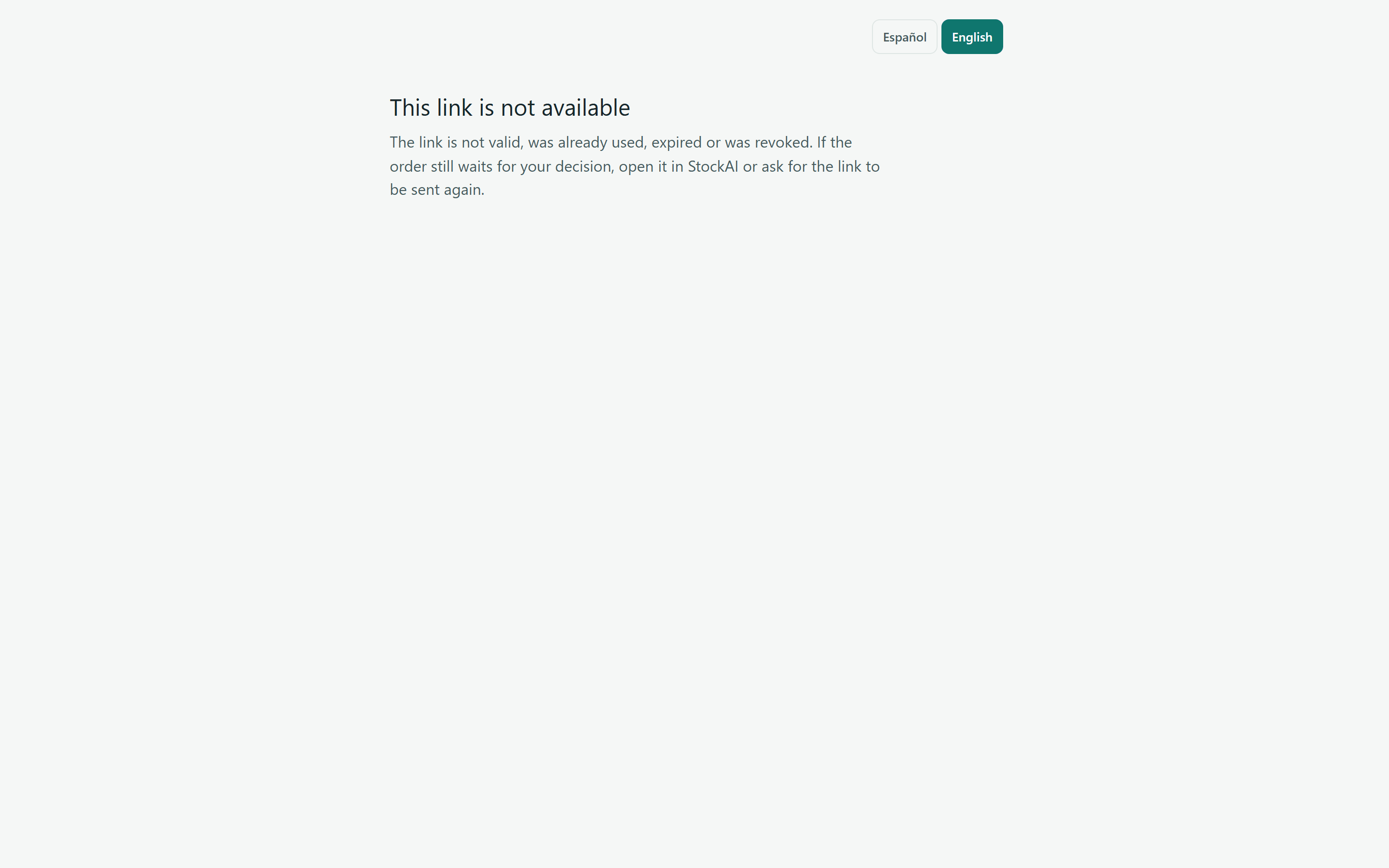
A used, expired, voided or mistyped link, or one for a cancelled or already decided order, shows «This link is not available» («If the order still waits for your decision, open it in StockAI or ask for the link to be sent again.»). In that case decide from Orders.
- «Write the reason for rejecting (at least 3 characters).»
- You tried to reject without a reason.
- «Too many attempts. Wait a few minutes and try again.»
- The limit of reads or decisions per connection or per link was exceeded.
- «We could not record your decision. Open it in StockAI.»
- The decision did not pass an approval rule; open it in the app to see why.