AI assistant
Ask in plain language about your products, orders and suppliers: it answers with your account’s data. Keep conversations, star answers as favorites, and dictate with the microphone.
On this page
The Assistant is an analyst that knows your account: what is in “Order now”, which orders are late, which supplier is slowest. You type a question and it answers with your figures, not generalities. Every role can use it; it answers only with what that user is allowed to see.
When the assistant is off
The assistant needs a language model. When none is available, the screen says so before you type, in a notice above the conversation, and the text box reads “The assistant is not available on this installation”. There are two cases:
- The installation has no model
- “This installation has no language model configured, so the assistant cannot answer. The rest of StockAI is unaffected…”. An admin also sees “You can also use your own OpenAI, Claude, Gemini or other account, even a free one.” with the “Choose AI model” link.
- Your company’s own provider is failing
- “Your AI provider (…) is failing:” or “…is paused after several failures:”, with the exact problem and how to fix it. Meanwhile the assistant answers from your data, without AI (a rule-based summary). An admin sees the “Check the AI model” link; everyone else, “Ask an administrator to check it.”
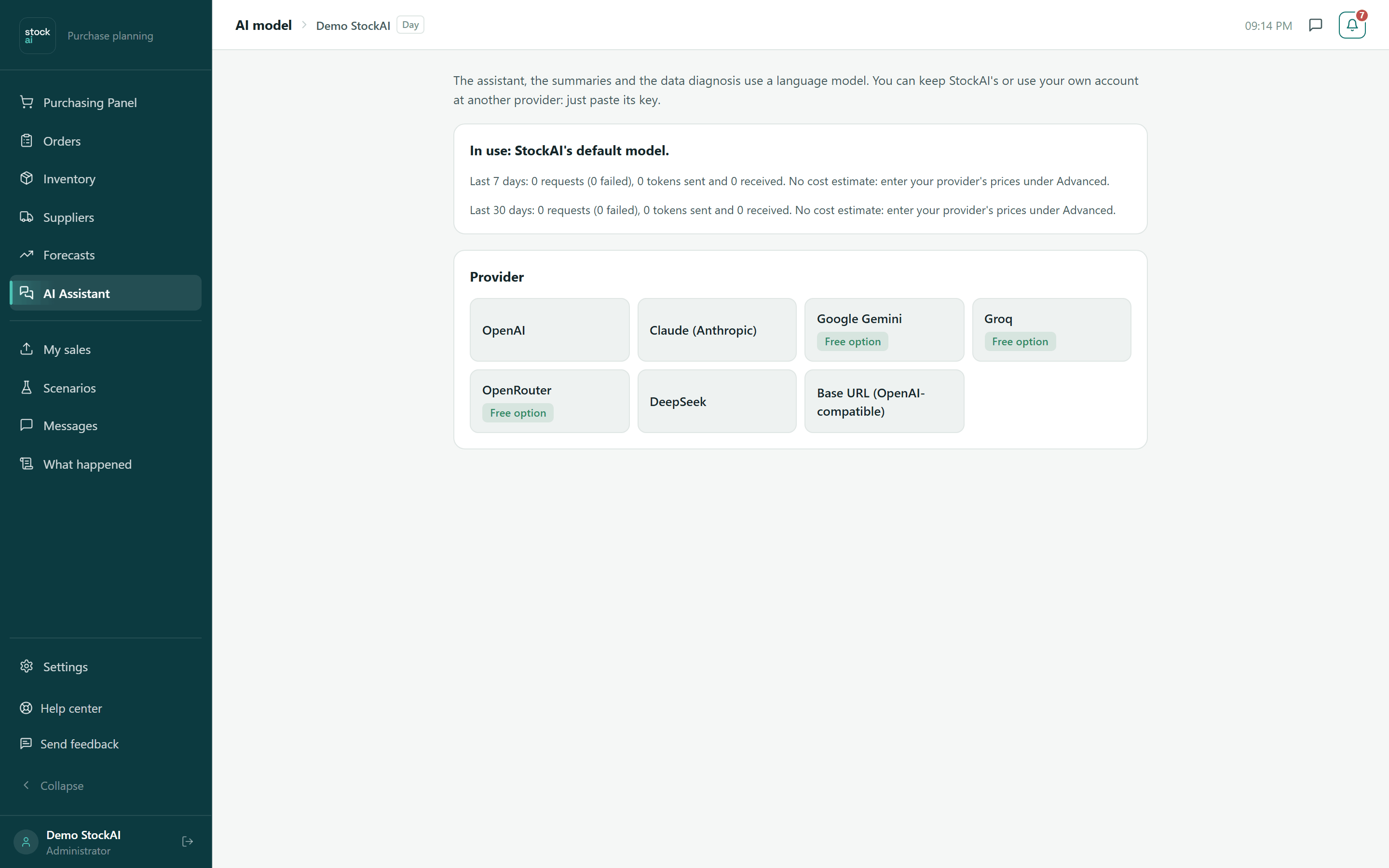
- An admin opens AI model (from the notice’s link or from Settings).
- Pick a Provider: OpenAI, Claude (Anthropic), Google Gemini, Groq, OpenRouter, DeepSeek or an OpenAI-compatible server. Those with a free tier say so; “Get a key” opens the provider’s page.
- Paste the API key and choose the Model.
- Click “Test connection”: you will see “Connection works: {model} answered in N ms.” or “The test failed.”
- Click “Save”. The assistant uses that provider from the next question on.
Start a conversation
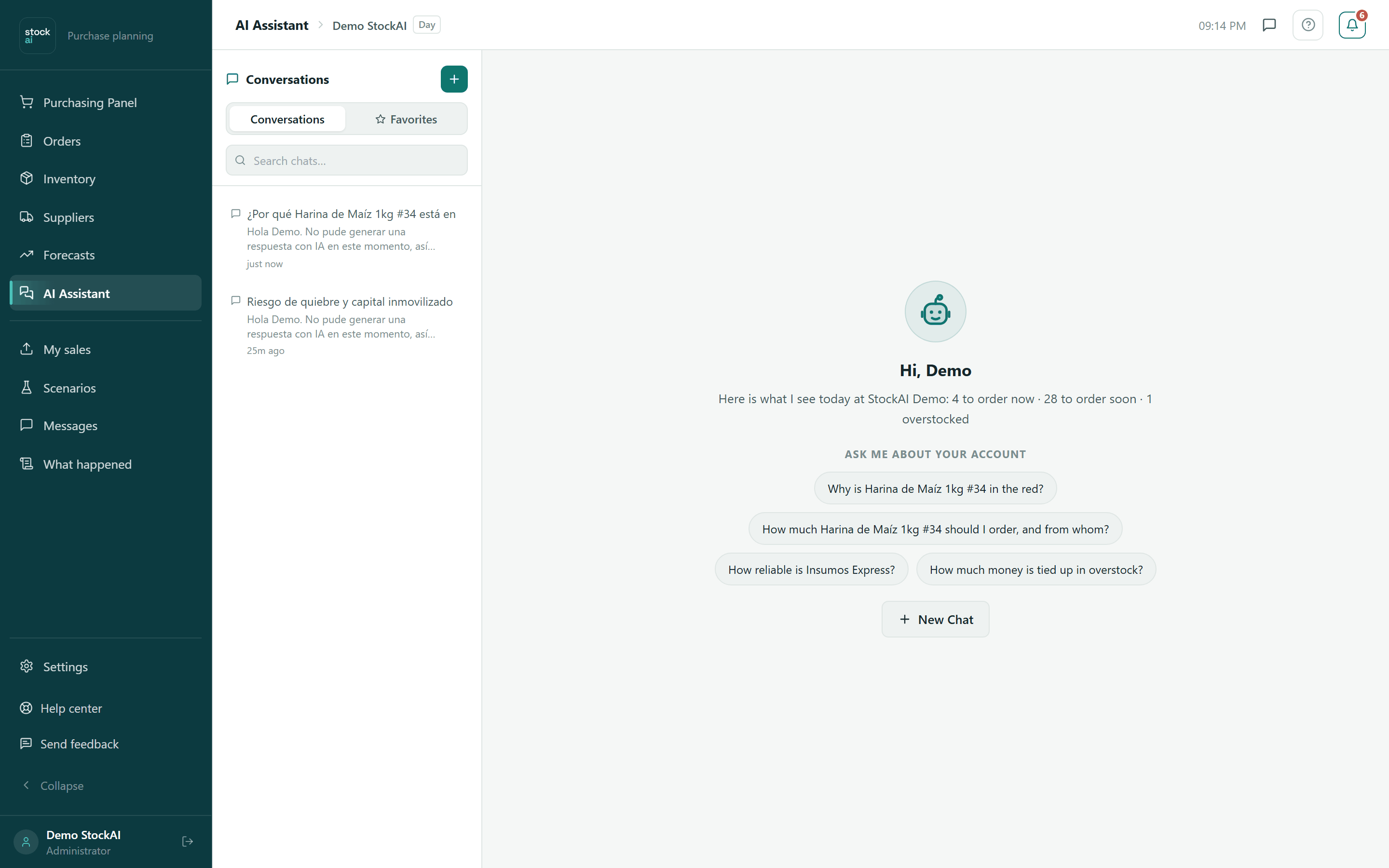
With no conversation open, the assistant greets you by name and sums up your day: how many products to order now and soon, how many late orders, how many overstocked and how many with no stock on record (or “Nothing urgent for now.”). Below, “Ask me about your account” offers ready-made questions about your data.
- Click a suggested question: it is sent right away and a conversation is created. Or click “New Chat” (or the + next to “Conversations”).
- Type in the box at the bottom. Enter sends; Shift+Enter adds a line break. You can also click the send button.
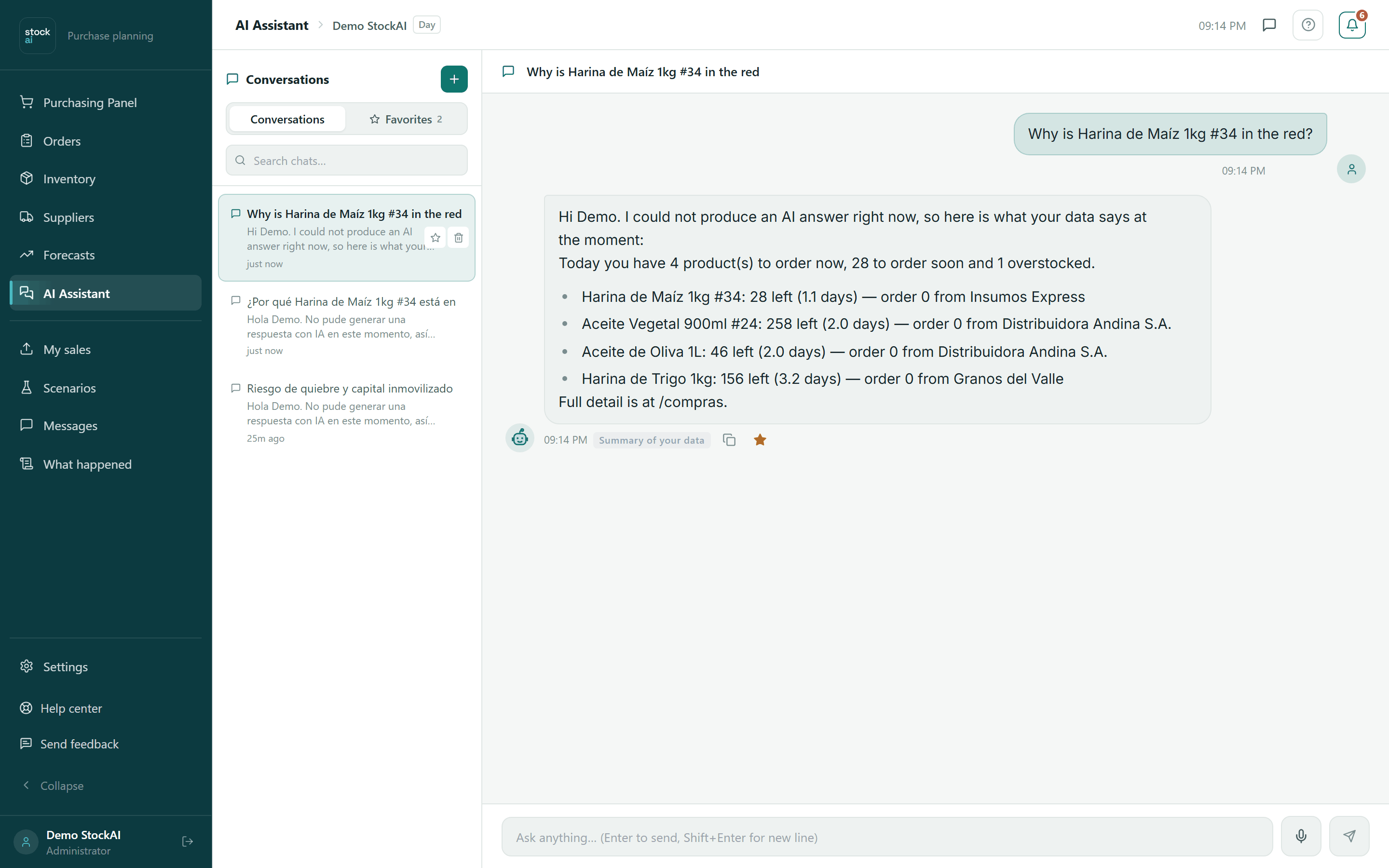
- While it thinks you see typing dots. The answer appears with the time and a source label.
- The conversation takes a title from your first question.
- Your data
- A model answer with figures from your account, verified.
- Check the figures
- A model answer with a figure that could not be verified: check it before you decide.
- Summary of your data
- A rule-based answer, without AI (when there is no model or the provider failed).
- General / General answer
- A general question about forecasting or the platform.
- Off topic / No access
- The question is not about your business, or asks for data your role cannot see.
- Error
- No answer was obtained. The latest failed answer carries “Retry”, which sends the same question again.
What it knows about your account
With every message the assistant builds a live brief of your account, with the parts closest to your question first:
- Who you are (your name, your role and your company) and how recent your forecast is.
- Today's red and amber products, with the suggested quantity, cover, supplier and lead time.
- Overstock and the money tied up in it.
- Your open purchase orders and the overdue ones.
- Your suppliers' real lead times and reliability.
- The demand trend, upcoming peaks, and what you did in StockAI lately.
When it needs something more specific — a product, its forecast, a supplier, a purchase order, your product list or your activity — it looks it up with read-only tools, just like the screens.
The red and amber products in the brief come from the same stock signal you see in Purchasing panel and Inventory: the active update, at your account's planning grain. To understand that signal, read The stock signal.
Checked figures
Every number in an answer has to appear in your data, in what a tool returned, or in your own message. StockAI checks this after the model answers. If a figure does not match, it asks for a correction; if one is still unsupported after that, it is not hidden: the answer ends with a warning like "I could not verify these figures against your data" and lists them.
It reads, never changes anything
The assistant cannot create, send, approve or receive purchase orders, nor edit stock, costs or suppliers. That is deliberate: a chat cannot show you a confirmation or give you an undo button. When you ask for an action, it says what it would do and points you to the screen where you do it:
| To… | Screen |
|---|---|
| Decide what to order today and build the purchase order | Purchasing panel |
| Send an order, record its arrival, track what is coming | Orders |
| Stock, costs, lead times and minimum orders | Inventory |
| Suppliers and their scorecard | Suppliers |
| A product's forecast chart | Forecasts |
| Upload sales and recalculate | My sales |
| The impact of following the recommendations | Impact |
Copy and save answers
Hovering a message shows two buttons: Copy message (copies it as plain text; it says “Copied”) and the star, Save to favorites (click again to Remove from favorites).
The list of conversations
- Search chats…
- Filters the list by title.
- Conversations / Favorites
- The column’s two tabs: your conversations and your favorite messages.
- Favorites and Recent
- Inside Conversations, the starred ones go on top and the rest below, newest first, with a preview of the last message and how long ago it was.
- Conversation star
- On hover: Add to favorites / Remove from favorites.
- Trash can
- Delete chat. It asks for a second click (Confirm delete); the conversation disappears and a notice offers Undo for a few seconds. After that it is really deleted.
Favorite messages
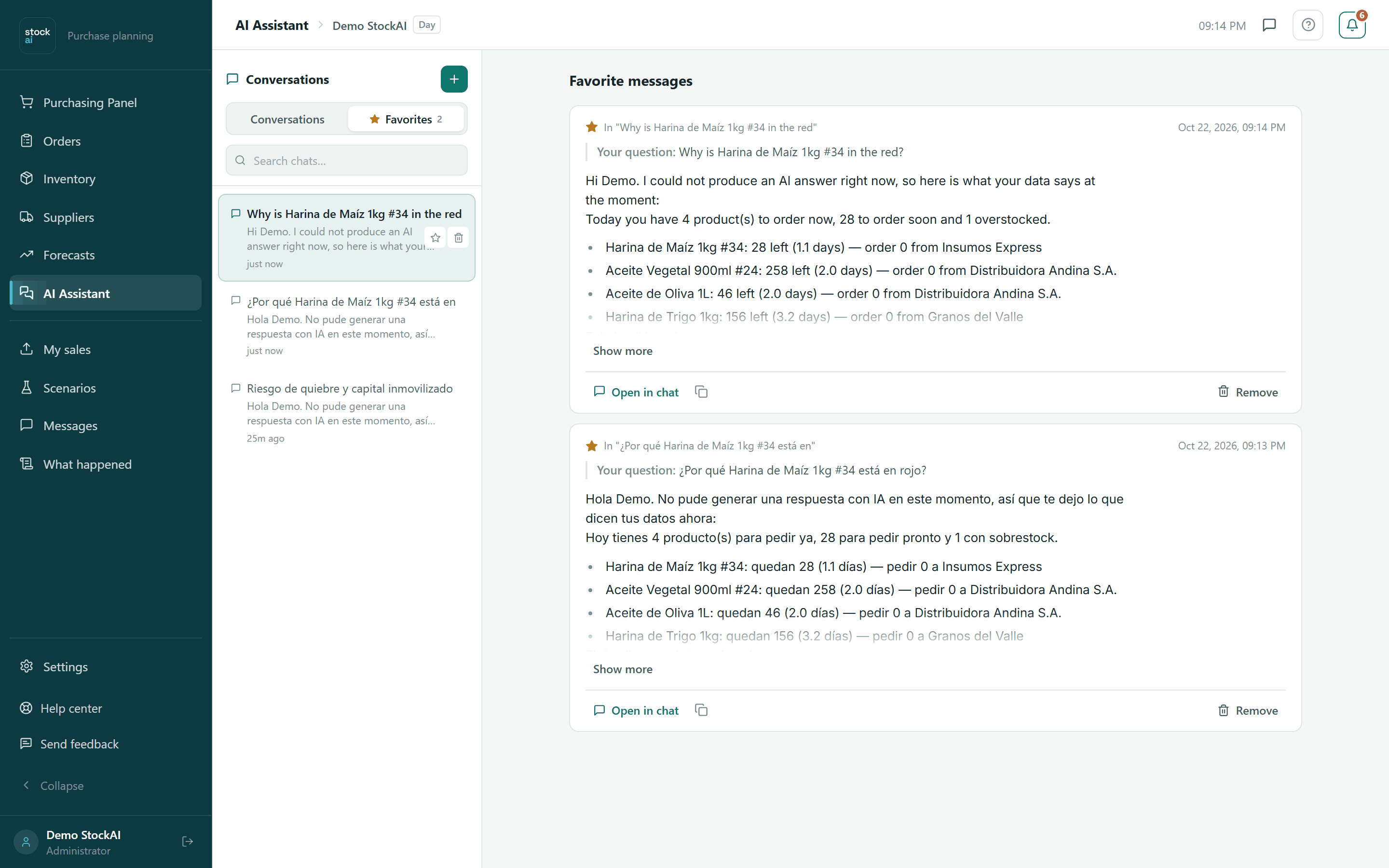
The Favorites tab lists each saved answer with the conversation it came from (“In "…"”), the date, Your question and the text (long ones start collapsed: Show more / Show less). Each has Open in chat (opens the conversation and highlights that message), Copy message and Remove. With none: “No favorite messages yet. Tap the star on a reply to save it here.”
Dictate with the microphone
The microphone button (Dictate with the microphone) types what you say into the box as you speak (“Listening… speak and the text will appear here”). Click it again to Stop dictation. The browser does the transcription: if it cannot, the button says so (“Try Chrome, Edge or Safari”).
Limits
- Question length
- Up to 4,000 characters.
- Messages per minute
- Up to 20 messages per minute for the whole company. Past that you see "Too many requests — please wait a moment before sending another message."
- Conversation memory
- Each answer takes the last 8 messages of the thread into account. Anything said much further up is no longer included.
- Time per answer
- Each answer has a time budget of a little over 20 seconds. If it runs out, the screen says so and your question stays in the box so you can retry it, or ask a shorter one.
Related
- The assistant: what it can answer and how it checks figures.
- Assistant on WhatsApp: the same questions from your phone.
- AI model: the provider screen in full.