Automation: retraining, API keys and notices
Schedule your forecasts to refresh by themselves, create the keys another system uses to call the API, and set up automatic notices (webhooks) to your systems.
On this page
Open Automation from Settings → Automation and API. It is an administrators screen with three tabs: Schedules, API Keys and Automatic notices. The last two need a plan with the API (Full or corporate); on the free plan they show as locked with the dialog to write to us.
Schedules
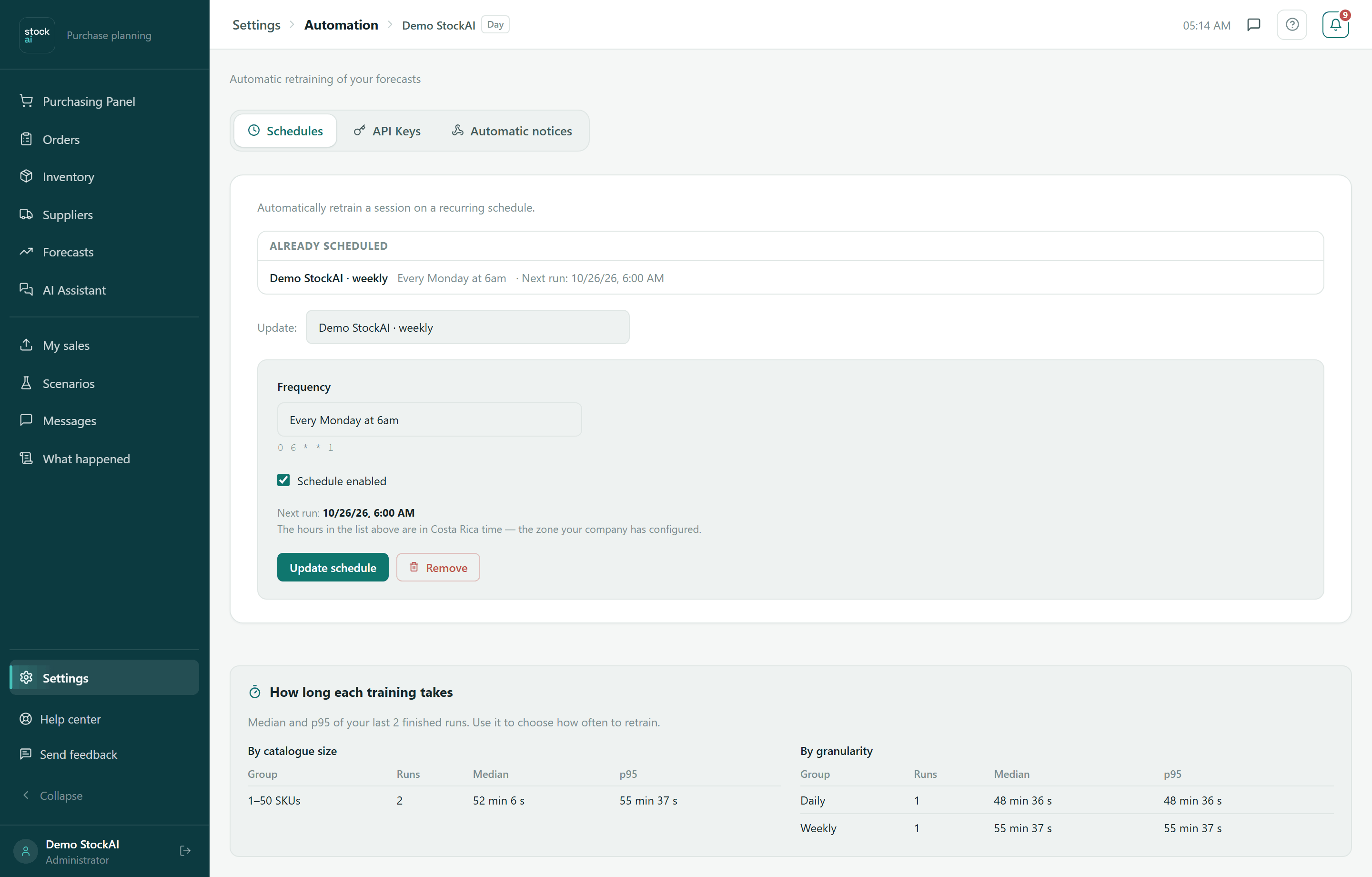
Retrains a session (an "update") automatically on a recurring schedule, so the stock signals and suggested purchases are calculated with your newest data without anyone starting it.
- Under Update:, choose the session (only completed ones are listed).
- Under Frequency, choose: Every Monday at 6am, Every day at midnight, Weekdays at 6am, Every Sunday at 8am, Every hour or First day of month. The technical expression shows below (for example
0 6 * * 1). - Leave Schedule enabled ticked (untick it to pause the schedule without deleting it).
- Press "Save schedule" (or "Update schedule" if it existed). You will see "Saved." and the Next run.
- Already scheduled
- Every schedule in the account, of any session, with its frequency and next run, or "last run failed" with the reason. Press one to edit it.
- Time zone
- The hours are read in the company zone, the one in My account; the screen reminds you below.
- Remove
- Deletes that session's schedule (asks to confirm).
- Recent scheduled runs
- Each run: finished, failed, running, queued, cancelled or did not run, with the reason (no new data, the previous run was still going, the source could not be refreshed, daily training cap reached…).
- How long each training takes
- Median and p95 of your latest runs, by catalogue size and by granularity. Use it to choose how often to retrain.
A failed recalculation does not leave you without numbers
Each scheduled run trains a new update from the one you picked, which is never touched. Only once the new one finishes successfully does it become what the Purchasing panel, the stock signal and the alerts read. If it fails, you keep seeing the previous numbers, and the error shows under "Already scheduled" and "Recent scheduled runs".
So it does not fill up your room, a schedule takes at most two saved forecasts: the one being read and the one training to replace it. Updates you created yourself are never deleted.
API Keys
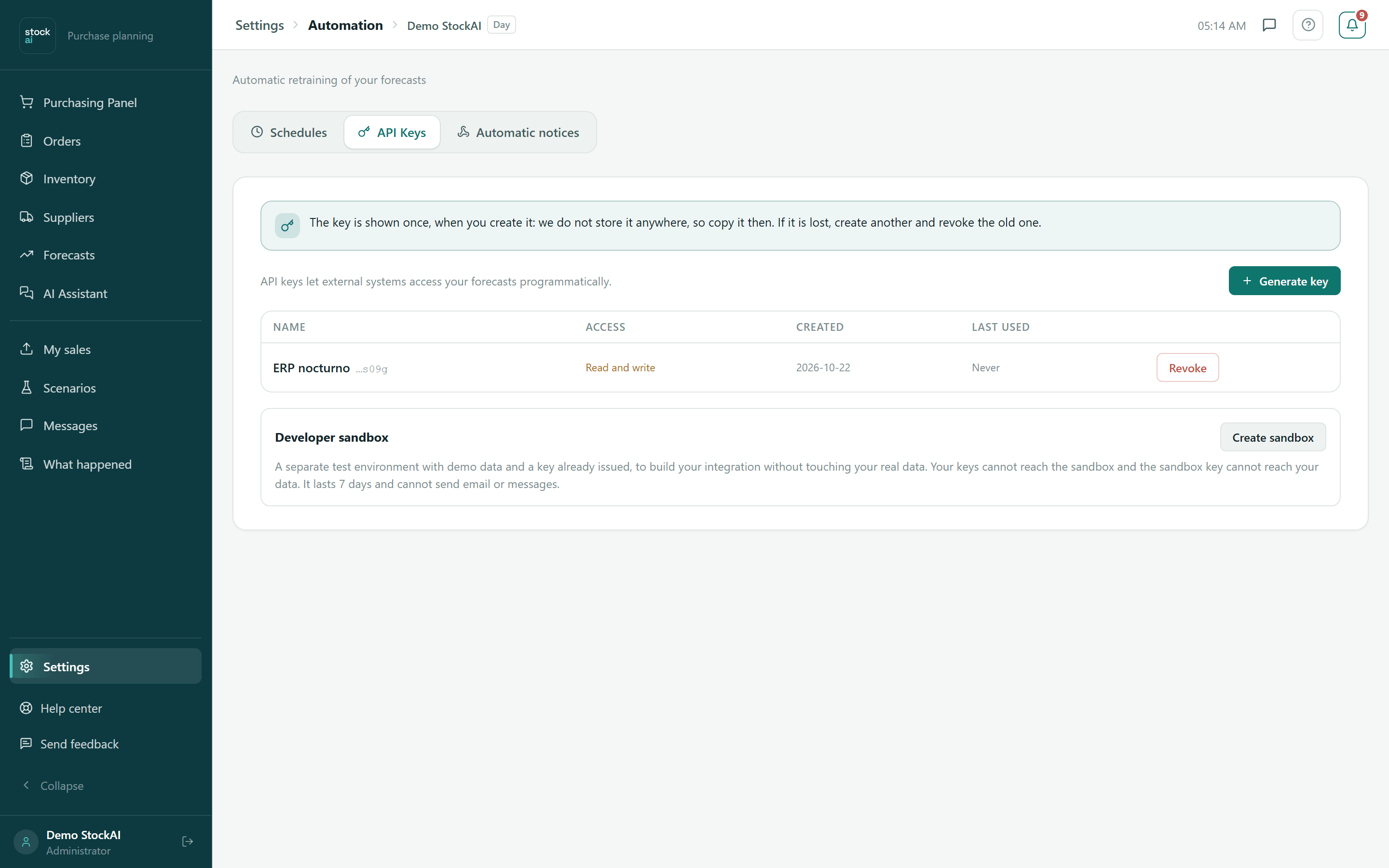
sk_live_… keys let another system (your ERP, a nightly script) use the API on your account's behalf. The table shows Name (with the last 4 characters), Access (Read or Read and write), Created, Last used and the Revoke button.
Create a key
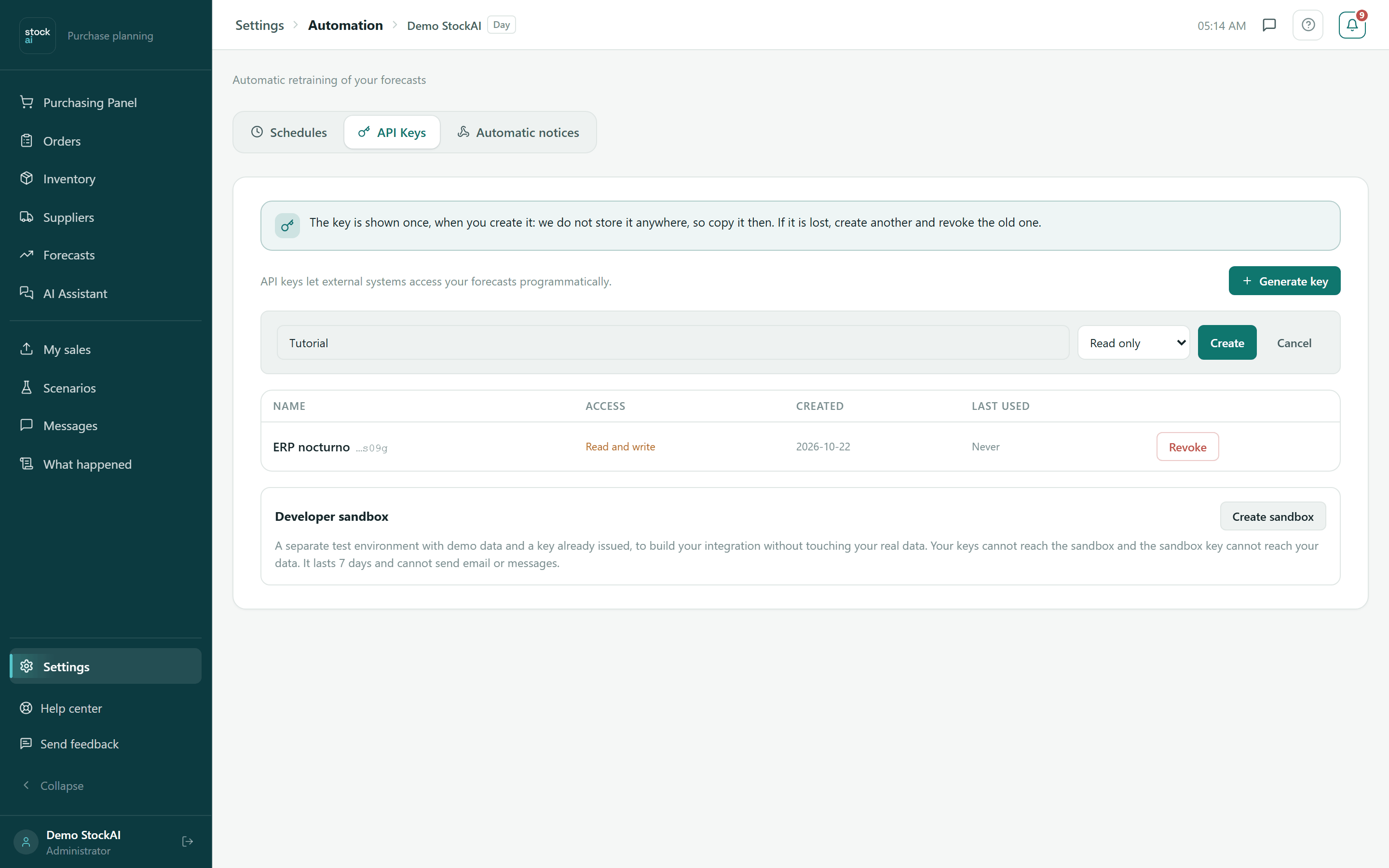
- Press "Generate key".
- Type a name that says what it is for ("ERP integration").
- Choose What the key can do: Read only (acts as a read-only user: reads the stock signals) or Read and write (acts as an analyst: can push the nightly file and record orders). The default is Read only.
- Press "Create".
- Copy the key from the green box with "Copy". It is shown once: StockAI does not store it, so if you lose it you create another and revoke the old one.
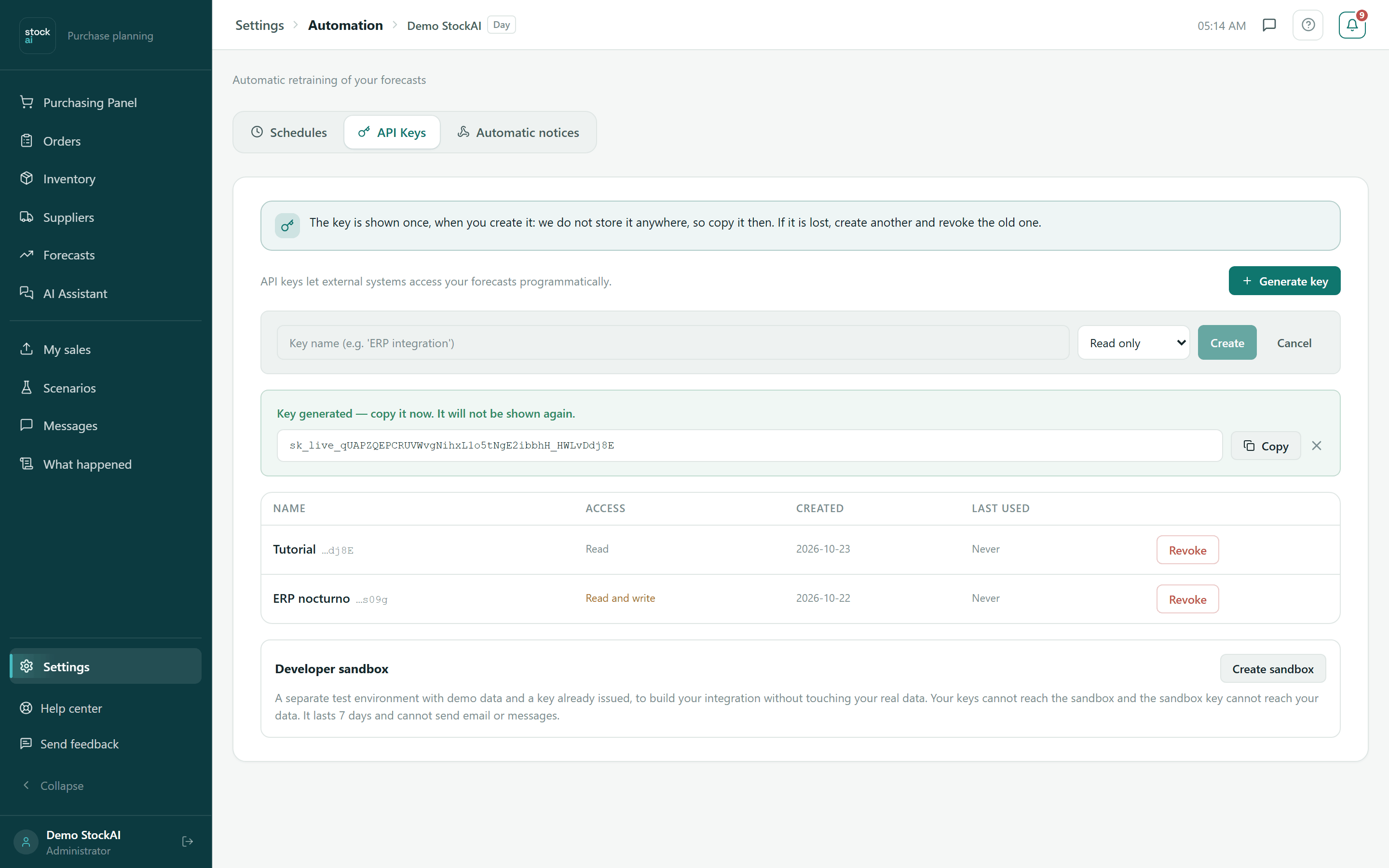
Revoke a key
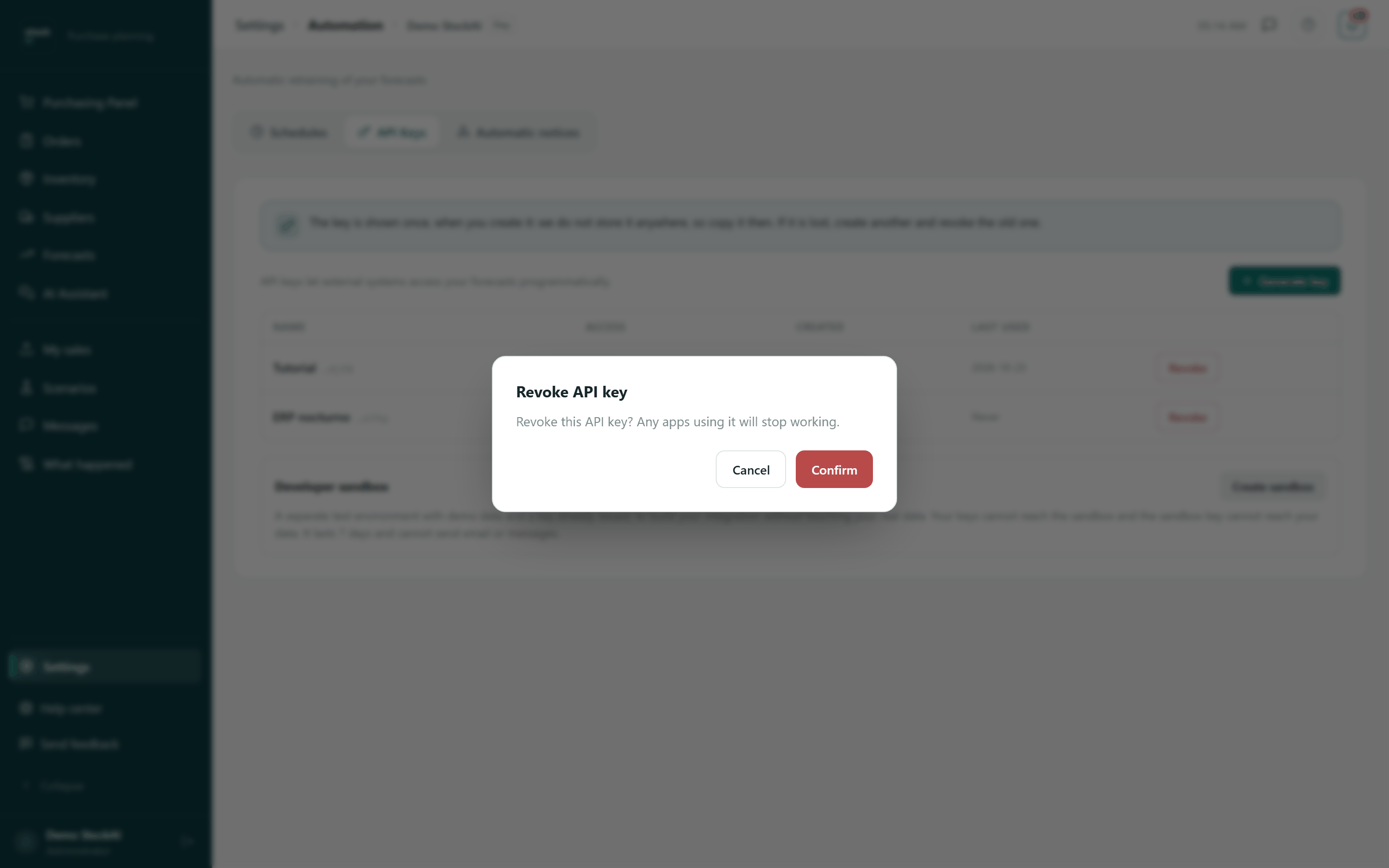
Press "Revoke" on its row and confirm. Apps using it stop working at once (they get 401). It cannot be undone: create another if you need one.
Developer sandbox
Under the table, "Create sandbox" (administrators only) creates a separate test environment with demo data and a key already issued, to build your integration without touching your real data. It shows the sandbox key once, plus a login to see in the app what your calls did. It lasts 7 days, cannot send email or messages, and your keys cannot reach it (nor its key your data). "Delete" erases it with its data.
Automatic notices (webhooks)
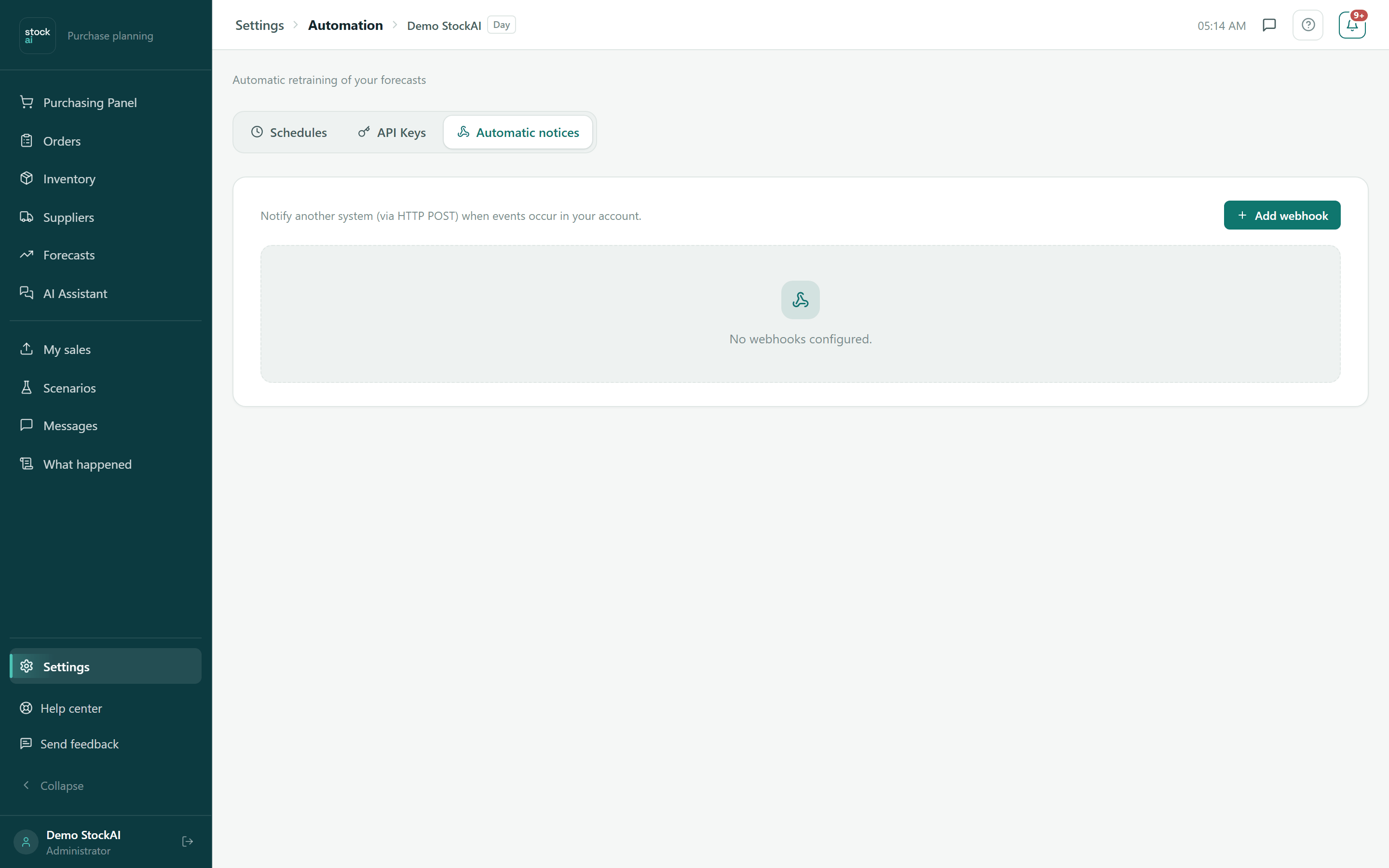
Notifies another system, with an HTTP POST, when something happens in your account.
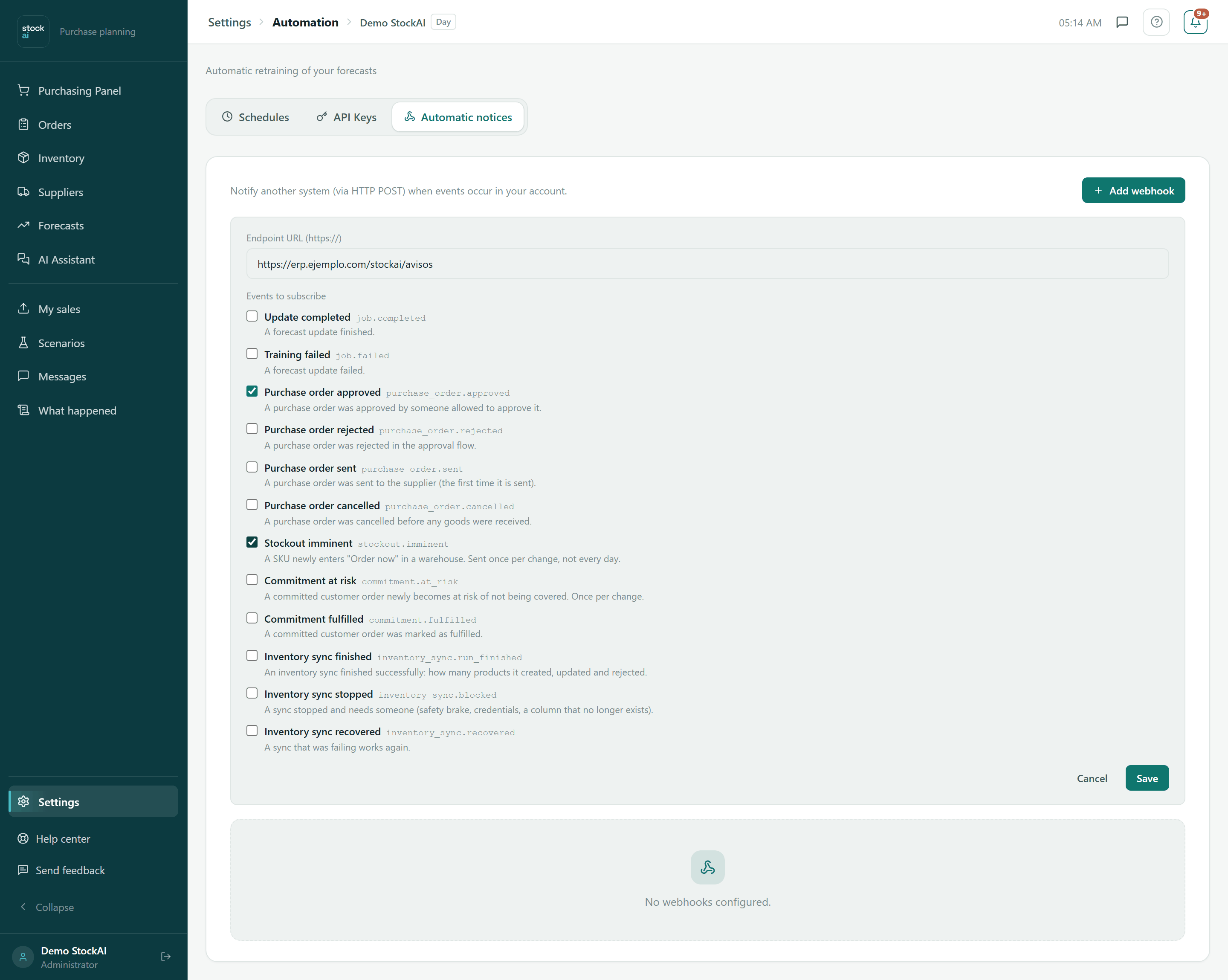
- Press "Add webhook".
- Type the Endpoint URL. It must start with
https://. - Tick the Events to subscribe (each comes with its description).
- Press "Save".
- Copy the Webhook signing secret: it is shown only once. Your system uses it to check that each notice comes from StockAI (
X-StockAI-Signatureheader).
- Purchase orders
purchase_order.approved,.rejected,.sent(the first time it is sent) and.cancelled.- Imminent stockout
stockout.imminent: a product enters "Order now" in a warehouse. Once per change, not every day.- Commitments
commitment.at_risk(a committed order becomes at risk) andcommitment.fulfilled.- Forecasts
job.completedandjob.failed.- Inventory sync
inventory_sync.run_finished,.blocked(needs someone) and.recovered.
In the table each webhook shows its State (Active, Disabled after failures, and Its warehouses only if someone with limited warehouses created it) and these buttons:
- Deliveries
- The delivery log: time, event, status (Pending, Delivered, Failed or Dropped), attempts, HTTP code and next attempt. Failed deliveries are retried.
- Send test
- Sends a test notice and opens the log so you see whether it arrived.
- Rotate secret
- Creates a new signing secret; the old one stops working immediately.
- Re-enable
- Only when it was disabled after failures.
- Delete
- Removes it at once, with a few seconds to Undo.