Orders, step by step
All your purchase orders in one table: send them, log what arrived, mark them paid, cancel them, export them to your ERP or create one by hand.
On this page
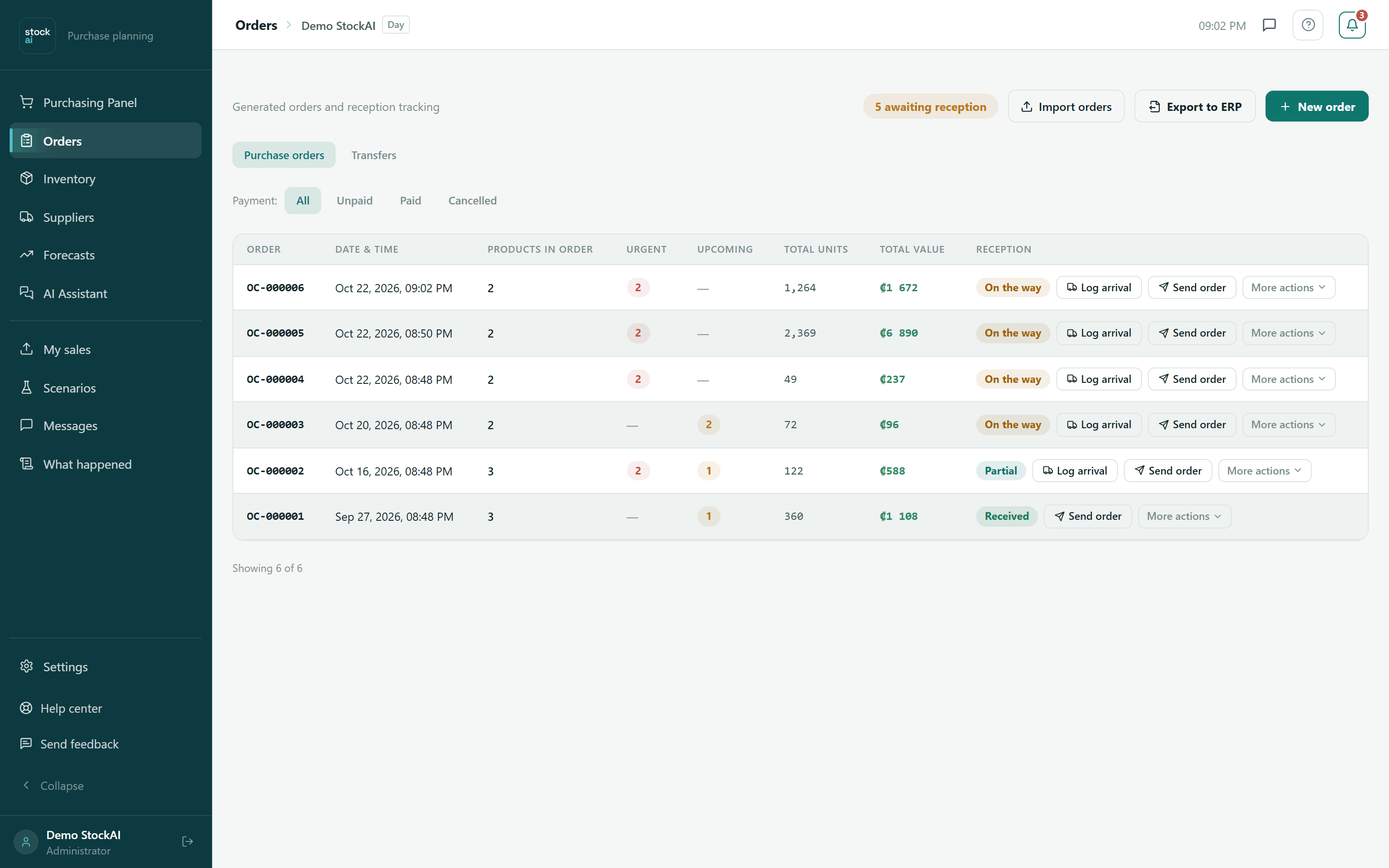
Orders, in the sidebar, keeps every order you generated in the purchasing panel, created by hand or imported. It is where you log the arrival of goods: that updates stock and teaches StockAI each supplier’s real lead time.
The top of the screen
- N awaiting reception
- How many orders are still waiting for goods (On the way, Partial or Did not arrive).
- Import orders
- Creates orders from a CSV or Excel file. See Import orders.
- Export to ERP
- Downloads orders in your ERP’s layout and records their number. See Export to ERP.
- New order
- Creates an order by hand. See New manual order.
- Purchase orders / Transfers
- Tabs that only appear with two or more warehouses.
- Payment: All · Unpaid · Paid · Cancelled
- Filters the table. If none matches: "No order matches this filter.".
With no orders you see "No orders generated yet" and the "Go to the Purchasing Panel" button. At the bottom, "Showing N of M" and "Show more" load orders 50 at a time.
The columns
- Order
- The number, OC-000123.
- Date & time
- When it was saved.
- Products in order
- How many lines it carries.
- Urgent / Upcoming
- How many lines were in Order now and in Order soon when ordered.
- Total units / Total value
- Sum of units and value. "—" when no line has a cost; it warns when lines in another currency have no rate.
- Reception
- The status and every action for the order.
The states of an order
- On the way
- Nothing has arrived yet. The units count as on the way in the traffic light.
- Partial
- Part arrived; the rest is still on the way.
- Received
- Everything arrived.
- Did not arrive
- You saved the reception with every quantity at 0.
- Cancelled
- You cancelled it: it stops counting as on the way and leaves the overdue receptions and the payments calendar.
- Arrival to confirm · Late N d
- Extra marks when the expected arrival date (from the supplier’s lead time) has passed; the button changes to "Confirm arrival".
- Needs approval / Pending approval / Approval rejected / Center or chain missing
- Only if your company uses approvals.
- Paid
- You marked it as paid.
- Waiting for supplier / Confirmed / Change proposed / Declined
- The supplier’s answer to the confirmation link. Click the mark to see it.
Send an order to the supplier
- In the row, click "Send order".
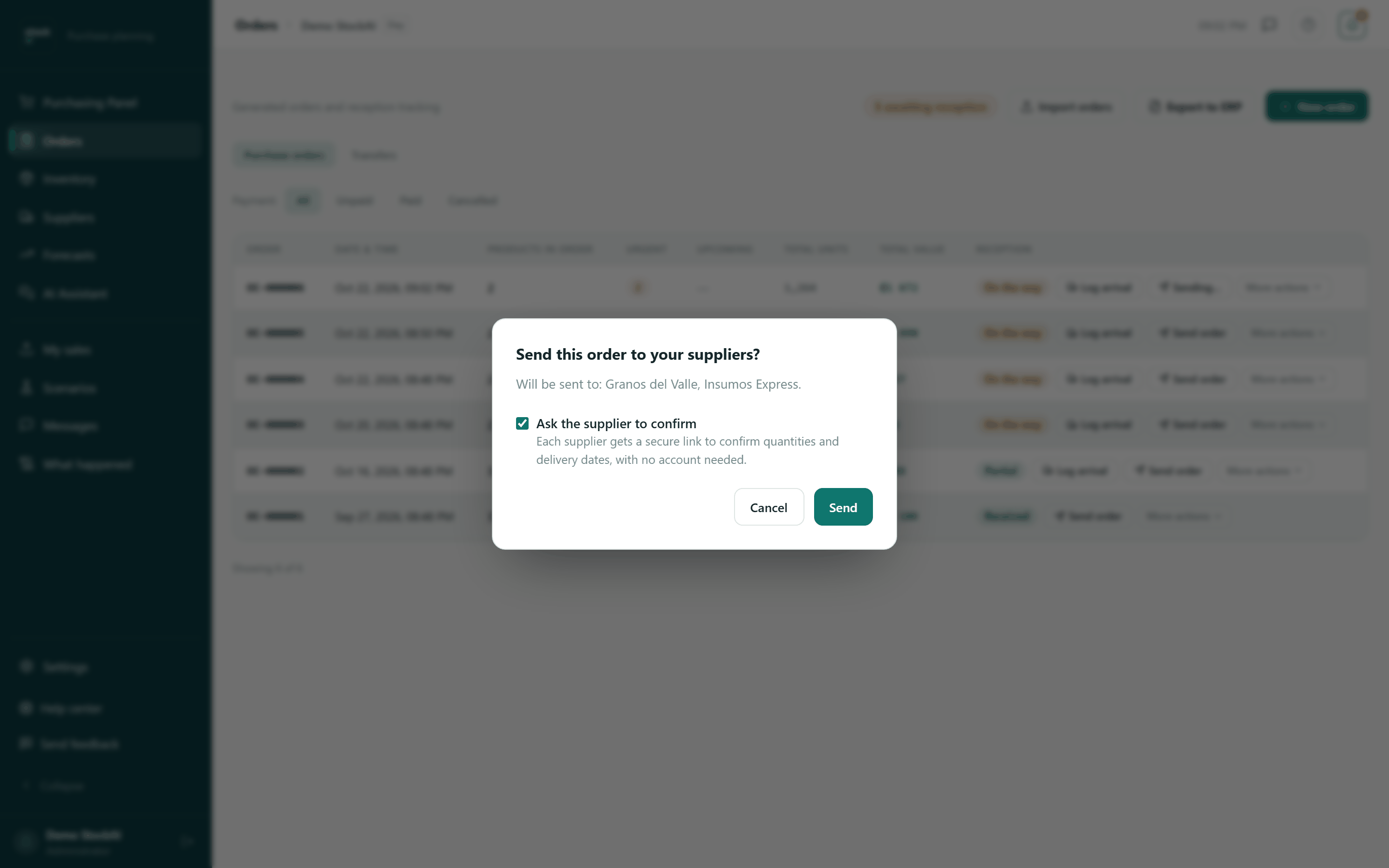
- The "Send this order to your suppliers?" dialog says who it will go to and who will be skipped for having no email or WhatsApp.
- Keep or untick "Ask the supplier to confirm": each supplier gets a secure link to confirm quantities and dates, with no account needed.
- Click "Send". The row then reads "Order sent", "Partially sent — check skipped suppliers" or "Could not send — no supplier has contact info on file", and who got the confirmation link.
If the order needs approval, "Request approval" appears instead of "Send order" (and then "Waiting for approval"). When the chain is unresolved, you pick the Cost center and click "Assign".
Log the arrival
- Click "Log arrival" (or "Confirm arrival" if it is late).
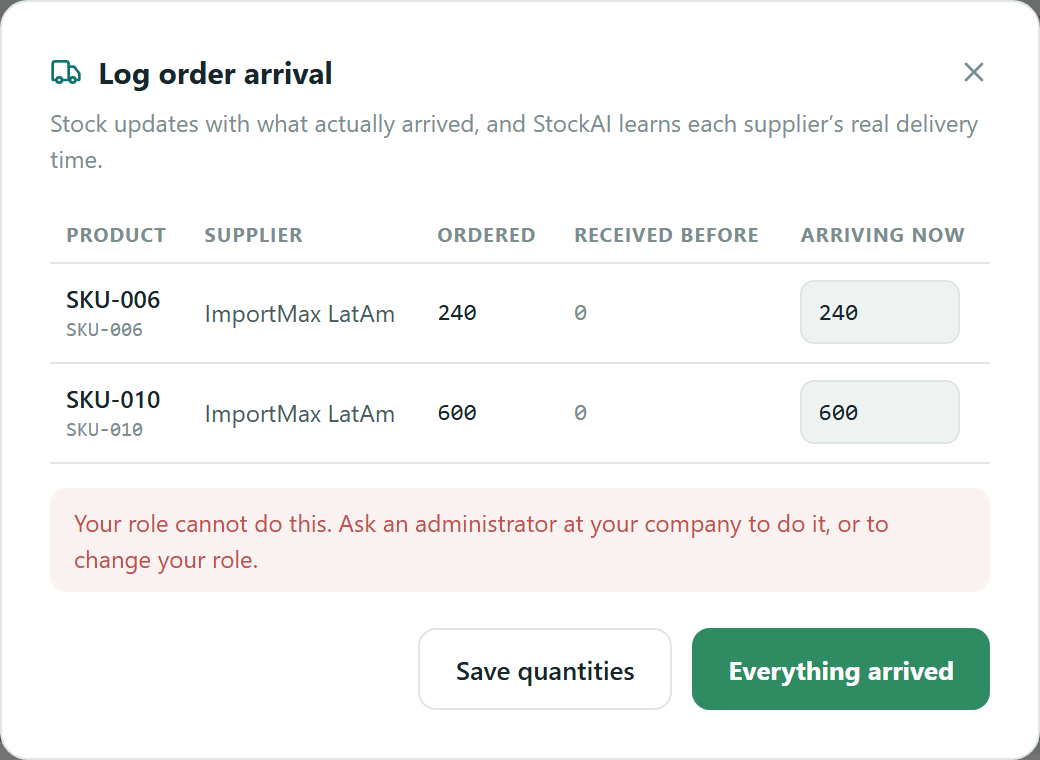
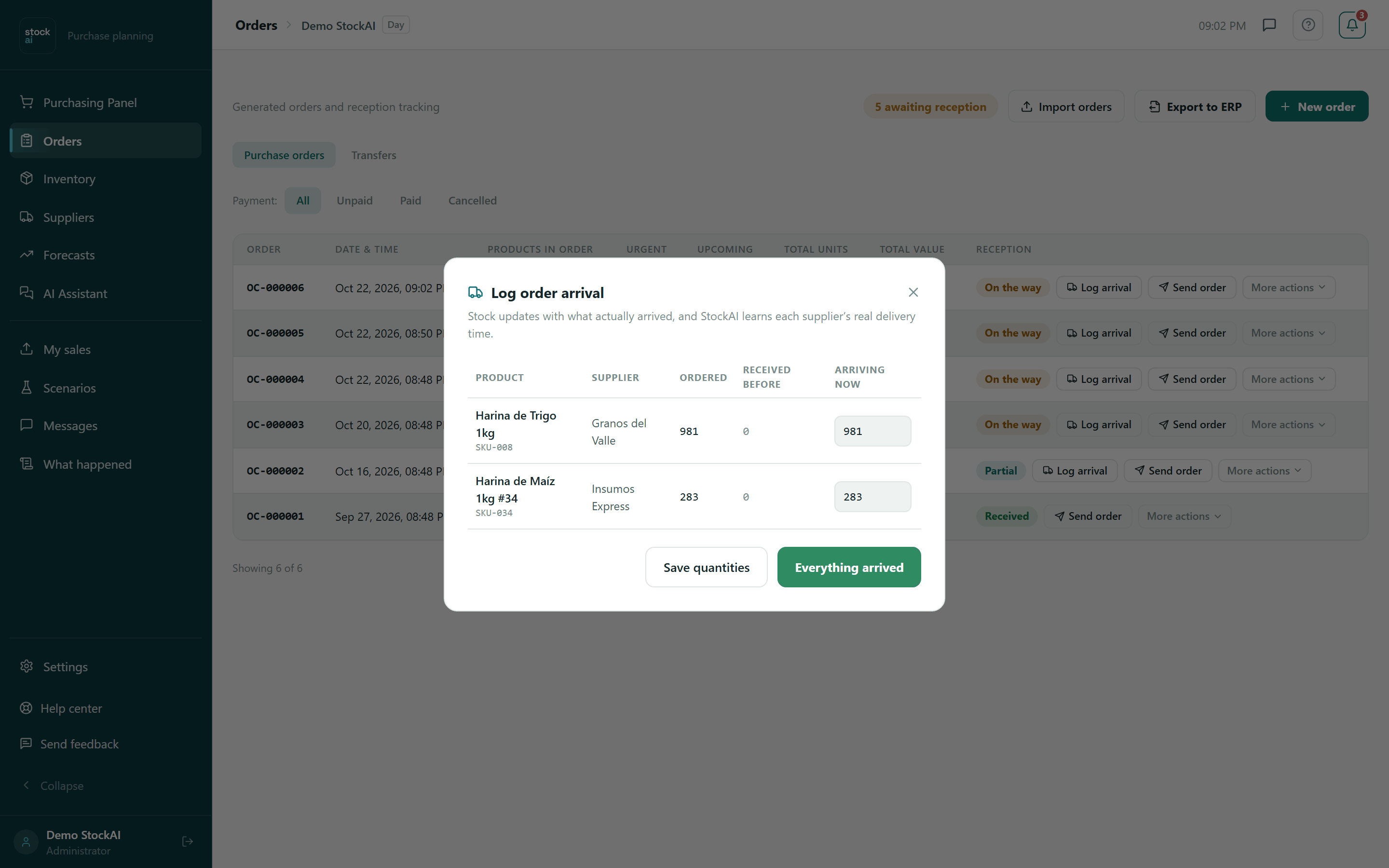
- The "Log order arrival" dialog lists each product with Supplier, Ordered, Received before and Arriving now, prefilled with what is still missing.
- If everything arrived, click "Everything arrived".
- If part arrived, correct Arriving now on each line and click "Save quantities". The order becomes Partial and you can log the rest later: arrivals add up.
Stock goes up in the order’s destination warehouse. When the order becomes Received, StockAI records how long the supplier took; with enough deliveries that learned time replaces the configured one (see Learned lead time).
More actions
Next to the everyday actions, "More actions" opens the rest. Only those that make sense for that order’s state appear.

- Send to my WhatsApp
- Sends the order to your own WhatsApp so you can forward it. With no linked number: "No number on file — use copy or open WhatsApp".
- Open in WhatsApp
- Opens WhatsApp with the order text ready.
- Copy message
- Copies the text to the clipboard ("Copied").
- Undo reception
- On Received or Partial orders. The units come back out of your warehouse and what that arrival taught about the lead time is removed. If some were already sold, it is refused and tells you which product and warehouse is short.
- Undo send
- On sent orders still On the way and unpaid. It only corrects the record: the email or WhatsApp that went out cannot be recalled. The order leaves the payments calendar.
- Mark as paid / Unmark paid
- Only on sent orders. Paid, it leaves the panel’s cash calendar; unmarking puts it back on its original due date.
- Cancel order
- On orders On the way or Did not arrive, unpaid. Asks for confirmation. StockAI does not write to the supplier: if you already sent it, tell them yourself.
- Reopen order
- On a cancelled order: it counts as on the way again, exactly as before.
The supplier’s answer
If you sent with "Ask the supplier to confirm", the row shows a mark with their answer. Clicking it opens "Supplier confirmation", line by line: promised date, proposed quantity, the supplier’s note, or "The supplier cannot supply this line".
- Accept change
- The promised date replaces the arrival StockAI estimated for that line. It is recorded under your name and cannot be undone.
- Let them answer again
- Reopens the link of a supplier who already answered.
- Revoke link
- The supplier can no longer open it; their answers are kept. To give them a new one, send the order again.
What the supplier sees is in Supplier portal.
New manual order
To order something that did not come from the forecast. You need at least one registered supplier; if there is none, the dialog says so.
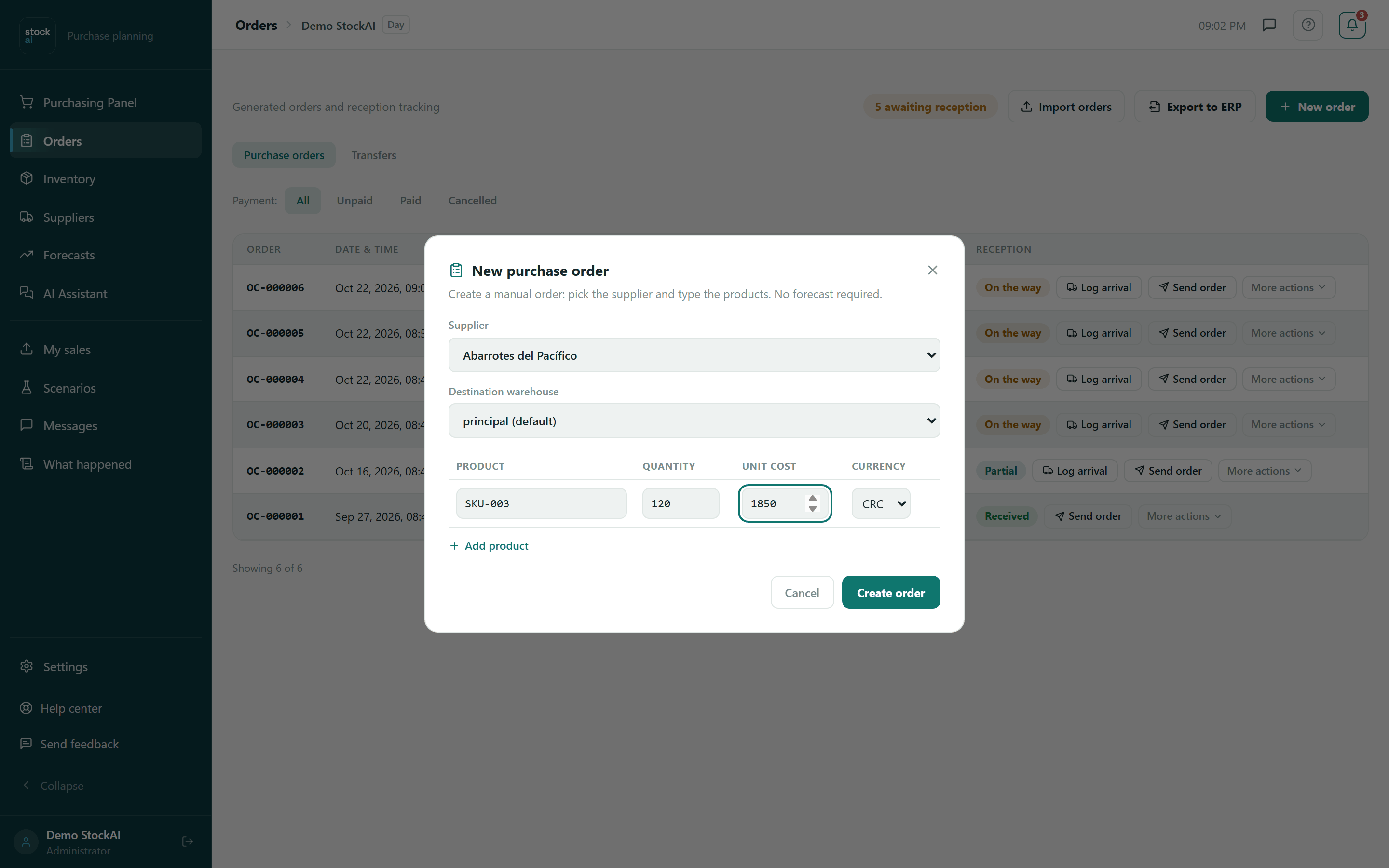
- Click "New order".
- Pick the Supplier (if you only have one, it is already picked).
- With several warehouses, pick the Destination warehouse.
- On each line type the Product (code), the Quantity (above 0) and, optionally, the Unit cost and the Currency (when your company handles others).
- Click "Add product" for another line; the bin icon removes one.
- Click "Create order". The order appears in the table with the next OC number.
If a quantity is 0 or negative, or a cost is negative, you read "Check the quantities and costs…" and the button stays disabled.
Import orders
"Import orders" opens "Import purchase orders from a file". Supplier, product and quantity are required, and both must already exist in StockAI.
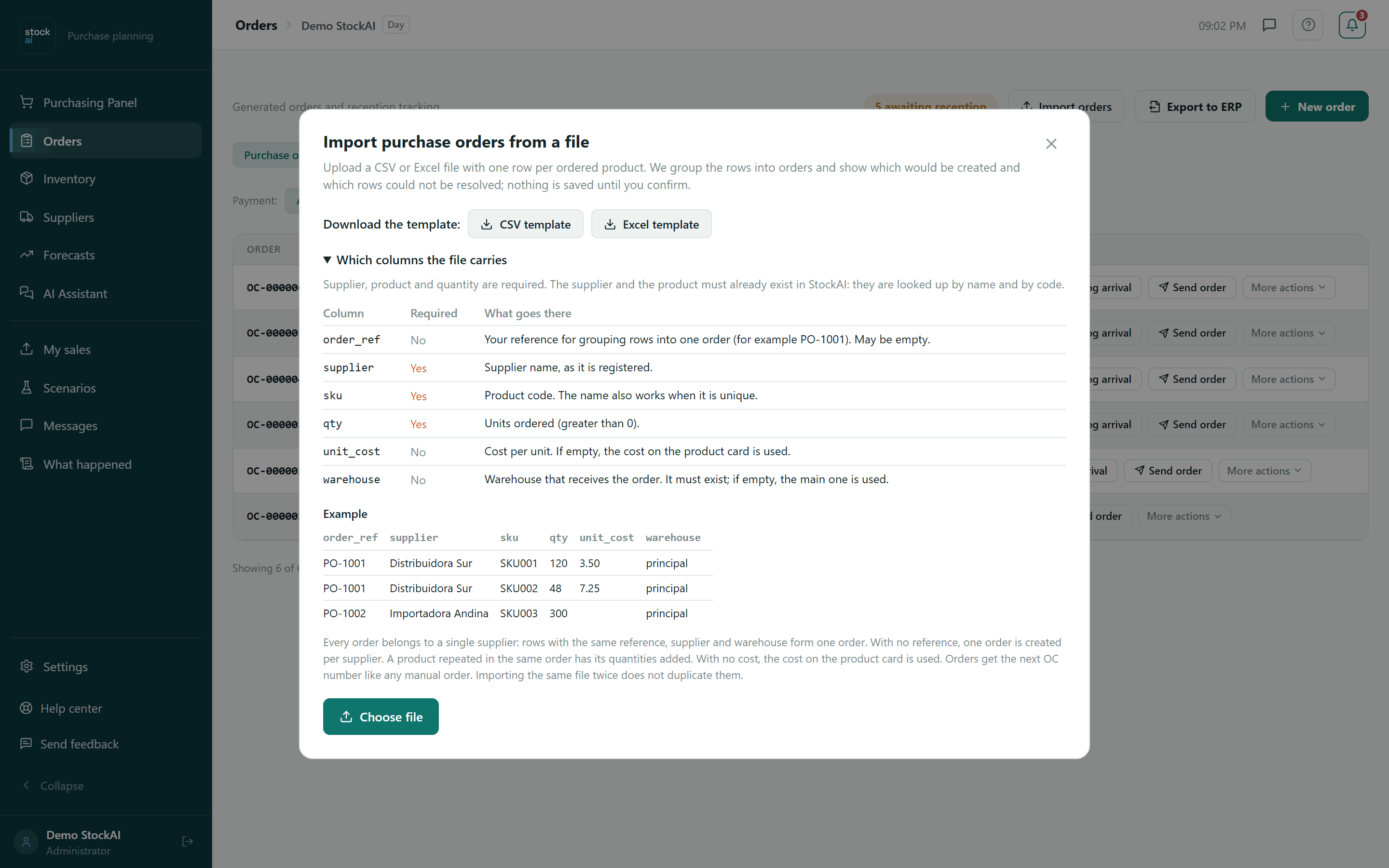
- Download the CSV template or the Excel template if you have no file of your own. The "Which columns the file carries" table explains each one (
order_ref,supplier,sku,qty,unit_cost,warehouse), which are required, and shows an example. If your file uses other headers, you map them in the next step. - Click "Choose file".
- Check "How we read your columns" and fix any that is wrong (or set it to "Do not import").
- Read the preview: "Orders that would be created", rows added together, rejected rows and why. Nothing is saved yet.
- Click "Create orders (N)".
Rows with the same reference, supplier and warehouse form one order; with no reference, one order per supplier. Importing the same file twice does not duplicate orders.
Export to ERP
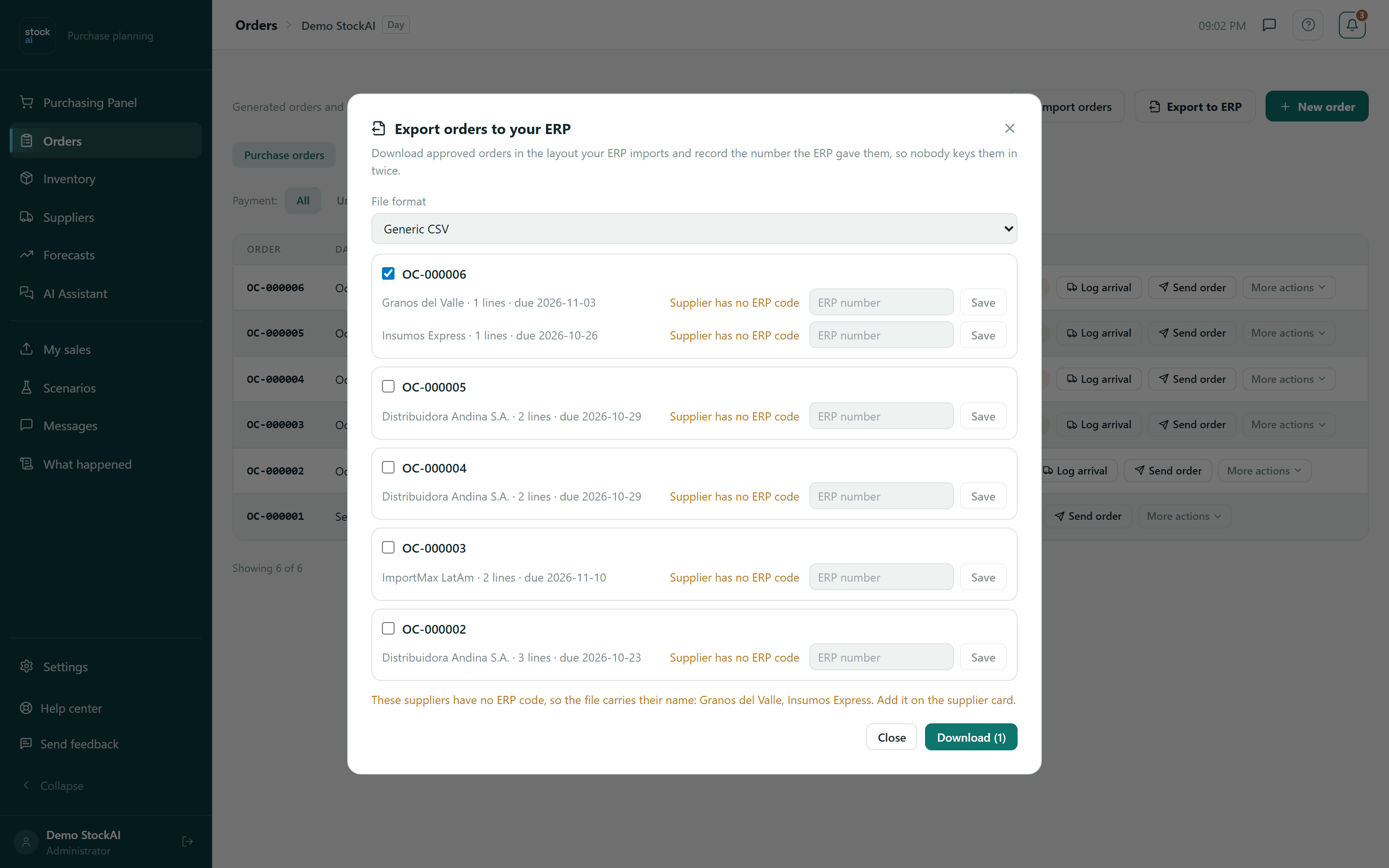
- Click "Export to ERP".
- Pick the File format. Those marked "unverified" were written from the vendor documentation: try a single order first.
- Tick the orders to take. Each shows its suppliers, lines and arrival date, and warns "Supplier has no ERP code" or "Mixed currencies".
- Click "Download (N)" and import the file into your ERP.
- When the ERP gives it a number, type it in "ERP number" and click "Save": the order leaves this list and nobody keys it in twice.
Each supplier’s ERP code is set on its record (Suppliers). With the list empty: "No approved orders are waiting for your ERP to confirm them.".
Orders to approve and delegation
If you are an approver and orders are waiting for you, "Orders to approve" appears at the very top with "Approve" and "Reject" (which asks for a reason). Below it, "Delegate my approvals" lets someone else approve for you for a few days. All of it is explained in Approvals.
The Transfers tab
With two or more warehouses, the "Transfers" tab lists moves between warehouses with their status and actions:
- Awaiting approval
- It crosses two legal entities: it waits for an administrator, who Approves it (stock leaves the source) or Rejects it (nothing moves). It can still be cancelled.
- In transit
- It left the source. "Everything arrived" or "Record quantities" log the arrival; "Cancel transfer" puts the stock back in the source.
- Partial
- Part arrived; arrivals add up. "Close with loss" records what did not arrive as shrinkage.
- Received
- Everything arrived. An administrator can "Reverse" a received or partial one with a Reason (required): everything goes back to the source, unless part has already left the destination.
- Cancelled / Rejected / Reversed / Closed with loss
- Final states.
On a phone, Orders is a list of cards: tap an order and its actions open in a bottom sheet.