Supplier portal
The page your supplier receives with the purchase order: they confirm quantities and delivery dates line by line, propose changes or mark what they cannot supply, with no account.
On this page
When you send an order from Orders with «Ask the supplier to confirm», each supplier receives, besides the PDF, a secure link to a page where they confirm what they will deliver and when. The supplier needs no account or password: the link is their credential.
How the supplier gets the link
- In Orders, open the order and choose to send it to the suppliers.
- Leave «Ask the supplier to confirm» ticked («Each supplier gets a secure link to confirm quantities and delivery dates, with no account needed.»). The choice is remembered for next time.
- Send. Each supplier on the order gets their own link, which shows only their lines. The result notice says who got it («Confirmation link sent to: …») and who did not.
- The link always goes by email. By WhatsApp it goes only on plans that include the WhatsApp bot; a supplier reachable only by WhatsApp on a plan without it gets no link («No confirmation link for: …»).
- The link works for 21 days, or until 7 days after the order's expected arrival if that is later.
- Sending the order again creates a new link and the earlier one stops working; answers already received are kept.
- To send orders to suppliers your email must be verified and your role must be analyst or admin.
What the supplier sees
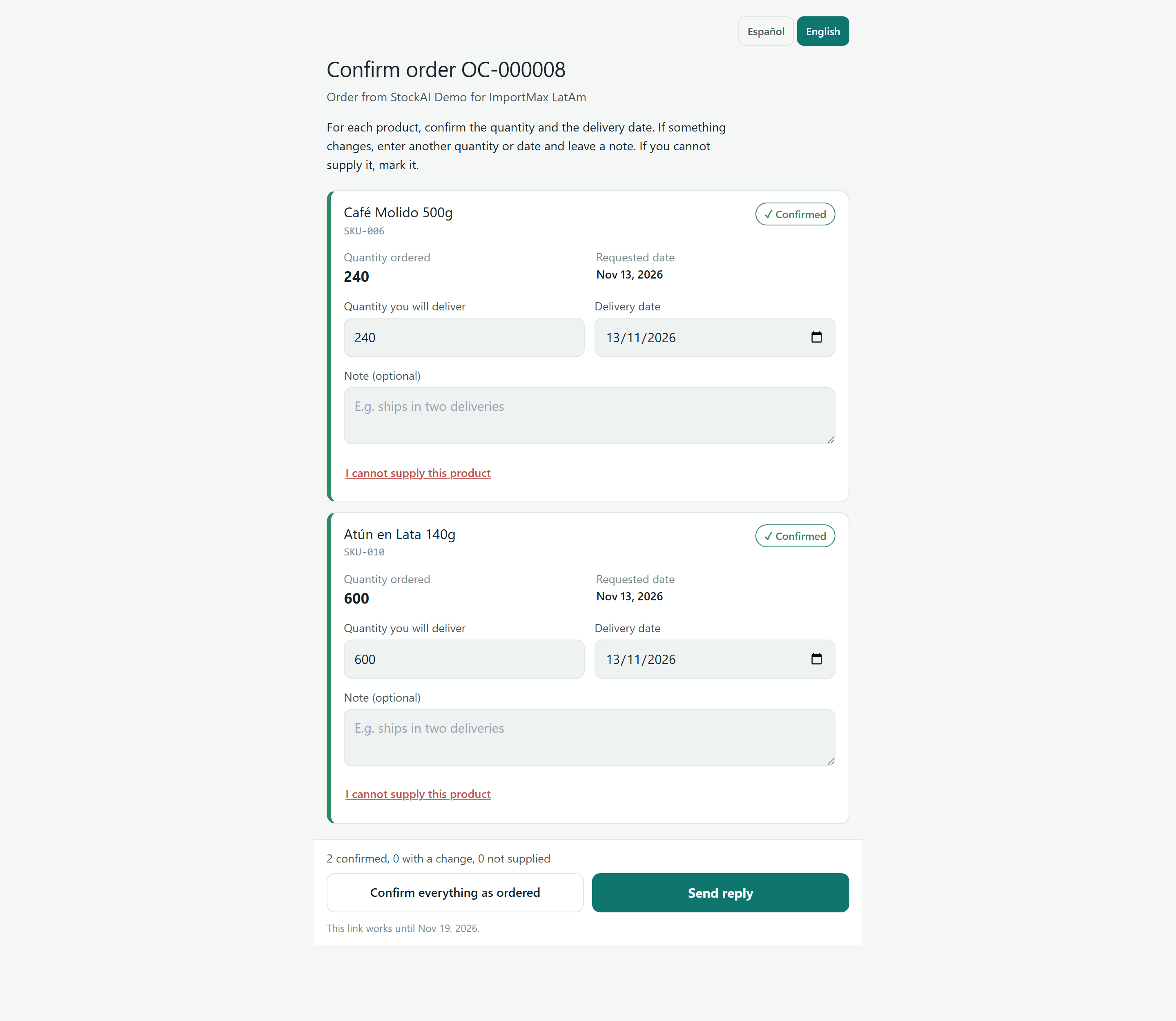
The page opens in the language of whoever sent the order; the Español / English buttons at the top switch it (on that page only). It shows only what is needed to answer: never prices, costs, stock or other orders.
- Confirm order {number}
- The order number.
- Order from {your company} for {supplier}
- Who orders, and from whom.
- Product name and code
- Each line of the order that belongs to that supplier.
- Status tag
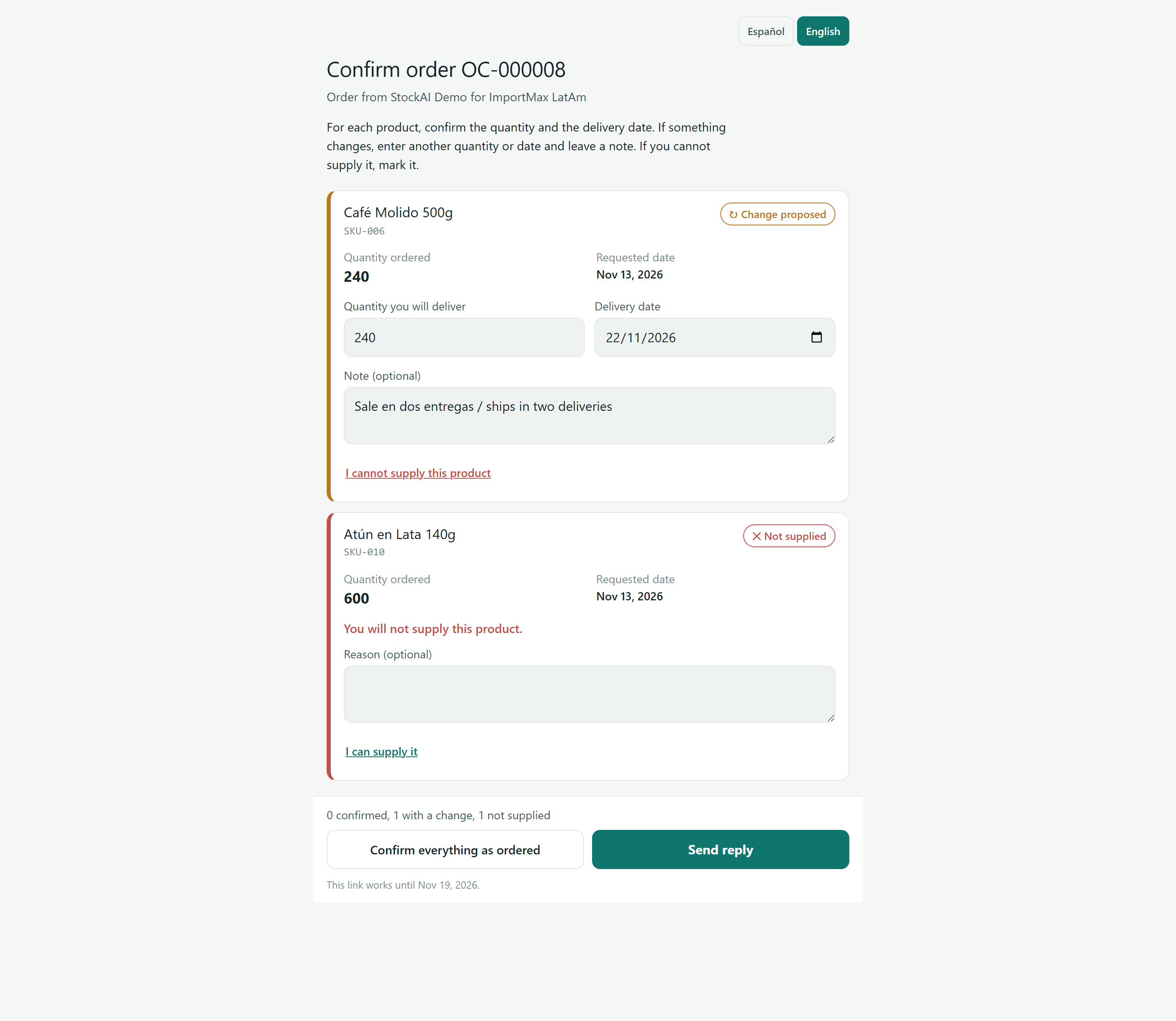
- Confirmed (green): same quantity and same date as ordered. Change proposed (amber): another quantity or date. Not supplied (red): they marked they cannot. The tag updates as they type.
- Quantity ordered
- What you ordered, with its unit if you have one on file.
- Requested date
- The date StockAI expects the goods: the order date plus that supplier's lead time.
- Quantity you will deliver
- Prefilled with the ordered quantity; the supplier changes it if they will deliver a different amount.
- Delivery date
- Prefilled with the requested date. Accepts from yesterday up to two years ahead.
- Note (optional)
- Up to 500 characters, for example «ships in two deliveries».
- I cannot supply this product
- Marks the line as not supplied and swaps the fields for Reason (optional). «I can supply it» undoes it.
- Bottom bar
- The summary «N confirmed, N with a change, N not supplied», the «Confirm everything as ordered» button (puts every line back as ordered) and «Send reply», and how long the link works.
Answering step by step (what the supplier does)
- Open the link from the email or message.
- For each product, leave the quantity and date if they agree, or type another quantity or date and, optionally, a note.
- If a product cannot be supplied, press «I cannot supply this product» and, optionally, write the reason.
- Check the summary in the bottom bar and press «Send reply». If everything is as ordered, «Confirm everything as ordered» then «Send reply».
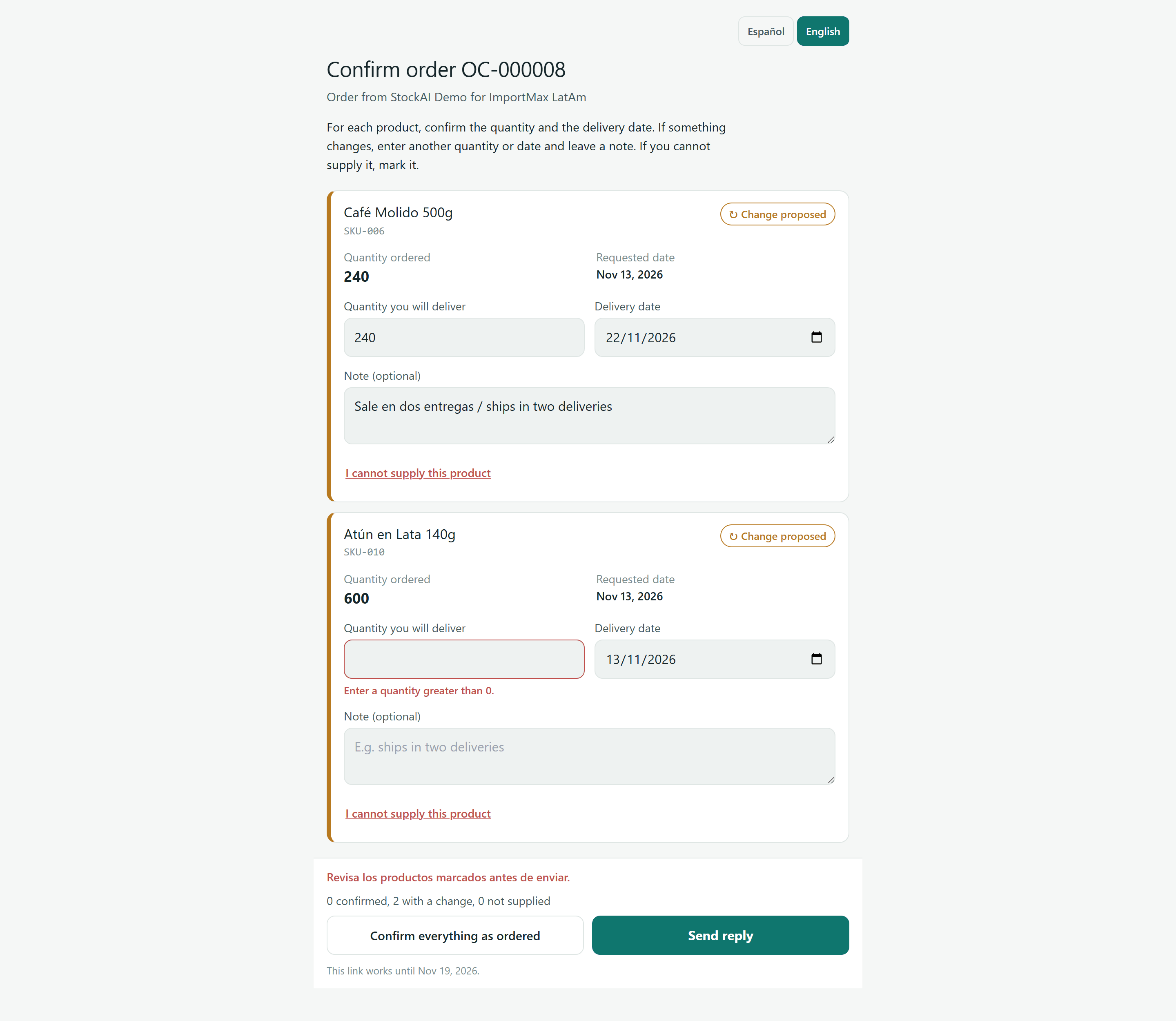
Before sending, the page checks every line: an empty or zero quantity («Enter a quantity greater than 0.») or an out-of-range date («Choose a valid delivery date.») is marked in red, «Check the highlighted products before sending.» appears above the button and the page scrolls to the first line with a problem. All the lines are answered together: part of an order cannot be sent.
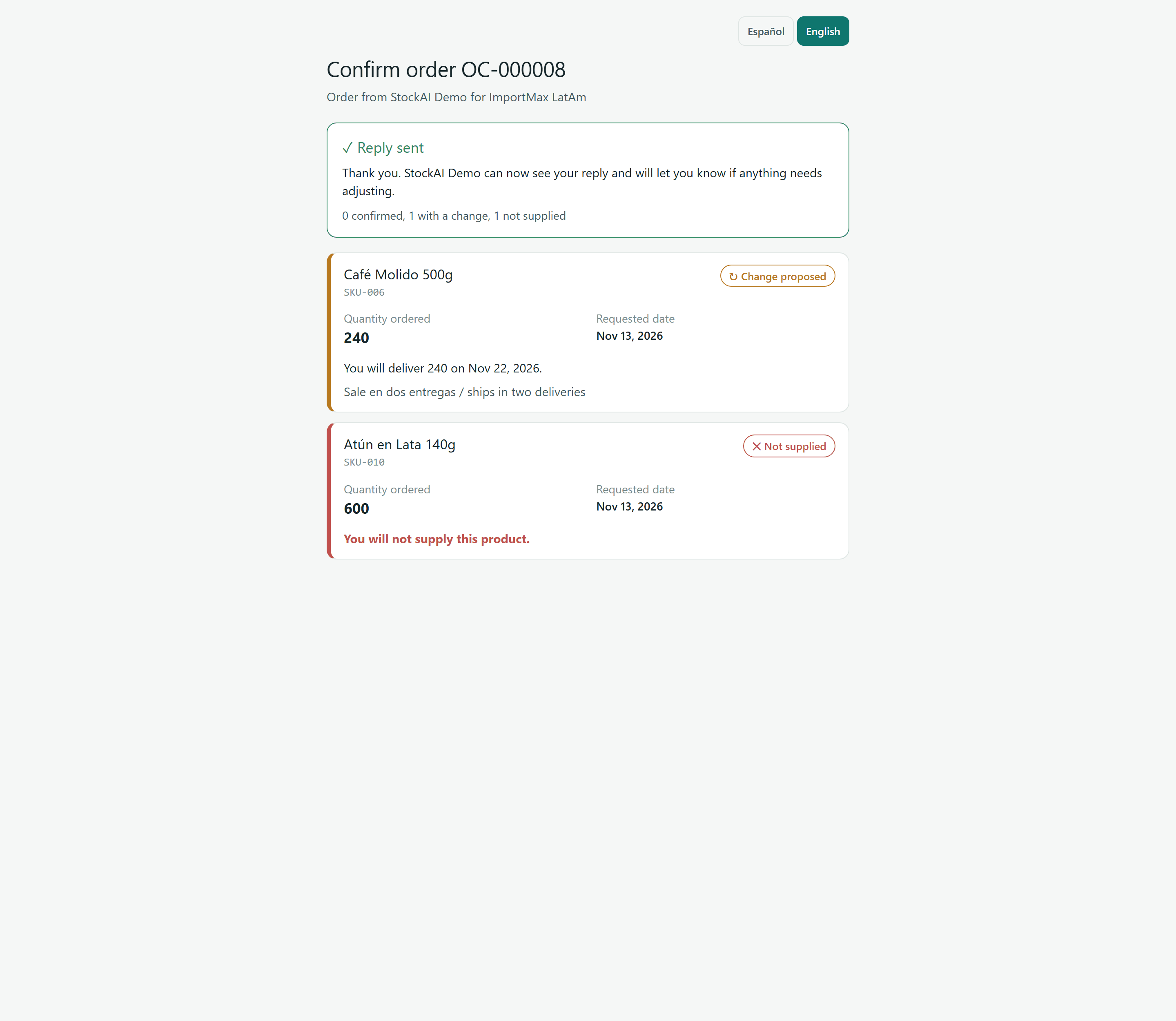
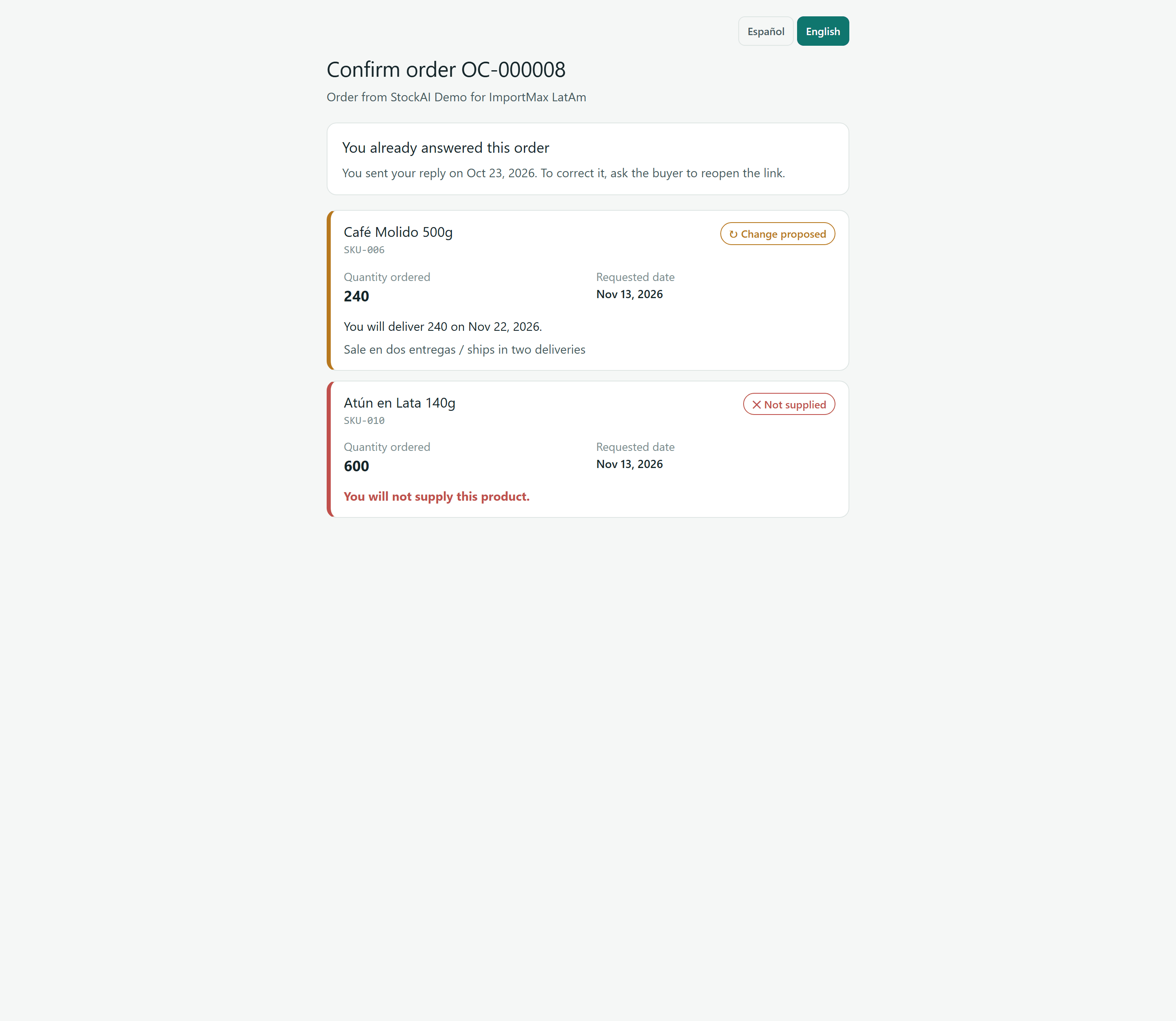
After sending, «Reply sent» appears with the summary. From then on the page is locked: if the supplier opens the link again they see «You already answered this order» with the date and, per line, «You will deliver {quantity} on {date}.» or «You will not supply this product.», plus their note. To correct it, they must ask you to reopen the link.
What you do with the reply
On the order, in Orders, the «Supplier confirmation» block shows the link state («Waiting for a reply», «Answered on …», «Link expired», «Link revoked») and each line's answer («Promised date: …», «Proposed quantity: … (ordered: …)», «The supplier cannot supply this line.», «Supplier note»).
- Accept change
- Uses the supplier's promised date as that line's arrival date instead of the one StockAI estimated. It is recorded under your name and cannot be undone. What the supplier answers changes nothing by itself: only what you accept counts.
- Let them answer again
- Unlocks the page so the supplier can correct the reply.
- Revoke link
- The supplier can no longer open it; their answers are kept. To give them another, send the order again.
If the link does not work
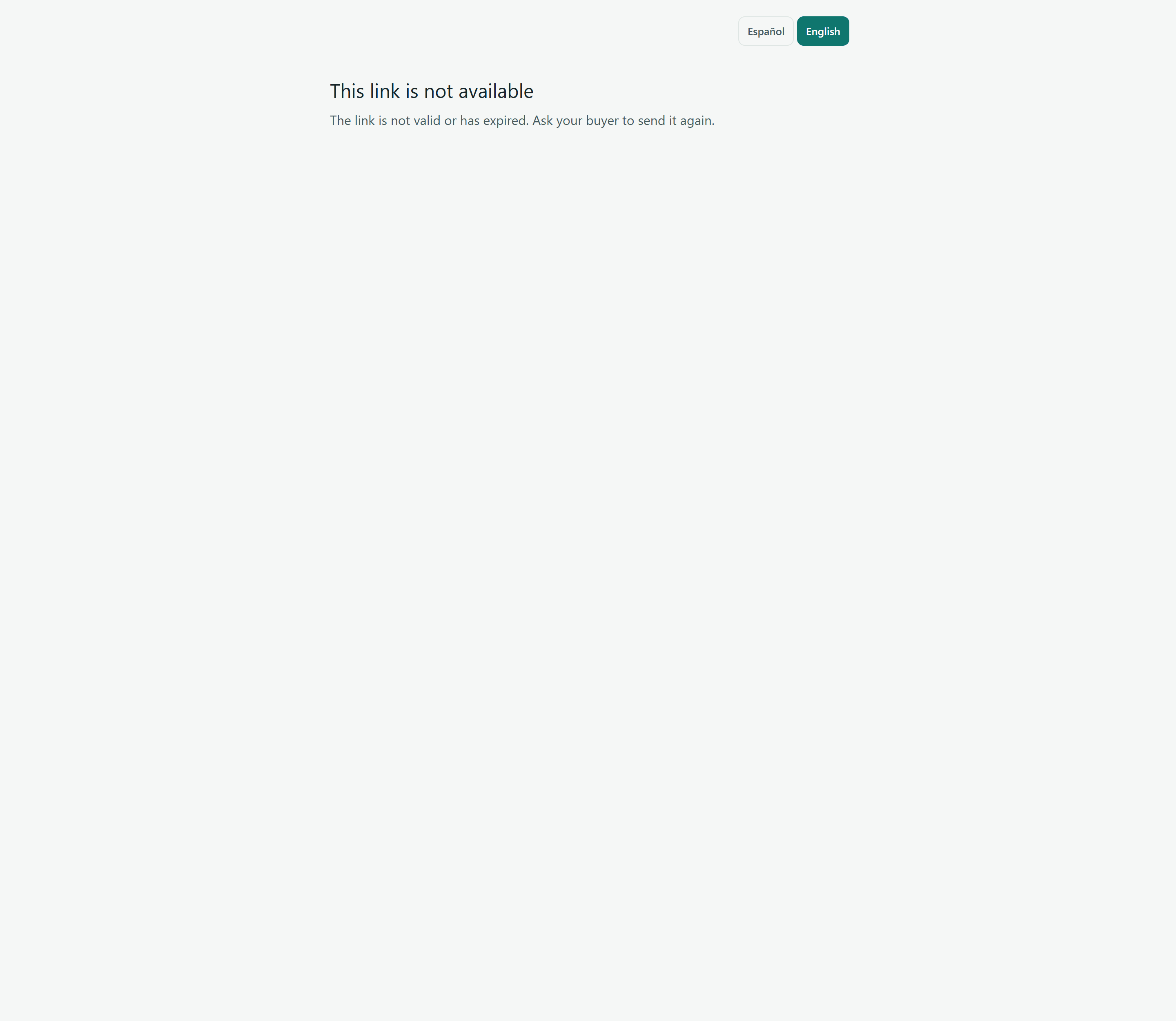
A mistyped, expired or revoked link, or one for a cancelled order, shows the same screen: «This link is not available» («Ask your buyer to send it again.»). It is the same answer for every case on purpose, so nobody can probe links to guess orders. If the problem is the connection, the screen says «We could not load the order» with a «Try again» button.