AI model: StockAI's or your company's
Which language model the assistant, summaries and data diagnosis use: StockAI's default or your own account at OpenAI, Claude, Gemini, Groq, OpenRouter, DeepSeek or a compatible server.
Open AI model from Settings → AI assistant. An administrator edits it; an analyst sees it read-only ("Only an administrator can change the AI provider."); a read-only user does not see it.
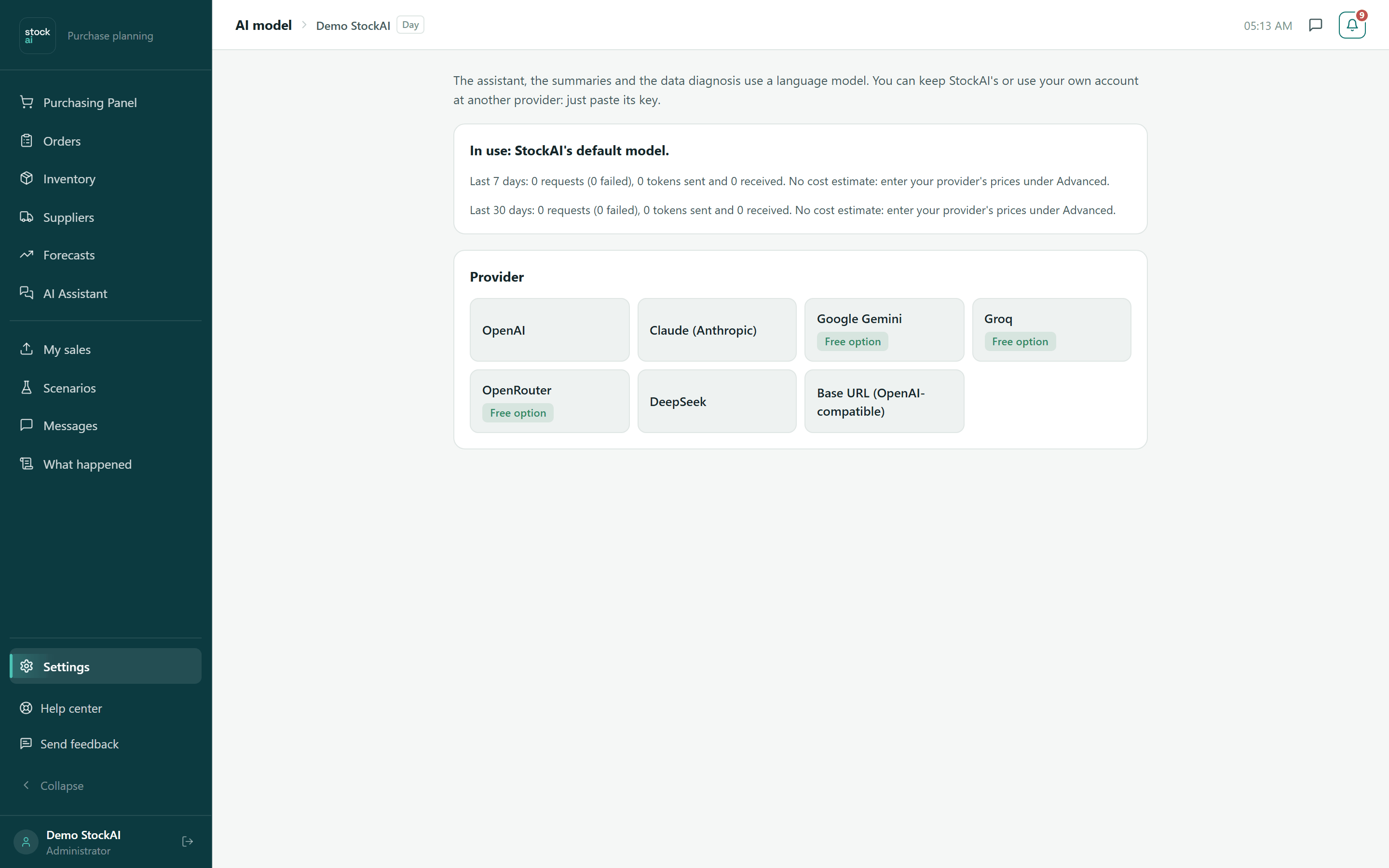
What is in use
- In use
- "StockAI's default model" or "{provider} · {model}" if the company chose its own. If the installation has no StockAI model, it tells you to choose your own provider to turn the assistant on.
- State
- With your own provider: Working, Failing, Paused (it failed 5 times in a row; retried by itself after a short wait or when you press "Test connection") or Retried on the next request.
- Last successful answer / Last problem
- When it last answered correctly and, if it failed, which problem it had and how to fix it.
- Last 7 and 30 days
- Requests (and how many failed), tokens sent and received, and the estimated cost if you entered your provider's prices. Without prices it says "No cost estimate".
Use your own provider
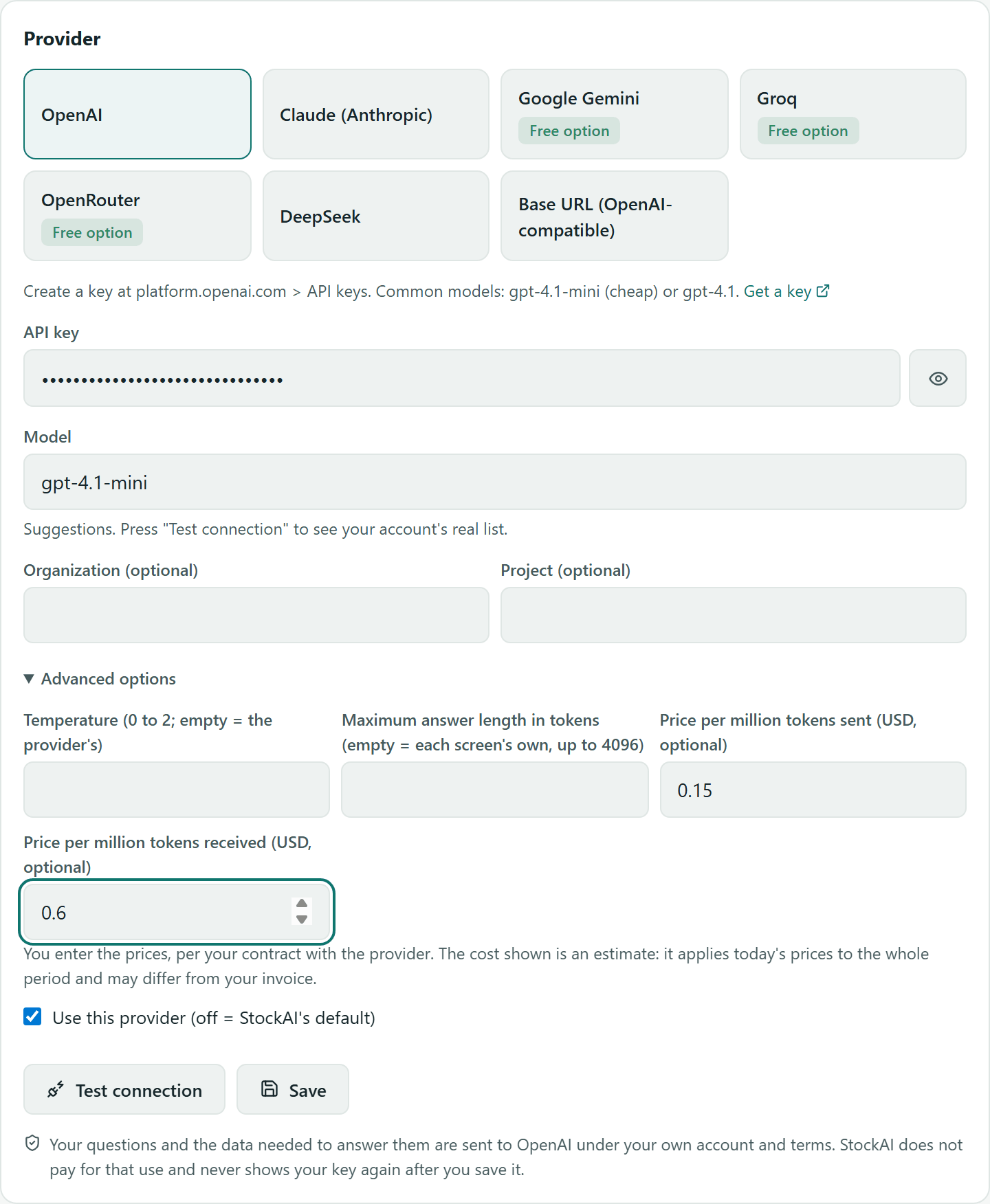
- Under Provider, pick one: OpenAI, Claude (Anthropic), Google Gemini, Groq, OpenRouter, DeepSeek or Base URL (OpenAI-compatible). Those with a free tier carry a "Free option" badge (with the provider's usage limits).
- Read the provider's hint and, if you have no key, press "Get a key" (opens the provider's page).
- Paste the key into API key. The eye shows or hides it.
- Check the Model: a suggested one is filled in; you can type another or pick from the list.
- Press "Test connection": it tests what is in the form without saving it and answers "Connection works: {model} answered in N ms", or the problem. After a successful test the model list becomes your account's real one.
- Press "Save". You will see "AI provider saved" and the box at the top switches to your provider.
- Organization / Project (optional)
- Only for providers that use them (OpenAI).
- Advanced options → Temperature
- From 0 to 2. Empty = the provider's.
- Maximum answer length in tokens
- Empty = each screen's own, up to the maximum in the label.
- Price per million tokens sent / received
- In US dollars, per your contract. With them the screen estimates the cost; it is an estimate that applies today's prices to the whole period and may differ from your invoice.
- Use this provider
- Off: the settings are kept but StockAI's default is used.
An OpenAI-compatible server
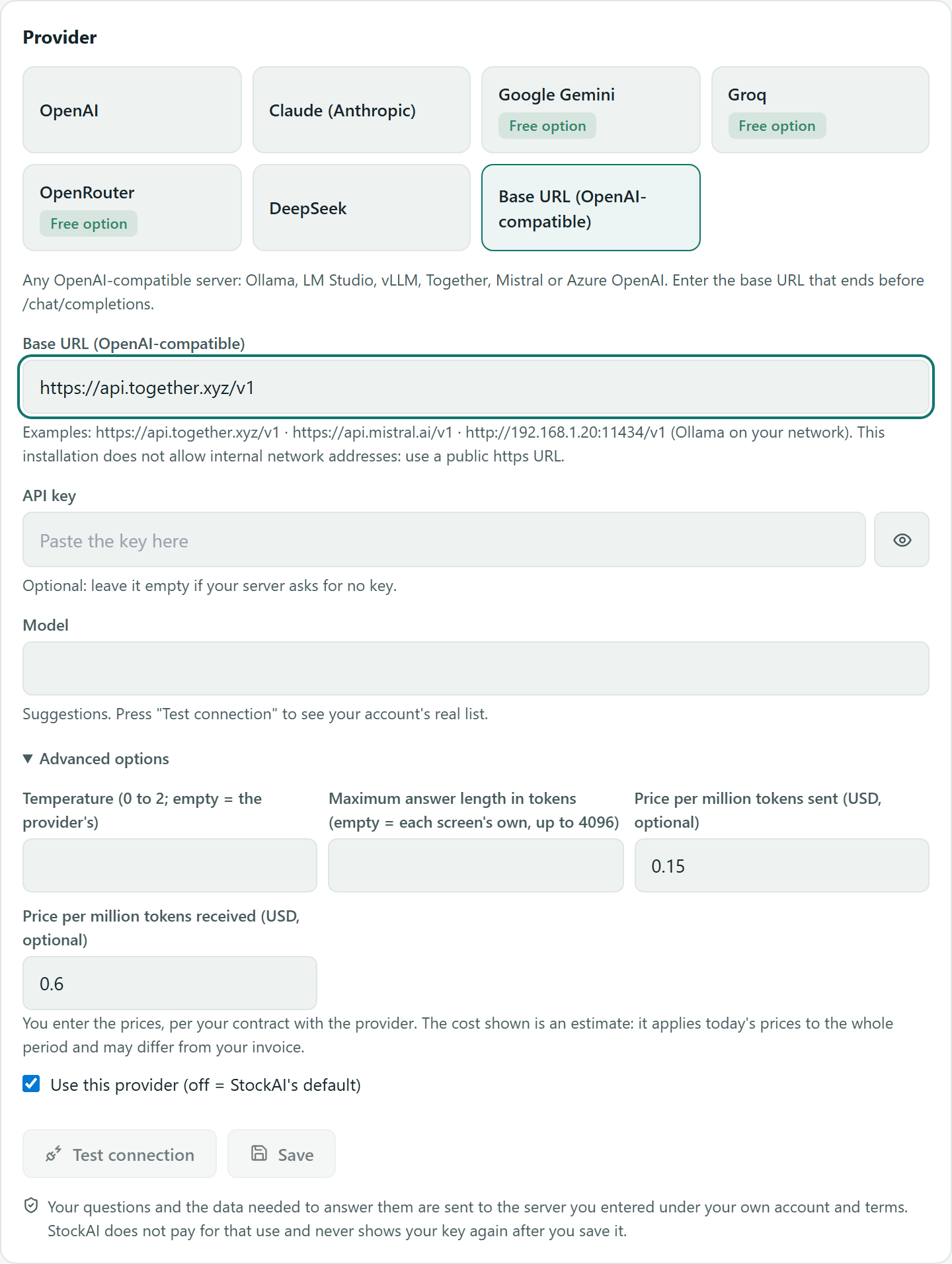
For Ollama, LM Studio, vLLM, Together, Mistral or Azure OpenAI: enter the Base URL that ends before /chat/completions. The key is optional if your server asks for none. If the installation does not allow internal network addresses, the hint says so: use a public https URL.
Back to the default
With a provider saved, "Back to StockAI's default" appears. Confirming deletes the saved key and the assistant goes back to StockAI's model.