Update history
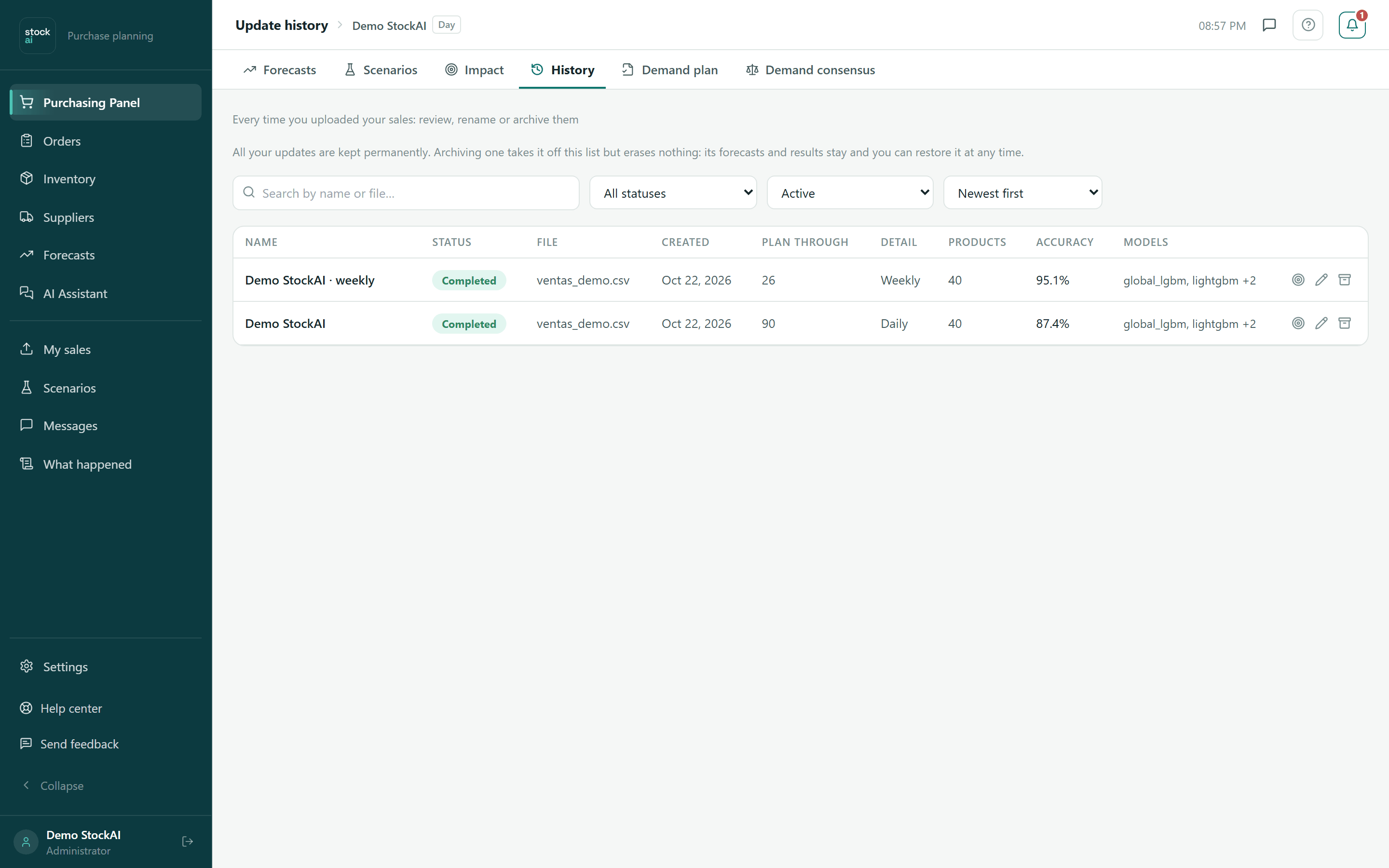
Every time you uploaded sales and a forecast was calculated, it is kept here permanently: search, filter, sort by accuracy, open, rename, archive or restore it.
On this page
History is the library of all your runs (each “update” is a sales upload with its forecast). Nothing expires: a run is kept for as long as the account exists. Archiving takes it off the working list without deleting anything, and it can be restored.
Who can do what
Every role sees the history, opens results and compares with reality. Rename, Archive and Restore are for analysts and admins: a read-only user does not see those buttons.
Search, filter and sort
- Search by name or file…
- Searches the run’s name and the file’s name. It waits a moment after you type and goes back to page one.
- Status
- All statuses, Completed, In progress (queued or calculating), Failed or cancelled and Not finished setting up (runs left halfway through the wizard).
- Show
- Active (default), Archived or All (including archived).
- Sort by
- Newest first, Oldest first, Name (A–Z), Highest accuracy first and Lowest accuracy first.
The list shows 25 runs per page. With more, the footer shows “1–25 of N”, “Page 1 of N” and the previous and next arrows. If a filter leaves nothing, you see “No update matches” with a “Clear filters” button.
The columns
- Name
- The run’s name, with the tags Back-test (see Forecast vs. reality) and Archived. Archived rows are slightly dimmed.
- Status
- Completed, Failed, Cancelled, Queued, Calculating, or a wizard stage (Draft, Data loaded, Data inspected, Columns configured, Features configured, Ready to calculate). A Failed run shows the engine’s “Technical detail:” underneath, in English: it is for whoever helps you look into it.
- File
- The sales file it was calculated from.
- Created
- The run’s date.
- Plan through
- The forecast horizon.
- Detail
- The granularity: Daily, Weekly or Monthly.
- Products
- How many products it forecast.
- Accuracy
- 100% minus the percentage error of each product’s best model on past tests, averaged over products (hover to read it).
- Models
- The models trained; with more than two, “+N” and the full list on hover.
Row actions

- Click the row
- If the run is Completed, it opens its results in Forecasts.
- Target · Compare with what happened
- Opens Forecast vs. reality on that run. Shown on completed runs once you have at least two.
- Pencil · Rename
- Turns the name into an editable field.
- Box · Archive
- Takes the run off the active list. Disabled while it is queued or calculating (“An update in progress cannot be archived”).
- Box with arrow · Restore
- On archived runs: puts it back on the active list.
- To rename, click the row’s pencil.
- Type the new name and press Enter or the tick (“Save name”). Escape or the X (“Cancel editing”) keeps the old name.
Archive and restore
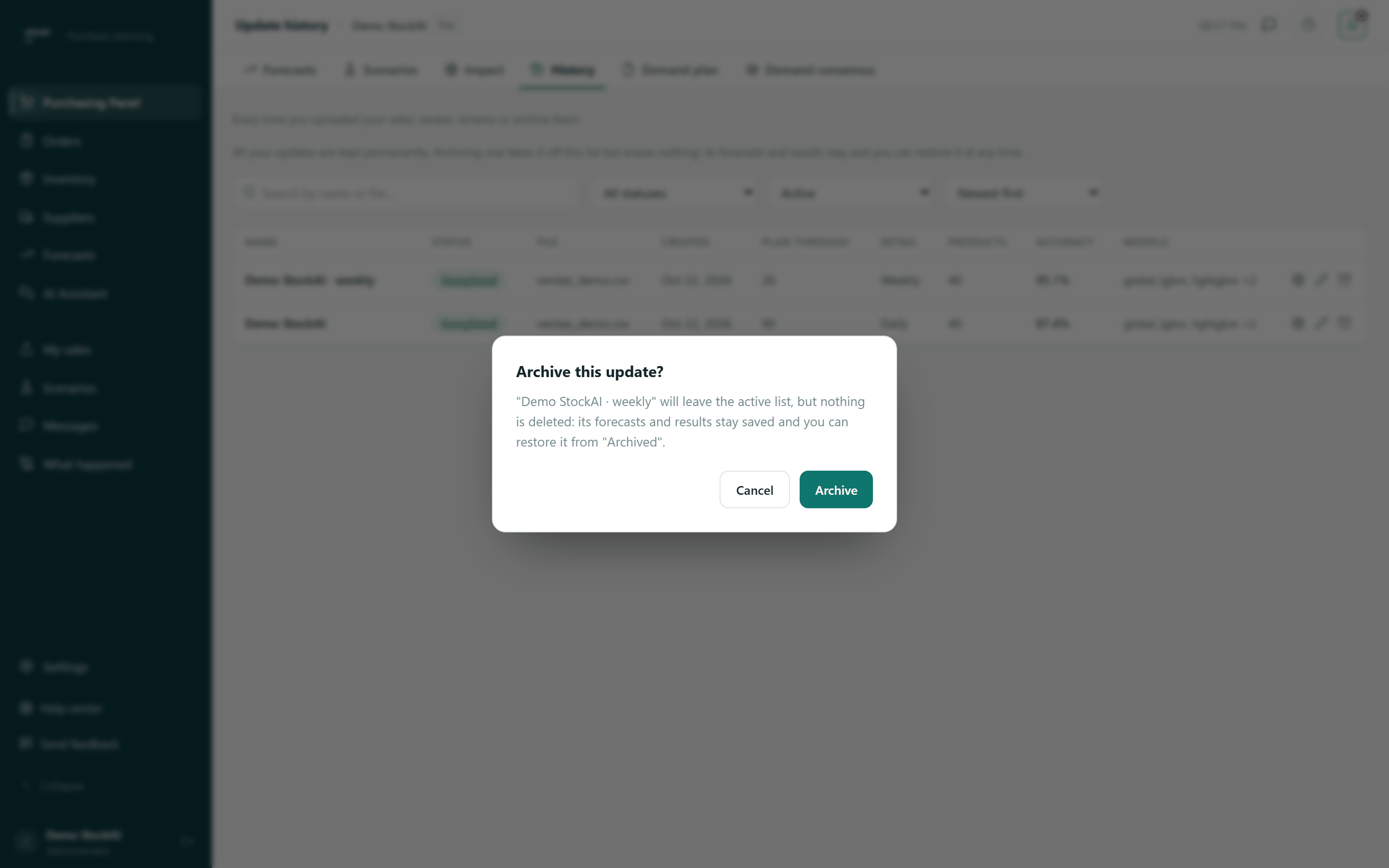
- Click the row’s box icon.
- Read the “Archive this update?” dialog: the run leaves the active list, but its forecasts and results stay saved.
- Click “Archive” to confirm, or “Cancel”.
- To bring it back, choose Show → Archived and click Restore on its row.
When there are no runs yet
You see “You have not uploaded your sales yet” with a button to My sales. On a phone each run is a card; tapping it opens a sheet with every detail and the View results, Compare with what happened, Rename and Archive or Restore buttons.