Which emails StockAI sends, which sender they come from, and how to make your orders and alerts arrive under your company's name.
On this page
The emails StockAI sends
| To whom | Sender | |
|---|---|---|
| Verify your email, activate an invited account | The person signing up or being invited | Installation |
| Code to recover or change the password | The person asking for it | Installation |
| Purchase order | Every supplier with an email on their card | Your company, if configured |
| Daily alert of products at risk | Administrators and analysts | Your company, if configured |
| Suppliers taking longer than usual | Administrators and analysts | Your company, if configured |
| Stale data reminder | Administrators and analysts | Your company, if configured |
| Monthly recap | Administrators and analysts, on the 1st | Your company, if configured |
Account emails — verification, password and invitations — always go out with the installation's sender, even when your company has its own. That is deliberate: the message that grants access to an account speaks for the installation, and a company must not be able to send the one that resets a password.
How email goes out
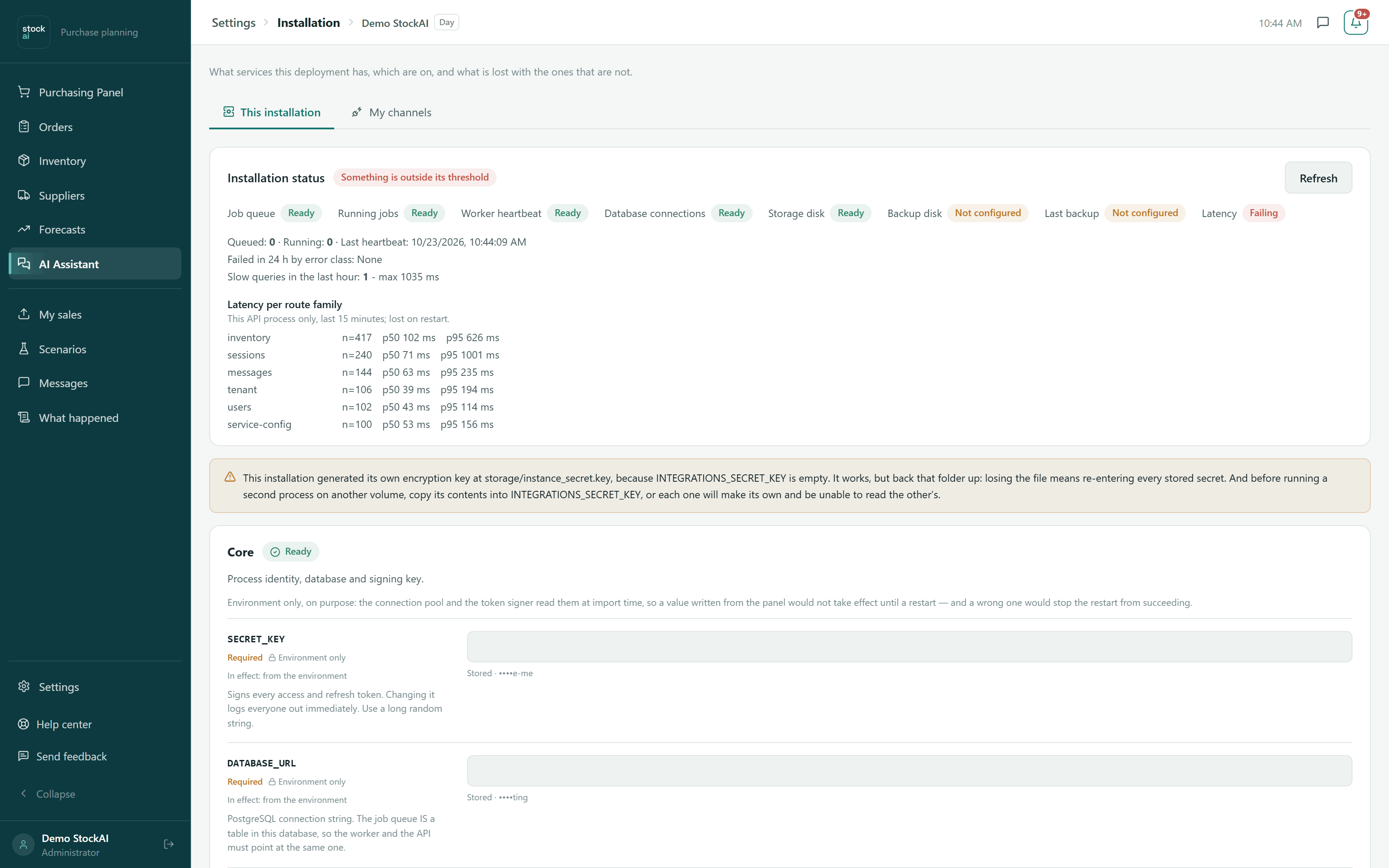
StockAI sends through Resend when a Resend key is configured, and otherwise through SMTP (host, port, username and password). Either one is enough. Whoever administers the server sets the installation's under Installation.
With no transport configured, the email does not go out and StockAI records it as not sent: it never claims to have sent something nobody received.
Sending from your company's domain
- As your company's administrator, open Installation and go to the "My channels" tab.
- On the email card, paste your Resend key, or fill in your SMTP server's details.
- Type the sender you want your suppliers to see.
- Save and press "Test connection". The test asks the provider whether the credential works; it emails nobody.
From then on your purchase orders and alerts go out under your identity. A saved credential is never shown again: the panel shows at most its last four characters.
Knowing whether an email went out
Every alert sent, and every one that failed, is recorded. You see them under What happened, alongside orders sent and orders that could not be sent. When you send an order, the screen also tells you which suppliers it reached and which were skipped.