Demand plan
Freeze the demand plan (forecast + adjustments + committed demand) as a version, send it for approval, compare versions, and measure whether the approved plan beat the model.
On this page
The Demand plan screen is a formal record of the plan, S&OP style: you save a snapshot of the current plan, someone with the authority approves or rejects it, and once the periods close StockAI measures whether the agreed plan was more accurate than the statistical forecast.
Who can do what
| Action | Who |
|---|---|
| View versions, their details and accuracy, compare | Every role |
| Save a version, comment and submit it | Analyst and admin |
| Approve or reject | Admins and analysts flagged as approvers (the same flag that approves purchase orders, see Approvals) |
A read-only user sees “You can view the versions; saving and submitting them is for analysts and administrators.” instead of the form.
What a version freezes
For each product and future period, the version stores four numbers:
- Forecast
- The statistical forecast of the winning model of the run the app plans from.
- Adjustments
- The manual adjustments active on that forecast (made in Consensus or in Forecasts).
- Committed
- Committed demand: customer orders you already know are coming.
- Plan
- Forecast + adjustments + committed, never below zero. It is the version’s main figure.
A product with commitments only (no forecast) is included too, tagged “commitments only”.
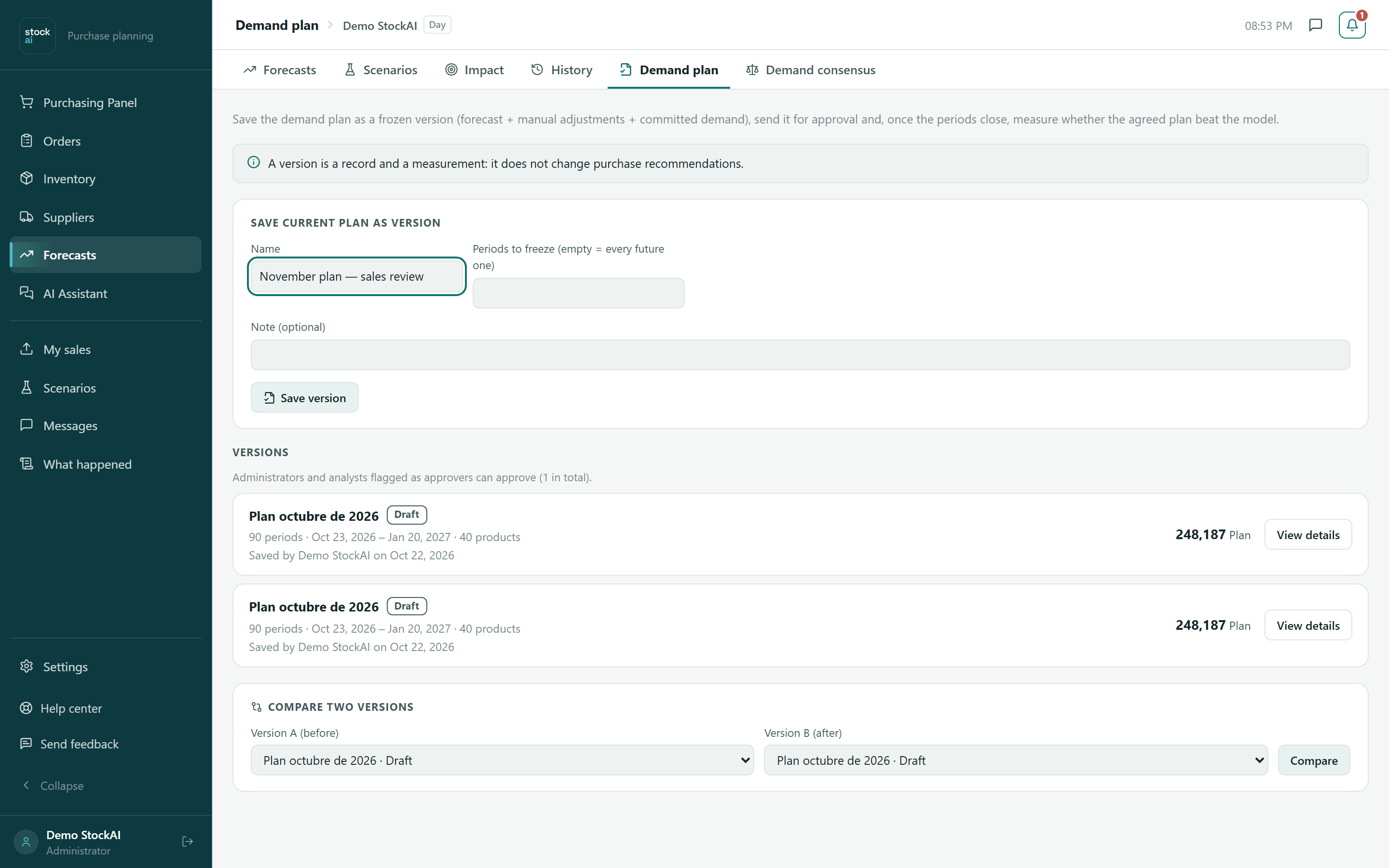
Save the current plan as a version
- Name
- Up to 120 characters. Left empty, the placeholder is used: “Plan {month year}”.
- Periods to freeze (empty = every future one)
- How many periods ahead to store, 1 to 520, in the run’s granularity. Empty stores every period the forecast has.
- Note (optional)
- Up to 1,000 characters; shown under the version’s title.
- Type a name (or keep the suggested one), and optionally the number of periods and a note.
- Click “Save version”.
- You will see “Version "…" saved as a draft.”: the version is listed first, as Draft, and its details open.
The list of versions
Each version shows its name, its status, “N periods · first – last · N products”, “Saved by … on …” and the Plan total. If there are approvers, a line above the list says how many. “View details” opens the version under the list; “Close” closes it.
- Draft
- Just saved. It can be submitted for approval.
- Awaiting approval
- Waiting for an approver’s decision.
- Approved
- The company’s approved plan. There is only one at a time.
- Rejected
- Rejected with a reason. Final for that version.
- Superseded
- It was approved and another version was approved later.
A version’s details
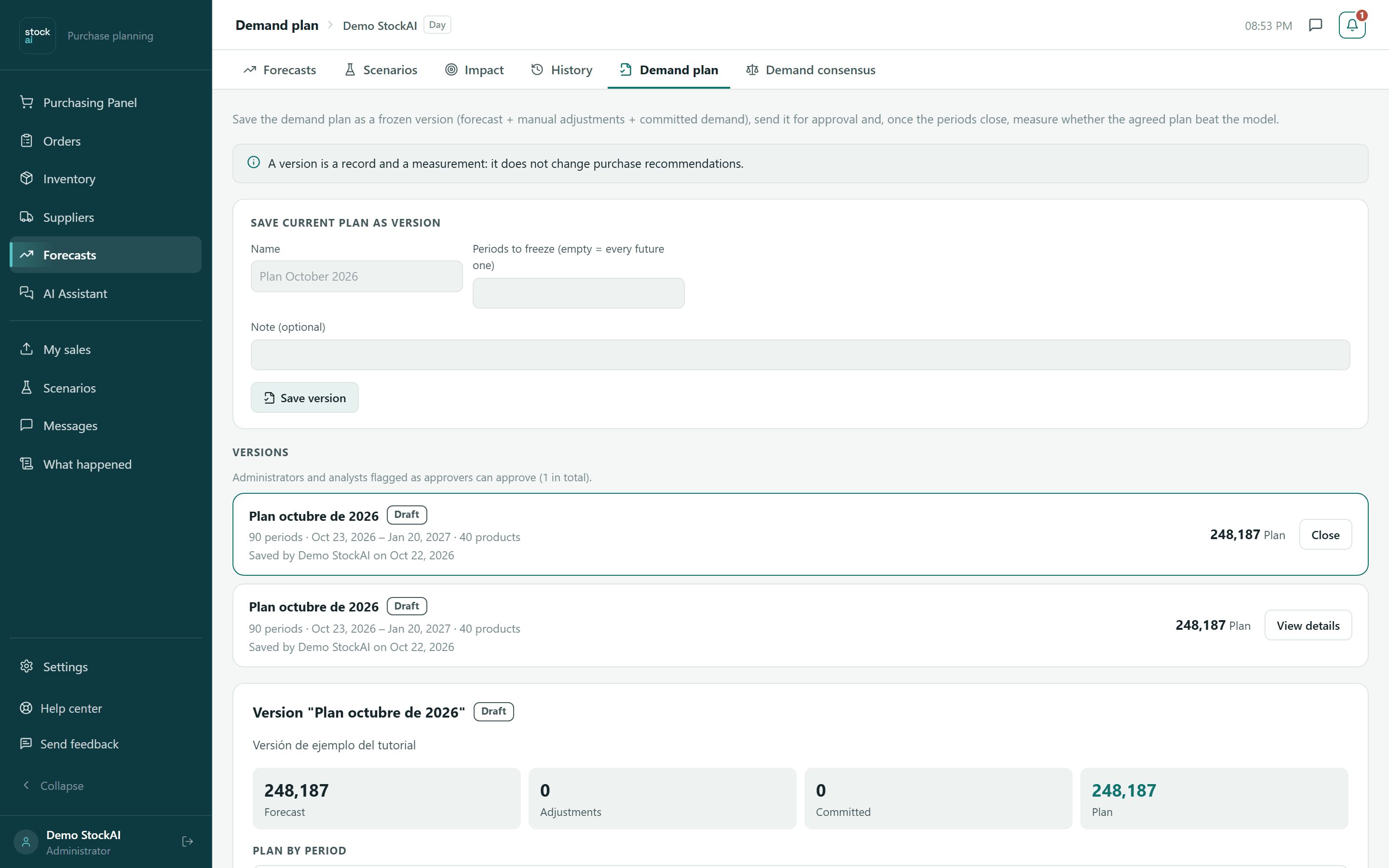
- The four totals: Forecast, Adjustments, Committed and Plan.
- Plan by period: a table with the same four numbers per period.
- Products: the version’s products, largest plan first, 20 at a time (“Showing 20 of N products.”). The “Search SKU” box filters by code.
- Accuracy of the approved plan: only on approved or superseded versions (see below).
- History: who saved, submitted, approved, rejected or commented, with the date and the comment. An approval by the only person with authority is marked “Self-approved: they were the only person with approval authority.”
Submit, approve or reject
At the bottom of the details (analysts and admins only) there is the Comment box and the buttons that fit the version’s status.
- On a Draft version, click “Submit for approval” and confirm. The dialog reminds you: “The version’s numbers are already frozen; to change them, save a new version.”
- An approver opens the version Awaiting approval, optionally writes a comment, and clicks “Approve” or “Reject”.
- Approving asks “Approve "…"?”: it becomes the approved plan and the previously approved version becomes Superseded.
- To reject, first write the reason in Comment (at least 3 characters; otherwise the screen asks “Write in the comment why you are rejecting the plan.”) and confirm. Rejection is final for that version.
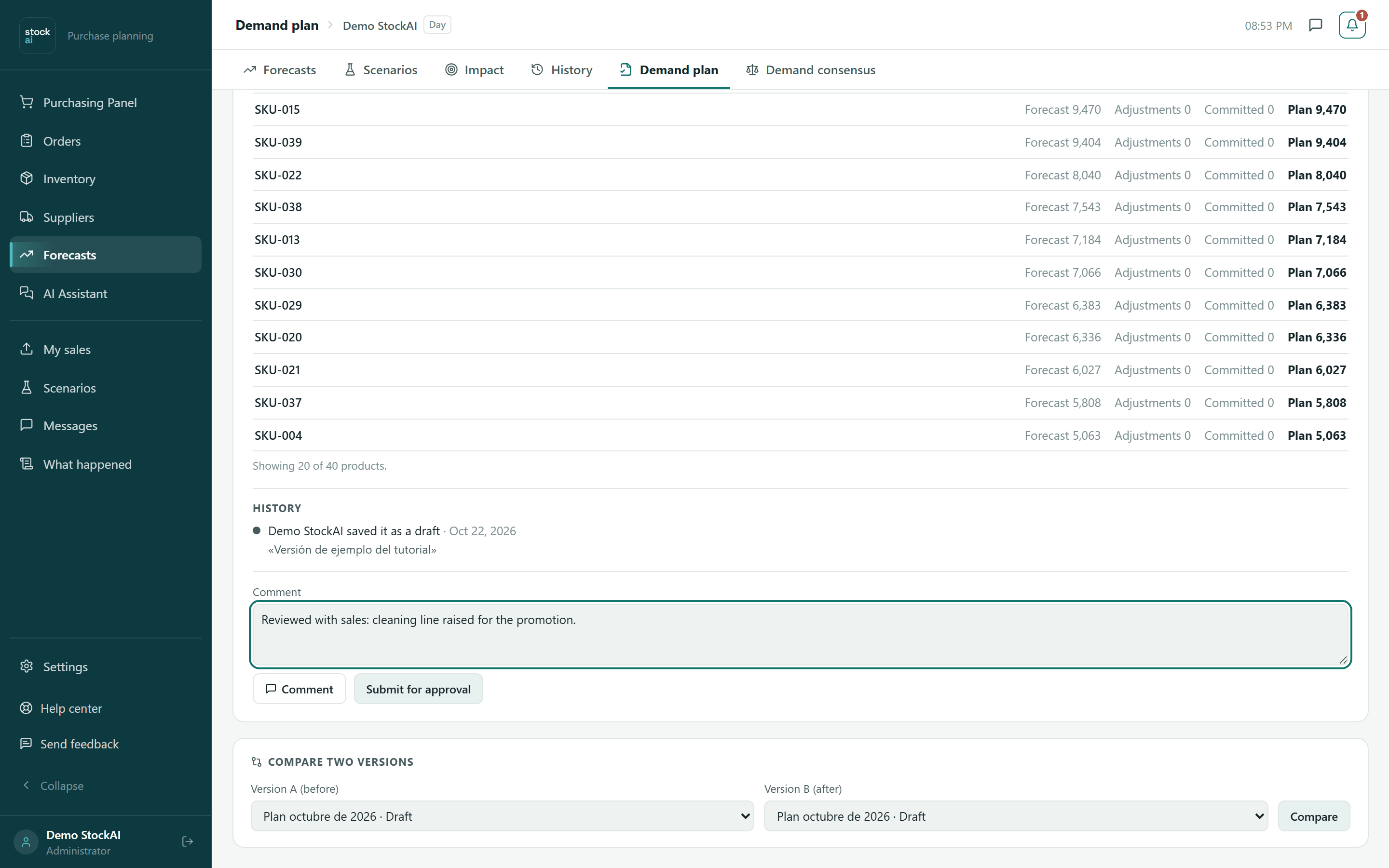
The “Comment” button adds the text to the history without changing the status; it works in any status.
Accuracy of the approved plan
On an approved or superseded version, StockAI compares the plan and the statistical forecast with what sold, over the same products and closed periods. It shows Plan error (WAPE), Model error (WAPE), Plan bias and Model bias, the verdict (“The agreed plan beat the model: N% less error.”, “…did worse than the model.”, “…were about equally accurate.” or “too little data”) and the Products with the largest plan error.
While it cannot measure, it says why: no period has closed yet (and when the first one closes), periods closed but no sales are loaded for them, or no sales file covers them yet. Points with no recorded sale do not count as zero, and products planned from commitments only are not compared because they have no statistical forecast.
Compare two versions
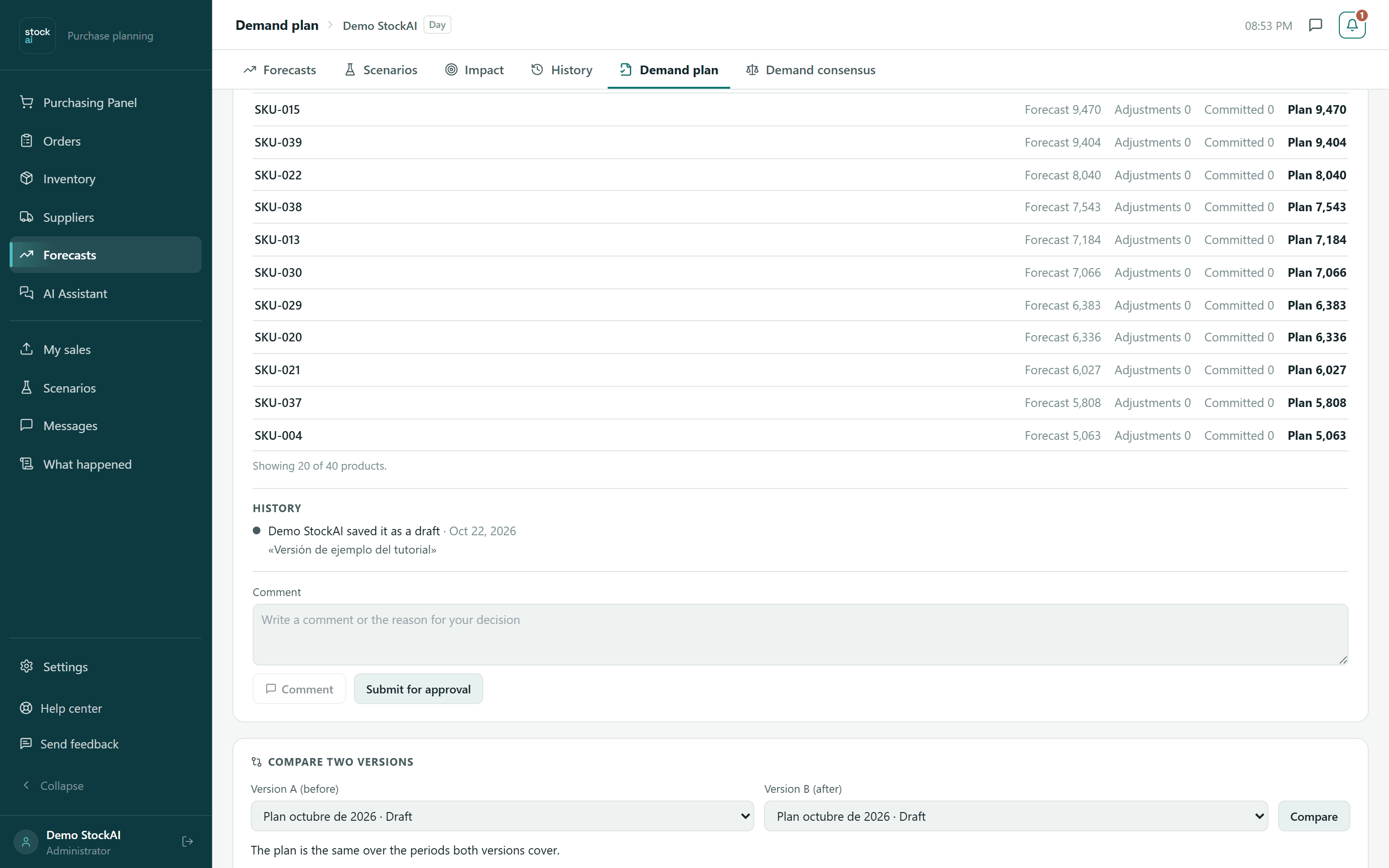
- In “Version A (before)” and “Version B (after)” pick two different versions (by default, the second newest and the newest).
- Click “Compare”.
- Read the summary: “N products changed over the N periods both cover. Total: A → B.”, and below each product with Plan A, Plan B and the change in units and %. Products present in only one version are tagged “only in A” or “only in B”.
With fewer than two versions the card says “Save at least two versions to compare them.” If they share no period: “These versions do not cover any period in common.”
Related
- Consensus: where the adjustments that enter the plan are proposed and approved.
- Forecast vs. reality: the statistical forecast’s accuracy per run.
- Forecasts: where the Forecast column comes from.