Create your account
How to create your StockAI workspace field by field, what happens with the verification email, what to do if the link does not arrive or has expired, and how to try StockAI without signing up.
On this page
At Create an account you open a new workspace: a company in StockAI with its own inventory, sales and users. Whoever creates it becomes that company's admin and starts on the free plan, no card needed (see Plan limits). You do not need an account first: this screen is public. If you only want to look first, you can try it without signing up.
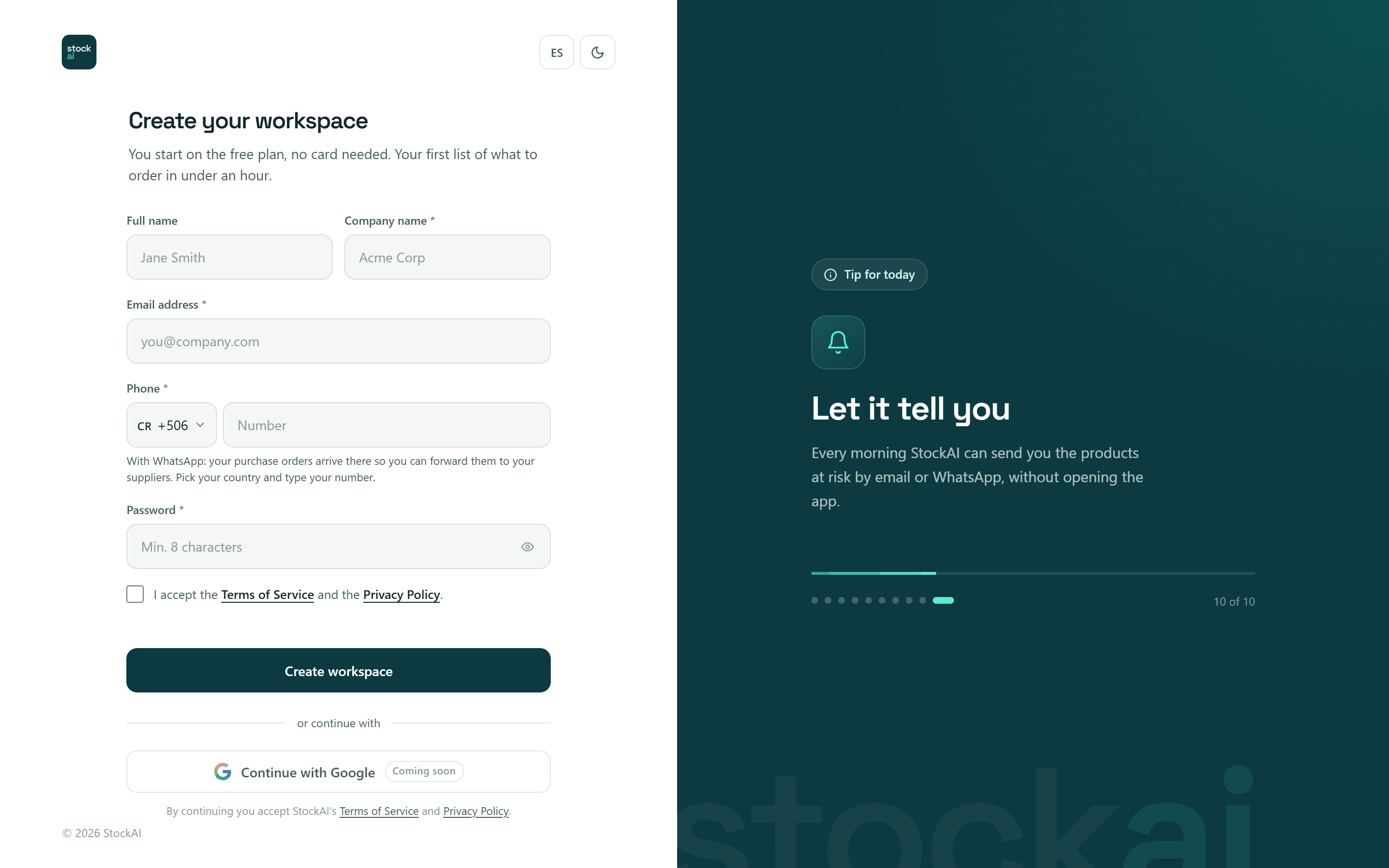
What is on the screen
- ES / EN (top right)
- Switches the screen between Spanish and English.
- Moon / sun
- Switches between the light and the dark theme.
- Full name
- Optional. The name your teammates see and the one on the orders you approve.
- Company name *
- Required. Your workspace name; you can change it later in the settings.
- Email address *
- Required. Your sign-in user and where the verification link goes. Each email can have only one account on the whole installation.
- Phone *
- Required. Pick the country in the selector (flag and code, with a «Search country or code» box) and type your number. It must have WhatsApp: your purchase orders arrive there so you can forward them to your suppliers. If you paste a number starting with
+, the country is picked for you. - Password *
- Required. The eye shows or hides it. Below it a meter shows four guides: «At least 8 characters», «Uppercase letter», «Number» and «Special character».
- I accept the Terms of Service and the Privacy Policy
- Required box, always unticked when the page opens. Each link opens its document.
- Create workspace
- Creates the account. While it works it reads «Creating workspace…» and ignores a second click.
- or continue with · Continue with Google
- Google sign-in always appears, but switched off with a «Coming soon» tag until the installation enables it. Pressing it only explains «Sign-in with Google is not active yet». Continue with Microsoft and Continue with Apple appear only on installations that enable them. Social sign-in is off by default: if it is not active, use your email and password.
- Already have an account? Sign in
- Takes you to Sign in.
Creating the account step by step
- Open Create an account (from the home page or from «Create an account» on the sign-in screen).
- Type your name (optional) and the Company name.
- Type your work Email address.
- In Phone, pick your country and type the full number that has WhatsApp.
- Type a Password of at least 8 characters with letters and digits. Use the eye to check it.
- Tick «I accept the Terms of Service and the Privacy Policy».
- Press «Create workspace».
- Open the verification link in your email (or the button shown on screen if the email could not be sent), then sign in.
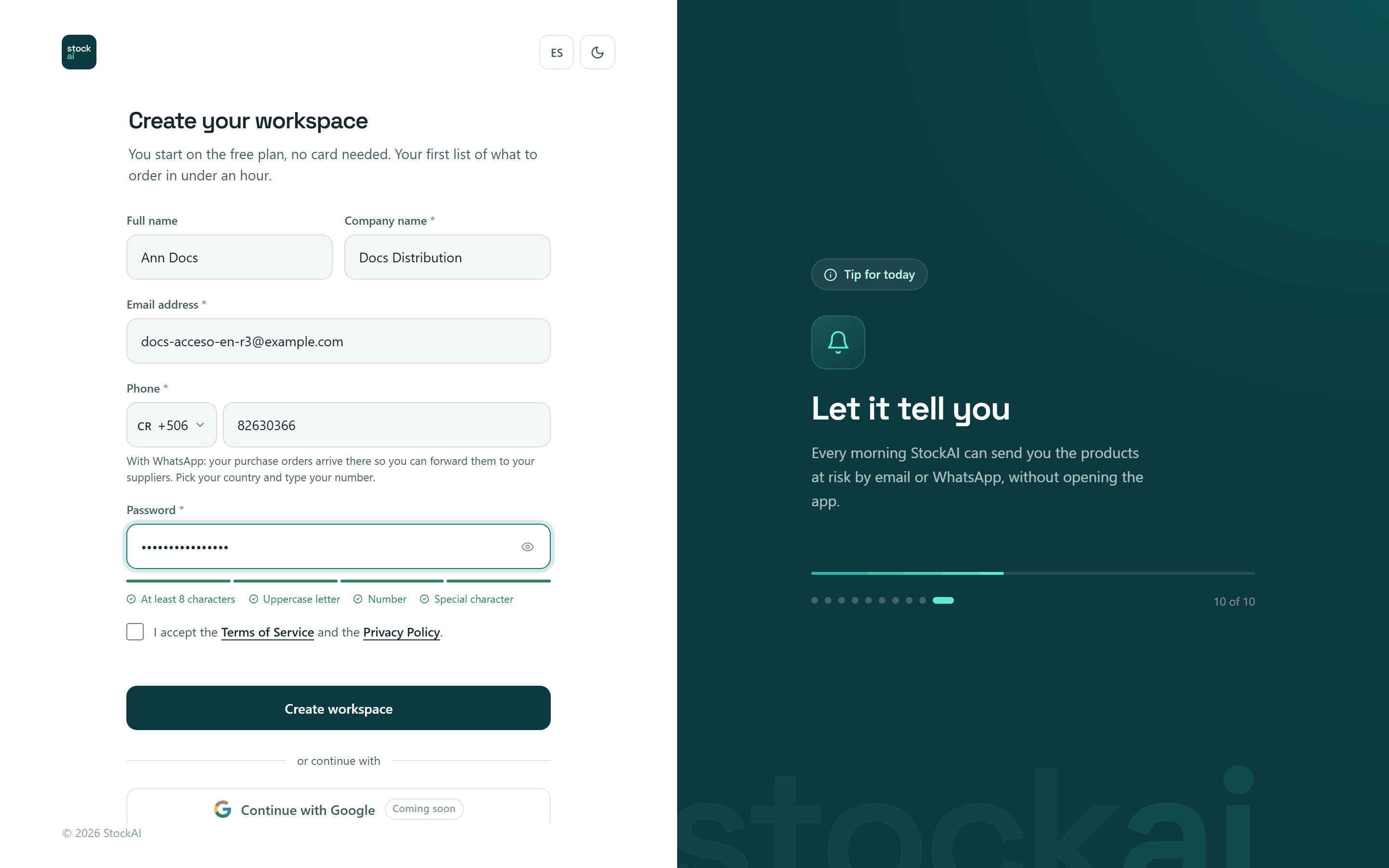
What the screen refuses and why
The first two checks happen before anything is sent; the rest come from the server and show in the red box at the top of the form. In no case is a half-made account left behind.
- «Pick your country and enter your full number, e.g. +506 8888 7777.»
- The phone is not in full international format (country code and number).
- «To create the account you have to accept the Terms of Service and the Privacy Policy.»
- You did not tick the box. The warning appears next to it, not at the top, so you see it on a phone too.
- «That email already has an account. Sign in or use another one.»
- The email is already registered. If it is yours and you forgot the password, go to Recover your password.
- «This WhatsApp number is already linked to another account»
- Each number can belong to one person only: it identifies the user to the WhatsApp assistant.
- «The password must be at least 8 characters long, with at least one letter and one digit.»
- The password does not meet the server rule.
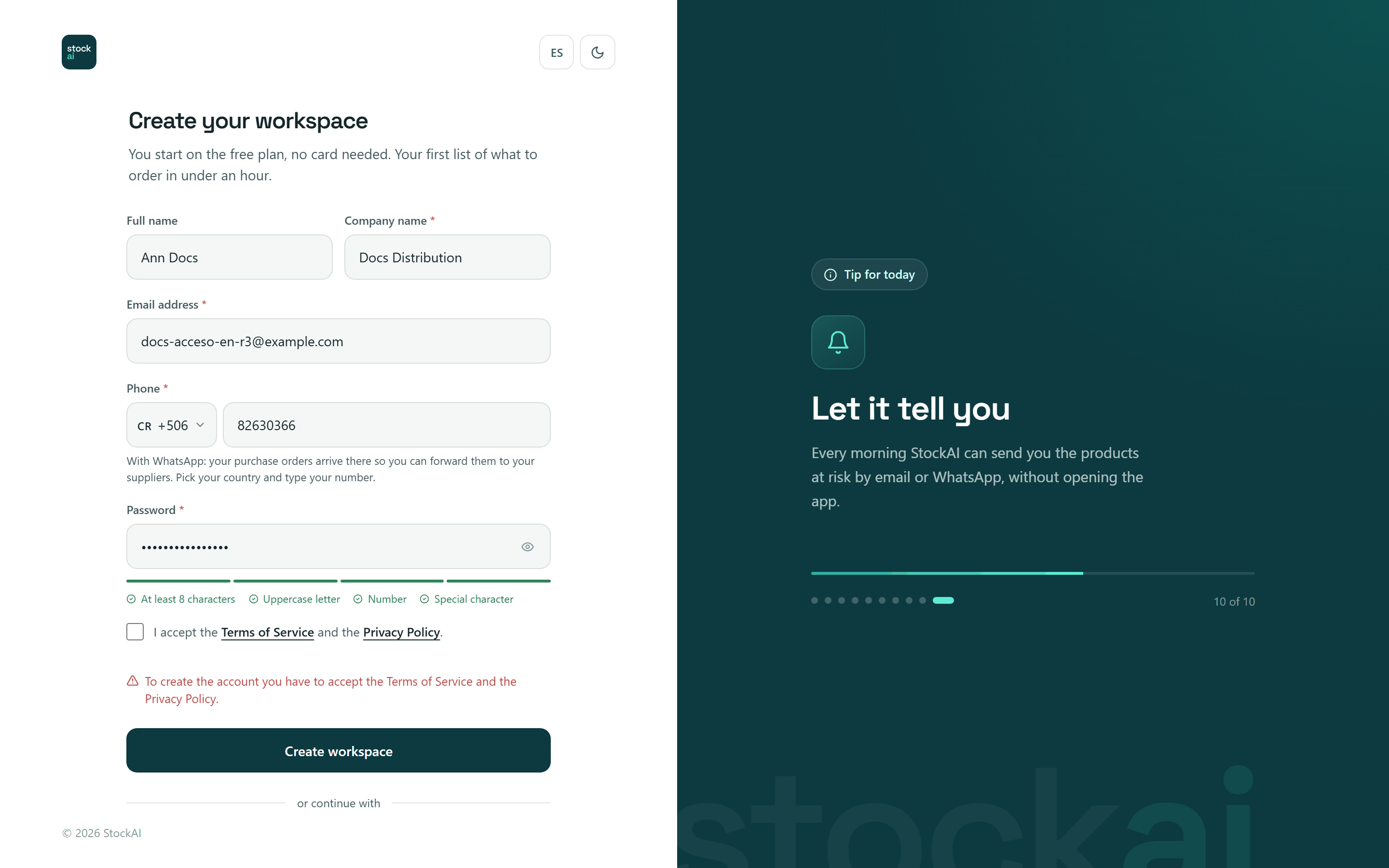
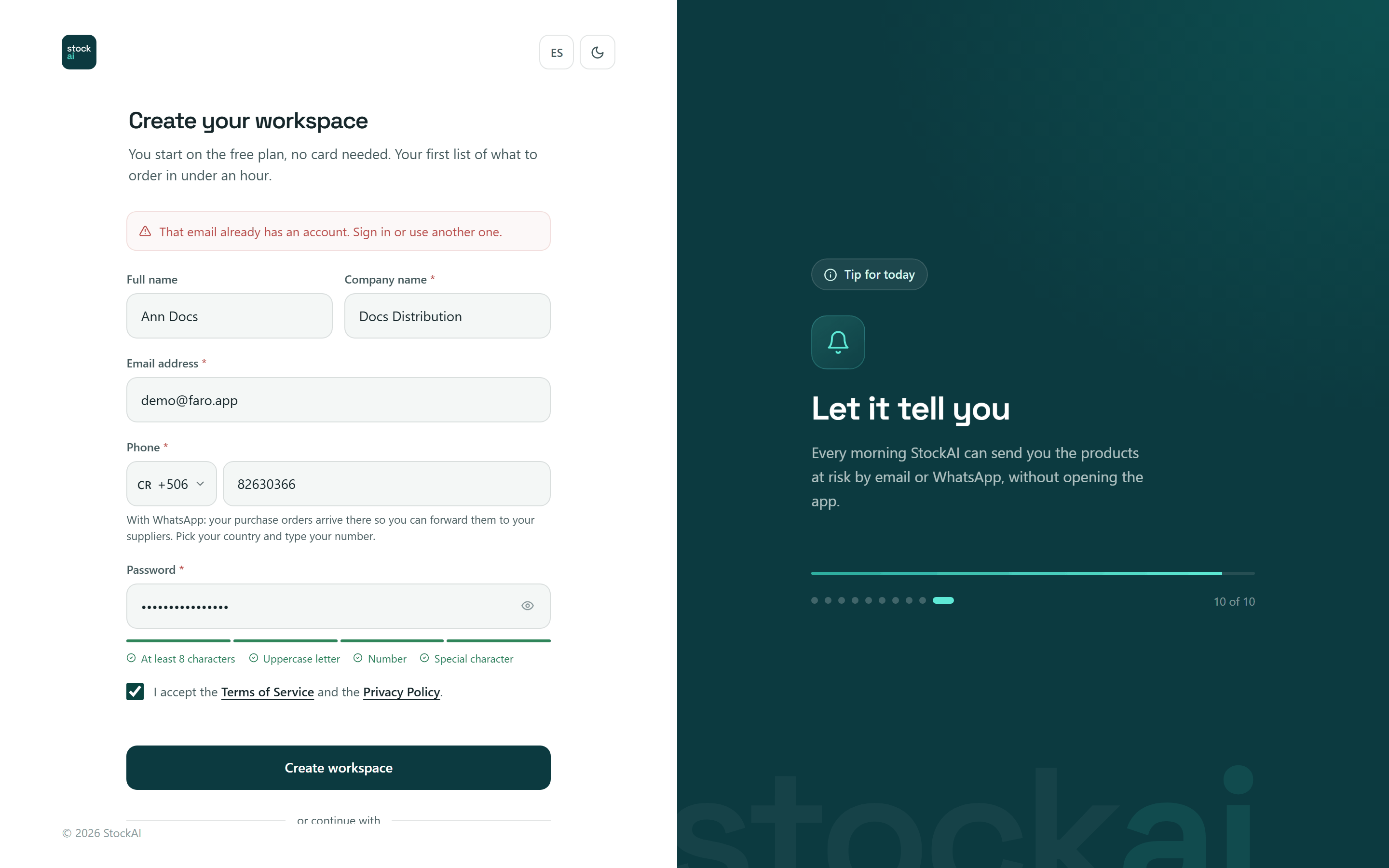
Verifying your email
Once the account is created you see one of two screens:
- «Check your email»
- The verification email went to the address you typed. Open it and click the link. Check your spam folder too.
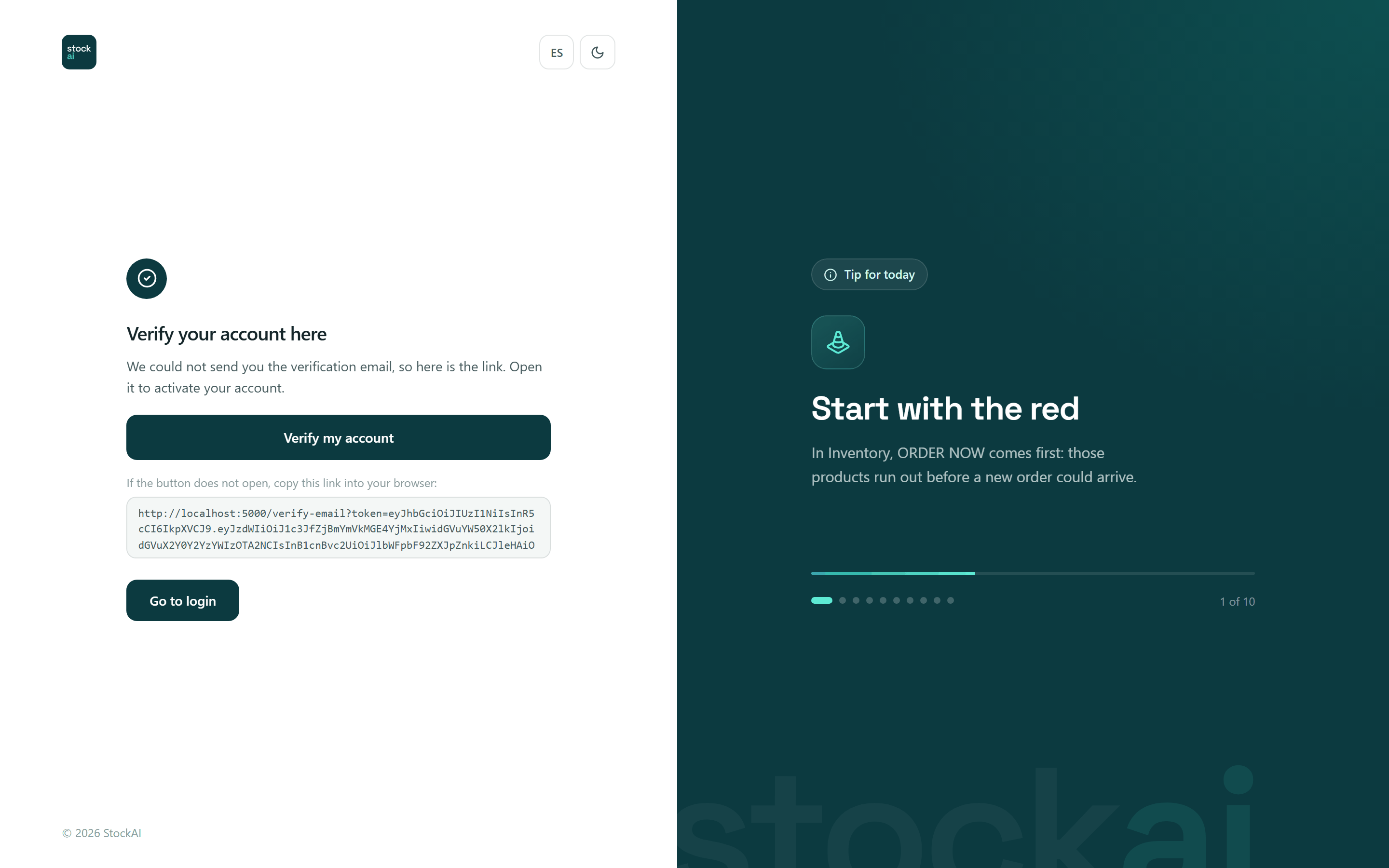
- «Verify your account here»
- The email could NOT be sent (for example, the installation has no email service configured). Instead of sending you to look for an email that will never come, the screen gives you the «Verify my account» button and, below it, the full link to copy if the button does not open.
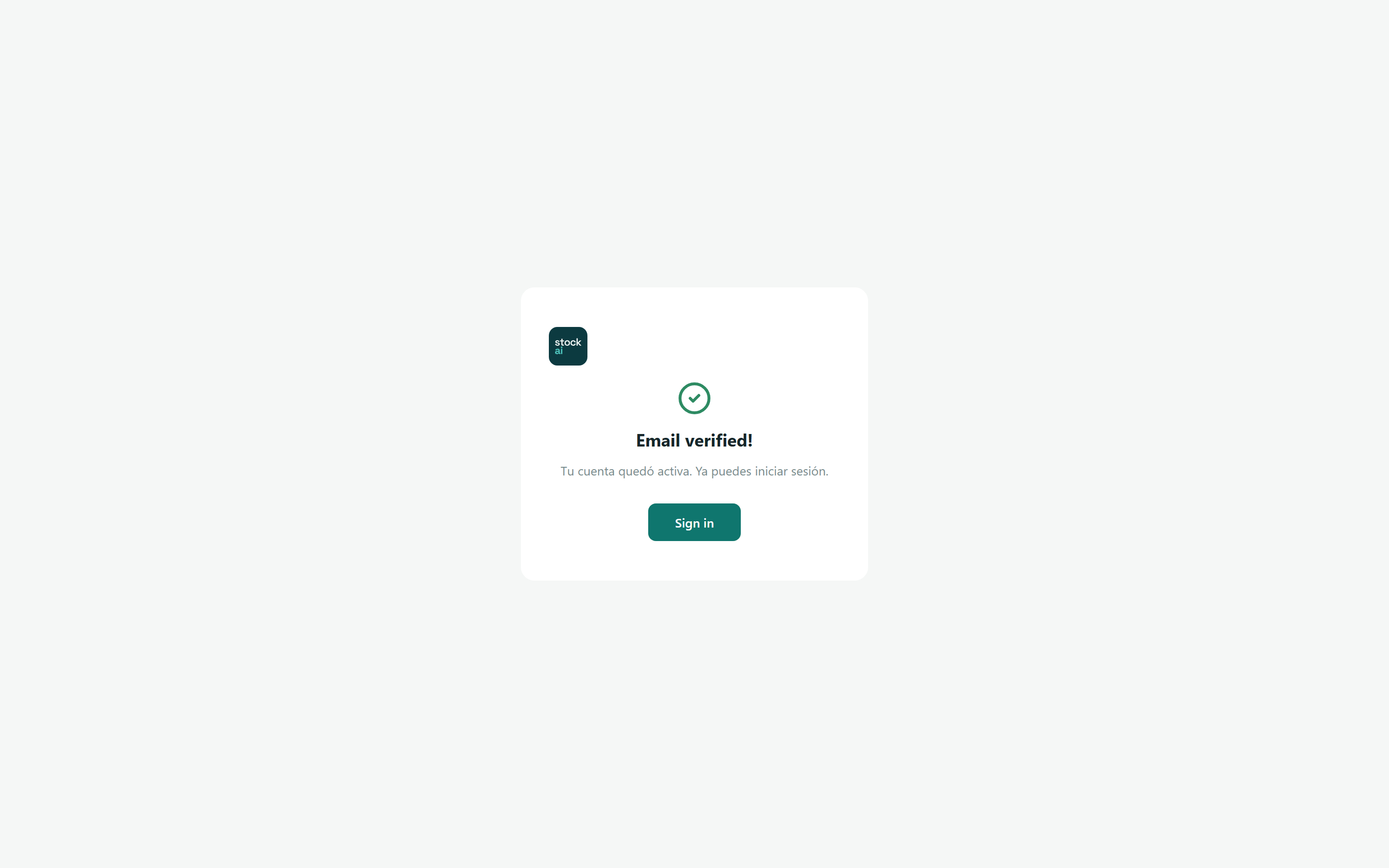
The link opens the verification screen, which reads «Verifying your email…» and a moment later «Email verified!» with a «Sign in» button. The link is valid for 24 hours.
If the link expired or does not work
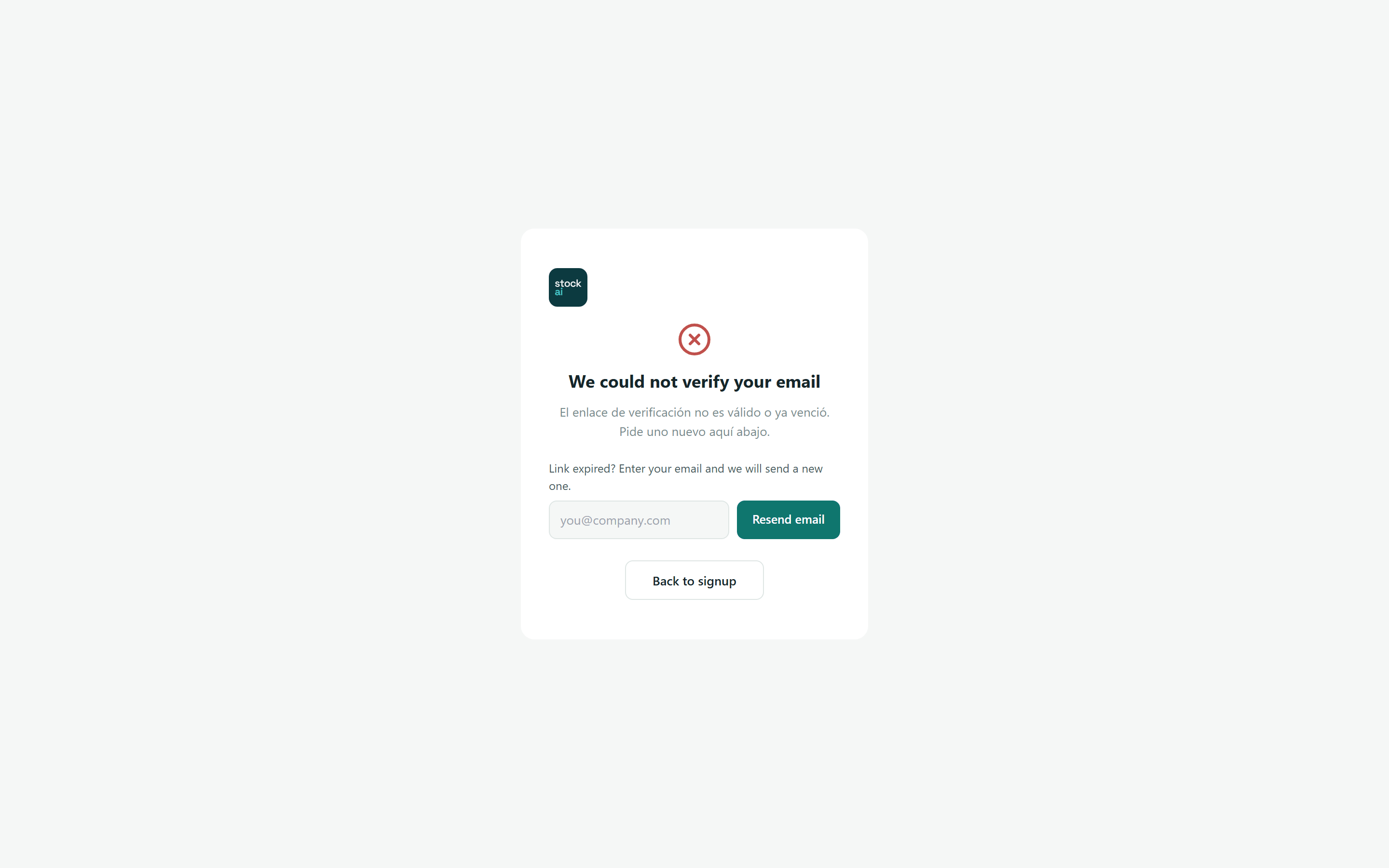
An expired, truncated or token-less link shows «We could not verify your email». The same screen carries the way out: type your email under «Link expired? Enter your email and we will send a new one.» and press «Resend email». The answer is always the same whether or not the account exists («If the account exists and still needs verifying, we just sent the link…»), so nobody can find out which emails are registered. You can ask for up to 3 resends every 15 minutes. «Back to signup» returns to the form.
If you forgot your password
On Sign in press «Forgot password?». A 6-digit code reaches your email; it expires in 15 minutes and stops working after 5 wrong tries, and with it you set a new password. For security, the screen does not tell you whether that email has an account. The step by step is in Recover your password.
Try without signing up
If you only want to look before creating your company, press «Try it without signing up» on the home page. StockAI instantly creates a trial account with a username and password generated for you, with no email and no card. On entering it loads a sample sales history and analyses it: within a couple of minutes you see what to order and how much.
- It lasts 24 hours. When it ends, the account and everything you did in it are erased.
- The username and password cannot be recovered: copy them and tick «I saved them» before pressing «Enter the demo».
- It has small ceilings (30 products, for example) and sends no email or WhatsApp to anyone.
- From one connection you can create up to 3 a day.
- It does not turn into a regular account by itself: to stay, create your account on this screen or press «Write to us» in the «Trial account» strip.
Full detail in Try without signing up.
Next
Sign in (Sign in) and continue with Upload your sales. To add teammates, go to Users.