My account: profile, security, WhatsApp and company settings
Your profile, your password and two-step verification, your WhatsApp, and — on the right — plan usage, currency, exchange rates, time zone and the account's activity log.
On this page
Open My account from Settings → Your account. On a computer the screen has two columns: on the left what is yours (profile, appearance, security, WhatsApp, team messages, legal), on the right what belongs to the company (usage and limits, calculation, currency, exchange rates, time zone). Below come a note on how StockAI calculates and the activity log. On a phone the same sections are a grouped list; tap one to open it.
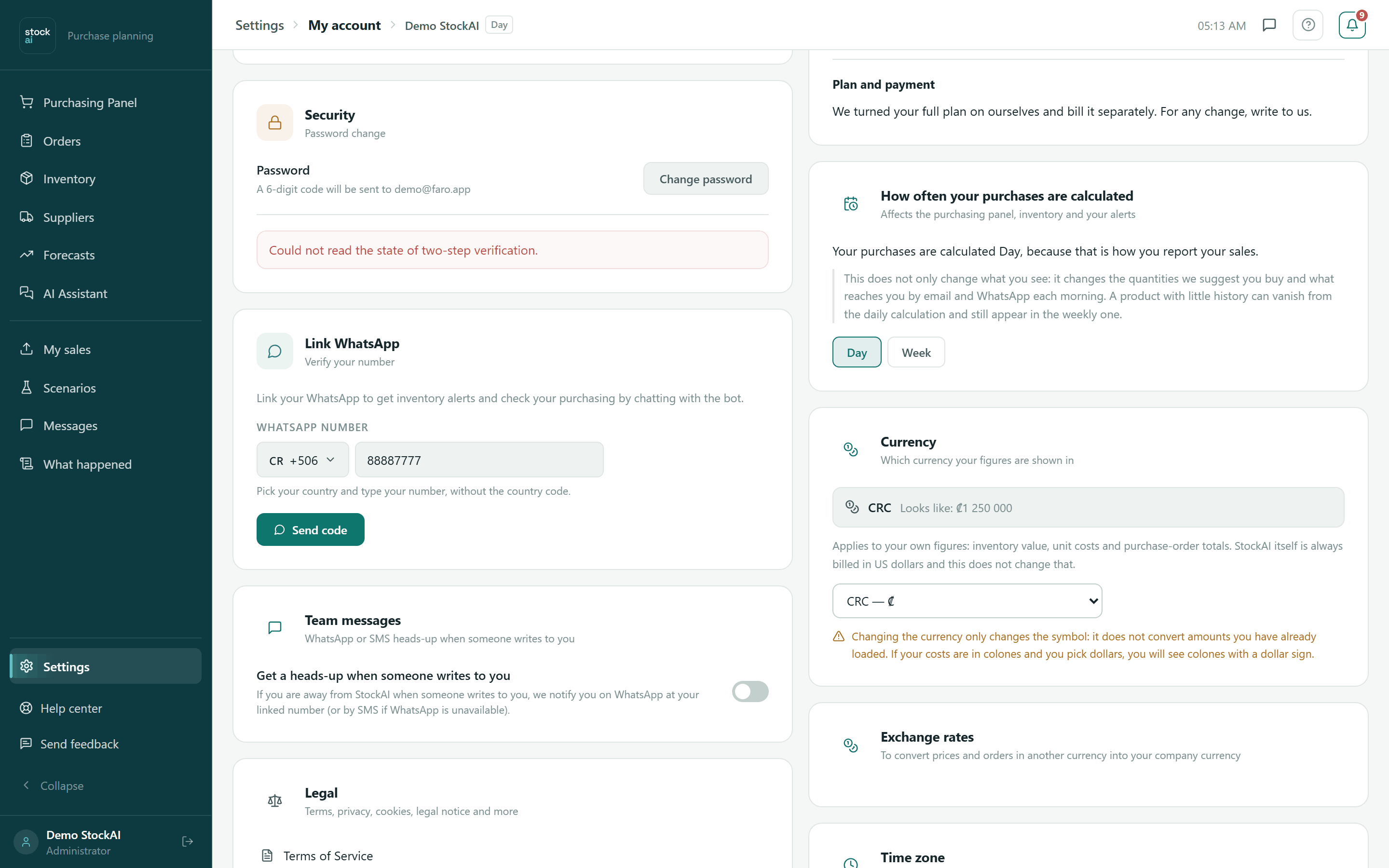
User Profile
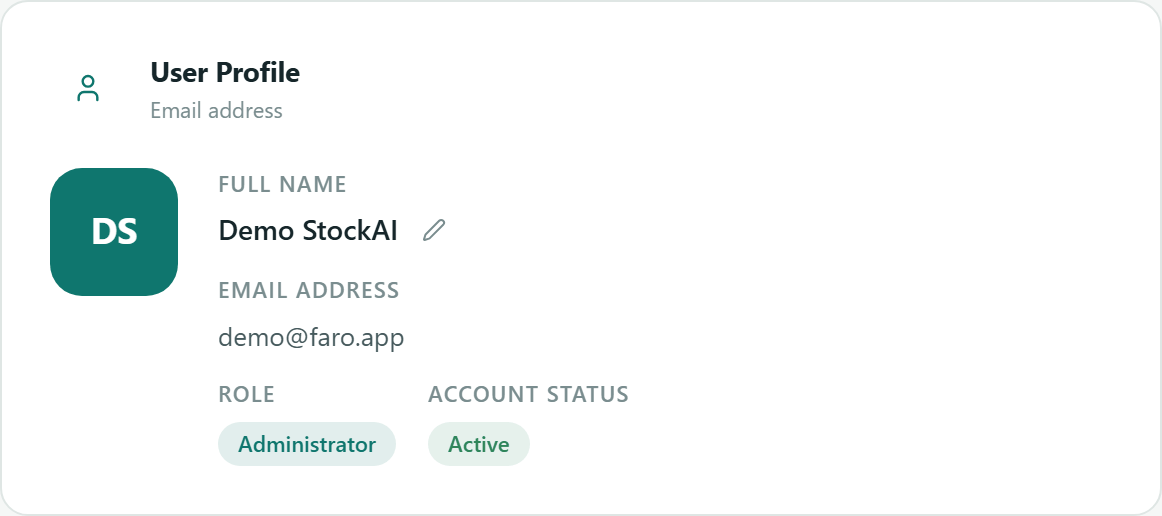
- Full name
- The one thing you change here. Press the pencil next to the name, type and save. The new name shows at once in the sidebar and in the Purchasing panel greeting.
- Email address
- Read only. An administrator changes it from Users, and the new address must be verified.
- Role
- Administrator, Analyst or Read only. An administrator changes it.
- Account status
- Active, Pending, Inactive or Suspended.
App Settings: language and theme
Language (Español / English) and Theme (Dark / Light). They are stored on your user, so they follow you to another browser. They only affect you.
Security
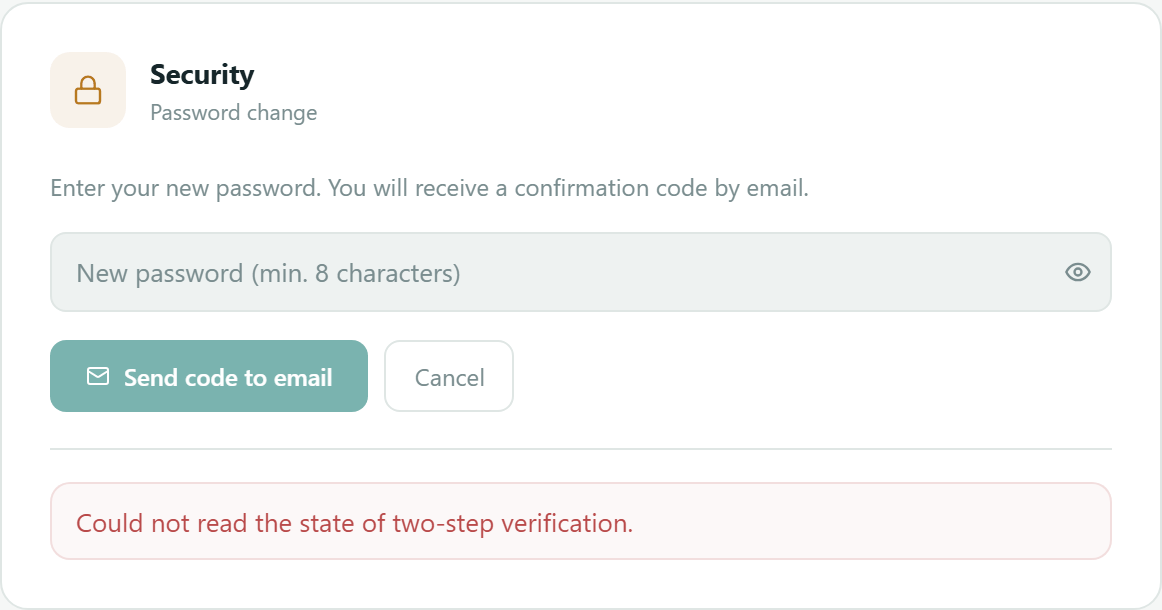
Change your password
- In Security, press "Change password".
- Type the new password (at least 8 characters). The eye shows or hides it.
- Press "Send code to email". A 6-digit code reaches your account's email.
- Type the code and press confirm. If you mistyped the password, go back to the previous step.
- You will see that the password was updated and the card returns to its first state.
Two-step verification
Below the password is two-step verification with an authenticator app. With "Turn on" you scan the QR code with your app, confirm with a code and keep the recovery codes (they help if you lose your phone). Once on, "Turn off" and "New recovery codes" ask for a code from your app (the old codes stop working).
An administrator also sees "Require it for the whole organization": anyone signing in with a password will have to set it up (people who sign in with Google, Microsoft or their company provider follow that provider's rules). To turn it on you must have it on your own account first, and turning it on signs out the people who had not set it up so they do it at their next sign-in. The administrator can also "Reset" it for a colleague who lost their phone: they lose the registered app and are signed out.
If the installation offers sign-in with Google, Microsoft or Apple, this card also lists your linked accounts, each with an option to unlink it.
Link WhatsApp
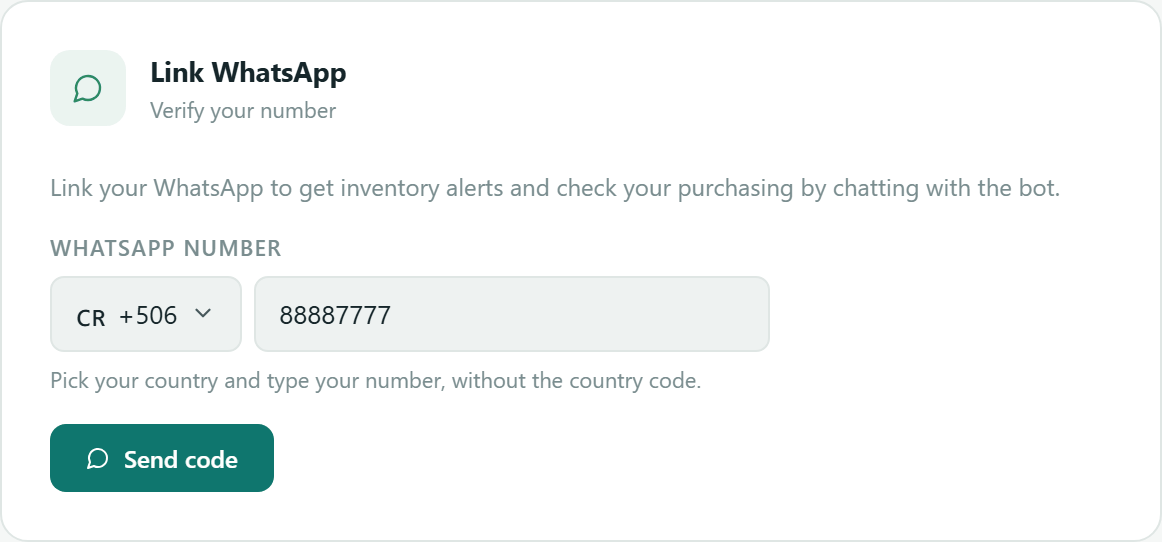
With your number linked you get inventory alerts over WhatsApp and can check your purchasing by chatting with the bot (the bot comes with the Pro and Max plans).
- Pick your country in the selector (the flag and prefix, for example +506).
- Type your number without the country code.
- Press "Send code". A 6-digit code arrives over WhatsApp.
- Type the Verification code and press "Confirm". The card turns into "WhatsApp linked" with a "Verified" badge.
- Resend code
- Enabled after a wait ("Resend in Ns"). If you ask too soon, the screen tells you how many seconds are left.
- Change number
- Back to the form to link another number.
- Unlink
- Removes the number: alerts stop and the bot no longer recognises you.
Team messages
The "Get a heads-up when someone writes to you" switch: if someone writes to you in Messages while you are away from StockAI, we notify you on WhatsApp at your linked number (or by SMS if WhatsApp is unavailable). It needs a linked number above; without one the card asks for it.
Legal
Links to the Terms of Service, Privacy Policy, Cookie Policy, Legal notice and All documents.
Usage and limits
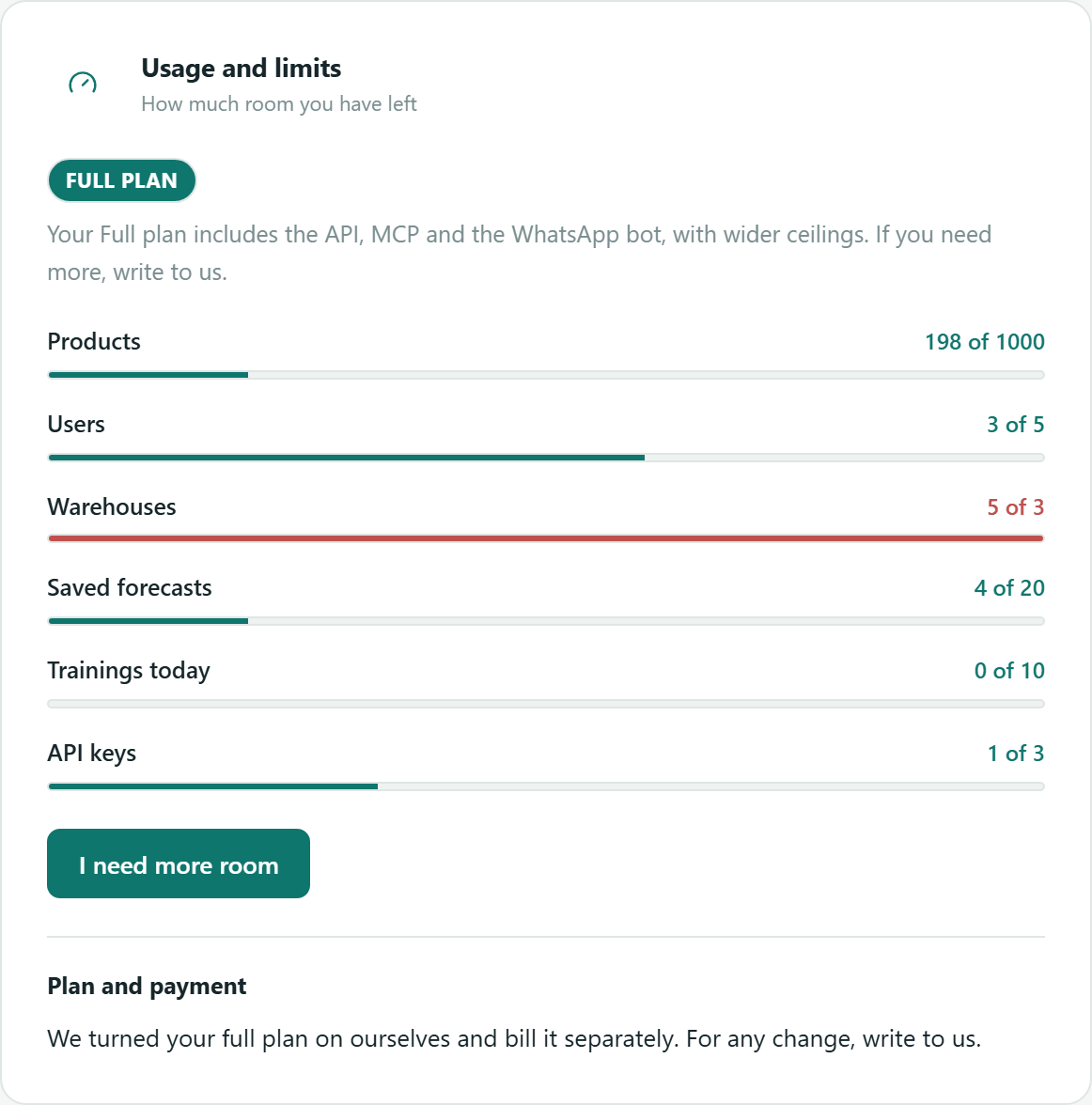
How much room your plan has left. At the top go the plan label and a sentence on what it includes; below, one bar per ceiling with current use and the maximum ("198 of 1000"). A red bar means you are at or over that ceiling.
- Products, Users, Warehouses
- How many you have against how many the plan allows.
- Saved forecasts
- Active sessions (archived ones do not count).
- Trainings today
- How many trainings you started today against the daily maximum.
- API keys
- How many active keys you have (only on plans with the API).
- I need more room
- Opens the dialog to write to us (see Billing).
- Plan and payment
- The same information as Billing: which plan you are on and how it is paid.
How often your purchases are calculated
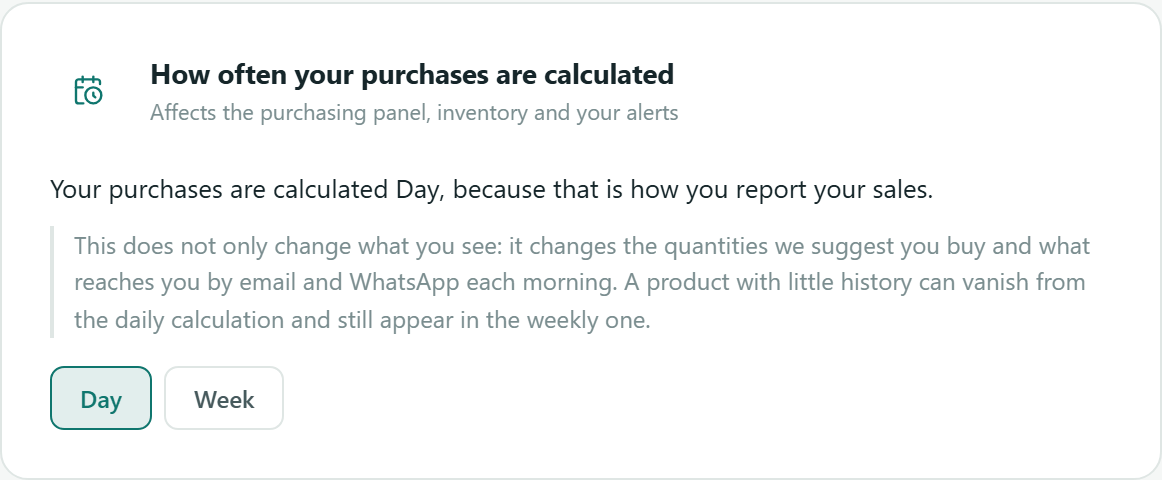
If your data supports both daily and weekly calculation, you choose here. The card explains why it is on the current option (for example, because that is how you report your sales). If your data only supports one option, the card does not appear.
Currency
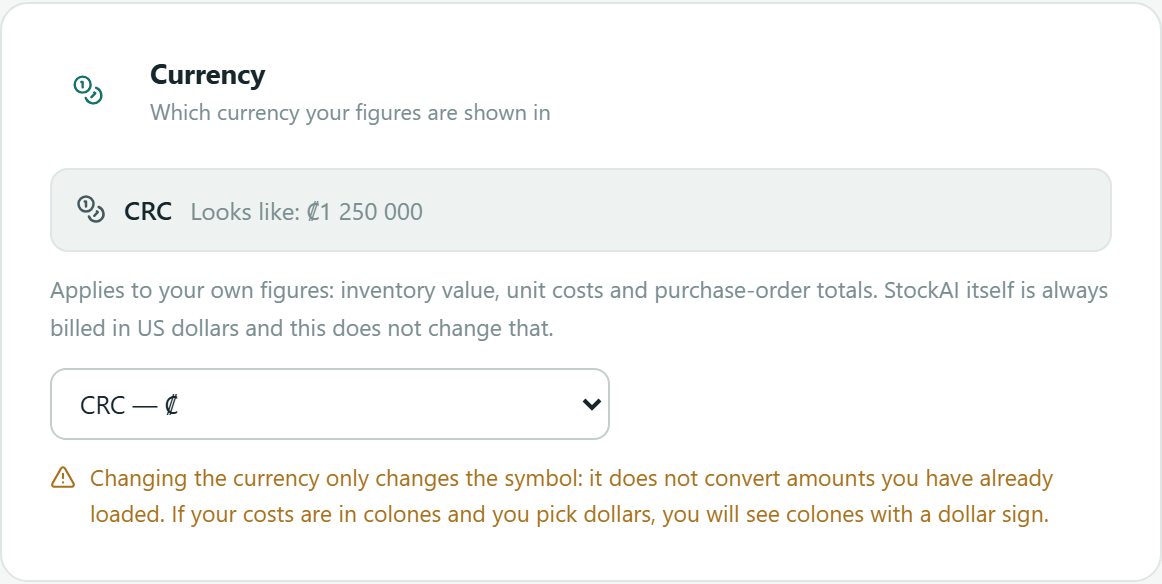
Which currency your own figures are shown in: inventory value, unit costs and purchase-order totals. The card shows how an amount looks ("Looks like: ₡1 250 000"). Only an administrator changes it, picking from the list (CRC, USD, MXN, GTQ, COP, PAB, HNL, NIO, DOP, PEN, CLP, ARS, EUR).
Exchange rates
To convert a supplier's prices and orders in another currency into your company currency. An administrator enters the rates (StockAI does not look them up): currency, Rate (1 unit in your currency), Effective from and an optional Source ("E.g. Central bank, October 5"), then "Add rate". Each rate shows its state: In use, Not in effect yet or Superseded, and can be corrected or deleted.
- The latest rate that is not after the order date is used.
- The order keeps the rate it used: a new rate never changes an order already placed.
- With no rate, a line in another currency is not converted (never valued at 1): it is left out of totals and a hard budget will not let it through.
Time zone
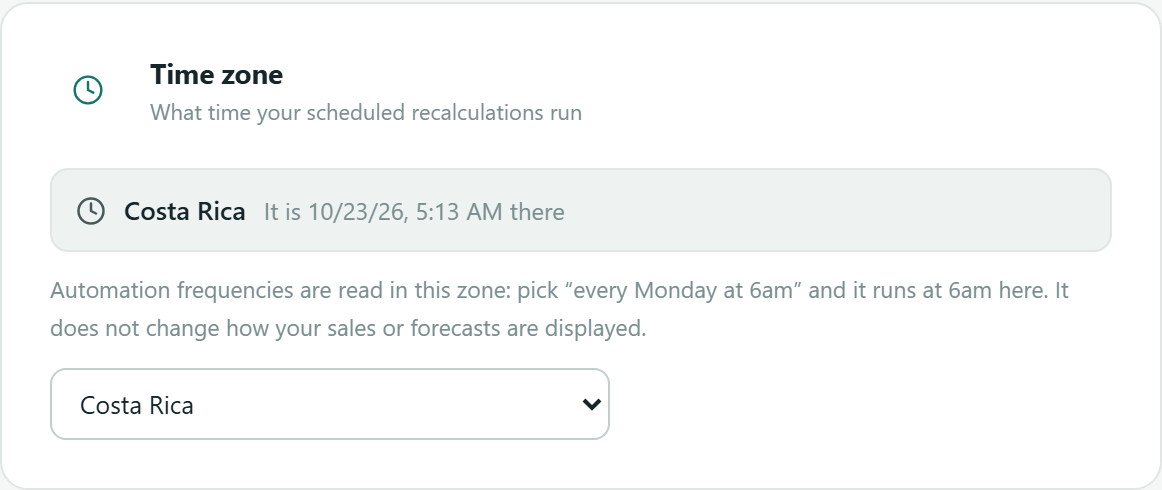
What time your scheduled recalculations run. The card shows the current time in the chosen zone. The frequencies in Automation are read in this zone: "every Monday at 6am" runs at 6am here. It does not change how your sales or forecasts are shown. Only an administrator changes it.
Activity Logs
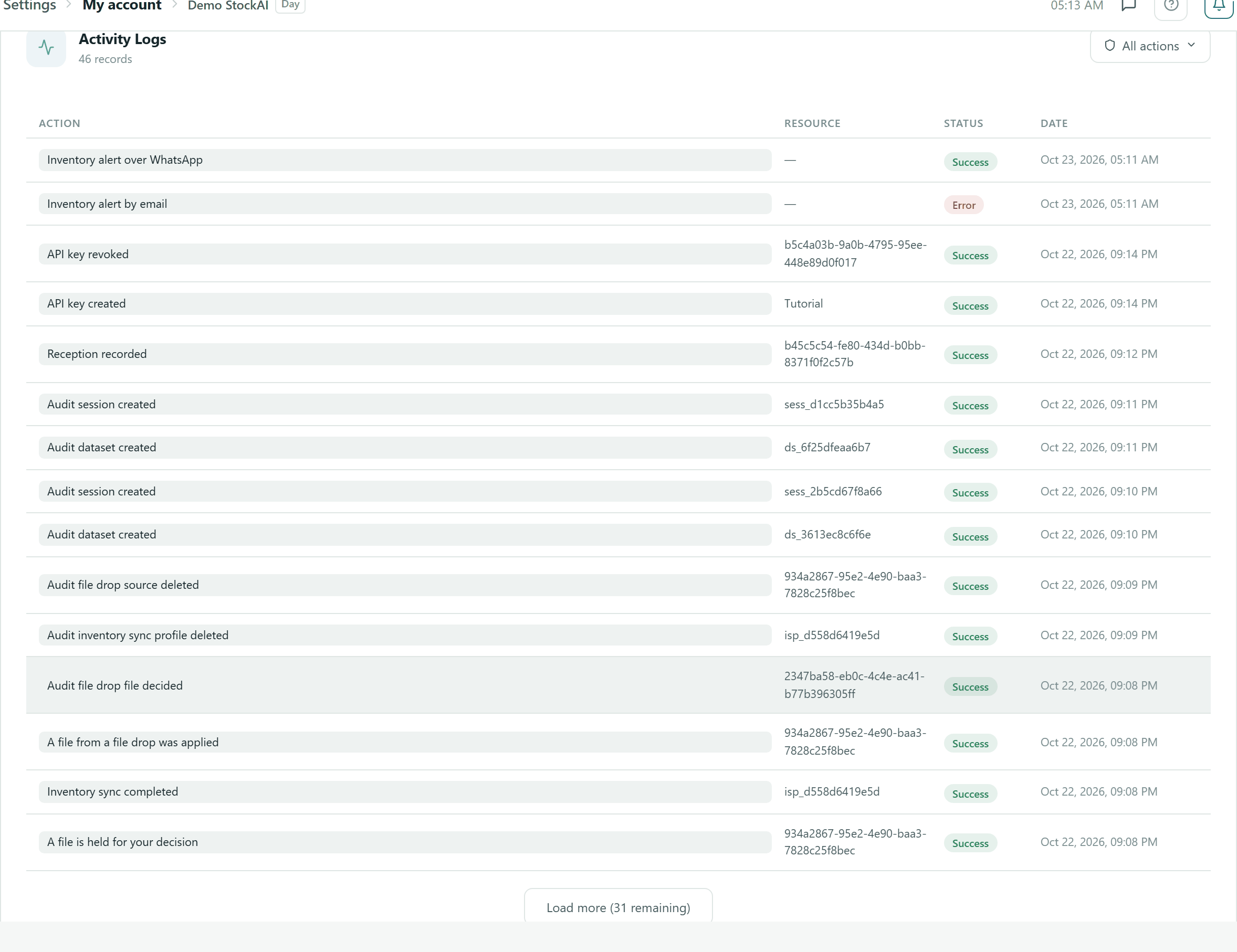
At the foot of the screen, the list of the account's actions: Action, Resource (the object's identifier), Status (Success or failure) and Date. The "All actions" filter narrows the list to one kind of action, and "Load more" brings the next 15. For the full history with who made each change, use the Audit trail tab of What happened.