Upload your sales
Which file you need, how the columns are confirmed, which questions the data check may ask, and how much history a product needs to get a forecast.
On this page
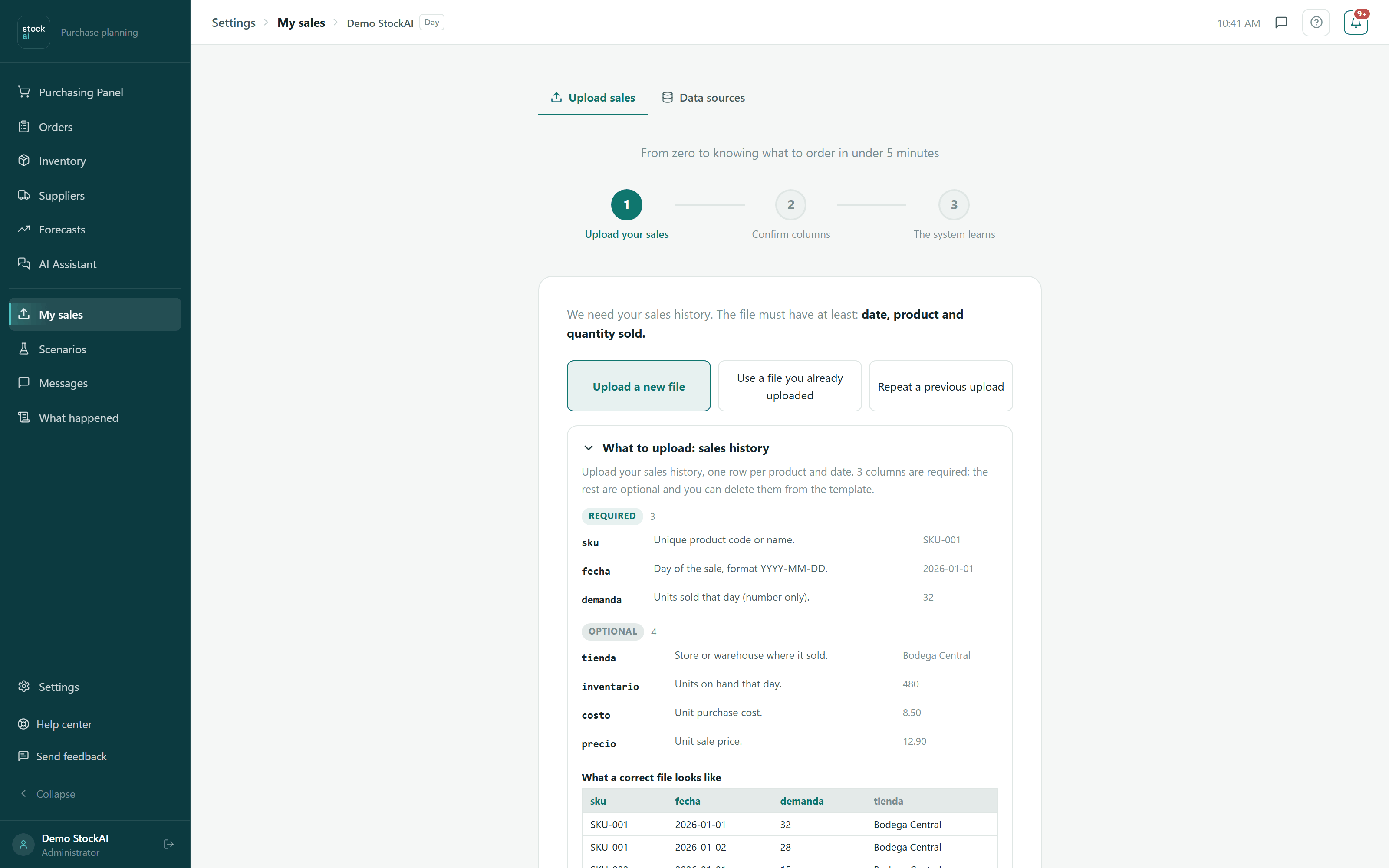
Everything in StockAI comes from your sales history. You upload it under My sales, in three steps shown at the top of the screen: "Upload your sales", "Confirm columns" and "The system learns".
The file
We accept CSV and Excel (.xlsx, .xls). At minimum it needs three columns: date, product and quantity sold, one row per product and date (or per sale: StockAI will ask how to combine them).
- Quantity sold is in units, not money.
- Dates are best as year-month-day (
2024-01-15). If your file uses15/01/2024or01/15/2024, we ask how to read them whenever it cannot be told. - Optional columns that help: the day's inventory, store or warehouse, cost and price. With an inventory column, a day with no sales can be told apart from a day with nothing on the shelf.
- The maximum size of each file depends on your account's ceilings. See Plans and limits.
If you are not sure how to build it, download the CSV template. It carries the columns StockAI recognises on its own — sku, fecha, demanda, tienda, inventario, costo, precio (Spanish headers: date, demand, store, inventory, cost, price) — with sample rows. It is also on the screen, under ⬇ Download sample CSV template.
Step 1: the plan and the file
Before dropping the file you fill in four fields:
- Give it a name (optional)
- So you can recognise this update later in History.
- How far ahead do you want to plan?
- 4 weeks, 8 weeks or 6 months.
- Plan detail level
- Auto (recommended), Daily, Weekly or Monthly. On Auto, StockAI picks from the shape of your file. See Granularity.
- Which country do you sell in?
- Whose public holiday calendar the model learns from: Costa Rica (the starting value), Colombia, Mexico, Peru, Chile, Argentina, Ecuador, Guatemala, Panama, Dominican Republic, Spain or the United States. Change it before uploading if you do not sell in Costa Rica.
Drag the file onto the dashed box or click to browse. For a CSV, StockAI checks it on your own computer before uploading and lists the problems with their row number.
If you have uploaded before, two more tabs appear: Use a file you already uploaded (no need to upload it again) and Repeat a previous upload, which reuses the same file and the same columns; you only change the horizon or the detail level.
Step 2: confirm the columns
StockAI proposes which column is which and asks you to confirm: the date column, the quantity-sold column, and whether you have a product / SKU column. Below, a "Preview of your data:" lets you check we read what you thought.
The data-check questions
If the file holds something that would change the forecast without saying so, the block "There is something you have to decide first" appears, with one question per finding. Each option states what it does and what it costs you if you are wrong, and the continue button stays off until you answer them all. Some real examples:
- "We cannot tell whether your dates are day/month or month/day"
- "We cannot tell whether the comma separates thousands or decimals"
- Several rows for the same product on the same day — add them up or keep the last one.
- "There are negative quantities" — net them as returns, read them as 0, or drop them.
- Quantities that look cumulative rather than sold per period.
- A quantity column that looks like money rather than units.
The option marked "recommended" is only a suggestion: only you know how your system exports. There is also a "You can adjust this if you want" block, which does not stop you from continuing.
If the file has a problem with no possible fix (for example, no column can be read as a date), there is no way to continue anyway: fix the column mapping or upload a different file. See File rejected.
Step 3: the system learns
Pressing This looks good, continue → starts training. A bar moves through stages (checking your data quality, learning from your history, measuring how accurate it turned out) and it can take several minutes depending on the file size. Do not close the tab. As soon as the daily view is ready we take you to the stock signal; the rest keeps computing in the background.
How much history you need
A product needs at least 20 periods of history to enter the forecast. Those that fall short do not show up with a bad forecast: they are simply left out of the run and get no signal. With about 6 months of history the purchase suggestion becomes noticeably more reliable.
No file at hand yet?
Press ▶ Try with sample data on My sales (or Try it with demo data on the empty Purchasing Panel). We load made-up sales for 5 products, with stock and suppliers, and take you straight to the stock signal. It does not touch your data: when you have your real file, upload it right here.
Next step: Set up your inventory.