Scenario simulation
What if you sell more, a supplier is late, or you raise safety stock? Build rules, simulate, and compare against your current plan in money, units and urgent products, without touching your inventory.
Scenarios recalculates your purchasing under assumptions you set and puts it next to the current plan. Nothing you do here touches your inventory or your orders: it is a simulation.
At the top right, “Forecast session” picks the finished run to simulate on. With none, the screen says “You need a finished forecast before you can simulate scenarios.” with a button to upload your sales. The screen has three columns: the rules, the result and the saved scenarios.
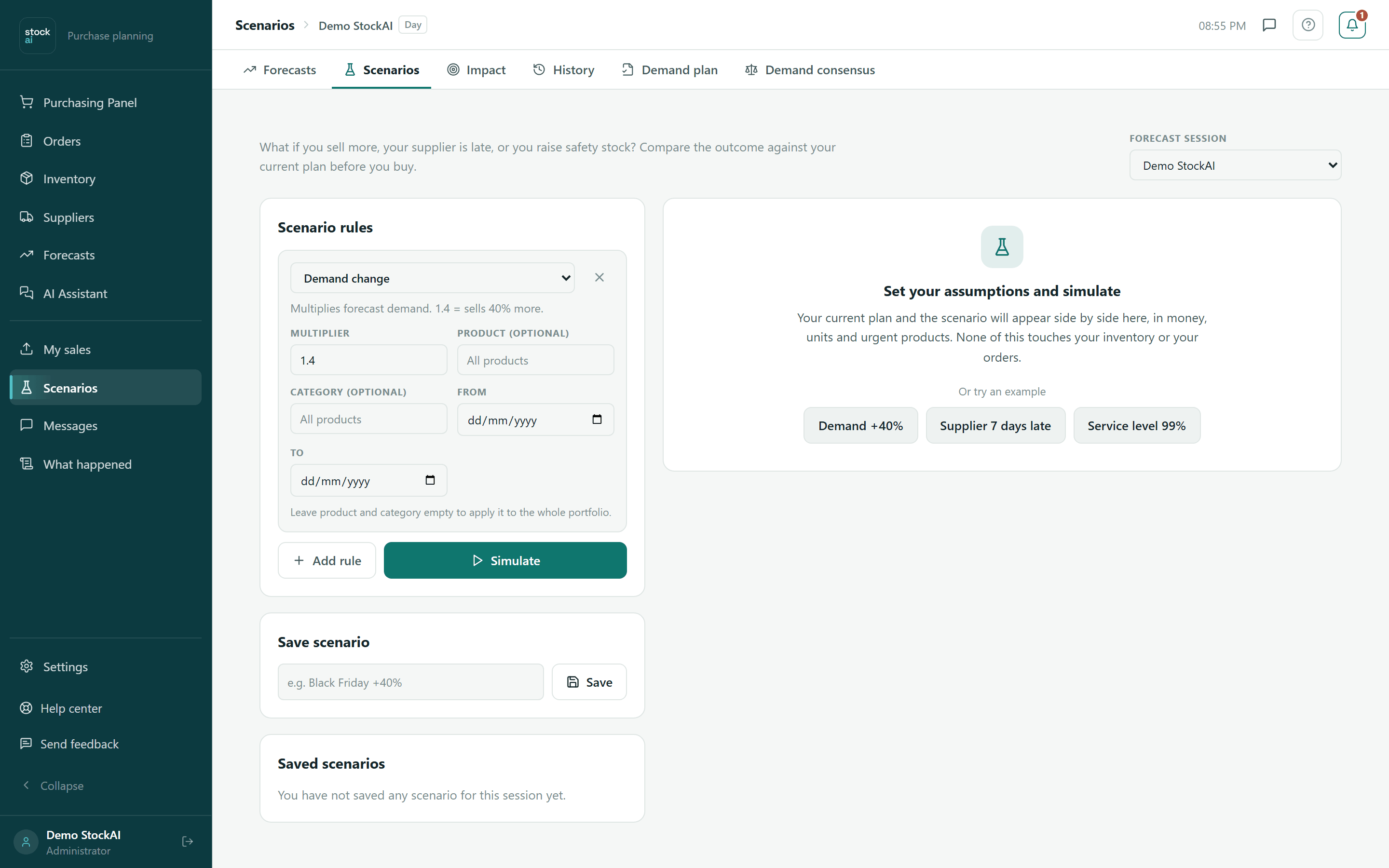
Scenario rules
Each rule is a card with its Rule type, a help line and its fields. When the screen opens there is already a Demand change rule with multiplier 1.4. The card’s X (Remove rule) deletes it; “Add rule” adds another. You can combine several.
| Rule type | What it does | Fields |
|---|---|---|
| Demand change | Multiplies forecast demand. 1.4 = sells 40% more. | Multiplier (0.01 to 10), Product (optional) or Category (optional), From and To. |
| Promotion | Same as a demand change, but limited to the promotion dates. | The same as Demand change; here the dates matter. Starts at 1.5. |
| Supplier delay | Adds days to the lead time. Longer lead time = more urgency. | Extra days (0 to 365, starts at 7) and Supplier (optional). |
| Safety stock | Recomputes at a different service level. Higher level = bigger cushion. | Safety against running out: 90%, 95%, 97% or 99% (starts at 99%). |
Product and category exclude each other: typing one clears the other. Leave both empty to apply the rule to the whole portfolio (“All products”).
Simulate
- Pick the Forecast session.
- Adjust the rule that is already there, or change its type, and add the ones you need.
- Click “Simulate”. While it calculates it says “Simulating…”.
- Read the result. If you change something, click “Simulate again”.
Shortcut: before the first simulation, the middle panel offers “Or try an example” with three buttons that load the rule and simulate in one go: Demand +40%, Supplier 7 days late and Service level 99%.
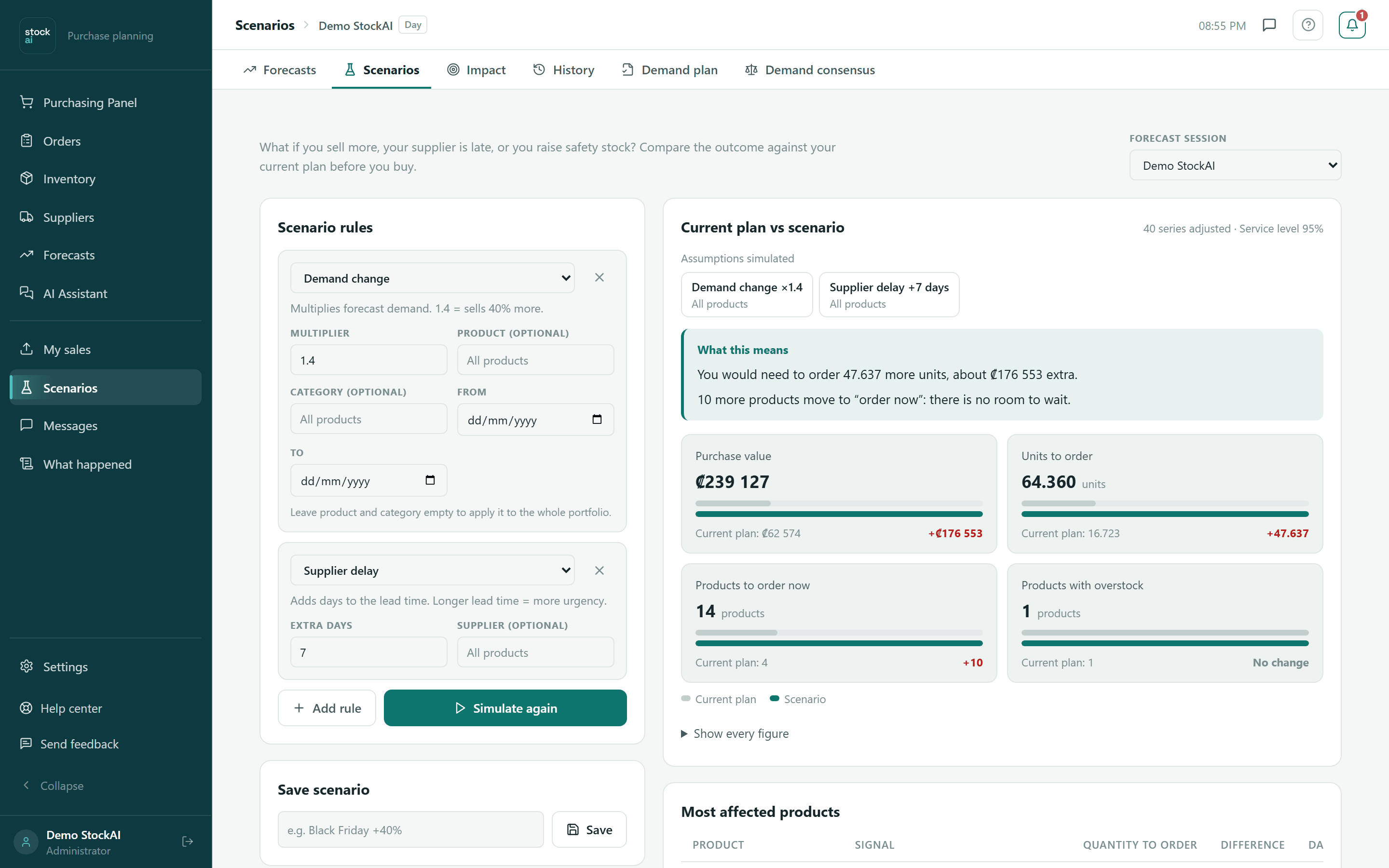
Reading the result
- Current plan vs scenario
- The header says how many series were adjusted and at what service level it was calculated.
- Assumptions simulated
- One chip per rule: type, value (×1.4, +7 days, 99%) and what it applied to.
- What this means
- The result in sentences: how many units and how much money more or less you would order, how many products move to “order now” or stop being urgent, and how many more or fewer would be overstocked. If nothing changes: “your current plan holds up”. If the session has no inventory loaded it says so: without stock there are no purchases to compare.
- Purchase value, Units to order, Products to order now, Products with overstock
- Four indicators with the scenario figure, two bars on the same scale (grey the current plan, colour the scenario) and the difference, or “No change”.
- Show every figure
- Expands the full table with Current plan, Scenario and Difference for each metric.
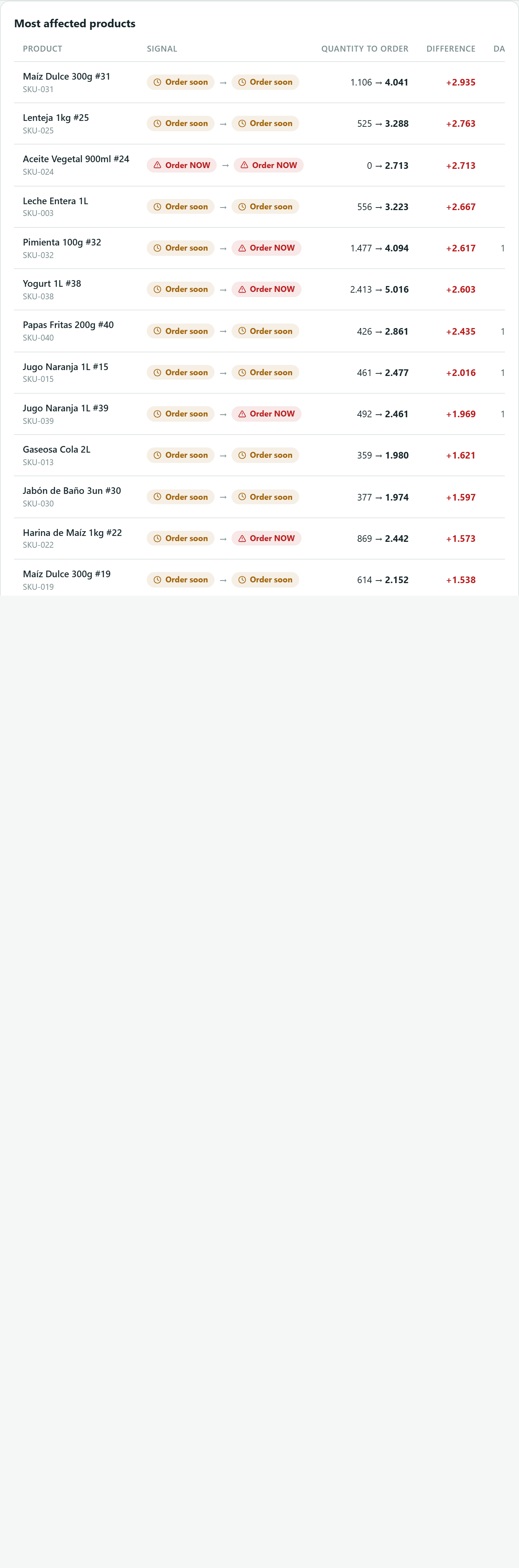
“Most affected products” lists, per product: the Signal under the scenario, Quantity to order, Difference against the plan, Daily demand and Lead time (days). If the scenario changes no purchase: “This scenario changes no purchasing decision.”
Save, load and delete scenarios
- In “Save scenario” type a name (for example “Black Friday +40%”). Without a name the screen asks “Give the scenario a name to save it.”
- Click “Save”. You will see “Scenario saved” and it appears under “Saved scenarios” with its number of rules.
- Later, click “Load”: its rules and name are put back and it is simulated again on the current forecast.
- The trash can (Delete) removes it from the list; for a few seconds you can click Undo on the notice.
Related
- Safety stock and Reorder point: what the safety stock and delay rules change.
- Stock signals: the result’s Signal column.
- Purchasing panel: where you actually buy.