Your first purchase order
From the stock signal to goods on the shelf: approve lines, save the order, send it to the supplier and log the arrival.
On this page
A purchase order in StockAI goes through four moments. The last two are the ones people forget, and they are the ones that make StockAI learn.
1. Approve on the Purchasing Panel
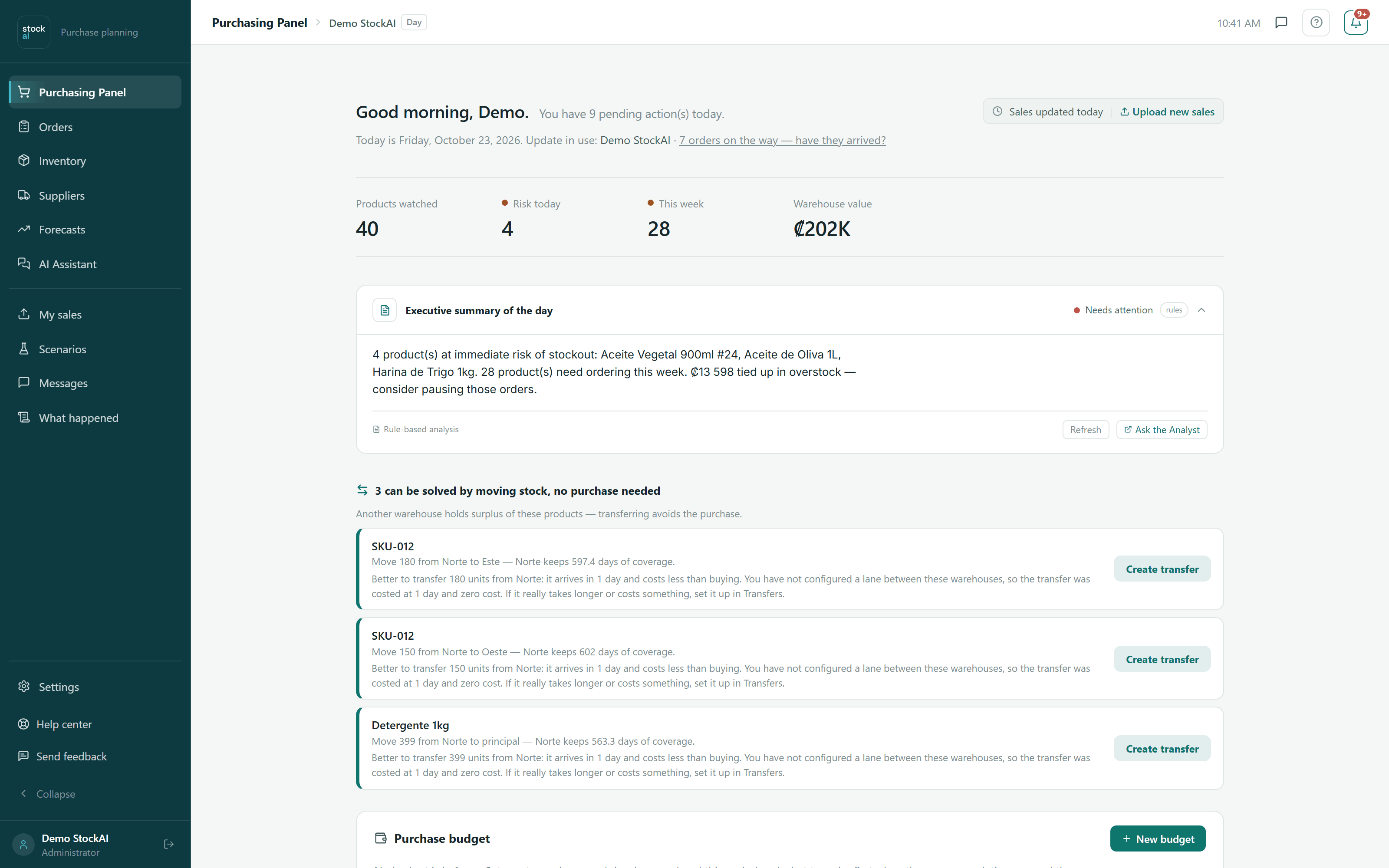
Open the Purchasing Panel. "Urgent — act today" lists the products on Order NOW and "This week" those on Order soon. Each card carries the suggested quantity and the supplier.
- Why? opens the breakdown: cover, demand, lead time, service level, stock and reorder point. Values tagged "estimated" are StockAI's assumptions, not your data.
- Click the quantity to change it, or change the supplier in the list: the line is marked as modified.
- Press Approve on what you will order and Reject on what you will not.
When you approve the first line, the order bar appears at the bottom with the approved products and the total. With two or more warehouses, pick the destination under Deliver to. On a phone each card's button is Add to the order, the order is checked with Review the order and saved with Generate.
2. Save the order
Press Download purchase order. While it saves, the button reads "Saving the order…" and does not accept a second tap. When it is done you see "Order … saved" with a View orders link: the order is recorded under Orders, its products already count as on their way, and the file downloads in case you want to send it yourself.
With the Read-only role you see the recommendations but cannot approve them: "Your role cannot generate orders" appears instead.
3. Send it to the supplier
Right after saving, "Purchase order generated" appears with a Send to suppliers now button: StockAI sends the order by email or WhatsApp to every supplier with those details on their card. Those without them are skipped and named; you can also send it later from Orders, or forward it yourself with the copy-message button.
Sending from StockAI requires a verified email.
4. Log the arrival
When the goods arrive, open Orders and press Log arrival on the order:
- Everything arrived if the whole order came in.
- Save quantities if part of it came: type what arrived of each product, and the order stays "Partial" until you log the rest.
Logging the arrival raises your stock and teaches StockAI how long each supplier really takes: from a supplier's third complete reception, that real time replaces the one you configured. See Learned lead time.
Paying it, cancelling it or undoing a reception also happens under Orders. Full detail in Orders.